If you want to Install GIMP on Ubuntu 26.04, the good news is that the process is simple once you choose the right package source. Ubuntu 26.04 LTS ships GIMP 3.2.x through its standard repositories, so most users can get a clean install without extra PPAs or risky workarounds.
This guide walks you through the safest ways to set up GIMP on a fresh or upgraded Ubuntu desktop. I will also explain why each step matters, so you understand the system behavior instead of just copying commands.
GIMP is a strong choice for Linux users who need a free image editor for screenshots, mockups, photo cleanup, and design work. If you are also working on a Linux server tutorial or planning a GIMP Fedora 44 setup later, the package management concepts here will still help because the logic behind version checks, repository trust, and update flow is the same.
Prerequisites
- Ubuntu 26.04 LTS installed on a desktop or a system with a graphical interface.
- Sudo access so you can install packages and refresh system repositories.
- Internet access to download GIMP and its dependencies.
- At least a few hundred MB of free disk space for GIMP and supporting libraries.
- A terminal app such as GNOME Terminal.
These requirements matter because package installs touch system directories, update package lists, and pull files from online repositories. If any of those parts fail, the install will fail too.
Step 1: Update Your System
The first thing you should do is refresh Ubuntu before you install anything new. This reduces package conflicts and makes sure you are installing against the latest repository data.
Run a full package refresh
sudo apt update
sudo apt upgrade -y
apt update downloads the latest package index from Ubuntu’s repositories. apt upgrade then updates the packages already installed on your system.
Why this matters: if your package lists are stale, Ubuntu may try to install older metadata or hit dependency errors. A clean update also lowers the chance of GIMP failing because of mismatched libraries.
Confirm your system is ready
lsb_release -aExpected output includes Ubuntu 26.04 LTS and the codename for the release. This check is useful because version-specific package availability depends on the release you are actually running.
Step 2: Check Your GIMP Source
Ubuntu 26.04 gives you several ways to install GIMP. The safest default for most users is the standard APT repository because Ubuntu 26.04 ships GIMP 3.2.x in Universe.
Inspect the available package version
apt-cache policy gimpThis command shows the installed version, candidate version, and repository source. You want to see Ubuntu 26.04 Universe as the origin, because that tells you the package comes from the distro-maintained repository.
Why this matters: it confirms you are not pulling a random package from an unknown source. That is important for trust, stability, and repeatable installs on workstations or shared systems.
Step 3: Install GIMP with APT
For most Ubuntu users, APT is the best choice. It is simple, stable, and well integrated into the operating system.
Install the package
sudo apt install gimp -yThis installs the main GIMP application and the libraries it depends on. The -y flag accepts the prompt automatically, which is useful when you already know you want the package.
Why this matters: APT installs the software in a system-wide way, so your desktop launcher, terminal, and file associations can all see it. That makes it easy to manage on a normal Ubuntu desktop.
Verify the installed version
gimp --versionExpected output should show GIMP 3.2.x on Ubuntu 26.04.
Why this matters: version checks confirm that the binary is installed correctly and available in your PATH. If the command does not work, the install may have failed or your shell may not be reading the right environment.
Optional extra assets
sudo apt install gimp-data-extras -yThis adds extra brushes, patterns, and resources. It is useful if you want more creative options without hunting for add-ons later.
Why this matters: extra assets give you a better out-of-the-box editing experience. For beginners, it reduces the need to manually build a creative toolkit one plugin at a time.
Step 4: Install GIMP with Snap
Snap is a good option if you want an isolated package that updates through the Snap Store. The official GIMP snap is available from the store and is marked as the project’s package listing.
Check that Snap is available
snap versionThis command confirms whether Snap support is active on your system.
Why this matters: if snapd is missing or broken, the install will not work. Checking first saves time and avoids a confusing failure later.
Install GIMP from Snap
sudo snap install gimpThis pulls GIMP from the Snap Store and installs it in Snap’s isolated environment.
Why this matters: Snap can be useful when you want automatic updates and a self-contained app package. It also keeps much of the app’s runtime separate from the base system.
Confirm the Snap install
snap list gimpYou should see GIMP listed with its installed version and channel.
Why this matters: verification tells you the app really installed and that Snap recognizes it. That is especially useful on desktops where multiple install methods can create duplicate launch entries.
Step 5: Install GIMP with Flatpak
Flatpak is a strong choice if your workflow already uses Flathub. It works well for desktop applications and gives you a separate runtime from the Ubuntu base system.
Install Flatpak first
sudo apt install flatpak -yUbuntu may not have Flatpak ready by default, so this installs the command-line tool you need.
Why this matters: without the Flatpak client, you cannot add Flathub or install any Flatpak apps. This is the foundation for the whole method.
Add the Flathub repository
sudo flatpak remote-add --if-not-exists flathub https://dl.flathub.org/repo/flathub.flatpakrepoThis adds the main Flatpak app store used by many Linux desktop users.
Why this matters: Flatpak installs come from remotes, and Flathub is the standard source for most desktop apps. The --if-not-exists flag makes the command safe to run more than once.
Install GIMP from Flathub
sudo flatpak install flathub org.gimp.GIMP -yThis installs the official GIMP Flatpak package using its full app ID.
Why this matters: using the full app ID avoids ambiguity. Flatpak uses exact package names, so the command must match the application identifier.
Verify the Flatpak app
flatpak info org.gimp.GIMPYou should see details such as the app ID, version, and origin.
Why this matters: it confirms the package came from the source you expected. Verification is a simple trust check and a helpful troubleshooting step.
Step 6: Launch GIMP
Once the package is installed, you need to start it correctly based on the install method you chose.
Launch from APT
gimpThis works because APT installs the binary into the system path.
Launch from Snap
snap run gimpSnap apps often run through their own wrapper.
Launch from Flatpak
flatpak run org.gimp.GIMPThis starts the Flatpak version using its full app ID.
Why this matters: each packaging system handles app startup a little differently. If you use the wrong launch method, you may think the app failed when it was only a command mismatch.
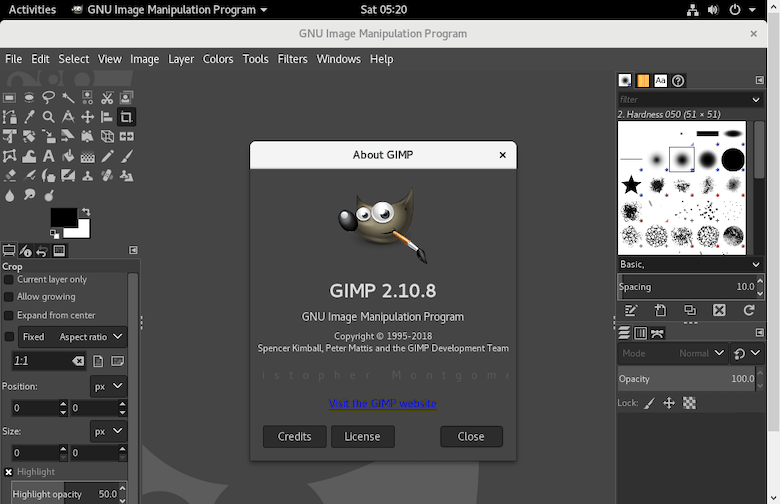
Step 7: Configure GIMP on Ubuntu 26.04
After you install the app, spend a few minutes setting it up for your workflow. This is where GIMP becomes more useful for real work.
Open Preferences
In GIMP, go to Edit > Preferences. From there, review themes, folders, input devices, and plug-in paths.
Why this matters: default settings are built for general use, not your personal workflow. A quick configuration pass can make the app feel much faster and easier to use.
Check plug-in folders
Look at the plug-in and brushes paths in Preferences.
Why this matters: if you install add-ons in the wrong folder, GIMP will ignore them. This is a common issue when users move between APT, Snap, and Flatpak installs.
Adjust the UI theme
Choose a light or dark interface based on your work style.
Why this matters: a better UI choice reduces eye strain and helps you work longer without fatigue. That is especially useful if you edit images for content production or documentation.
Step 8: Update or Remove GIMP
You should also know how to maintain or remove the app cleanly.
Update GIMP with APT
sudo apt update
sudo apt install --only-upgrade gimp
This updates GIMP without changing unrelated packages.
Why this matters: it keeps upgrades focused and reduces the risk of side effects.
Remove GIMP with APT
sudo apt remove gimp
sudo apt autoremove -y
This removes the app and then clears unused dependencies.
Why this matters: cleanup keeps your system lean and avoids leaving orphaned libraries behind.
Troubleshooting Common Errors
Even a simple install can fail for a few common reasons. Here are the ones I see most often.
Error 1: gimp: command not found
This usually means the app is not installed in the active PATH or the install method requires a different launch command.
Fix:
- APT: use
gimp - Snap: use
snap run gimp - Flatpak: use
flatpak run org.gimp.GIMP
The fix matters because each packaging system exposes the app differently.
Error 2: Package not found
If APT says it cannot find GIMP, your Universe repository may not be enabled.
Fix:
sudo add-apt-repository universe
sudo apt update
sudo apt install gimp -y
This turns on the repository that contains GIMP on Ubuntu 26.04.
Error 3: GIMP hangs on startup
This can happen after an upgrade if old cache files remain from a previous GIMP version.
Fix:
rm -r ${XDG_CACHE_HOME:-$HOME/.cache}/gimp/
sudo apt purge gimp
sudo apt install gimp -y
Ubuntu users have reported startup hangs after release upgrades, especially when moving across major GIMP versions.
Error 4: Plugins do not appear
The plug-in folder may be wrong, or the add-on may not support GIMP 3.x.
Fix:
- Check the plug-in path in Preferences.
- Confirm the plugin supports GIMP 3.2.x.
- Reinstall the plugin in the correct directory.
This matters because GIMP 3.x changed parts of the plugin system.
Error 5: Snap or Flatpak feels slow
Sandboxed apps can feel a little different from native APT packages.
Fix:
- Use APT if you want the most direct desktop integration.
- Use Snap or Flatpak if you prefer isolation and app-store style updates.
That tradeoff matters because different users value different strengths.

