
Setting up a fresh Ubuntu 26.04 LTS box for screen recording or live streaming sounds like it should take five minutes. It usually doesn’t. Anyone who’s spent time babysitting production servers knows that “just install the package” is rarely the whole story — dependency conflicts, stale repositories, and desktop portal quirks have a habit of showing up right when you’re about to go live.
That’s exactly the situation a lot of Ubuntu 26.04 users are running into with OBS Studio right now. The distribution shipped with a newer GNOME stack and a heavier reliance on PipeWire for screen capture, which means the old apt-only workflow that worked fine on 22.04 or 24.04 doesn’t always translate cleanly. Add in the V3 architecture builds Ubuntu introduced for performance optimization on modern CPUs, and you’ve got a recipe for confusing error messages if you don’t know what you’re looking at.
This guide walks through the installation process the way a system administrator actually approaches it — not just the happy path, but the fallback options when the primary method fails, the reasoning behind each choice, and the tuning work that happens after the install finishes. Whether the goal is recording a tutorial, streaming a coding session, or setting up a kiosk-style capture box for a conference room, the fundamentals are the same: get a clean install, verify hardware acceleration, and lock down permissions before anything touches a network.
Three installation paths get covered below — the official PPA, Flatpak, and the Ubuntu universe repository via apt — along with the specific gotchas that show up on 26.04. There’s also a section on GPU encoding, audio routing through PipeWire, and the firewall considerations that matter the moment streaming or remote control features enter the picture.
Why OBS Studio Installation on Ubuntu 26.04 Is Different
Ubuntu 26.04 LTS (codenamed “Resolute Raccoon” in early builds) moved further away from PulseAudio and standardized on PipeWire for both audio and screen sharing under Wayland. This is a good thing long-term — PipeWire’s screen capture protocol via xdg-desktop-portal is more secure and more efficient than the old X11 hacks OBS relied on for years. But it also means the package that ships in Ubuntu’s default repos can lag behind the OBS Project’s own release cadence, sometimes by several point versions.
There’s also the matter of the PPA repository naming. When a new Ubuntu release lands, third-party PPAs need their maintainers to publish a build tagged for that specific codename. Until that happens, apt simply can’t resolve the package, and admins get a “unable to locate package” error that has nothing to do with anything they did wrong. This is a common enough hiccup after any LTS release that it’s worth understanding rather than panicking over.
Prerequisites Before You Start
Before touching any install command, confirm a few basics. This step gets skipped constantly, and it’s the source of half the “OBS won’t open” tickets floating around forums.
- Confirm the Ubuntu version with
lsb_release -a— you want to see 26.04 explicitly, not a rolling dev snapshot. - Check available disk space with
df -h— OBS plus its dependencies and recorded footage can eat gigabytes fast. - Verify GPU drivers are current, especially NVIDIA users, since hardware encoding depends on it.
- Make sure the system is fully updated:
sudo apt update && sudo apt full-upgrade -y. - Have at least 4GB of free RAM if streaming at 1080p60; encoding is memory-hungry under load.
Skipping the driver check is the single most common reason NVENC or QuickSync encoding fails silently later, so don’t skip it.
Method 1: Installing OBS Studio via the Official PPA (Recommended)
The PPA method remains the go-to for most desktop users because it tracks upstream OBS releases more closely than Ubuntu’s own repo. This is the path OBS Project itself recommends on its download page.
Step 1: Add the PPA repository
sudo add-apt-repository ppa:obsproject/obs-studio -yThis command registers the third-party repository maintained by the OBS packaging team. The -y flag skips the confirmation prompt, which is convenient for scripted setups but worth removing if you want to eyeball what’s being added.
Step 2: Refresh the package index
sudo apt updateNever skip this. Adding a repo without refreshing the index is the classic mistake that leads to “package not found” errors two steps later.
Step 3: Install OBS Studio
sudo apt install obs-studio -yIf the codename for 26.04 hasn’t been picked up yet by the PPA — which does happen right after a fresh LTS release — you’ll see a resolution error referencing the release name. The workaround, until the maintainers push an updated build, is to manually point the source list at the previous LTS codename (Noble), since OBS binaries built for 24.04 are typically compatible:
sudo sed -i 's/resolute/noble/g' /etc/apt/sources.list.d/obsproject-ubuntu-obs-studio-*.list
sudo apt update
sudo apt install obs-studio -y
This is a stopgap, not a permanent fix. Once the PPA publishes a native 26.04 build, revert the sources file and reinstall to get the properly compiled package.
Step 4: Launch and verify
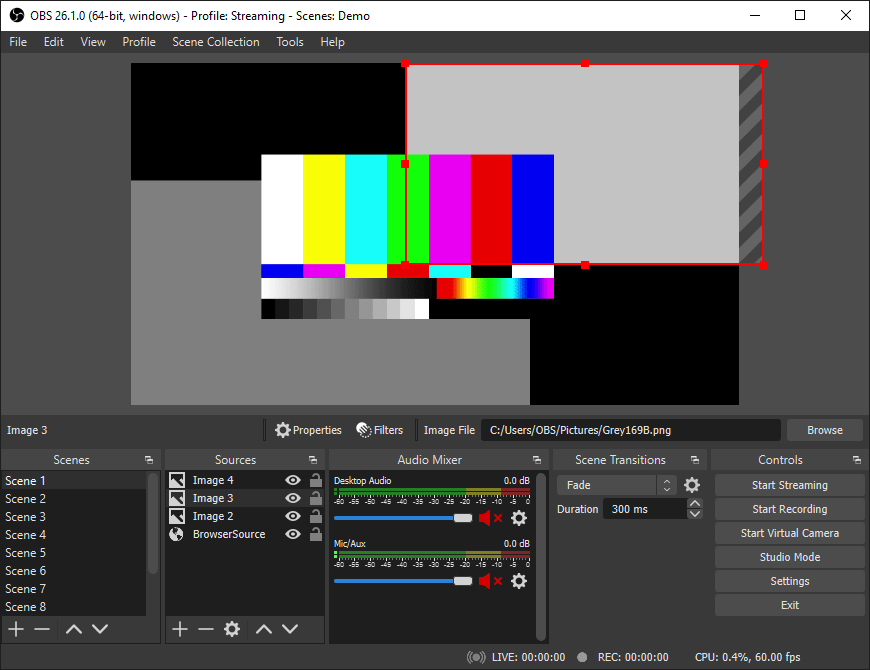
obsIf OBS opens with the Auto-Configuration Wizard, the install succeeded. Run through the wizard once to let it benchmark your hardware for optimal bitrate and resolution settings.
Method 2: Installing via Flatpak (Most Reliable for Fast Updates)
Flatpak has quietly become the most dependable way to get the latest OBS build regardless of what Ubuntu’s own repos are doing. It’s sandboxed, it updates independently of the OS release cycle, and it sidesteps the PPA codename problem entirely.
Step 1: Confirm Flatpak is installed
Ubuntu 26.04 usually ships with Flatpak support baked in, but it’s worth checking:
sudo apt install flatpak -yStep 2: Add the Flathub remote
flatpak remote-add --if-not-exists flathub https://dl.flathub.org/repo/flathub.flatpakrepoStep 3: Install OBS Studio from Flathub
flatpak install flathub com.obsproject.Studio -yStep 4: Run it
flatpak run com.obsproject.StudioOne practical note from real-world use: Flatpak sandboxing can occasionally interfere with plugin support, particularly for third-party OBS plugins that expect direct filesystem access. If a browser source or a custom plugin misbehaves under Flatpak, that’s usually why. The trade-off is worth it for most users given how current the Flathub build stays.
Method 3: Installing via Ubuntu’s Universe Repository (Simplest, Often Outdated)
For those who just want something that works without adding external repos, the universe repo is the path of least resistance:
sudo apt update
sudo apt install obs-studio -y
This pulls whatever version Canonical bundled for the release — reliable, but frequently a few versions behind upstream. Fine for basic screen recording; not ideal if you need the latest NVENC AV1 encoding improvements or new browser source features.
Configuring PipeWire for Screen and Audio Capture
This is the step that trips up more people on 26.04 than the install itself. OBS on Wayland sessions relies on xdg-desktop-portal to negotiate screen capture permissions through PipeWire, rather than grabbing the display directly like it could under X11.
Install the required portal packages:
sudo apt install pipewire pipewire-pulse xdg-desktop-portal-gnome -ySwap xdg-desktop-portal-gnome for xdg-desktop-portal-kde if running KDE Plasma. After installing, log out and back in — portal services often need a fresh session to register properly. When adding a Display Capture source in OBS, you should now get a native screen-picker dialog rather than a blank black source. A black capture window nine times out of ten means the portal packages are missing or the session hasn’t restarted.
GPU Acceleration and Encoding Setup
Software encoding (x264) works but hammers the CPU. Anyone running OBS on a laptop or a modest desktop should get hardware encoding configured properly.
NVIDIA users: confirm the proprietary driver is active with nvidia-smi. In OBS, go to Settings > Output and select NVENC as the encoder. NVENC offloads encoding to dedicated silicon on the GPU, which frees the CPU for game rendering or other workloads — critical if you’re streaming and gaming simultaneously.
Intel users: QuickSync (QSV) should appear automatically if intel-media-driver is installed:
sudo apt install intel-media-va-driver-non-free -yAMD users: AMF encoding requires Mesa drivers to be current; Ubuntu 26.04’s default Mesa stack generally handles this out of the box on recent GPUs.
Run vainfo to confirm VA-API is exposing the expected encoder profiles — a quick sanity check that saves a lot of guessing later.
Performance Tuning for Streaming and Recording Workloads
Encoding video in real time is genuinely CPU and I/O intensive, and OBS behaves very differently under load than a typical desktop app.
- CPU governor: set to
performancemode during recording sessions withsudo cpupower frequency-set -g performance— the defaultpowersave/ondemandgovernors can introduce frame drops from clock throttling. - Disk I/O: record to an SSD, not a spinning disk or a network share. High-bitrate 4K capture can easily exceed 50MB/s sustained write, which chokes older HDDs.
- RAM allocation: OBS buffers frames in memory before encoding; systems under 8GB total RAM should close background browser tabs and heavy apps before a session.
- Network for streaming: use
iftopornloadto baseline upload bandwidth before going live — OBS’s bitrate should sit comfortably under 80% of measured upload capacity to avoid dropped frames. - Process priority: on Linux,
niceandionicecan be used to give the OBS process priority over background tasks:sudo renice -n -5 -p $(pgrep obs).
None of this is exotic tuning — it’s the same discipline applied to any latency-sensitive production workload, just pointed at a desktop app instead of a database server.
Security Considerations
OBS itself isn’t a network-facing daemon by default, but several of its features introduce attack surface worth locking down.
- Streaming keys: never hardcode RTMP stream keys into shared configs or scripts committed to version control — treat them like API secrets.
- Remote control plugins: the obs-websocket plugin opens a local port (4455 by default) for remote automation. If this is exposed beyond localhost, enable authentication and restrict access via firewall rules:
sudo ufw allow from 192.168.1.0/24 to any port 4455 proto tcp- Browser sources: OBS browser sources render web content using an embedded Chromium Embedded Framework instance. Treat untrusted browser source URLs the same way you’d treat any unvetted script — they can execute JavaScript in that context.
- Permissions: avoid running OBS with
sudo. Running GUI apps as root under Wayland is unreliable and unnecessary; OBS doesn’t need elevated privileges for capture or encoding. - Updates: keep the install current, particularly if using the PPA or apt method, since encoder libraries and portal integrations receive periodic security patches:
sudo apt update && sudo apt upgrade obs-studio.
Troubleshooting Common Errors
“Unable to locate package obs-studio”
Usually means the PPA hasn’t published a build for the 26.04 codename yet. Fall back to the sources.list codename swap covered above, or use Flatpak instead.
Black screen when adding Display Capture source
Almost always a missing or misconfigured xdg-desktop-portal backend. Reinstall the portal package matching your desktop environment and restart the session — not just OBS, the whole login session.
No audio devices listed in Settings > Audio
Confirm PipeWire is actually running as the audio server: systemctl --user status pipewire. If PulseAudio is still active alongside it, there’s a conflict; purge pulseaudio cleanly if migrating fully to PipeWire.
Dropped frames during streaming (“Network” dropped frames in stats)
This points to insufficient upload bandwidth, not a local performance issue. Lower the output bitrate or switch to a lower resolution preset before assuming it’s a CPU problem.
Dropped frames labeled “Rendering” instead
That’s a GPU or encoding bottleneck. Switch encoders (e.g., from x264 to NVENC) or lower the output resolution/framerate.
OBS crashes on launch after a GPU driver update
Clear the OBS cache directory (~/.config/obs-studio) as a first troubleshooting step before reporting a bug — corrupted profile or scene collection files after a driver change are a frequent culprit.
