
If you have been looking for a note-taking app that keeps your data local, works entirely in Markdown, and runs cleanly on Linux, Obsidian is one of the strongest options available right now. Most guides online skim over the installation differences between methods and leave you troubleshooting sandbox errors or broken plugins on your own. This guide covers all four installation methods for Ubuntu 24.04 LTS — Snap, Flatpak, DEB package, and AppImage — with real commands, known limitations, and exact fixes for the errors you are most likely to hit. By the end, you will have Obsidian installed, your first vault configured, and a clear picture of which method fits your workflow best.
Obsidian is a free, local-first knowledge base built on plain Markdown files. Unlike Notion or Evernote, every note you create lives as a raw .md file inside a folder on your own machine, which Obsidian calls a vault. There is no cloud sync required, no vendor lock-in, and no account needed for the core application. The app runs on Electron, which gives it consistent behavior across Linux distributions, but that also introduces a few platform-specific quirks on Ubuntu 24.04 LTS that you need to know before you pick an install method.
Ubuntu 24.04 LTS, codenamed Noble Numbat, shipped in April 2024 and is supported until 2029. It comes with Snap pre-installed and added Flatpak support improvements in this cycle. Both package formats work with Obsidian, but they each have meaningful trade-offs in areas like plugin compatibility, sandbox restrictions, and architecture support. The DEB package and AppImage round out your options if you want native system integration or a zero-install portable setup.
Linux users choose Obsidian for reasons that go beyond features. The Graph view that visualizes note connections, the community plugin ecosystem, and the fact that your entire knowledge base is just a folder of text files — these are things developers and sysadmins genuinely care about. You can back up your vault with Git, sync it with Syncthing, or encrypt the folder with any tool you already use. Obsidian stays out of your way and works with your existing infrastructure.
Before you touch the terminal, there are a few things worth understanding about how these four methods differ in practice. The Snap version is the fastest to install but runs in a sandbox that can break certain community plugins like Templater. The Flatpak version from Flathub is the only method that supports ARM64 hardware, making it the right choice if you are on an ARM-based machine. The DEB package gives you the cleanest native integration with no sandbox restrictions, which is why most experienced Ubuntu desktop users will land here. The AppImage is best if you want to test Obsidian without committing to a system-wide install, but it requires the most manual setup for desktop integration.
Prerequisites
Before you start, confirm you have everything in place:
- OS: Ubuntu 24.04 LTS (Noble Numbat) — run
lsb_release -ato verify - User privileges: A user account with
sudoaccess - Internet connection: Required to download packages
- Terminal access: Press
Ctrl+Alt+Tor search for “Terminal” in the applications menu - System architecture: Run
uname -mto check — most desktops returnx86_64; ARM devices returnaarch64 - Disk space: At least 200MB free for the application
- System updated: Run the update command below before any install step
sudo apt update && sudo apt upgrade -yThis updates your package lists and upgrades existing packages. Running this first prevents version conflicts during installation.
Step 1: Choose Your Installation Method
Ubuntu 24.04 LTS supports four ways to install Obsidian. Each method has a different trade-off profile:
| Method | Auto-Update | Plugin Support | ARM64 | Best For |
|---|---|---|---|---|
| Snap | Yes | Limited | No | Quick setup on x86_64 |
| Flatpak | Yes | Full | Yes | ARM devices, non-standard setups |
| DEB Package | Manual | Full | No | Most Ubuntu desktop users |
| AppImage | Manual | Full | No | Portable testing |
Pick one method and follow its section below. You do not need to install all four.
Step 2: Install Obsidian on Ubuntu 24.04 LTS Using Snap
What Is Snap?
Snap is Ubuntu’s default package format from Canonical. It is pre-installed on Ubuntu 24.04 LTS, which means you can install Obsidian with a single command and no additional configuration.
The trade-off is sandboxing. Snap runs apps in a confined environment that can restrict filesystem access and limit how community plugins interact with external scripts. If you rely on plugins like Templater with User Script Functions, the Snap version will likely cause problems. If you just want to take notes and use the built-in features, Snap works fine.
Snap is also x86_64 only. If you are on an ARM device, skip to the Flatpak section.
Install Obsidian via Snap
sudo snap install obsidian --classicThe --classic flag disables the default Snap confinement. Without it, Obsidian cannot access your home directory to create or open vaults.
Expected output:
obsidian 1.x.x from Obsidian (obsidian-md) installedLaunch and Verify
obsidianOr open it from the Applications menu by searching “Obsidian.” To confirm the version:
snap list | grep obsidianKnown Limitation
If Obsidian does not start after being closed, this is a known Snap bug on Ubuntu 24.04. The cleanest fix is to remove it and reinstall, or switch to the DEB package:
sudo snap remove obsidian
sudo snap install obsidian --classic
Step 3: Install Obsidian on Ubuntu 24.04 LTS Using Flatpak
When to Choose Flatpak
Flatpak is the right method if you are on an ARM64 machine, running a non-standard Ubuntu flavor like Kubuntu or Xubuntu, or you want a sandboxed install with better cross-distro dependency handling than Snap. Obsidian on Flathub is community-maintained but widely tested and stable.
Install Flatpak on Ubuntu 24.04
Flatpak is not pre-installed on all Ubuntu 24.04 configurations. Install it first:
sudo apt install flatpak -yAdd the Flathub repository, which is where the Obsidian package lives:
sudo flatpak remote-add --if-not-exists flathub https://flathub.org/repo/flathub.flatpakrepoInstall Obsidian via Flatpak
sudo flatpak install flathub md.obsidian.ObsidianYou will see a confirmation prompt. Type y and press Enter. The installer downloads Obsidian along with any required runtime dependencies.
Reboot Your System
sudo rebootThis step is not optional. Without a reboot (or at minimum a logout and login), the Flatpak application may not appear in your applications menu or launcher.
Launch and Verify
From the terminal:
flatpak run md.obsidian.ObsidianOr search for “Obsidian” in your Applications menu. Confirm the install:
flatpak list | grep ObsidianStep 4: Install Obsidian on Ubuntu 24.04 LTS Using the DEB Package
Why the DEB Package Is the Best Choice for Most Users
The official .deb package gives you the cleanest Ubuntu installation experience. It integrates natively with the system — no sandbox, no wrapper, full plugin access. You can run external scripts, use Templater without restrictions, and open files from any location on your filesystem.
The only downside is that DEB does not auto-update. You will need to download and reinstall each time a new version ships.
Download the DEB Package
Go to the official Obsidian download page at obsidian.md/download and download the .deb file for Linux. Then navigate to your Downloads directory:
cd ~/DownloadsList the files to confirm the download:
ls -lh Obsidian*.debInstall the DEB Package
sudo dpkg -i obsidian_*.debThe dpkg -i command installs a .deb package directly. The * wildcard matches the version number in the filename so you do not need to type it exactly.
If you see dependency errors after this command, fix them immediately with:
sudo apt install -fThis tells apt to fetch any missing dependencies and complete the installation.
Launch and Verify
obsidianOr open from the Applications menu. Verify the installed version:
dpkg -l | grep obsidianExpected output:
ii obsidian 1.x.x amd64 ObsidianStep 5: Install Obsidian on Ubuntu 24.04 LTS Using AppImage
What Is an AppImage?
An AppImage is a self-contained executable. It bundles everything the application needs into a single file that you can run without installing anything to your system — no root access required.
This makes AppImage useful when you want to test Obsidian before committing to a full install, or when you need to run it on a machine where you do not have sudo access. The downside is that AppImages do not auto-update, and desktop integration requires manual setup.
Download and Prepare the AppImage
Download the .AppImage file from obsidian.md/download and move it to a permanent location:
mkdir -p /opt/Obsidian
mv ~/Downloads/Obsidian*.AppImage /opt/Obsidian/Obsidian.AppImage
Make the file executable:
chmod u+x /opt/Obsidian/Obsidian.AppImageRun Obsidian via AppImage
/opt/Obsidian/Obsidian.AppImage --no-sandboxThe --no-sandbox flag is required on Ubuntu 24.04. Without it, Obsidian will throw a SUID sandbox error and refuse to launch.
Create a Desktop Shortcut
To make Obsidian appear in your Applications menu, create a .desktop file:
nano ~/.local/share/applications/obsidian.desktopPaste the following content:
[Desktop Entry]
Name=Obsidian
Exec=/opt/Obsidian/Obsidian.AppImage --no-sandbox
Icon=obsidian
Type=Application
Categories=Utility;
Save the file with Ctrl+O, then Ctrl+X to exit. Run the following to refresh your application menu:
update-desktop-database ~/.local/share/applications/Step 6: Set Up Your First Vault in Obsidian on Ubuntu 24.04 LTS
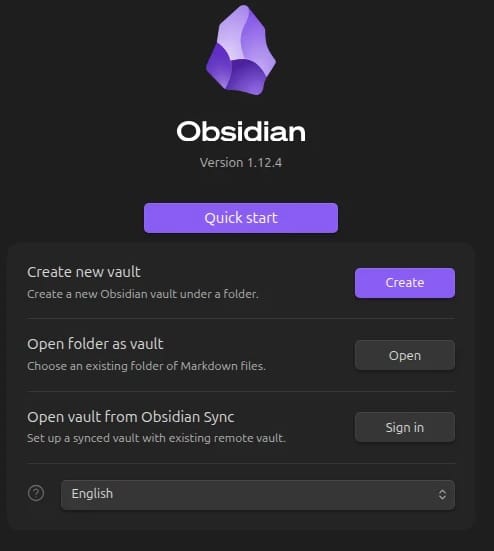
Once Obsidian launches, you will see the vault selection screen. A vault is just a regular folder on your filesystem where Obsidian stores your Markdown files. Nothing proprietary happens to those files — any text editor can open them.
Create a New Vault
- Click “Create new vault”
- Give it a name (for example:
MyNotes) - Choose a directory — use
~/Documents/MyNotesfor easy access outside sandbox boundaries - Click “Create”
Recommended First-Launch Settings
After creating your vault, go to Settings and configure these right away:
- Settings > Community plugins > Turn off Restricted Mode — required to install third-party plugins
- Settings > Core plugins — enable “Daily notes,” “Templates,” and “Graph view” for immediate productivity gains
- Settings > Appearance — switch to dark mode or pick a community theme from the marketplace
A Note on Vault Location and Sandboxing
If you installed Obsidian via Snap, avoid placing your vault inside /root or any system directory. The Snap sandbox may block access. Use ~/Documents/ or another standard user directory. Flatpak and DEB have no such restrictions.
Step 7: Update and Uninstall Obsidian on Ubuntu 24.04 LTS
Updating Obsidian
The update method depends on how you installed it:
- Snap:
sudo snap refresh obsidian - Flatpak:
sudo flatpak update md.obsidian.Obsidian - DEB package: Download the latest
.debfromobsidian.md/downloadand re-runsudo dpkg -i obsidian_*.deb - AppImage: Download the new AppImage and replace the old file in
/opt/Obsidian/
You can also check your current version inside Obsidian under Settings > About.
Uninstalling Obsidian
- Snap:
sudo snap remove obsidian - Flatpak:
sudo flatpak uninstall md.obsidian.Obsidian - DEB package:
sudo apt remove obsidianorsudo dpkg -r obsidian - AppImage: Delete
/opt/Obsidian/Obsidian.AppImageand~/.local/share/applications/obsidian.desktop
Important: Uninstalling any version of Obsidian does not delete your vault. Your notes stay exactly where you put them.
Troubleshooting Common Obsidian Issues on Ubuntu 24.04 LTS
Error 1: Obsidian Snap Will Not Start
Symptom: Obsidian launches once after install but fails to open on subsequent attempts.
Cause: A known Snap bug on Ubuntu 24.04 where the app process does not terminate cleanly.
Fix:
sudo snap remove obsidian
sudo snap install obsidian --classic
For a permanent fix, switch to the DEB package.
Error 2: AppImage Crashes With SUID Sandbox Error
Symptom: Running as root without --no-sandbox is not supported or similar sandbox error on launch.
Cause: Electron’s sandbox requires kernel-level SUID configuration that Ubuntu 24.04 restricts by default.
Fix:
./Obsidian.AppImage --no-sandboxError 3: AppImage Fails to Start Due to FUSE Error
Symptom: fuse: failed to exec fusermount3 or AppImages require FUSE to run.
Cause: libfuse2 is not installed on Ubuntu 24.04, which ships with FUSE3 by default.
Fix:
sudo apt install libfuse2 -yError 4: Community Plugins Not Working With Snap
Symptom: Plugins like Templater fail to execute user scripts or access files outside the vault.
Cause: Snap’s confinement blocks filesystem access outside sandboxed paths.
Fix: Migrate to the DEB package:
sudo snap remove obsidian
cd ~/Downloads
sudo dpkg -i obsidian_*.deb
Your vault folder and all notes are unaffected by this change.
Error 5: Obsidian Not Appearing in Applications Menu After Flatpak Install
Symptom: Obsidian is installed but does not show up in GNOME’s application launcher.
Cause: Flatpak application entries require a session restart to register.
Fix:
sudo rebootIf a full reboot feels excessive, log out and log back in. The application entry should appear after re-login.
Congratulations! You have successfully installed Obsidian. Thanks for using this tutorial to install the latest version of the Obsidian on Ubuntu 24.04 LTS. For additional help or useful information, we recommend you check the official Obsidian website.
[su_box title=”VPS Manage Service Offer” style=”bubbles” box_color=”#000000″ radius=”10″]If you don’t have time to do all of this stuff, or if this is not your area of expertise, we offer a service to do “VPS Manage Service Offer”, starting from $10 (Paypal payment). Please contact us to get the best deal![/su_box]
