
Installing Odoo on Fedora 44 is very doable, but it goes much smoother when you treat it like a production service instead of a hobby project. Odoo is sensitive to Python dependencies, PostgreSQL versioning, service permissions, and web server exposure, so the difference between a clean setup and a frustrating one usually comes down to preparation and discipline.
Fedora is a fast-moving distribution, which is great for current packages and security updates, but it also means you should be careful with assumptions copied from older Odoo guides. Fedora 44 ships newer system libraries than older Fedora releases, and that can work in your favor if you install Odoo the right way: use a dedicated system user, isolate the Python environment, keep PostgreSQL local unless you have a real reason not to, and put Nginx in front of Odoo for TLS and request handling.
A lot of Odoo guides on the internet are written like a quick lab demo. That’s fine for testing, but it breaks down once users start uploading attachments, running scheduled actions, generating PDFs, or hitting the system during business hours. In real deployments, the important questions are slightly different: what happens when the database grows, how do you recover from a bad update, how do you keep the service reachable but not exposed, and how do you make sure the server survives traffic spikes without turning into a memory furnace.
For that reason, this guide focuses on a clean source-based installation on Fedora 44, with a practical production structure. It also covers the key tuning and security points that matter in the real world: PostgreSQL, wkhtmltopdf, systemd, firewall rules, Nginx reverse proxy, SELinux awareness, and troubleshooting the errors that usually show up first when Odoo is installed on a fresh Linux host.
Why source install
Fedora users often ask whether they should install Odoo from a package, a repository, or source. The official Odoo documentation supports RPM-based distributions and notes packaged installers for Fedora, CentOS, and RHEL, but it also explains that source installation gives more control and is often more flexible for developers and operators who need custom addons or multiple instances.
Source installation is the safer long-term choice when you want predictable directory layout, explicit version pinning, isolated Python dependencies, and easier customization. It also makes troubleshooting easier because you can see exactly which branch is running, where the addons live, and how the service is started. For production work, that visibility matters more than saving a few commands during the first setup.
What you need first
Before touching Odoo, make sure the host has enough resources. A small test instance can survive on modest hardware, but a real business deployment should start with at least 4 GB RAM, 2 vCPU, and fast SSD storage. If you expect several concurrent users, 8 GB RAM is a more realistic baseline, especially when PostgreSQL, Odoo workers, and the web server are all sharing the same machine.
The operating system should be fully updated, time synchronized, and reachable through SSH. You should also have a proper hostname, because later you will likely use Nginx, TLS certificates, and a stable FQDN instead of exposing port 8069 directly to the internet. That’s not just cleaner; it also reduces attack surface and makes troubleshooting easier.
Update Fedora 44
Start with a system update and reboot if the kernel or core libraries changed. On a fresh Fedora host, this avoids a lot of strange dependency mismatches later.
sudo dnf update -y
sudo reboot
After reboot, verify the system is healthy.
uname -r
cat /etc/fedora-release
If you manage multiple servers, this is also the moment to check DNS resolution, NTP synchronization, and disk space. Odoo itself may not be huge, but PostgreSQL data, logs, and attachments can grow quickly.
Install base packages
Odoo needs Python development tools, PostgreSQL libraries, compilers, image handling libraries, and a few web-related dependencies. The exact list can vary depending on Odoo version, but the safe approach is to install the usual build and runtime packages that Odoo commonly requires on RPM-based Linux systems.
sudo dnf install -y \
  git gcc make redhat-rpm-config \
  python3 python3-devel python3-pip python3-virtualenv \
  libxml2-devel libxslt-devel openldap-devel libjpeg-turbo-devel \
  freetype-devel zlib-devel gcc-c++ \
  libffi-devel libpq-devel \
  nodejs npm \
  wget curl unzip tar \
  policycoreutils-python-utils
Some deployments also need additional libraries for PDF generation and image processing. On Odoo, that usually means wkhtmltopdf, which is not installed through pip and must be installed separately for proper header/footer support.
sudo dnf install -y xorg-x11-fonts-75dpi xorg-x11-fonts-Type1
Depending on your Fedora repositories and the exact version of wkhtmltopdf you choose, you may need to install the package manually from an appropriate RPM build. For production systems, that step deserves careful testing, because PDF rendering issues often appear later in invoicing or reports, not during installation.
Install PostgreSQL
Odoo uses PostgreSQL as its database backend, and the official documentation recommends installing PostgreSQL locally on the same host for the default setup. On Fedora, the standard package approach is straightforward and keeps the service aligned with the rest of the system.
sudo dnf install -y postgresql-server postgresql-contrib
sudo postgresql-setup --initdb --unit postgresql
sudo systemctl enable --now postgresql
Check that PostgreSQL is running.
systemctl status postgresql
The official Odoo documentation notes PostgreSQL 13 or later for current releases, so a modern Fedora PostgreSQL package is generally suitable as long as you keep the server updated and avoid exotic old-version combinations. If you run Odoo with multiple databases or a larger user base, PostgreSQL tuning becomes important quickly.
Create database roles
Odoo should not connect as postgres. Create a dedicated database role for the application and give it the ability to create databases.
sudo -u postgres createuser --createdb --no-createrole --no-superuser odoo
sudo -u postgres psql -c "ALTER USER odoo WITH PASSWORD 'ChangeThisStrongPassword';"
You can also create a separate role for admin work if you want to keep service and maintenance privileges split. That’s a small discipline that pays off later during audits and incident response.
Create the Odoo user
Run Odoo under a dedicated system account, not your login and not root. That keeps file permissions sane and reduces the blast radius if something breaks.
sudo useradd -r -m -U -d /opt/odoo -s /bin/bash odoo
sudo mkdir -p /opt/odoo
sudo chown -R odoo:odoo /opt/odoo
For production environments, I also prefer a clean application layout with distinct directories for code, custom addons, and logs. That makes upgrades and rollback much less painful.
sudo mkdir -p /opt/odoo/{server,custom-addons,logs,venv}
sudo chown -R odoo:odoo /opt/odoo
Get Odoo source
The official Odoo source documentation explains that the source install is meant for running Odoo directly from the source tree and that cloning the Git repository is the common method for Linux deployments. For Community edition, clone the Odoo repository into /opt/odoo/server.
sudo -u odoo git clone --branch 19.0 --single-branch https://github.com/odoo/odoo.git /opt/odoo/server
If you are building an Enterprise instance, you also need the Enterprise addons repository, because the main server code lives in the Community repository and the Enterprise repo only adds extra modules.
sudo -u odoo git clone --branch 19.0 --single-branch https://github.com/odoo/enterprise.git /opt/odoo/enterprise
If you are deploying a specific stable branch other than the one shown here, use the matching branch consistently across the source tree, dependencies, and configuration. Version drift is a common cause of subtle module and dependency problems.
Build the Python environment
A virtual environment keeps Odoo dependencies isolated from the rest of the system. That matters a lot on Fedora, where system Python packages and application-specific Python packages can otherwise get tangled.
sudo -u odoo python3 -m virtualenv /opt/odoo/venv
sudo -u odoo /opt/odoo/venv/bin/pip install --upgrade pip wheel setuptools
Then install the Odoo requirements from the repository.
sudo -u odoo /opt/odoo/venv/bin/pip install -r /opt/odoo/server/requirements.txt
The official documentation notes that using distribution packages for dependencies is preferred where possible, and that pip can cause broken dependencies if used carelessly. In practice, a virtual environment is the right compromise for source-based installs because it isolates the app without polluting the system Python.
Install Node.js tools
Odoo uses frontend asset compilation, and some deployments need Node-based tooling during runtime or module build steps. Fedora’s Node.js package is usually enough for standard installations.
sudo dnf install -y nodejs npm
sudo npm install -g rtlcss
RTL CSS support matters if your instance serves languages such as Arabic or Hebrew. Even if your current deployment does not need it, adding it now is often easier than revisiting styling issues later.
Prepare wkhtmltopdf
PDF rendering is one of those things that looks simple until invoices or quotations start failing. Odoo’s documentation explicitly warns that wkhtmltopdf is not installed through pip and must be installed manually to support headers and footers properly.
In production, validate the binary before you rely on it.
wkhtmltopdf --version
If it is missing, install the appropriate RPM package for Fedora 44 from a trusted source that matches your system architecture and library stack. Then test report generation from Odoo after the service is running. A working browser login does not mean reporting is healthy.
Configure Odoo
Create a configuration file under /etc/odoo and keep sensitive values there instead of hardcoding them into service files.
sudo mkdir -p /etc/odoo
sudo touch /etc/odoo/odoo.conf
sudo chown -R odoo:odoo /etc/odoo
sudo chmod 640 /etc/odoo/odoo.conf
A practical baseline configuration looks like this:
[options]
admin_passwd = ChangeThisMasterPassword
db_host = False
db_port = False
db_user = odoo
db_password = ChangeThisStrongPassword
addons_path = /opt/odoo/server/addons,/opt/odoo/custom-addons
data_dir = /opt/odoo/.local/share/Odoo
logfile = /opt/odoo/logs/odoo.log
http_port = 8069
proxy_mode = True
limit_memory_soft = 2147483648
limit_memory_hard = 2684354560
limit_time_cpu = 60
limit_time_real = 120
workers = 2
Those memory and time limits are conservative starting values for a small production system. Tune them based on actual traffic, RAM, and whether the machine is dedicated to Odoo. The point is not to chase perfect numbers on day one; it is to avoid obvious overload.
Why these values matter
admin_passwd protects database management actions in the web interface, so it should be strong and unique. proxy_mode = True is important when Odoo sits behind Nginx or another reverse proxy, because it affects how Odoo interprets client IPs and URLs. The worker and memory settings matter when you move beyond single-user testing, because Odoo can become sluggish or unstable if it is left running with default assumptions on a busy server.
The source documentation also notes that source deployment offers flexibility for settings and multiple versions, which is exactly why this configuration style is worth the extra work.
Create a systemd service
Now create a dedicated service so Odoo starts automatically and can be managed like any other server daemon.
sudo nano /etc/systemd/system/odoo.service
Use this unit file:
[Unit]
Description=Odoo
After=network.target postgresql.service

[Service]
Type=simple
User=odoo
Group=odoo
WorkingDirectory=/opt/odoo/server
ExecStart=/opt/odoo/venv/bin/python3 /opt/odoo/server/odoo-bin -c /etc/odoo/odoo.conf
Restart=always
RestartSec=5
StandardOutput=journal
StandardError=journal

[Install]
WantedBy=multi-user.target
Reload systemd and enable the service.
sudo systemctl daemon-reload
sudo systemctl enable --now odoo
Check the status.
systemctl status odoo
journalctl -u odoo -f
If the service fails here, the logs are usually very informative. Missing Python modules, permission errors, or bad database settings show up quickly.
Open the firewall
If you plan to reach Odoo directly on port 8069 for testing, open the port in firewalld first.
sudo firewall-cmd --permanent --add-port=8069/tcp
sudo firewall-cmd --reload
For production, though, you should not expose 8069 to the public internet unless there is a temporary migration or debugging need. The better pattern is to keep Odoo bound to localhost or the internal network and publish it through Nginx over HTTPS.
Add Nginx
A reverse proxy is the standard production pattern for Odoo because it handles TLS, compression, buffering, and cleaner public exposure. It also makes certificate management much easier.
sudo dnf install -y nginx
sudo systemctl enable --now nginx
Create a server block such as /etc/nginx/conf.d/odoo.conf:
upstream odoo {
    server 127.0.0.1:8069;
}

server {
    listen 80;
    server_name odoo.example.com;

    client_max_body_size 100m;

    location / {
        proxy_pass http://odoo;
        proxy_set_header Host $host;
        proxy_set_header X-Real-IP $remote_addr;
        proxy_set_header X-Forwarded-For $proxy_add_x_forwarded_for;
        proxy_set_header X-Forwarded-Proto $scheme;
        proxy_read_timeout 720s;
        proxy_connect_timeout 720s;
        proxy_send_timeout 720s;
    }
}
Test and reload Nginx.
sudo nginx -t
sudo systemctl reload nginx
In real deployments, this is where you also add TLS with Let’s Encrypt or your organization’s certificate system. If Odoo is public-facing, HTTPS should be non-negotiable.
SELinux considerations
Fedora’s SELinux enforcement is one of the reasons the platform is strong for production, but it can also surprise people who are used to more permissive systems. If Odoo writes logs, data files, or custom addons in unusual locations, SELinux context issues may block access even when Linux permissions look correct.
A clean approach is to keep everything in standard paths and avoid random writable directories. If you must deviate, check denials with ausearch, sealert, and journalctl -t setroubleshoot. Do not disable SELinux just to “make it work”; that solves the symptom and creates a worse problem later.
First login
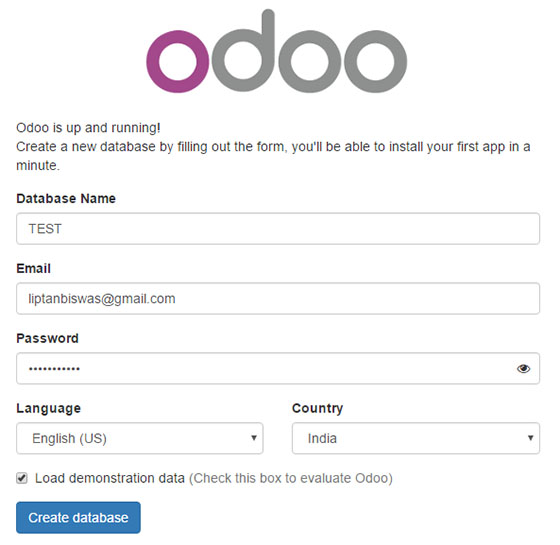
Once the service is up and the proxy is working, visit your domain or server IP. Odoo should present its database creation or login interface depending on whether a database already exists.
If you get a blank page, a 502, or an endless loading spinner, check the service logs and the reverse proxy first. In practice, the issue is usually one of these: Odoo is not listening, PostgreSQL is not reachable, permissions are wrong, or the proxy headers are incomplete.
Production tuning
Odoo performance is not only about CPU speed. Memory pressure, disk latency, and PostgreSQL behavior matter just as much, and often more. If the server is underpowered, the symptom is usually not a neat crash; it is slow page loads, delayed cron jobs, and users complaining that simple actions “spin forever.”
Start by observing the real workload. On a live server, use htop, free -h, iostat, vmstat, ss -tulpn, and journalctl to understand where the bottleneck is. If PostgreSQL is waiting on disk I/O, more worker processes will not help. If RAM is exhausted, Odoo will start swapping and everything gets ugly fast.
For a modest single-instance deployment, these rough habits help:
- Keep Odoo and PostgreSQL on SSD storage.
- Reserve memory for PostgreSQL and Odoo workers.
- Avoid oversizing worker count on a small VM.
- Use Nginx buffering and TLS termination.
- Monitor log growth and rotate aggressively.
- Cache static assets through the web server where appropriate.
The official Odoo documentation emphasizes that source-based installation gives you more flexibility in system setup and multiple versions, which is useful when you need to tune a server for real traffic rather than a toy deployment.
PostgreSQL tuning
A lot of Odoo installations feel slow because PostgreSQL is left at defaults that were never meant for that workload. For a small dedicated server, the default settings can work, but once you have real users, reports, and scheduled actions, you should revisit shared_buffers, work_mem, effective_cache_size, and checkpoint behavior.
Before changing anything, measure first. If the database is tiny and the server is lightly loaded, aggressive tuning is unnecessary. If the database is active during business hours, even modest changes can improve responsiveness noticeably, especially on report-heavy or multi-user systems.
Common troubleshooting
Odoo service will not start
Check logs first.
journalctl -u odoo -xe
cat /opt/odoo/logs/odoo.log
Typical causes include bad PostgreSQL credentials, missing Python modules, broken file ownership, or a wrong addons_path. A surprising number of startup problems are caused by typos in the config file rather than deep application bugs.
Port 8069 is unreachable
Verify that Odoo is actually listening.
ss -tulpn | grep 8069
If it is listening locally but not externally, check the firewall and reverse proxy. If it is not listening at all, the service failed before binding. The logs will tell you why.
502 Bad Gateway from Nginx
This usually means Nginx can reach itself but not Odoo. Confirm that the upstream is correct and that Odoo is running on 127.0.0.1:8069 or the expected interface. Also check whether proxy_mode is enabled in Odoo and whether Nginx is sending the forwarded headers properly.
Database creation errors
If Odoo cannot create a database, confirm that the PostgreSQL role has database creation rights and that PostgreSQL is accepting local connections. The official docs note that Odoo needs PostgreSQL and that the default setup expects it to be available locally on the same host.
PDF reports fail
This is often a wkhtmltopdf issue, not an Odoo issue. Verify the binary version, install it properly, and test outside Odoo if needed. Official documentation specifically warns that it must be installed manually to support headers and footers.
Slow performance
Watch RAM, swap, CPU steal, and disk latency. If users report slowness only during invoice generation or bulk imports, the database or PDF rendering may be the bottleneck rather than the web frontend. If slowness happens all day, revisit worker count, PostgreSQL tuning, and storage performance.
Security hardening
Never leave Odoo exposed with the default posture longer than necessary. Start by binding the service locally, then put Nginx in front, then enable HTTPS, then close direct access to port 8069 at the network edge. This simple sequence removes a lot of risk without making administration difficult.
Use a strong master password, separate database credentials from shell accounts, and keep the Odoo user unprivileged. Regularly update Fedora packages, monitor logs, and review who can access the admin interface. If the instance is public, add rate limiting, fail2ban where appropriate, and a backup schedule that you have actually tested.
Backups are not optional. Odoo data lives in PostgreSQL, but attachments and filestore data matter too. A proper backup strategy should capture both the database and the Odoo data directory, and restoration should be tested before you need it in anger.

