
Fedora’s built-in Archive Manager handles ZIP and TAR just fine, but the moment you hit a RAR5 file, an AES-encrypted 7Z archive, or a batch of mixed formats, it falls flat. That is where PeaZip steps in. If you need to install PeaZip on Fedora 44, you have four solid methods available: the official Fedora DNF repository, the Copr community repo, Flatpak via Flathub, and a portable no-root install. This guide walks through each one, explains every command in plain language, and covers troubleshooting for the errors most people actually hit.
Tested on: Fedora 44 Workstation (GNOME 48), x86_64, May 2026.
Time to complete: 5 to 15 minutes depending on method.
Difficulty: Beginner to Intermediate.
What Is PeaZip and Why Does It Matter on Fedora 44?
PeaZip is a free, open-source cross-platform file archiver licensed under LGPLv3. It supports over 200 archive formats including 7Z, RAR, RAR5, TAR, ZIP, BZ2, XZ, Zstandard, ISO, CPIO, and its native PEA format. It runs on both GTK2 and Qt backends, which makes it desktop-neutral across GNOME, KDE Plasma, XFCE, MATE, and Cinnamon.
The version currently in the official Fedora 44 updates repository is peazip-gtk2-11.0.0-1.fc44, packaged by maintainer Artur Frenszek-Iwicki and published April 6, 2026. That means you do not need a third-party source to get a production-quality build.
Here is why Fedora users reach for PeaZip over File Roller:
| Feature | PeaZip 11.0.0 | File Roller (default) |
|---|---|---|
| Format support | 200+ | ~50 |
| AES-256 encryption | Yes | No |
| Two-factor auth (password + keyfile) | Yes | No |
| CLI and GUI | Both | GUI only |
| Secure file deletion | Yes | No |
| Batch operations | Yes | Limited |
| Official Fedora 44 package | Yes | Pre-installed |
From an operational standpoint, PeaZip also lets you export any GUI task as a CLI script. That is a practical feature for sysadmins who prototype in the GUI and then automate via cron or Ansible.
Prerequisites Before You Install PeaZip on Fedora 44
Before running a single command, confirm the following:
- OS: Fedora 44 Workstation or Server (x86_64 architecture)
- Privileges: Sudo or root access (except for the Portable method)
- Architecture: Run
uname -m— output must showx86_64 - Internet: Active connection for package downloads
- Desktop environment: GNOME/XFCE/MATE = use GTK2 package; KDE Plasma = use Qt package
- Disk space: Minimum 150 MB free for DNF/Copr; 300–500 MB for Flatpak
- Terminal access: Any terminal emulator (GNOME Terminal, Konsole, Kitty)
Run a full system update first. This single step prevents the majority of dependency conflicts you will encounter with any new Fedora package:
sudo dnf update -yWHY: Fedora 44 ships package metadata that DNF caches locally. If that cache is stale, DNF can try to match a new package against old library versions and fail. Running dnf update -y forces a full metadata refresh and brings your existing packages current, ensuring the new install resolves dependencies against the correct library versions.
Step 1: Install PeaZip on Fedora 44 Using DNF (Recommended Method)
This is the cleanest path. The peazip-gtk2 package lives directly in Fedora’s official updates repository, meaning it has been reviewed, tested, and signed by the Fedora project infrastructure.
Step 1.1: Refresh Repository Metadata
sudo dnf check-updateWHY: This command polls the Fedora update servers and refreshes the local package cache without installing anything. It confirms your system sees the latest package list, including the 11.0.0-1.fc44 build. If this command returns stale data or errors, run sudo dnf clean all before continuing.
Step 1.2: Install the peazip-gtk2 Package
sudo dnf install peazip-gtk2 -yWHY: The peazip-gtk2 variant is built specifically for GTK-based desktops like GNOME. Choosing it instead of the Qt version avoids pulling in the entire KDE framework library stack, which can add 150 to 200 MB of dependencies you do not need on a GNOME system. DNF automatically resolves atk, glibc, and peazip-common as dependencies.
Expected output:
Dependencies resolved.
...
Installing: peazip-gtk2  x86_64  11.0.0-1.fc44  updates  ...
Installing dependencies: peazip-common ...
...
Complete!
Step 1.3: Confirm the Binary Is in PATH
which peazip
peazip --version
WHY: A successful dnf install does not always mean the binary is reachable. which peazip checks that /usr/bin/peazip exists and is executable. If this returns nothing, PATH is broken or the package installed to a non-standard location. The --version flag confirms the exact build you are running.
Step 1.4: Launch PeaZip
peazip &WHY: The & operator forks PeaZip into the background as a separate process. Without it, your terminal session blocks until you close PeaZip. This is a sysadmin habit that keeps your shell free for other work while the GUI runs.
Step 2: Install PeaZip on Fedora 44 via Copr Repository
Copr (Cool Other Package Repo) is Fedora’s equivalent of Ubuntu’s PPA system. The sergiomb/peazip Copr repo offers builds that may track upstream PeaZip releases faster than the official Fedora update cycle. Use this method when you need a newer version than what the official repo currently carries.
Step 2.1: Enable the Copr Repository
sudo dnf copr enable sergiomb/peazip -yWHY: This command downloads the .repo file for sergiomb/peazip and writes it to /etc/yum.repos.d/. Without this step, DNF has no source file pointing at the Copr build server and will not see the PeaZip packages hosted there.
Security note: Copr packages are community-maintained and not audited by the Fedora Security Team. For production servers or regulated environments, use Method 1 instead.
Step 2.2: Install PeaZip
sudo dnf install peazip -yWHY: Once the Copr repo is registered, standard dnf install works the same as with any official package. DNF checks both official Fedora repos and the newly added Copr repo, resolves dependencies across both sources, and installs the highest available version.
Step 2.3: Verify and Test
peazip --version
echo "copr test" > testfile.txt
peazip -add=testarchive.zip testfile.txt
WHY: Running an actual compress cycle is more reliable than just checking the binary version. A broken library or missing backend can still produce a valid --version output while failing on real tasks. This test confirms the compression backend is fully functional.
Step 2.4: Keep PeaZip Updated Automatically
sudo dnf updateWHY: The biggest advantage of Copr over a manual RPM download is automatic update delivery. Every time you run dnf update, the package manager checks the Copr repo alongside official Fedora repos. New PeaZip releases arrive without any manual intervention.
Step 3: Install PeaZip on Fedora 44 via Flatpak (Flathub)
Flatpak runs applications inside a sandboxed container with its own dependency set. Use this method if you want the absolute latest upstream PeaZip release as soon as it hits Flathub, or if you are working in a restricted environment that discourages system-wide RPM installs.
Step 3.1: Confirm Flatpak Is Available
flatpak --versionWHY: Fedora 44 Workstation ships with Flatpak enabled by default, but a minimal server install may not include it. This check prevents silent failures later. If this command returns command not found, run sudo dnf install flatpak before continuing.
Step 3.2: Add the Flathub Repository
flatpak remote-add --if-not-exists flathub https://flathub.org/repo/flathub.flatpakrepoWHY: Flatpak uses remotes as its package sources, similar to how DNF uses .repo files. Without Flathub registered as a remote, flatpak install cannot locate PeaZip. The --if-not-exists flag makes this command safe to run repeatedly. It skips the operation if Flathub is already registered, so you never create duplicate entries.
Step 3.3: Install PeaZip from Flathub
flatpak install flathub io.github.peazip.PeaZip -yWHY: The full Flatpak app ID io.github.peazip.PeaZip is the canonical, verified package on Flathub. Using the full ID instead of a short name prevents accidentally installing a similarly named but unverified package. This is especially important for security tools and archivers that handle sensitive files.
Expected first-run output:
Looking for matches…
Required runtime for io.github.peazip.PeaZip/x86_64/stable (org.freedesktop.Platform/x86_64/23.08) found in remote flathub
io.github.peazip.PeaZip  x86_64  ...
Installing: 1 app, 1 related, 1 runtime
...
Installation complete.
Step 3.4: Launch and Configure the Shell Alias
flatpak run io.github.peazip.PeaZipWHY: Flatpak sandboxed apps do not add themselves to the system PATH. The standard peazip command will not work after a Flatpak install. You must use the full flatpak run command, or create an alias that maps the short name to the full command:
echo "alias peazip='flatpak run io.github.peazip.PeaZip'" >> ~/.bashrc && source ~/.bashrcStep 3.5: Grant Filesystem Access If Needed
flatpak override io.github.peazip.PeaZip --filesystem=/run/mediaWHY: Flatpak’s sandbox denies access to mounted external drives by default. If you regularly work with USB drives or external HDDs, this override grants scoped permission to /run/media only — not the entire filesystem — so your security posture stays tight while the app remains functional.
Step 4: Install PeaZip Portable on Fedora 44 (No Root Required)
The portable version requires zero system-level installation. Extract it, run it. This method is ideal for shared servers where you lack sudo, test environments, or USB drive deployments.
Step 4.1: Download the Portable Tarball
mkdir -p ~/Applications
cd ~/Applications
wget https://github.com/peazip/PeaZip/releases/latest/download/peazip_portable-LATEST.LINUX.GTK2.x86_64.tar.gz
WHY: wget performs a non-interactive download suitable for headless servers and SSH sessions where no browser is available. The -p ~/Applications flag in mkdir creates the full path without error if any part of it already exists. Using the /releases/latest/ URL keeps you on the most recent stable build automatically.
Step 4.2: Extract the Archive
tar -xzvf peazip_portable-*.tar.gz -C ~/Applications/WHY: The -C flag tells tar to extract directly into ~/Applications/ instead of the current working directory. Without it, tar dumps all files into wherever you are standing in the filesystem, creating a mess. The * wildcard in the filename handles version number differences without you needing to type the exact filename.
Step 4.3: Run PeaZip
cd ~/Applications/peazip_portable
./peazip &
WHY: The ./ prefix explicitly tells the shell to run the binary in the current directory. This matters because peazip is not yet in your PATH, so a bare peazip command returns command not found. Adding & keeps the terminal free after launch.
Step 4.4: Create a Shell Alias for Daily Use
echo "alias peazip='~/Applications/peazip_portable/peazip'" >> ~/.bashrc && source ~/.bashrcWHY: Typing the full path every time is impractical. This alias maps the short command peazip to the portable binary path. Running source ~/.bashrc applies the change immediately without requiring a terminal restart.
Post-Installation: Verify Your PeaZip Setup on Fedora 44
No matter which method you used, run this three-step verification before treating the install as production-ready.
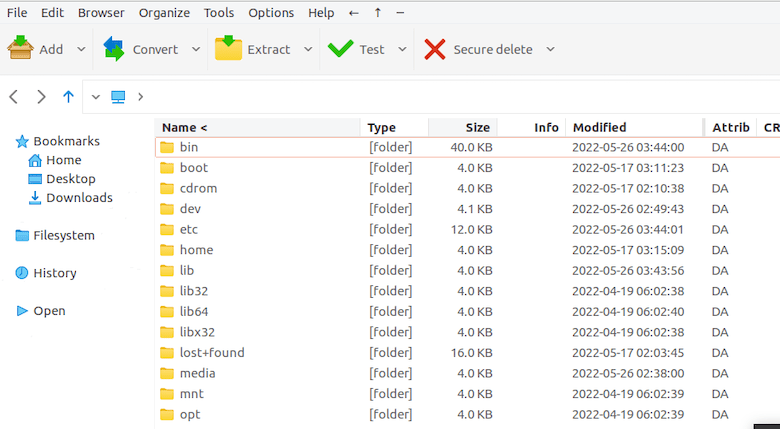
Test 1 — GUI Launch:
Open PeaZip from your application menu (Utilities or Accessories section). The main file manager window should open without errors.
Test 2 — CLI Compression:
echo "sysadmin verification test" > verify.txt
peazip -add=verify_archive.7z verify.txt
WHY: This creates a real 7Z archive using the p7zip backend. If the backend is missing or misconfigured, this command fails with a clear error message pointing you at the exact problem.
Test 3 — Context Menu in Nautilus:
Right-click any folder in Nautilus. You should see PeaZip entries like “Add to archive” and “Extract here.” If they are missing, restart Nautilus:
nautilus -qWHY: Nautilus caches its extension and script list at startup. A fresh install is not picked up by a running Nautilus process. Quitting and reopening forces it to reload, registering the new PeaZip context menu entries.
How to Configure PeaZip After Installing on Fedora 44
Set File Associations
Open PeaZip, go to Options > Settings > File Associations. Register PeaZip as the default handler for formats like .rar, .7z, .tar.gz, and .xz.
WHY: Fedora 44 may already have handlers for .zip via GNOME’s Archive Manager. Without explicitly setting PeaZip as default for complex formats like .rar and .7z, double-clicking those files opens an incompatible program and fails silently.
Configure AES-256 Encryption as Default
Go to Options > Settings > Archive > Encryption and select AES-256 from the cipher dropdown.
WHY: PeaZip supports multiple encryption ciphers including Serpent, Twofish, and Blowfish. AES-256 is the current industry standard and computationally unbroken. Weaker ciphers offer marginal performance gains that are not worth the security tradeoff for any real workload.
Redirect the Temp Directory to an SSD
Under Options > Settings > Advanced, set the temp directory to a path on your fastest storage device:
mkdir -p ~/tmp/peazipThen point PeaZip’s temp path setting to ~/tmp/peazip.
WHY: Archive operations are I/O intensive. PeaZip stages temporary data while compressing or extracting large files. Placing this on an SSD vs a spinning disk can cut operation time by 50 to 70 percent on large archives.
Troubleshooting PeaZip on Fedora 44
Error 1: “No package peazip available”
Cause: DNF metadata cache is stale and does not yet show the updated packages.
Fix:
sudo dnf clean all
sudo dnf update -y
sudo dnf install peazip-gtk2 -y
WHY: dnf clean all wipes the local metadata cache entirely. The subsequent dnf update forces a fresh download from Fedora’s servers, ensuring the 11.0.0-1.fc44 build is visible.
Error 2: PeaZip Launches But Immediately Crashes
Cause: Missing GTK2 libraries or architecture mismatch between the package and installed libraries.
Fix:
peazipRun from terminal to capture stderr output. Then install missing dependencies:
sudo dnf install atk glibc gtk2WHY: Running PeaZip in the terminal bypasses the GUI launcher and exposes the raw error output. Silent crashes in the GUI give you nothing to work with. The terminal will print exactly which shared object file is missing.
Error 3: Context Menu Missing After Install
Cause: The Nautilus (or Dolphin) session running at install time did not pick up the new file manager scripts.
Fix:
nautilus -q         # GNOME
nemo -q             # Cinnamon
killall dolphin     # KDE
update-desktop-database ~/.local/share/applications
WHY: nautilus -q sends a quit signal to all running Nautilus instances. The next time you open Files, Nautilus restarts fresh and scans for new scripts and MIME type associations. The update-desktop-database command regenerates the application-to-MIME-type cache, which is what triggers the context menu entries.
Error 4: Flatpak Cannot Open Files on External Drives
Cause: Flatpak sandbox restricts filesystem access to the home directory by default.
Fix:
flatpak override io.github.peazip.PeaZip --filesystem=/run/mediaWHY: Fedora mounts USB drives and external volumes under /run/media/username/. The Flatpak sandbox blocks access to this path until you explicitly add an override. This command grants access to that specific path only, keeping the rest of the sandbox intact.
Error 5: peazip –version Returns Nothing After DNF Install
Cause: The binary installed to /usr/lib/peazip/ rather than /usr/bin/, and is not in PATH.
Fix:
find /usr -name "peazip" 2>/dev/null
sudo ln -s /usr/lib/peazip/peazip /usr/local/bin/peazip
WHY: find locates the exact binary path regardless of where it landed. The ln -s command creates a symbolic link in /usr/local/bin/, which is always in the default Fedora PATH. This exposes the binary system-wide without moving or copying it.
How to Update and Uninstall PeaZip on Fedora 44
Update Commands by Method
| Install Method | Update Command |
|---|---|
| DNF (official repo) | sudo dnf update peazip-gtk2 |
| Copr | sudo dnf update |
| Flatpak | flatpak update io.github.peazip.PeaZip |
| Portable | Download and extract new tarball from GitHub |
Keep PeaZip updated. Archive extraction vulnerabilities are real — CVE-class bugs exist in libarchive and the 7-zip backend. An outdated archiver that processes untrusted files from the internet is a genuine attack surface.
Uninstall Commands by Method
DNF:
sudo dnf remove peazip-gtk2
rm -rf ~/.config/peazip
Flatpak:
flatpak uninstall io.github.peazip.PeaZip
flatpak uninstall --unused
WHY for Flatpak: The --unused flag reclaims Flatpak runtime storage that persists after app removal. Without it, 100 to 300 MB of runtime files sit on your disk doing nothing.
Portable:
rm -rf ~/Applications/peazip_portable
rm ~/.local/share/applications/peazip-portable.desktop
rm ~/.local/bin/peazip
update-desktop-database ~/.local/share/applications
Congratulations! You have successfully installed PeaZip. Thanks for using this tutorial for installing the PeaZip file archiver utility on Fedora 44 Linux system. For additional help or useful information, we recommend you check the official PeaZip website.
[su_box title=”VPS Manage Service Offer” style=”bubbles” box_color=”#000000″ radius=”10″]If you don’t have time to do all of this stuff, or if this is not your area of expertise, we offer a service to do “VPS Manage Service Offer”, starting from $10 (Paypal payment). Please contact us to get the best deal![/su_box]
