
Most Fedora 44 users who care about email privacy run into the same wall quickly: Proton Mail is not in the default DNF repository, and the official documentation splits the information across multiple support pages. This guide pulls everything together in one place. You will learn how to install Proton Mail on Fedora 44 using four proven methods, configure Proton Mail Bridge for Thunderbird, and fix the most common errors you will hit along the way.
Whether you want a native desktop app, a system-integrated DNF package, or a sandboxed Flatpak install, this tutorial covers each path with exact terminal commands and clear explanations of what every command actually does.
What Is Proton Mail and Why Run It on Fedora 44?
Proton Mail is an end-to-end encrypted email service founded in Switzerland and used by millions of people worldwide. Unlike Gmail or Outlook, Proton Mail encrypts your messages on the client side using AES, RSA, and OpenPGP. The cryptographic libraries are fully open source, independently audited by security researchers, and designed so that even Proton itself cannot read your email content.
Proton Mail officially supports the latest non-LTS versions of Fedora as one of two primary Linux distributions, the other being Ubuntu. This means Fedora 44 is a first-class supported platform, and Proton’s engineering team actively tests their Linux packages against it.
Running the native desktop app on Fedora 44 gives you several advantages over the browser version:
- System tray integration with real-time notifications
- Fast inbox switching between multiple Proton accounts
- Folder, label, and conversation management without opening a browser tab
- Full offline access to previously synced messages
If you also use a third-party email client like Mozilla Thunderbird, Proton Mail Bridge adds IMAP and SMTP support, letting you read and send encrypted email from inside Thunderbird without any changes to Proton’s zero-access encryption model.
Prerequisites Before You Begin
Before you run a single command, confirm your environment matches the requirements below. Skipping this step is the most common reason installs fail.
System requirements:
- Fedora 44 Workstation or Server (x86_64 or aarch64 architecture)
- An active internet connection
- Sudo or root access
- At least 300 MB of free disk space
- A terminal emulator (GNOME Terminal, Konsole, or any equivalent)
Account requirements:
- An active Proton Mail account (free accounts work for the desktop app; Proton Mail Bridge requires a paid plan)
- If you do not have an account yet, create one at proton.me before continuing
Architecture note: Proton’s official RPM package targets x86_64 systems. If you are running Fedora 44 on an ARM-based machine (aarch64), use Method 3 (Snap) or Method 4 (Flatpak) instead, both of which provide aarch64 builds.
Step 1: Update Your Fedora 44 System
Always update your system before installing new software. This ensures DNF’s package metadata is current and reduces dependency conflicts.
sudo dnf update -yWhat this does: The -y flag automatically confirms all prompts. DNF will pull the latest package metadata, upgrade any outdated packages, and refresh the repository cache. This typically takes 1 to 3 minutes depending on your connection speed.
After the update completes, reboot if the kernel was updated:
sudo rebootStep 2: Install Proton Mail on Fedora 44 via RPM File (Official Method)
This is Proton’s officially recommended installation method for Fedora and all Red Hat-based distributions. It uses DNF directly, which means dependency resolution is automatic.
Step 2a: Download the Official RPM Package
Navigate to your Downloads folder and pull the latest RPM from Proton’s official server:
cd ~/Downloads
wget https://proton.me/download/mail/linux/ProtonMail-desktop-beta.rpm
What this does: wget fetches the RPM binary from Proton’s official CDN and saves it to ~/Downloads. Always download from proton.me directly. Never use a third-party mirror for security-critical applications like an encrypted mail client.
Step 2b: Verify the SHA512 Checksum
This step is optional but strongly recommended. It confirms the downloaded file has not been corrupted or tampered with:
echo "<SHA512CheckSum> ProtonMail-desktop-beta.rpm" | sha512sum --check -Replace <SHA512CheckSum> with the hash value from Proton’s official JSON checksum file, which you can find on the Proton Mail Linux download page.
Expected output:
ProtonMail-desktop-beta.rpm: OKIf you see FAILED in the output, delete the file and re-download it before continuing.
Step 2c: Install the RPM Using DNF
sudo dnf install ./ProtonMail-desktop-beta.rpmWhat this does: The ./ prefix tells DNF to install from a local file rather than searching its configured repositories. DNF will automatically fetch and install any missing dependencies from Fedora’s official repos.
Expected output excerpt:
Dependencies resolved.
...
Installed:
  ProtonMail-desktop-beta.x86_64
Complete!
When the installation finishes, launch Proton Mail from the GNOME application menu, or run:
proton-mailStep 3: Install Proton Mail via COPR Repository (Best for Automatic Updates)
The COPR method is the preferred approach for users who want Proton Mail to update automatically alongside the rest of their system packages. COPR (Cool Other Package Repo) is Fedora’s community build service, which lets developers publish packages that integrate cleanly with DNF.
The repository used here is architektapx/protonmail-desktop, which provides automated x86_64 and aarch64 binary releases built directly from the official Proton Mail desktop app source.
Step 3a: Enable the COPR Repository
sudo dnf copr enable architektapx/protonmail-desktopDNF will prompt you to confirm adding the third-party repository. Type y and press Enter.
Step 3b: Refresh Package Metadata
sudo dnf check-updateThis forces DNF to pull the latest package lists from all enabled repositories, including the newly added COPR repo.
Step 3c: Install Proton Mail
sudo dnf install protonmail-desktopWhat this does: DNF fetches the latest Proton Mail build from the COPR repo and installs it with all dependencies resolved automatically.
Why this method beats a manual RPM download: When you run sudo dnf update in the future, DNF will automatically upgrade Proton Mail alongside your other system packages. You never need to manually check for new RPM versions or re-download anything.
Launch the app:
proton-mailStep 4: Install Proton Mail on Fedora 44 via Snap
Snap is a universal Linux packaging format maintained by Canonical. Snap packages include all their dependencies in a self-contained bundle, which makes them work consistently across different distributions.
Snap is not installed by default on Fedora 44, so this method has a slightly longer setup compared to COPR, but it is a solid option, especially on aarch64 machines.
Step 4a: Install Snapd
sudo dnf install snapdStep 4b: Enable Snap Path Variables
Log out and back in to your desktop session, or reboot the system:
sudo rebootWhy this is required: Snapd adds its binary paths to your shell environment on login. Without this step, the snap command itself may not be found.
Step 4c: Create the Classic Snap Symlink
sudo ln -s /var/lib/snapd/snap /snapWhat this does: This creates a symbolic link that allows Snap packages using “classic confinement” to access system paths correctly. It is a one-time setup step required on Fedora.
Step 4d: Install Proton Mail via Snap
sudo snap install proton-mailExpected output:
proton-mail 1.x.x from Proton AG installedLaunch the app from the application menu or run:
proton-mailStep 5: Install Proton Mail on Fedora 44 via Flatpak
Flatpak is pre-installed on Fedora 44 Workstation by default, making this the fastest setup path for most users. Flatpak packages run in a sandbox, which adds an extra layer of isolation from the rest of your operating system.
This method is also the recommended approach for Fedora Silverblue users, since Silverblue is an immutable OS that relies on Flatpak for most application installs.
Step 5a: Enable the Flathub Repository
On a fresh Fedora 44 Workstation install, Flathub is usually already configured via Third-Party Repositories. Run this command to add it if it is missing:
flatpak remote-add --if-not-exists flathub https://dl.flathub.org/repo/flathub.flatpakrepoWhat this does: The --if-not-exists flag makes this command safe to run even if Flathub is already configured. It will not duplicate the remote or throw an error.
Step 5b: Install Proton Mail from Flathub
flatpak install flathub me.proton.MailFlatpak will confirm the installation and list the permissions the app requires. Type y to confirm.
What the app ID means: me.proton.Mail is the official Flatpak application ID published by Proton AG on Flathub. Always verify this ID to ensure you are installing the legitimate package.
Step 5c: Launch Proton Mail
flatpak run me.proton.MailOr open it from the GNOME Activities overview by searching for “Proton Mail.”
Step 6: Configure Proton Mail — First Sign-In
Regardless of which installation method you used, the first launch experience is the same. Open Proton Mail and you will see a sign-in screen.
- Enter your Proton account username (your
@proton.meor@protonmail.comaddress) - Enter your Proton account password
- If you have two-factor authentication (2FA) enabled, enter your 2FA code when prompted
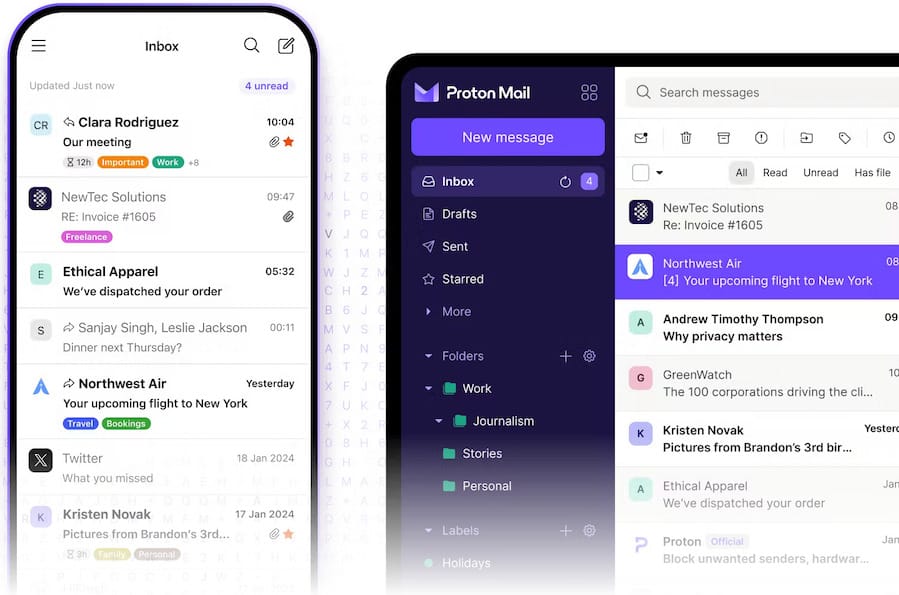
After signing in, you will land in your inbox. The left sidebar shows your folders and labels. You can switch between multiple Proton accounts by clicking your account avatar at the top left.
You do not need to configure any IMAP or SMTP settings for the native app. It handles all encryption and sync internally.
Step 7: Install Proton Mail Bridge and Configure Thunderbird
Proton Mail Bridge is an open-source application that runs locally on your machine and handles end-to-end encryption in the background. It exposes a local IMAP and SMTP server on 127.0.0.1, letting any standard email client connect to your Proton Mail account securely.
Important: Proton Mail Bridge requires a paid Proton Mail subscription (Mail Plus, Proton Unlimited, or a Proton for Business plan). It does not work with free accounts.
Step 7a: Download and Install Proton Mail Bridge RPM
cd ~/Downloads
wget https://proton.me/download/bridge/protonmail-bridge-3.13.0-1.x86_64.rpm
sudo dnf install ./protonmail-bridge-3.13.0-1.x86_64.rpm
Version note: The version number in the filename (3.13.0) changes with each release. Check Proton’s official Bridge download page to get the latest version number before running wget.
After installation, launch Bridge:
protonmail-bridge --noninteractiveSign in to your Proton account inside the Bridge interface. Once signed in, Bridge will display your Mailbox Details, including the auto-generated Bridge password you need for Thunderbird.
Step 7b: Install Mozilla Thunderbird
If Thunderbird is not yet installed on your Fedora 44 system:
sudo dnf install thunderbirdStep 7c: Configure Thunderbird to Use Proton Mail Bridge
Before adding your account, disable Thunderbird’s experimental Account Hub feature to follow these steps correctly. Go to Menu > Settings > General, scroll to Account Hub, and uncheck Create accounts in the new Account Hub.
Now add your Proton Mail account:
- Open Thunderbird and go to Menu > New Account > Email
- Enter your full name, your Proton Mail email address, and the Bridge password (this is the password shown in Bridge Mailbox Details, not your regular Proton account password)
- Click Continue. If server settings are detected automatically, click Done. If not, click Configure manually and enter the settings below
| Setting | Value |
|---|---|
| Incoming (IMAP) Server | 127.0.0.1 |
| IMAP Port | 1143 |
| IMAP Security | STARTTLS |
| Outgoing (SMTP) Server | 127.0.0.1 |
| SMTP Port | 1025 |
| SMTP Security | STARTTLS |
| Authentication | Normal password |
- Click Done. Thunderbird will ask you to confirm a security certificate exception for the local Bridge certificate. Click Confirm Security Exception.
- Send a test email to trigger the SMTP certificate prompt. Confirm the SMTP certificate exception the same way.
Thunderbird will now fetch and send your Proton Mail messages with full end-to-end encryption handled transparently by Bridge.
Troubleshooting Common Proton Mail Errors on Fedora 44
Error 1: Wrong Architecture RPM
Symptom: DNF returns an error like nothing provides needed or an architecture mismatch warning.
Cause: You downloaded the x86_64 RPM on an aarch64 (ARM) system.
Fix: Use the Flatpak or Snap method instead. Both provide aarch64 builds:
flatpak install flathub me.proton.MailError 2: wget Returns a 404 Error
Symptom: wget exits with ERROR 404: Not Found when downloading the RPM.
Cause: The version number in the URL is outdated. Proton updates RPM version numbers with each release.
Fix: Go to Proton’s official download page at proton.me/mail/download, find the current RPM filename, and update the URL in your wget command accordingly.
Error 3: Missing Dependencies During DNF Install
Symptom: DNF reports Error: Package dependencies cannot be resolved.
Cause: A required library is missing from your current repository configuration.
Fix: First, ensure wget and dnf-plugins-core are installed, then retry:
sudo dnf install -y wget dnf-plugins-core
sudo dnf install ./ProtonMail-desktop-beta.rpm
DNF should resolve and install remaining dependencies automatically.
Error 4: Proton Mail Bridge Fails to Start (Qt Library Error)
Symptom: Launching Bridge from the terminal shows an error like libQt5Gui.so.5: cannot open shared object file.
Cause: Required Qt5 libraries are not installed on your Fedora 44 system.
Fix:
sudo dnf install qt5-qtbase qt5-qtbase-guiThen relaunch Bridge.
Error 5: Thunderbird Refuses to Connect to Bridge (Certificate Error)
Symptom: Thunderbird shows a persistent “connection refused” or “untrusted certificate” error when fetching mail.
Cause: Thunderbird has not yet confirmed the local certificate exception for one or both ports. Bridge uses a locally generated self-signed certificate that cannot be validated by a public certificate authority.
Fix: In Thunderbird, go to Menu > Account Settings > your Proton Mail account > Server Settings. Click View Certificate and manually confirm the exception. Repeat for SMTP by triggering a test send.
Congratulations! You have successfully installed Proton Mail. Thanks for using this tutorial for installing Proton Mail on your Fedora 44 Linux system. For additional or useful information, we recommend you check the official Proton Mail website.
[su_box title=”VPS Manage Service Offer” style=”bubbles” box_color=”#000000″ radius=”10″]If you don’t have time to do all of this stuff, or if this is not your area of expertise, we offer a service to do “VPS Manage Service Offer”, starting from $10 (Paypal payment). Please contact us to get the best deal![/su_box]

