
If you run microservices or distributed systems, you eventually hit the same problem: your services need a reliable way to communicate without being tightly coupled to each other. RabbitMQ solves that problem by acting as a message broker, sitting between your services and handling message routing so each component stays independent. This guide walks you through a complete, production-aware process to install RabbitMQ on AlmaLinux 10 from scratch, covering everything from GPG key verification to firewall setup and the management UI. By the time you finish, you will have a running, secured RabbitMQ instance ready for real workloads.
One important thing to know upfront: as of April 2026, the RabbitMQ team does not publish native EL10 repositories yet. AlmaLinux 10 is binary-compatible with RHEL 10, and the official EL9 repositories work correctly on it. This guide uses those EL9 repos with full explanation of why that is safe and correct.
What Is RabbitMQ and Why Use It
RabbitMQ is an open-source message broker that implements the Advanced Message Queuing Protocol (AMQP). It routes messages between producers (services that send data) and consumers (services that receive it) through a central queue system.
RabbitMQ 4.x replaced the old classic mirrored queues with quorum queues, which use the Raft consensus algorithm for stronger data safety across cluster nodes. This makes it more resilient and better suited for production deployments compared to earlier versions.
Common use cases include:
- Microservice decoupling: Services communicate through queues instead of direct HTTP calls, so a slow or failed service does not bring down the whole stack
- Background job processing: Offload time-consuming tasks (image processing, email sending, report generation) to worker queues
- Event-driven architectures: Publish events that multiple consumers can subscribe to independently
- Real-time data pipelines: Stream data between services at scale with guaranteed delivery semantics
RabbitMQ also ships with a built-in web management interface, supports multiple protocols (AMQP, STOMP, MQTT), and has client libraries for virtually every major programming language.
Prerequisites
Before starting, make sure your environment meets the following requirements:
- Operating system: AlmaLinux 10 (fresh install recommended)
- Minimum hardware: 1 vCPU, 2 GB RAM, 10 GB free disk space
- Access level: Root access or a user with full
sudoprivileges - Connectivity: Active internet connection to reach the RabbitMQ package repositories
- Firewall:
firewalldrunning (default on AlmaLinux 10) - Basic CLI familiarity: You should be comfortable running commands in a terminal
If you are testing on a local VM rather than a remote server, all of this still applies. Just skip any cloud-specific networking steps.
Step 1: Update Your AlmaLinux 10 System
The first thing you should always do on a fresh server is update it. Run:
sudo dnf update -yWhy this matters: RabbitMQ and Erlang link against core system libraries like glibc and openssl at runtime. If those libraries are outdated, you risk subtle version conflicts that are hard to debug later. Keeping the base system current before installing anything new prevents that class of problem entirely.
If the update included a new kernel, reboot the server before continuing:
sudo rebootAfter the reboot, confirm you are running AlmaLinux 10:
cat /etc/almalinux-releaseWhy verify the OS version: Some cloud providers ship VPS images that are not fully up to date. Confirming you are on AlmaLinux 10 before proceeding ensures you are using the right repository configuration.
Step 2: Import GPG Signing Keys
GPG key verification is a security layer that confirms any package you install actually came from the RabbitMQ team and was not tampered with in transit. Import all three required keys:
sudo rpm --import 'https://github.com/rabbitmq/signing-keys/releases/download/3.0/rabbitmq-release-signing-key.asc'
sudo rpm --import 'https://github.com/rabbitmq/signing-keys/releases/download/3.0/cloudsmith.rabbitmq-erlang.E495BB49CC4BBE5B.key'
sudo rpm --import 'https://github.com/rabbitmq/signing-keys/releases/download/3.0/cloudsmith.rabbitmq-server.9F4587F226208342.key'
Why three separate keys: You need the main RabbitMQ release key, plus two Cloudsmith-specific keys for the hosted Erlang and RabbitMQ server packages respectively. Each Cloudsmith mirror signs its packages with its own key, separate from the primary RabbitMQ project key.
Why import them before creating repos: If you add the repo file first and then try to install without the keys already registered, dnf will either reject the packages outright or stop and ask interactively. That breaks automated provisioning scripts and confuses beginners who do not expect the prompt.
All three key files are hosted on the official rabbitmq GitHub organization, not a third-party server. That gives you a verifiable chain of trust directly back to the project maintainers.
Step 3: Add the RabbitMQ and Erlang Repositories
Create a new repository file under /etc/yum.repos.d/:
sudo vi /etc/yum.repos.d/rabbitmq.repoPaste the following content into the file:
## Zero dependency Erlang RPM

[modern-erlang]
name=modern-erlang-el9
baseurl=https://yum1.rabbitmq.com/erlang/el/9/$basearch
        https://yum2.rabbitmq.com/erlang/el/9/$basearch
repo_gpgcheck=1
enabled=1
gpgkey=https://github.com/rabbitmq/signing-keys/releases/download/3.0/cloudsmith.rabbitmq-erlang.E495BB49CC4BBE5B.key
gpgcheck=1
sslverify=1
sslcacert=/etc/pki/tls/certs/ca-bundle.crt
metadata_expire=300
pkg_gpgcheck=1
autorefresh=1
type=rpm-md

[modern-erlang-noarch]
name=modern-erlang-el9-noarch
baseurl=https://yum1.rabbitmq.com/erlang/el/9/noarch
        https://yum2.rabbitmq.com/erlang/el/9/noarch
repo_gpgcheck=1
enabled=1
gpgkey=https://github.com/rabbitmq/signing-keys/releases/download/3.0/cloudsmith.rabbitmq-erlang.E495BB49CC4BBE5B.key
        https://github.com/rabbitmq/signing-keys/releases/download/3.0/rabbitmq-release-signing-key.asc
gpgcheck=1
sslverify=1
sslcacert=/etc/pki/tls/certs/ca-bundle.crt
metadata_expire=300
pkg_gpgcheck=1
autorefresh=1
type=rpm-md

## RabbitMQ Server

[rabbitmq-el9]
name=rabbitmq-el9
baseurl=https://yum2.rabbitmq.com/rabbitmq/el/9/$basearch
        https://yum1.rabbitmq.com/rabbitmq/el/9/$basearch
repo_gpgcheck=1
enabled=1
gpgkey=https://github.com/rabbitmq/signing-keys/releases/download/3.0/cloudsmith.rabbitmq-server.9F4587F226208342.key
        https://github.com/rabbitmq/signing-keys/releases/download/3.0/rabbitmq-release-signing-key.asc
gpgcheck=1
sslverify=1
sslcacert=/etc/pki/tls/certs/ca-bundle.crt
metadata_expire=300
pkg_gpgcheck=1
autorefresh=1
type=rpm-md

[rabbitmq-el9-noarch]
name=rabbitmq-el9-noarch
baseurl=https://yum2.rabbitmq.com/rabbitmq/el/9/noarch
        https://yum1.rabbitmq.com/rabbitmq/el/9/noarch
repo_gpgcheck=1
enabled=1
gpgkey=https://github.com/rabbitmq/signing-keys/releases/download/3.0/cloudsmith.rabbitmq-server.9F4587F226208342.key
        https://github.com/rabbitmq/signing-keys/releases/download/3.0/rabbitmq-release-signing-key.asc
gpgcheck=1
sslverify=1
sslcacert=/etc/pki/tls/certs/ca-bundle.crt
metadata_expire=300
pkg_gpgcheck=1
autorefresh=1
type=rpm-md
Save and close the file (:wq in vi).
Why use EL9 repos on AlmaLinux 10: AlmaLinux 10 shares its binary compatibility layer with RHEL 10, which is EL9-derived in package terms. The RabbitMQ team has confirmed the EL9 repository works correctly on both Rocky Linux 10 and AlmaLinux 10. Native EL10 repos will be published eventually, but using EL9 repos is the correct and supported approach right now.
Why two baseurl entries per section: Each repo section lists two mirror URLs (yum1 and yum2). If the first mirror is unreachable, dnf automatically falls back to the second. This prevents a single mirror outage from blocking your installation.
Why repo_gpgcheck=1 AND gpgcheck=1: These are two different verification layers. repo_gpgcheck validates the repository metadata file itself, while gpgcheck validates each individual package. Both should always be enabled to guard against compromised metadata or swapped packages at the mirror level.
Step 4: Refresh the Repository Metadata Cache
Force dnf to download and index fresh metadata from all configured repositories:
sudo dnf makecacheWhy run this explicitly: Rather than waiting until the next install command triggers a lazy refresh, running makecache now validates that your new RabbitMQ repository entries are reachable, properly signed, and returning valid metadata. If there is a typo in the repo file or a networking issue, you catch it here before you are mid-installation.
A successful run outputs something like:
modern-erlang                                    2.5 kB/s | 3.4 kB   00:01
rabbitmq-el9                                     3.1 kB/s | 4.1 kB   00:01
Metadata cache created.
If you see GPG verification errors here, go back to Step 2 and confirm all three keys were imported correctly.
Step 5: Install Required Dependencies
Install two packages that RabbitMQ depends on at runtime:
sudo dnf install -y socat logrotateWhy socat: The rabbitmqctl management tool uses socat to open Unix domain socket connections to the running broker process. Without it, every rabbitmqctl command fails with a cryptic socket connection error, making the broker essentially unmanageable from the CLI.
Why logrotate: RabbitMQ writes detailed logs to /var/log/rabbitmq/. On a busy server processing thousands of messages per minute, those log files grow fast. Without rotation configured, a filled disk partition can crash the broker or cause message loss. logrotate handles this automatically on a schedule.
Both packages are lightweight with no meaningful side effects, so there is no reason to skip this step even if you think you might not need them.
Step 6: Install RabbitMQ on AlmaLinux 10 and Erlang
Now install Erlang and the RabbitMQ server package together:
sudo dnf install -y erlang rabbitmq-serverThis single command pulls Erlang/OTP from the modern-erlang repo and rabbitmq-server from the rabbitmq-el9 repo you configured earlier.
Why install Erlang from the RabbitMQ team’s repo and not the default AlmaLinux repos: The Erlang version in the default AlmaLinux/RHEL repositories is almost always outdated. RabbitMQ 4.x requires Erlang/OTP 26.2 at minimum, up to 27.x. Using a mismatched Erlang version causes the broker to fail at startup with a cryptic incompatible_otp error. Getting Erlang from the same source as RabbitMQ eliminates that risk.
Why install both in one command: Resolving both packages together lets dnf calculate and satisfy any shared dependency conflicts atomically. Doing them in two separate commands can occasionally result in partial dependency states that require manual cleanup.
After installation, verify the versions immediately:
erl -eval 'erlang:display(erlang:system_info(otp_release)), halt().' -noshellExpected output:
"27"sudo rabbitmqctl versionExpected output:
4.3.0Why check versions right after install: This confirms the packages came from the correct repositories. If you see Erlang 25 or RabbitMQ 3.x, the default system repo overrode your custom repo, and you need to troubleshoot the repo priority settings.
Step 7: Start and Enable the RabbitMQ Service
Start RabbitMQ and configure it to launch automatically on every boot:
sudo systemctl enable --now rabbitmq-serverWhy use the --now flag: Without it, enable only registers the service for boot, but it does not start it in your current session. You would need a separate systemctl start command. The --now flag combines both actions into one, ensuring the broker is running immediately and will survive reboots.
Why enable on boot: RabbitMQ is typically critical infrastructure. If the server reboots after a kernel update or unexpected power event, your application queues need to come back online automatically without manual intervention.
Verify the service came up correctly:
sudo systemctl status rabbitmq-serverLook for Active: active (running) in the output. The status output also shows the broker’s PID, memory consumption, and the last few log lines, which is useful for catching startup warnings early.
For an application-level health check that goes beyond the systemd process state:
sudo rabbitmq-diagnostics check_runningThis confirms the broker application itself has fully initialized, not just that the OS process is alive.
Step 8: Enable the Management Plugin
The management plugin provides a browser-based dashboard and an HTTP API for monitoring and administering the broker:
sudo rabbitmq-plugins enable rabbitmq_managementWhy this is not enabled by default: The plugin adds CPU and memory overhead because it continuously collects metrics about connections, channels, queues, and message rates. On brokers handling extreme throughput, that overhead matters. Keeping it optional lets operators decide when the monitoring benefit outweighs the cost.
Why you almost certainly want it enabled: For everyone who is not running at extreme scale, the management UI is invaluable. It shows queue depths, consumer counts, publish/deliver rates, and node health at a glance. No service restart is needed after enabling it; the plugin activates inside the running broker process immediately.
Verify the plugin is active:
sudo rabbitmq-plugins list | grep rabbitmq_managementThe output should show [E*] next to the plugin name, indicating it is both enabled and currently running.
Step 9: Create a Dedicated Admin User and Secure the Broker
Create the Admin User
RabbitMQ ships with a default user named guest. Create a proper admin account and remove guest:
sudo rabbitmqctl add_user adminuser StrongPassword123
sudo rabbitmqctl set_user_tags adminuser administrator
sudo rabbitmqctl set_permissions -p / adminuser ".*" ".*" ".*"
Now delete the default guest account:
sudo rabbitmqctl delete_user guestWhy not use the guest account: The guest user is deliberately restricted to localhost-only connections by default. It also uses the well-known default password guest, making it a trivial attack target on any internet-accessible server. Deleting it removes the risk entirely.
Why three ".*" permission arguments: The three patterns control configure, write, and read access on the default virtual host /. Setting all three to .* (match everything) gives your admin user full access to all resources in that vhost.
Configure the Firewall
Open only the ports RabbitMQ actually needs:
sudo firewall-cmd --add-port=5672/tcp --permanent
sudo firewall-cmd --add-port=15672/tcp --permanent
sudo firewall-cmd --reload
Here is what each port does:
| Port | Protocol | Purpose |
|---|---|---|
| 5672 | TCP | AMQP client connections (your applications connect here) |
| 15672 | TCP | Management UI and HTTP API |
| 4369 | TCP | EPMD (Erlang Port Mapper Daemon, needed for clustering only) |
| 25672 | TCP | Erlang inter-node communication (clustering only) |
Why open only 5672 and 15672 for a single-node setup: Ports 4369 and 25672 are only required when you are forming a multi-node cluster. Leaving them closed on a standalone broker reduces your attack surface with no downside.
Why --permanent: Without this flag, firewall rules disappear the next time firewalld restarts or the system reboots. Always use --permanent followed by --reload for persistent rule changes.
Confirm the ports are open:
sudo firewall-cmd --list-portsStep 10: Access the Management UI and Post-Install Configuration
Access the Management UI
Open a browser and navigate to:
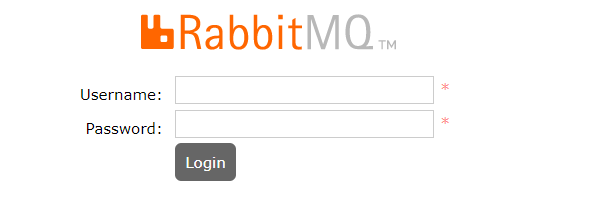
http://<your-server-ip>:15672Log in with the admin user you created in Step 9. The Overview tab shows connected clients, message rates, queue depths, and node memory in real time.
The HTTP API documentation is available at http://<your-server-ip>:15672/api/. This API lets you automate queue creation, user management, and health checks without SSH access, which is useful for CI/CD pipelines and infrastructure-as-code workflows.
Essential Post-Install Configuration
Lock your hostname first. RabbitMQ uses the system hostname as part of its internal node name (rabbit@hostname). If the hostname changes after the broker has started and stored data, the node will fail to start on the next boot. Set a stable hostname before running production workloads:
sudo hostnamectl set-hostname your-server-hostnameCreate virtual hosts for application isolation. Virtual hosts in RabbitMQ work like database schemas: they provide separate namespaces so different applications sharing the same broker cannot accidentally access each other’s queues:
sudo rabbitmqctl add_vhost /myapp
sudo rabbitmqctl set_permissions -p /myapp adminuser ".*" ".*" ".*"
Tune the memory threshold if needed. By default, RabbitMQ triggers a memory alarm and blocks all publishers when it consumes 40% of total system RAM. On servers with less than 4 GB RAM, you may need to adjust this in /etc/rabbitmq/rabbitmq.conf:
vm_memory_high_watermark.relative = 0.6This raises the threshold to 60%, giving the broker more room before it starts blocking producers.
Troubleshooting Common Issues
Broker Fails to Start After Installation
Symptom: systemctl status rabbitmq-server shows failed or the service enters a restart loop.
Cause: The most common reason is a hostname resolution problem. RabbitMQ’s node name is rabbit@hostname, and Erlang requires that hostname to be resolvable. If /etc/hostname and the actual resolvable hostname do not match, the broker crashes immediately.
Fix:
hostname -s
cat /etc/hostname
Both commands should return the same value. If they do not, align them and restart the service.
rabbitmqctl Returns “Unable to Connect to Node”
Symptom: Every rabbitmqctl command fails with a message like unable to connect to node rabbit@hostname.
Cause: Either socat is missing (skipped Step 5), or the broker process has crashed.
Fix: Confirm socat is installed, then check the logs for crash details:
rpm -q socat
sudo journalctl -u rabbitmq-server --no-pager -n 50
The journal output will show the exact error that caused the broker to exit.
Management UI Login Fails with Correct Credentials
Symptom: The browser shows a login form, but valid credentials are rejected.
Cause: The rabbitmq_management plugin was not enabled, the admin user was not created correctly, or the guest user was deleted before a new admin was created.
Fix: Verify the plugin is active and confirm the user exists:
sudo rabbitmq-plugins list | grep management
sudo rabbitmqctl list_users
If the user is missing, re-run the add_user and set_permissions commands from Step 9.
Port 15672 Unreachable from a Remote Machine
Symptom: The management UI loads fine from localhost but times out from a remote browser.
Cause: The firewall rule was added without --permanent and was lost after a firewalld reload, or the --reload command was not run after adding the rules.
Fix:
sudo firewall-cmd --list-ports
sudo firewall-cmd --add-port=15672/tcp --permanent
sudo firewall-cmd --reload
Erlang Version Mismatch Error on Startup
Symptom: The service fails to start and the logs contain incompatible_otp or similar Erlang-related errors.
Cause: Erlang was installed from the default AlmaLinux repos instead of the RabbitMQ team’s modern-erlang repo, resulting in an outdated Erlang version.
Fix: Remove the system Erlang package and reinstall from the correct source:
sudo dnf remove erlang
sudo dnf install -y erlang
erl -eval 'erlang:display(erlang:system_info(otp_release)), halt().' -noshell
The output should be "27". If it still shows "25" or older, verify the [modern-erlang] repo section in /etc/yum.repos.d/rabbitmq.repo is correct and that dnf makecache completed without errors.
Congratulations! You have successfully installed RabbitMQ. Thanks for using this tutorial for installing RabbitMQ on your AlmaLinux OS 10 system. For additional help or useful information, we recommend you check the official RabbitMQ website.
[su_box title=”VPS Manage Service Offer” style=”bubbles” box_color=”#000000″ radius=”10″]If you don’t have time to do all of this stuff, or if this is not your area of expertise, we offer a service to do “VPS Manage Service Offer”, starting from $10 (Paypal payment). Please contact us to get the best deal![/su_box]

