
Snipe-IT is a powerful open-source IT asset management system that helps organizations track hardware, software licenses, accessories, and consumables efficiently. Built on the Laravel PHP framework, this comprehensive platform offers features like barcode scanning, QR code generation, digital signatures, and detailed reporting capabilities. Whether you’re managing a small business or enterprise infrastructure, Snipe-IT provides robust asset tracking functionality without the high costs associated with proprietary solutions.
Debian 13 (Trixie) serves as an excellent hosting platform for Snipe-IT due to its legendary stability, comprehensive security updates, and long-term support. This tutorial guides you through the complete installation process, from system preparation to production deployment. You’ll learn how to configure the LAMP stack, set up the database, install dependencies, and secure your installation with SSL certificates.
By following this guide, you’ll have a fully functional asset management system running on Debian 13, ready to streamline your IT inventory processes.
Prerequisites and System Requirements
Before beginning the installation, ensure your server meets the minimum hardware specifications. Your Debian 13 system should have at least 2 CPU cores, 4 GB RAM, and 30 GB of SSD storage for optimal performance. These resources ensure smooth operation even when managing thousands of assets and multiple concurrent users.
You’ll need root or sudo privileges to execute administrative commands throughout this installation. A stable internet connection is essential for downloading packages, dependencies, and the Snipe-IT application itself. Basic familiarity with Linux command-line operations will help you navigate this tutorial more effectively.
The software stack requires Apache or Nginx as the web server, PHP 8.4 with multiple extensions, and MariaDB or MySQL for database management. You’ll also need Composer for PHP dependency management and Git for cloning the repository. For production environments, an SSL certificate is strongly recommended to encrypt data transmission.
Step 1: Update System Packages
Begin by updating your Debian 13 system to ensure all packages are current. This step addresses security vulnerabilities and ensures compatibility with the software we’ll install.
sudo apt update
sudo apt upgrade -y
The first command refreshes the package repository lists, while the second upgrades installed packages to their latest versions. The -y flag automatically confirms the upgrade without prompting for user input.
Next, install essential build tools and development libraries:
sudo apt install -y software-properties-common curl wget git unzip ca-certificates apt-transport-httpsThese utilities facilitate secure package downloads and version control operations needed throughout the installation process.
Step 2: Install Apache Web Server
Apache will serve as the web server handling HTTP requests to your Snipe-IT installation. Install Apache2 with this command:
sudo apt install apache2 -yEnable Apache to start automatically when the system boots:
sudo systemctl enable apache2
sudo systemctl start apache2
Verify that Apache is running correctly:
sudo systemctl status apache2You should see an active (running) status in the output. Test your installation by accessing your server’s IP address in a web browser. You should see the default Apache welcome page, confirming successful installation.
If you’re using a firewall, allow HTTP and HTTPS traffic:
sudo ufw allow 'Apache Full'This command permits both port 80 (HTTP) and port 443 (HTTPS) through the firewall.
Step 3: Install and Configure MariaDB Database
MariaDB serves as the database backend that stores all your asset information, user accounts, and system configurations. Install the MariaDB server:
sudo apt install mariadb-server mariadb-client -yStart and enable the MariaDB service:
sudo systemctl start mariadb
sudo systemctl enable mariadb
Secure your database installation by running the security script:
sudo mysql_secure_installationThis interactive script prompts you to set a root password, remove anonymous users, disallow remote root login, and remove test databases. Answer ‘Y’ to all prompts for maximum security.
Creating the Snipe-IT Database
Log into the MariaDB console as root:
sudo mysql -u root -pCreate a dedicated database for Snipe-IT:
CREATE DATABASE snipeit_db CHARACTER SET utf8mb4 COLLATE utf8mb4_unicode_ci;Create a database user with a strong password:
CREATE USER 'snipeit_user'@'localhost' IDENTIFIED BY 'your_strong_password';Grant all privileges on the Snipe-IT database to this user:
GRANT ALL PRIVILEGES ON snipeit_db.* TO 'snipeit_user'@'localhost';
FLUSH PRIVILEGES;
EXIT;
Replace your_strong_password with a secure password combining uppercase, lowercase, numbers, and special characters. Store these credentials safely as you’ll need them later.
Step 4: Install PHP 8.4 and Required Extensions
Snipe-IT is built on Laravel, which requires PHP with specific extensions for proper functionality. Install PHP 8.4 and all necessary extensions:
sudo apt install php php-fpm php-bcmath php-cli php-common php-ctype php-curl php-fileinfo php-gd php-iconv php-intl php-json php-mbstring php-mysql php-pdo php-soap php-tokenizer php-xml php-xsl php-zip -yThis comprehensive package list ensures Snipe-IT has all dependencies for features like image processing, database connectivity, and XML handling.
Enable the PHP module in Apache:
sudo a2enmod php8.4Restart Apache to apply the configuration:
sudo systemctl restart apache2Verify your PHP installation:
php -vYou should see PHP 8.4.x in the output, confirming successful installation.
Step 5: Install Composer
Composer manages PHP dependencies for Laravel applications. Download and install Composer globally:
curl -sS https://getcomposer.org/installer | php
sudo mv composer.phar /usr/local/bin/composer
sudo chmod +x /usr/local/bin/composer
These commands download the Composer installer, move it to a system-wide location, and make it executable.
Verify the installation:
composer --versionYou should see the Composer version number displayed, indicating successful installation.
Step 6: Download and Configure Snipe-IT
Navigate to the web server’s document root:
cd /var/www/htmlClone the Snipe-IT repository from GitHub:
sudo git clone https://github.com/snipe/snipe-it.git
cd snipe-it
This downloads the latest stable version of Snipe-IT to your server.
Configuring the Environment File
Copy the example environment file:
sudo cp .env.example .envEdit the .env file with your preferred text editor:
sudo nano .envConfigure the following essential settings:
APP_URL=http://your-domain.com
APP_TIMEZONE=Asia/Jakarta
APP_LOCALE=en

DB_CONNECTION=mysql
DB_HOST=127.0.0.1
DB_PORT=3306
DB_DATABASE=snipeit_db
DB_USERNAME=snipeit_user
DB_PASSWORD=your_strong_password
Replace the database credentials with those created earlier. Set APP_TIMEZONE to match your location and APP_URL to your actual domain or IP address.
Setting Directory Permissions
Proper permissions are critical for Laravel applications. Set the correct ownership:
sudo chown -R www-data:www-data /var/www/html/snipe-itConfigure appropriate file permissions:
sudo chmod -R 755 /var/www/html/snipe-it/storage
sudo chmod -R 755 /var/www/html/snipe-it/public/uploads
These permissions allow Apache to write to storage and upload directories while maintaining security.
Step 7: Install Snipe-IT Dependencies with Composer
Navigate to the Snipe-IT directory and install PHP dependencies:
cd /var/www/html/snipe-it
sudo composer install --no-dev --prefer-source
The --no-dev flag installs only production dependencies, excluding development packages. This process may take several minutes as Composer downloads and installs all required Laravel packages.
If you encounter memory limit errors, increase PHP’s memory limit temporarily:
php -d memory_limit=-1 /usr/local/bin/composer install --no-dev --prefer-sourceThis command allows Composer to use unlimited memory during installation.
Step 8: Generate Application Key
Laravel requires a unique application key for encryption and security. Generate this key:
sudo php artisan key:generateWhen prompted, confirm the operation by typing ‘yes’. This command creates a random 32-character string and adds it to your .env file as APP_KEY. Never share this key publicly, as it’s used for encrypting sensitive data.
Step 9: Configure Apache Virtual Host
Create a new virtual host configuration file:
sudo nano /etc/apache2/sites-available/snipeit.confAdd the following configuration:
<VirtualHost *:80>
    ServerName your-domain.com
    ServerAlias www.your-domain.com
    DocumentRoot /var/www/html/snipe-it/public

    <Directory /var/www/html/snipe-it/public>
        Options Indexes FollowSymLinks
        AllowOverride All
        Require all granted
    </Directory>

    ErrorLog ${APACHE_LOG_DIR}/snipeit-error.log
    CustomLog ${APACHE_LOG_DIR}/snipeit-access.log combined
</VirtualHost>
This configuration points Apache to the Snipe-IT public directory and enables .htaccess overrides necessary for Laravel routing.
Enable the new virtual host and Apache’s rewrite module:
sudo a2ensite snipeit.conf
sudo a2enmod rewrite
Test the configuration for syntax errors:
sudo apache2ctl configtestYou should see “Syntax OK” in the output. Reload Apache to apply changes:
sudo systemctl reload apache2Step 10: Run Database Migrations
Laravel migrations create the database schema required for Snipe-IT. Execute the migrations:
sudo php artisan migrate --forceThe --force flag bypasses the production environment warning. Monitor the output as Laravel creates tables for assets, users, locations, categories, and other system components.
If migrations fail, check your database credentials in the .env file and verify MariaDB is running.
Step 11: Access Snipe-IT Web Interface
Open your web browser and navigate to your server’s domain or IP address. You’ll see the Snipe-IT pre-flight check page, which validates system requirements.
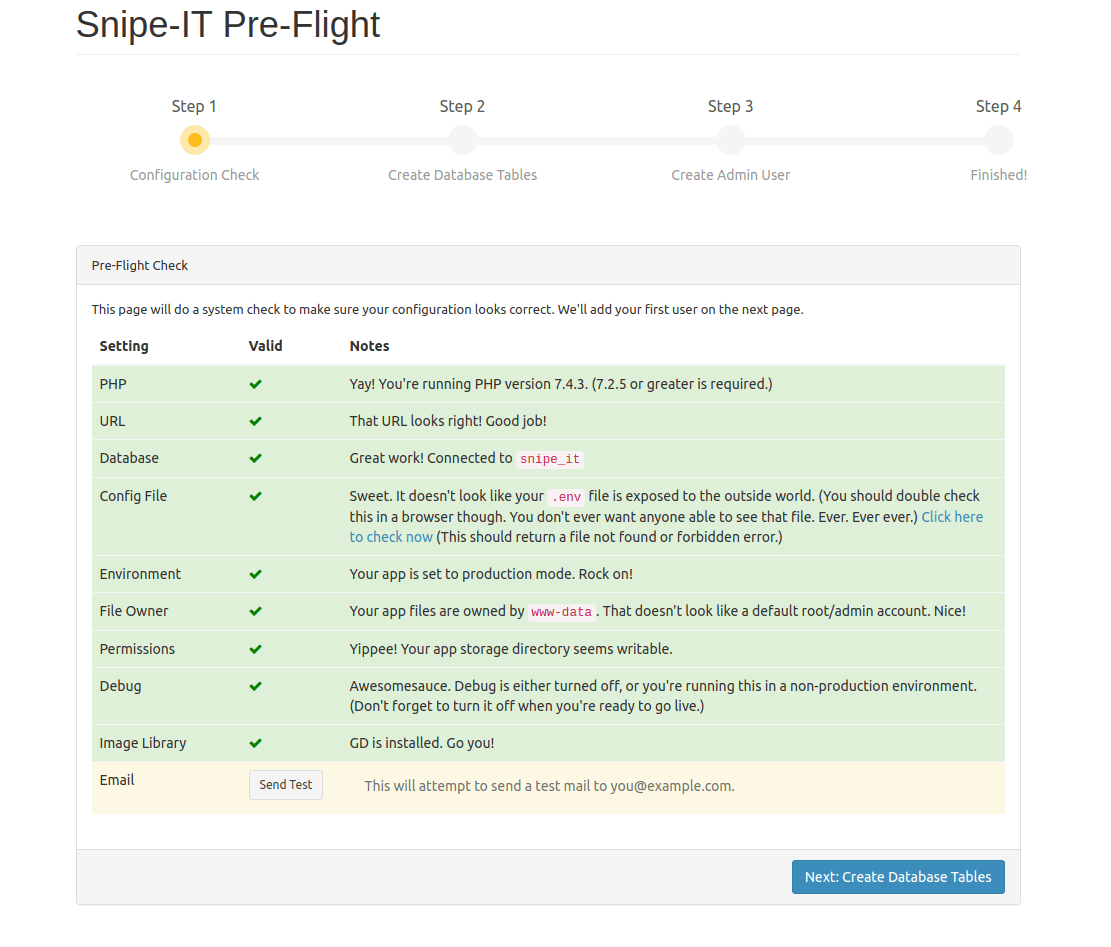
If all checks pass, click “Next” to proceed. Create your first administrator account by providing:
- First and last name
- Email address
- Username
- Password
Configure basic site settings including site name, default language, and currency preferences. Complete the setup wizard to access the Snipe-IT dashboard.
Step 12: Post-Installation Configuration
After logging in, configure essential settings to optimize your asset management system.
Email Configuration
Navigate to Settings > LDAP/AD, then configure SMTP settings for email notifications. Email functionality enables password resets, asset check-in/check-out notifications, and expiration alerts.
Asset Categories and Models
Create asset categories (Laptops, Desktops, Monitors) and models under Settings > Asset Models. This organizational structure streamlines asset tracking and reporting.
Security Hardening
Implement these security measures:
Configure firewall rules using UFW:
sudo ufw enable
sudo ufw allow 22/tcp
sudo ufw allow 80/tcp
sudo ufw allow 443/tcp
These rules permit SSH, HTTP, and HTTPS while blocking other ports.
Enable two-factor authentication in user settings for additional account security. Regularly review file permissions to prevent unauthorized access:
sudo find /var/www/html/snipe-it -type f -exec chmod 644 {} \;
sudo find /var/www/html/snipe-it -type d -exec chmod 755 {} \;
Step 13: Configure SSL Certificate with Let’s Encrypt
HTTPS encryption is essential for production environments to protect sensitive asset data and login credentials. Install Certbot:
sudo apt install certbot python3-certbot-apache -yObtain and install an SSL certificate:
sudo certbot --apache -d your-domain.com -d www.your-domain.comCertbot automatically configures Apache for HTTPS and sets up certificate renewal. Follow the interactive prompts, providing your email address and agreeing to the terms of service.
Update the APP_URL in your .env file to use HTTPS:
sudo nano /var/www/html/snipe-it/.envChange APP_URL=http://your-domain.com to APP_URL=https://your-domain.com.
Clear the configuration cache:
sudo php artisan config:clearTest your SSL installation by accessing your domain with HTTPS. Your browser should display a padlock icon indicating a secure connection.
Step 14: Backup Configuration
Regular backups protect against data loss from hardware failures, human errors, or security incidents. Configure Snipe-IT’s built-in backup feature under Settings > Backups.
Create an automated backup script:
sudo nano /usr/local/bin/snipeit-backup.shAdd the following content:
#!/bin/bash
BACKUP_DIR="/var/backups/snipeit"
TIMESTAMP=$(date +%Y%m%d_%H%M%S)

mkdir -p $BACKUP_DIR

# Backup database
mysqldump -u snipeit_user -p'your_strong_password' snipeit_db > $BACKUP_DIR/database_$TIMESTAMP.sql

# Backup uploads
tar -czf $BACKUP_DIR/uploads_$TIMESTAMP.tar.gz /var/www/html/snipe-it/public/uploads

# Remove backups older than 30 days
find $BACKUP_DIR -type f -mtime +30 -delete
Make the script executable:
sudo chmod +x /usr/local/bin/snipeit-backup.shSchedule daily backups with cron:
sudo crontab -eAdd this line to run backups daily at 2 AM:
0 2 * * * /usr/local/bin/snipeit-backup.shThis automation ensures consistent backup coverage without manual intervention.
Troubleshooting Common Issues
Permission Errors
If you encounter 500 Internal Server Error, check file permissions. The storage and cache directories must be writable by Apache:
sudo chown -R www-data:www-data /var/www/html/snipe-it/storage
sudo chmod -R 775 /var/www/html/snipe-it/storage
Review Laravel logs for detailed error information:
sudo tail -f /var/www/html/snipe-it/storage/logs/laravel.logThis command displays real-time log entries, helping identify permission or configuration issues.
Database Connection Issues
If Snipe-IT cannot connect to the database, verify credentials in the .env file match those created during MariaDB setup. Test database connectivity:
mysql -u snipeit_user -p'your_strong_password' snipeit_dbIf this fails, check MariaDB service status:
sudo systemctl status mariadbComposer and Dependency Issues
Clear cached configuration files if you experience unexpected behavior:
sudo php artisan cache:clear
sudo php artisan config:clear
sudo php artisan view:clear
These commands remove cached data that may cause conflicts after configuration changes.
For memory errors during Composer operations, edit PHP’s memory limit:
sudo nano /etc/php/8.4/cli/php.iniFind memory_limit and increase it to 512M or higher.
Best Practices and Maintenance
Regular Maintenance Tasks
Keep your Snipe-IT installation current by regularly checking for updates. Before updating, always backup your database and files. Monitor disk space usage to prevent storage issues:
df -hRotate log files to prevent excessive disk consumption. Configure log rotation in /etc/logrotate.d/snipeit:
/var/www/html/snipe-it/storage/logs/*.log {
    daily
    rotate 14
    compress
    delaycompress
    notifempty
    create 0640 www-data www-data
}
Performance Optimization
Enable PHP OPcache to improve performance by caching compiled PHP code. Edit the PHP configuration:
sudo nano /etc/php/8.4/apache2/php.iniConfigure OPcache settings:
opcache.enable=1
opcache.memory_consumption=128
opcache.max_accelerated_files=10000
opcache.revalidate_freq=60
Restart Apache to apply changes:
sudo systemctl restart apache2Security Best Practices
Implement these security measures for production environments:
Use strong, unique passwords for all accounts, especially the database and admin users. Enable two-factor authentication for all administrative accounts to prevent unauthorized access.
Keep all system packages updated:
sudo apt update && sudo apt upgrade -yRegular updates patch security vulnerabilities and improve system stability.
Monitor Apache access logs for suspicious activity:
sudo tail -f /var/log/apache2/snipeit-access.logConsider implementing fail2ban to automatically block IP addresses with repeated failed login attempts.
Congratulations! You have successfully installed Snipe-IT. Thanks for using this tutorial for installing Snipe-IT on Debian 13 “Trixie” system. For additional help or useful information, we recommend you check the official Snipe-IT website.
[su_box title=”VPS Manage Service Offer” style=”bubbles” box_color=”#000000″ radius=”10″]If you don’t have time to do all of this stuff, or if this is not your area of expertise, we offer a service to do “VPS Manage Service Offer”, starting from $10 (Paypal payment). Please contact us to get the best deal![/su_box]

