
If you work in cybersecurity, bug bounty hunting, or network reconnaissance, you already know how much time manual OSINT research can eat up. SpiderFoot solves that problem by automating the entire process, querying over 200 data sources so you can focus on analysis instead of data collection. This guide walks you through exactly how to install SpiderFoot on Fedora 43 from start to finish, using the cleanest and most stable method available: a Python virtual environment with the official GitHub source. By the end, you will have a fully working SpiderFoot instance running on your Fedora 43 machine with the web interface accessible at localhost.
What Is SpiderFoot and Why Should You Install It on Fedora 43
SpiderFoot is an open-source OSINT automation framework written in Python. It was created by Steve Micallef and is actively maintained on GitHub under the repository smicallef/spiderfoot. The tool automates reconnaissance by querying hundreds of public data sources including DNS records, WHOIS lookups, threat intelligence feeds, social media platforms, and dark web indexes.
SpiderFoot supports two interfaces. The first is a browser-based web UI powered by an embedded CherryPy web server. The second is a command-line interface through sfcli.py, which is ideal for scripted workflows and headless servers.
Fedora 43 ships with Python 3.14 by default, making it one of the most Python-forward Linux distributions available right now. That strong Python foundation, combined with DNF’s clean dependency resolution, makes Fedora 43 an excellent platform for running Python-based security tools like SpiderFoot.
SpiderFoot Supported Target Types
SpiderFoot accepts a wide range of target types for scanning:
- Domain names (e.g.,
example.com) - IP addresses (IPv4 and IPv6)
- Email addresses
- Usernames
- Phone numbers
- Bitcoin wallet addresses
- Subnets and ASNs
Understanding what SpiderFoot can target helps you scope your reconnaissance work correctly before you start configuring it on your Fedora 43 setup.
Two Installation Methods Available
There are two ways to install SpiderFoot on any Linux system:
- Stable packaged release — download a versioned
.tar.gzarchive from the GitHub releases page - Development build — clone the master branch from Git for the latest unreleased features
For most use cases, the stable release is the right choice. It is well-tested and less likely to introduce unexpected behavior during active scanning. This guide uses the stable release method but also covers the Git clone option.
Prerequisites: What You Need Before You Start
Before jumping into the install SpiderFoot on Fedora 43 process, verify that your environment meets these requirements.
System Requirements
- Fedora 43 (fresh install or upgraded from Fedora 42)
- A non-root user account with
sudoprivileges - At least 1 GB of RAM (2 GB recommended for running parallel scan modules)
- An active internet connection for downloading packages and cloning repositories
- At least 500 MB of free disk space for the tool and its Python dependencies
Required Tools
The following packages need to be present on your system before installation begins:
git— for cloning the SpiderFoot repositorypython3— Fedora 43 ships this by default at version 3.14python3-pip— the Python package installer needed forrequirements.txtgcc— C compiler required to build packages with native extensionspython3-devel— Python development headers needed for C extension compilationlibffi-develandopenssl-devel— cryptography-related build dependencies
Legal and Ethical Notice
Only run scans against targets you own or have explicit written authorization to test. Unauthorized OSINT scanning can trigger abuse complaints, violate terms of service, and in some jurisdictions, break computer crime laws.
Step 1: Update Your Fedora 43 System
Starting with a fully updated system prevents package conflicts and ensures you are pulling in the latest security patches before installing new software.
Run the following command to update all installed packages:
sudo dnf update -y && sudo dnf upgrade -yThe -y flag automatically confirms prompts, so the process runs without requiring manual input. After the update completes, reboot your machine to apply any kernel updates:
sudo rebootOnce the system comes back up, verify you are running Fedora 43:
cat /etc/fedora-releaseExpected output:
Fedora release 43 (Forty Three)If you see this output, your system is ready for the next step.
Step 2: Install Required System Dependencies
With a fresh, updated Fedora 43 system, install all the packages SpiderFoot needs in a single DNF command. This approach avoids multiple install calls and reduces the chance of partial installations.
sudo dnf install -y git python3 python3-pip gcc libffi-devel openssl-devel python3-devel wgetHere is what each package does:
git— lets you clone the SpiderFoot source code from GitHubpython3— the runtime environment SpiderFoot needs (already present on most Fedora 43 installs)python3-pip— the pip package manager for installing Python librariesgcc— compiles native C extensions that several SpiderFoot dependencies requirelibffi-devel— development files for the Foreign Function Interface library, required bycffiandcryptographyopenssl-devel— development headers for OpenSSL, required bypyOpenSSLpython3-devel— Python headers required to build extension modules from sourcewget— downloads the SpiderFoot stable release archive
Verify the Installations
After DNF finishes, confirm the key tools are available:
git --version
python3 --version
pip3 --version
Expected output (approximate):
git version 2.47.x
Python 3.14.x
pip 24.x from /usr/lib/python3.14/site-packages/pip (python 3.14)
If pip returns an error, install it explicitly:
sudo dnf install python3-pipStep 3: Download and Extract SpiderFoot on Fedora 43
The SpiderFoot on Fedora 43 setup uses the stable v4.0 release from GitHub. This gives you a tested, production-ready codebase rather than bleeding-edge code that may have unresolved issues.
Download the SpiderFoot 4.0 release archive:
wget https://github.com/smicallef/spiderfoot/archive/v4.0.tar.gzExtract the archive:
tar zxvf v4.0.tar.gzMove into the extracted directory:
cd spiderfoot-4.0List the contents to confirm a successful extraction:
ls -laYou should see these key files:
sf.py— the main SpiderFoot launchersfcli.py— the CLI client for non-GUI usagerequirements.txt— the full list of Python dependencies SpiderFoot needsmodules/— the directory containing all 200+ OSINT modules
Alternative: Clone the Development Build
If you need the latest unreleased features, use the Git clone method instead:
git clone https://github.com/smicallef/spiderfoot.git
cd spiderfoot
For production or stable reconnaissance work, stick with the packaged release.
Step 4: Create and Activate a Python Virtual Environment
This step is the most important one for keeping your Fedora 43 system clean. Fedora’s system Python is managed entirely by DNF. If you install SpiderFoot’s pip packages globally, you risk overwriting system-level packages and breaking other tools that depend on specific versions.
A Python virtual environment creates an isolated Python installation inside the SpiderFoot directory. All packages install there and nowhere else.
Create the virtual environment from inside the spiderfoot-4.0 directory:
python3 -m venv .venvActivate it:
source .venv/bin/activateAfter activation, your terminal prompt will change. It will show (.venv) at the beginning of the line, like this:
(.venv) [youruser@fedora spiderfoot-4.0]$This confirms the virtual environment is active and any pip commands will install packages only inside .venv/.
Verify the Virtual Environment is Active
which python3
which pip
Expected output:
/home/youruser/spiderfoot-4.0/.venv/bin/python3
/home/youruser/spiderfoot-4.0/.venv/bin/pip
If both paths point inside .venv, you are in good shape.
Upgrade pip Inside the Virtual Environment
Always upgrade pip before installing project dependencies. Older pip versions sometimes fail to resolve complex dependency trees correctly:
python3 -m pip install --upgrade pipStep 5: Install SpiderFoot Python Dependencies
With the virtual environment active, install all SpiderFoot Python dependencies using the requirements.txt file:
pip install -r requirements.txtThis single command installs over 20 packages including:
CherryPy— the embedded web server that powers the SpiderFoot UIMako— the templating engine for rendering web pagesdnspython— DNS query library used across many modulesrequests— HTTP library for web-based data collectionpyOpenSSLandcryptography— secure connection handlingExifRead— extracts metadata from image files during OSINT scans
The install process typically takes between 2 and 5 minutes depending on your internet speed. A successful completion looks like:
Successfully installed CherryPy-18.9.0 Mako-1.3.0 dnspython-2.4.0 ...What If the Installation Fails Mid-Way
If pip exits with an error, check the error message carefully. Most failures on Fedora 43 come from one of two causes:
- A missing build tool (
gcc,python3-devel, oropenssl-devel) - A network timeout during a large package download
To retry cleanly after fixing a missing package:
pip cache purge
pip install -r requirements.txt
Step 6: Run SpiderFoot and Access the Web Interface
With all dependencies installed, you can start SpiderFoot immediately. Make sure your virtual environment is still active before running this command.
Start the SpiderFoot web server:
python3 sf.py -l 127.0.0.1:5001The -l flag tells SpiderFoot which IP address and port to listen on. Using 127.0.0.1 (loopback only) means the interface is only accessible from the machine itself. This is the correct choice for local lab environments and workstations.
Expected output:
[*] Starting SpiderFoot on 127.0.0.1:5001...Open your web browser and go to:
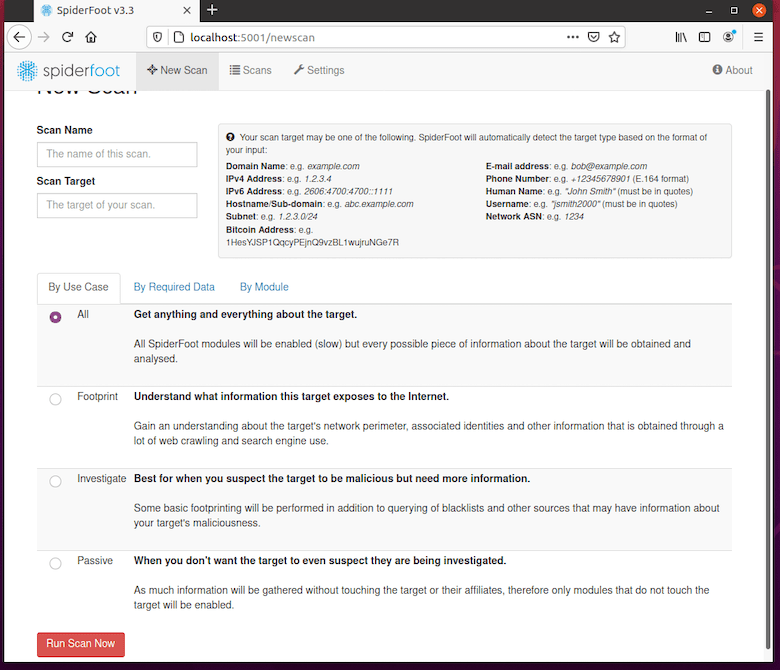
http://127.0.0.1:5001You will see the SpiderFoot dashboard. From here you can:
- Start a new scan by clicking New Scan
- Enter a target (use a domain or IP address you own)
- Choose a scan use case: All, Footprint, Investigate, or Passive
- Configure API keys under the Settings menu
Running SpiderFoot from the CLI
For headless servers without a desktop environment, skip the web UI entirely and run scans directly from the terminal:
python3 sf.py -s yourdomain.com -t INTERNET_NAME -o csvFlag breakdown:
-s— the scan target-t— the event type (e.g.,INTERNET_NAMEfor domain-based scans)-o— the output format (csv,json, ortab)
Step 7: Secure the Web Interface with Basic Authentication
By default, SpiderFoot’s web UI requires no login. This is fine for isolated local machines, but becomes a risk the moment the server is accessible to other users on a shared network.
Create the SpiderFoot configuration directory and set up a password file:
mkdir -p $HOME/.spiderfoot
echo 'yourusername:yourpassword' > $HOME/.spiderfoot/passwd
chmod 600 $HOME/.spiderfoot/passwd
The chmod 600 command restricts the password file so only the file owner can read it. After creating the file, restart SpiderFoot. It will detect the password file automatically and prompt for credentials when you open the web interface.
Use a strong, unique password here. Avoid reusing passwords from other tools or services.
Step 8: Configure SpiderFoot as a systemd Service on Fedora 43
Running SpiderFoot manually works fine for occasional use. But if you want it to start automatically at boot and stay running without an open terminal, configure SpiderFoot on Fedora 43 as a systemd service.
Create the service unit file:
sudo nano /etc/systemd/system/spiderfoot.servicePaste the following configuration, replacing yourusername with your actual username:
[Unit]
Description=SpiderFoot OSINT Automation Tool
After=network.target

[Service]
Type=simple
User=yourusername
WorkingDirectory=/home/yourusername/spiderfoot-4.0
ExecStart=/home/yourusername/spiderfoot-4.0/.venv/bin/python3 sf.py -l 127.0.0.1:5001
Restart=on-failure
RestartSec=5s

[Install]
WantedBy=multi-user.target
Save and exit the file (Ctrl+X, then Y, then Enter in nano).
Now reload systemd so it picks up the new service file, enable SpiderFoot to start at boot, and start the service:
sudo systemctl daemon-reload
sudo systemctl enable spiderfoot
sudo systemctl start spiderfoot
Check that the service is running correctly:
sudo systemctl status spiderfootExpected output:
spiderfoot.service - SpiderFoot OSINT Automation Tool
     Loaded: loaded (/etc/systemd/system/spiderfoot.service; enabled)
     Active: active (running)
View real-time service logs if you need to debug startup issues:
journalctl -u spiderfoot -fVerifying the Full Installation
Before you start running real scans, take 2 minutes to verify every component of the installation is working.
Check the SpiderFoot version:
python3 sf.py -VExpected output: SpiderFoot 4.0.0
List all available modules:
python3 sf.py -MThis prints all 200+ modules. If this command returns output, your installation is complete and functional.
Test the web interface with curl:
curl -I http://127.0.0.1:5001A 200 OK response confirms the web server is reachable.
Troubleshooting Common Errors
Even clean installs hit occasional problems. Here are the five most common issues when you configure SpiderFoot on Fedora 43 and how to fix each one.
Error 1: ModuleNotFoundError When Launching sf.py
Cause: The virtual environment is not active. When you open a new terminal session, the venv does not reactivate automatically.
Fix:
cd ~/spiderfoot-4.0
source .venv/bin/activate
python3 sf.py -l 127.0.0.1:5001
Always activate the venv before running any SpiderFoot commands.
Error 2: pip install Fails on the cryptography Package
Cause: Missing build tools (gcc, openssl-devel, or python3-devel) on the Fedora 43 system.
Fix:
sudo dnf install gcc openssl-devel python3-devel
pip cache purge
pip install -r requirements.txt
Error 3: Web UI Not Accessible at Port 5001
Cause: Fedora’s firewall (firewalld) is blocking inbound traffic on port 5001.
Fix:
sudo firewall-cmd --add-port=5001/tcp --permanent
sudo firewall-cmd --reload
If you are running SpiderFoot only on 127.0.0.1, this firewall rule is not needed since loopback traffic does not go through the firewall.
Error 4: systemd Service Fails to Start
Cause: SELinux may block the Python process from binding to the network socket on Fedora 43.
Fix: Check for SELinux denials:
ausearch -m avc -ts recentIf SELinux is the cause, set the service to run in permissive mode for testing:
sudo setenforce 0
sudo systemctl start spiderfoot
For a permanent production fix, create a proper SELinux policy module instead of disabling enforcement entirely.
Error 5: SpiderFoot Scans Return No Data
Cause: Many of SpiderFoot’s most useful modules require API keys from third-party services like Shodan, VirusTotal, Hunter.io, and Have I Been Pwned.
Fix: Open the web UI, click Settings, and navigate to the API key configuration section. Most services offer free-tier API keys with generous monthly limits. Add at least Shodan and VirusTotal keys to dramatically improve scan data quality.
Congratulations! You have successfully installed SpiderFoot. Thanks for using this tutorial for installing SpiderFoot on your Fedora 43 Linux system. For additional help or useful information, we recommend you check the official SpiderFoot website.
[su_box title=”VPS Manage Service Offer” style=”bubbles” box_color=”#000000″ radius=”10″]If you don’t have time to do all of this stuff, or if this is not your area of expertise, we offer a service to do “VPS Manage Service Offer”, starting from $10 (Paypal payment). Please contact us to get the best deal![/su_box]


