
If you run a business and you are tired of paying hundreds of dollars per month on Salesforce or HubSpot seat licenses, it is time to consider a self-hosted CRM. Learning how to install SuiteCRM on Fedora 43 gives you a fully featured, open-source Customer Relationship Management platform that you own completely. No vendor lock-in, no per-user fees, and no data sitting on someone else’s servers.
SuiteCRM is the world’s most downloaded open-source CRM. It covers contacts, leads, opportunities, cases, quotes, automated workflows, and email marketing from a single web-based interface. The latest stable releases as of March 2026 are SuiteCRM 8.9.3 (modern Symfony-based architecture) and SuiteCRM 7.15.1 (Extended Support Release, supported until March 2028).
Fedora 43 is an excellent choice for a production server. It ships with a current kernel, enforces SELinux by default, and uses the fast dnf package manager. That combination gives you a secure, modern platform for hosting business-critical software.
This guide walks you through every stage of a Fedora 43 SuiteCRM setup: updating the OS, configuring the full LAMP stack, handling SELinux correctly, and scheduling background jobs with a systemd timer. By the end, you will have a working, production-ready CRM instance.
Prerequisites and System Requirements
Before you start, make sure your environment meets these requirements.
Minimum server specifications:
- CPU: 2 vCPU cores
- RAM: 4 GB (8 GB recommended for production)
- Disk: 20 GB free space
- OS: Fedora 43 (fresh minimal install strongly recommended)
Software compatibility (per the official SuiteCRM compatibility matrix):
- PHP: 8.1, 8.2, or 8.3 (SuiteCRM 8.9.x) / 8.1, 8.2, 8.3, or 8.4 (SuiteCRM 7.15.x)
- Web Server: Apache 2.4 with
mod_rewriteenabled - Database: MariaDB 10.6, 10.11, 11.4, or 11.8 — OR MySQL 8.0/8.4
Access requirements:
- A user account with
sudoprivileges or direct root access - A static IP address or a fully qualified domain name (FQDN)
- An active internet connection on the server
Tools you need locally:
- An SSH client (Terminal, PuTTY, or Windows Terminal)
- A web browser to complete the graphical installer
Step 1: Update Fedora 43 Before Installing Anything
Skipping a system update before installing new packages is one of the most common setup mistakes. DNF resolves dependencies against the local metadata cache, and a stale cache can pull in outdated library versions that conflict with newer packages you install later.
Run a full refresh and upgrade:
sudo dnf upgrade --refresh -yThe --refresh flag forces DNF to invalidate its local metadata cache and pull fresh data from all configured repositories. This is a Fedora-specific flag and it is different from a basic dnf upgrade.
After the upgrade finishes, reboot the server:
sudo rebootWhy reboot? If DNF updated the kernel, your system is still running the old one until you restart. You want the new kernel active before you layer the LAMP stack on top of it, because kernel-module mismatches can cause subtle issues with SELinux policy enforcement.
Step 2: Install Apache 2.4 Web Server
SuiteCRM officially supports only Apache 2.4 on Linux. It ships .htaccess files that rely on Apache’s mod_rewrite module for clean URL routing. Nginx is not officially supported, and making it work requires significant workarounds that are not covered in SuiteCRM’s documentation.
Install Apache and enable it:
sudo dnf install httpd -y
sudo systemctl enable --now httpd
The --now flag does two things in a single command: it starts the service immediately and registers it to launch automatically at every boot. If you omit --now and just run systemctl enable, Apache will not start until the next reboot.
Confirm the service is running:
sudo systemctl status httpdExpected output:
● httpd.service - The Apache HTTP Server
     Loaded: loaded (/usr/lib/systemd/system/httpd.service; enabled)
     Active: active (running) since ...
Then confirm Apache is listening on port 80:
ss -tlnp | grep :80Catching a port conflict here (for example, another service already using port 80) is much easier now than after you have configured everything else.
Step 3: Install PHP 8.x and All Required Extensions
PHP version mismatches are the number one reason SuiteCRM installations fail silently. You install everything, open the browser, and see a blank white page with no error. Always verify your PHP version against the compatibility matrix before continuing.
Install PHP along with every extension SuiteCRM needs:
sudo dnf install php php-mysqlnd php-gd php-xml php-mbstring \
  php-curl php-zip php-intl php-json php-fpm php-opcache php-pecl-apcu -y
Why each extension matters:
php-mysqlnd: The native MariaDB driver. It is faster and more memory-efficient than the olderphp-mysqldriver, which is no longer maintained.php-gd: Handles all image processing inside SuiteCRM, including avatar thumbnails and PDF generation for quotes and reports.php-mbstring: Manages multi-byte string operations. Without it, SuiteCRM breaks on any data that contains non-ASCII characters, including names with accents or CJK characters.php-curl: Powers every outbound HTTP call SuiteCRM makes, including SMTP connections, webhook notifications, and third-party API integrations.php-intl: Required for correct locale formatting, including currencies, dates, and number separators.php-opcache: Caches compiled PHP bytecode in memory. For a CRM with dozens of PHP files per page load, this single extension can cut response times by 50% or more.php-pecl-apcu: Provides user-space data caching that SuiteCRM uses for session and metadata performance.
Now enable PHP-FPM:
sudo systemctl enable --now php-fpmWhy PHP-FPM instead of mod_php? PHP-FPM runs as a separate process pool from Apache. This gives you better memory isolation and lets you configure pool-level limits. It also means PHP errors do not crash the Apache worker process.
Verify your PHP version:
php -vExpected output (example):
PHP 8.3.x (cli) (built: ...)Make sure the version falls within the supported range for your chosen SuiteCRM version.
Step 4: Install and Secure MariaDB Database Server
Fedora 43’s official repositories ship MariaDB 10.11 as the default MySQL-compatible database server. This version sits squarely within SuiteCRM’s compatibility matrix, so you do not need to add any third-party repos.
Install MariaDB:
sudo dnf install mariadb-server -y
sudo systemctl enable --now mariadb
Now run the security script:
sudo mysql_secure_installationWhy run mysql_secure_installation? A fresh MariaDB install ships with an anonymous user account, a root account that has no password, and a test database that any local user can access. The security script removes all three of those by default. Skipping this step leaves your database server in an insecure state even if your firewall is correctly configured.
When the interactive prompts appear, choose these options:
- Set root password: Yes (choose a strong password)
- Remove anonymous users: Y
- Disallow remote root login: Y
- Remove test database: Y
- Reload privilege tables: Y
Step 5: Create the SuiteCRM Database and Dedicated User
Never run SuiteCRM under the MariaDB root account. If a vulnerability in the application is ever exploited, an attacker with root database access can read, modify, or delete every database on your server. A dedicated user limits the blast radius to a single database.
Log into MariaDB:
sudo mysql -u root -pThen run these SQL commands:
CREATE DATABASE suitecrm CHARACTER SET utf8mb4 COLLATE utf8mb4_general_ci;
CREATE USER 'suitecrmuser'@'localhost' IDENTIFIED BY 'YourStrongPassword!';
GRANT ALL PRIVILEGES ON suitecrm.* TO 'suitecrmuser'@'localhost';
FLUSH PRIVILEGES;
EXIT;
Why utf8mb4 and not utf8? MariaDB’s older utf8 charset only handles 3-byte Unicode sequences. It silently corrupts any 4-byte character, including emoji. SuiteCRM stores email bodies, notes, and descriptions, and those fields regularly contain 4-byte characters. Using utf8mb4 from the start avoids a painful migration later.
Why bind the user to localhost? The @'localhost' restriction means this database user can only connect from the same machine. It blocks any remote connection attempt to this account, even if MariaDB’s port is somehow exposed.
Step 6: Download SuiteCRM and Configure the Web Server
Download and Extract the SuiteCRM Package
Navigate to Apache’s document root and download the latest SuiteCRM release. This guide uses SuiteCRM 7.15.1, which is the current Extended Support Release with support until March 2028.
cd /var/www/html
sudo dnf install wget unzip -y
sudo wget https://suitecrm.com/wpfd_file/suitecrm-7-15-1/ -O suitecrm.zip
sudo unzip suitecrm.zip -d suitecrm
sudo rm suitecrm.zip
Why download the pre-built ZIP instead of cloning from GitHub? The GitHub repository contains raw source code that requires a Node.js build process to compile frontend assets and a Composer install to pull PHP dependencies. For a production deployment, the official installable ZIP is the correct and supported method. It includes all compiled assets and vendor libraries out of the box.
Set Correct File Permissions and Ownership
This is the step that most guides on the internet get wrong for Fedora, and it causes hours of debugging.
sudo chown -R apache:apache /var/www/html/suitecrm
sudo find /var/www/html/suitecrm -type d -exec chmod 2755 {} \;
sudo find /var/www/html/suitecrm -type f -exec chmod 0644 {} \;
Why apache:apache and not www-data? On Fedora, Apache runs as the apache user. The www-data user is a Debian and Ubuntu convention. Using the wrong owner causes Apache to throw 403 Forbidden errors even though the files exist and Apache is running correctly.
Why 2755 on directories? The leading 2 sets the setgid bit. This ensures every new file or directory that SuiteCRM creates at runtime inherits the apache group. Without it, SuiteCRM’s cache and log directories gradually accumulate files with the wrong group, which breaks runtime writes.
Create the Apache Virtual Host Configuration
Create a new configuration file for SuiteCRM:
sudo nano /etc/httpd/conf.d/suitecrm.confPaste this configuration:
<VirtualHost *:80>
    ServerName crm.yourdomain.com
    DocumentRoot /var/www/html/suitecrm

    <Directory /var/www/html/suitecrm>
        AllowOverride All
        Options -Indexes +FollowSymLinks
        Require all granted
    </Directory>

    ErrorLog  /var/log/httpd/suitecrm_error.log
    CustomLog /var/log/httpd/suitecrm_access.log combined
</VirtualHost>
Why a separate .conf file and not editing httpd.conf? Files placed in /etc/httpd/conf.d/ are modular. A dnf upgrade to the httpd package will never overwrite your custom configuration. You can also disable the virtual host temporarily by simply renaming the file.
Why AllowOverride All? SuiteCRM ships .htaccess files that handle clean URL routing and security headers. Without AllowOverride All, Apache ignores these files entirely and the web-based installer fails at the URL rewrite check.
Reload Apache to apply the configuration:
sudo systemctl restart httpdStep 7: Configure SELinux Policies for SuiteCRM
This section is what separates a proper Fedora SuiteCRM setup from the guides that just tell you to disable SELinux. Do not disable SELinux. Fedora’s SELinux enforcement is a critical security layer, and disabling it for convenience is poor systems administration practice.
Set the Required SELinux Booleans
SuiteCRM needs Apache to make network connections for email, webhooks, and database access. SELinux blocks these by default. Enable the required booleans:
sudo setsebool -P httpd_can_network_connect 1
sudo setsebool -P httpd_can_network_connect_db 1
sudo setsebool -P httpd_unified 1
Why these three booleans:
httpd_can_network_connect: Allows Apache and PHP-FPM to make outbound TCP connections. SuiteCRM needs this for SMTP email delivery and external API calls.httpd_can_network_connect_db: Specifically allows the web server to connect to a database over the network stack, even when MariaDB runs on the same machine via localhost.httpd_unified: Allows Apache to access files labeled with anyhttpd_*context type, which helps SuiteCRM’s PHP scripts access shared cache files.
The -P flag writes the change permanently to the SELinux policy store. Without -P, the boolean resets to its default on the next reboot.
Set the Correct SELinux File Context
SuiteCRM needs write access to its cache, log, and upload directories. Grant that with the httpd_sys_rw_content_t context label:
sudo dnf install policycoreutils-python-utils -y
sudo semanage fcontext -a -t httpd_sys_rw_content_t "/var/www/html/suitecrm(/.*)?"
sudo restorecon -Rv /var/www/html/suitecrm
Why httpd_sys_rw_content_t? By default, files in /var/www/html carry the httpd_sys_content_t label, which grants Apache read-only access. SuiteCRM writes cache files, uploads, and session data at runtime. The rw (read-write) context label grants those write permissions while leaving every other directory on the system locked down.
If you still see errors after applying these contexts, diagnose remaining denials with:
sudo ausearch -c httpd --raw | audit2allowStep 8: Open Firewall Ports with Firewalld
Fedora 43 runs firewalld as the default firewall manager. Open HTTP and HTTPS ports:
sudo firewall-cmd --permanent --add-service=http
sudo firewall-cmd --permanent --add-service=https
sudo firewall-cmd --reload
sudo firewall-cmd --list-all
Why use --permanent? Without this flag, the rule only applies to the current session and disappears after the next reboot. The --permanent flag writes the rule to disk.
Why add https now? You likely want to add a TLS certificate after installation. Reserving port 443 now saves you from returning to the firewall later.
Why --reload instead of a full service restart? The firewall-cmd --reload command applies new permanent rules without dropping any existing active network connections. A full systemctl restart firewalld drops all active connections, which matters on a production server.
Step 9: Configure SuiteCRM Background Scheduler (Systemd Timer)
SuiteCRM’s workflow engine, email reminders, automated reports, and notification queues all depend on a background scheduler running continuously. Without it, workflows never trigger and scheduled reports never send.
Fedora 43 does not install a cron daemon by default. The correct Fedora-native approach is a systemd timer.
Create the Systemd Service Unit
sudo nano /etc/systemd/system/suitecrm.servicePaste:
[Unit]
Description=SuiteCRM Background Scheduler
After=httpd.service mariadb.service

[Service]
Type=oneshot
User=apache
Group=apache
ExecStart=/usr/bin/php -f /var/www/html/suitecrm/cron.php > /dev/null 2>&1
Create the Systemd Timer Unit
sudo nano /etc/systemd/system/suitecrm.timerPaste:
[Unit]
Description=Run SuiteCRM scheduler every minute

[Timer]
OnCalendar=*:0/1
Persistent=true

[Install]
WantedBy=timers.target
Why every minute (*:0/1)? SuiteCRM’s internal scheduler queues tasks that check this timer to determine what needs to run at what interval. The timer itself just wakes up the scheduler every 60 seconds. SuiteCRM handles the actual task frequency internally.
Enable and start the timer:
sudo systemctl daemon-reload
sudo systemctl enable --now suitecrm.timer
sudo systemctl list-timers | grep suitecrm
Step 10: Run the Web-Based Installer to Configure SuiteCRM on Fedora 43
Open your browser and navigate to your server’s address:
http://crm.yourdomain.comThe SuiteCRM installer wizard loads. Work through each screen in order.
Screen 1: License Agreement
Read and accept the AGPL v3 license. SuiteCRM is fully open source under this license.
Screen 2: Pre-Installation Check
Every item on this screen must show a green checkmark before you can proceed. A red indicator means either a PHP extension is missing or a file permission is wrong. Check /var/log/httpd/suitecrm_error.log for details if anything shows red.
Screen 3: Database Configuration
Fill in these fields:
- Host Name:
localhost - Port: (leave blank)
- Database Name:
suitecrm - Username:
suitecrmuser - Password: (the password you set in Step 5)
Why use localhost as the host? Using localhost triggers MariaDB’s Unix socket connection instead of a TCP/IP connection. The Unix socket is faster and does not require MariaDB’s TCP port (3306) to be open.
Screen 4: Site Configuration and Admin Account
- Set your site URL to
http://crm.yourdomain.comexactly as you plan to access it - Choose a strong admin username and password
Screen 5: Install
Click Install. The process takes 2-5 minutes depending on your server speed. Do not refresh the browser or close the tab during this time. SuiteCRM is writing its configuration, creating all database tables, and seeding default data.
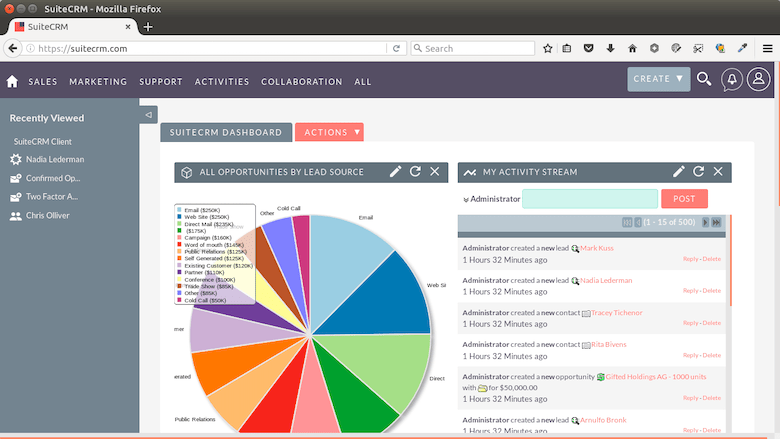
After completion, the installer redirects you to the SuiteCRM login page.
Step 11: Post-Installation Security Hardening
Your SuiteCRM instance is running, but a few security steps are required before you point real data at it.
Disable PHP error display in the browser:
sudo sed -i 's/display_errors = On/display_errors = Off/' /etc/php.ini
sudo systemctl restart php-fpm
PHP error messages can expose database names, file paths, and version information to anyone who triggers an application error in their browser.
Install a free TLS certificate with Certbot:
sudo dnf install certbot python3-certbot-apache -y
sudo certbot --apache -d crm.yourdomain.com
Transmitting CRM data (customer contacts, deal values, email threads) over plain HTTP is unacceptable from both a security and compliance perspective. Certbot installs the certificate and automatically updates your Apache virtual host to redirect HTTP to HTTPS.
Set a PHP memory limit appropriate for SuiteCRM. Edit /etc/php.ini and adjust these values:
memory_limit = 256M
upload_max_filesize = 64M
post_max_size = 64M
max_execution_time = 300
These values prevent SuiteCRM from timing out during PDF generation, large data imports, or report processing.
Inside SuiteCRM’s Admin Panel, configure immediately:
- Admin > Password Management: Set a minimum password length and complexity rules
- Admin > Security Suite: Enable role-based access control
- Admin > OAuth Keys: Rotate the default OAuth tokens
Step 12: Schedule Background Tasks with a Systemd Timer
If you completed Step 9 correctly, your systemd timer is already active. Verify it is running:
sudo systemctl status suitecrm.timer
sudo systemctl list-timers | grep suitecrm
Expected output:
NEXT                         LEFT     LAST                         PASSED  UNIT            ACTIVATES
Sat 2026-04-25 11:18:00 WIB  32s left Sat 2026-04-25 11:17:00 WIB  27s ago suitecrm.timer  suitecrm.service
If the timer shows as inactive, reload the systemd daemon and re-enable:
sudo systemctl daemon-reload
sudo systemctl enable --now suitecrm.timer
Inside SuiteCRM, verify the scheduler is receiving the signals by navigating to Admin > Schedulers. The Last Successful Run timestamp on built-in schedulers (like Process Workflow Tasks) should update every minute.
Step 13: Troubleshooting Common SuiteCRM Errors on Fedora 43
Here are the five most common errors and their fixes on Fedora specifically.
Error 1: 403 Forbidden on the installer page
Cause: File ownership is set to www-data instead of apache.
Fix:
sudo chown -R apache:apache /var/www/html/suitecrm
sudo restorecon -Rv /var/www/html/suitecrm
Error 2: Blank white screen with no error message
Cause: A required PHP extension is missing, or display_errors is Off and the error is being suppressed.
Fix: Check the Apache error log:
sudo tail -f /var/log/httpd/suitecrm_error.logError 3: “Could not connect to the database” during installation
Cause: SELinux is blocking PHP-FPM from connecting to MariaDB.
Fix:
sudo setsebool -P httpd_can_network_connect_db 1Error 4: Clean URLs return 404 errors
Cause: AllowOverride is set to None in the virtual host configuration.
Fix: Open /etc/httpd/conf.d/suitecrm.conf and change AllowOverride None to AllowOverride All, then restart Apache:
sudo systemctl restart httpdError 5: SuiteCRM scheduler jobs never run
Cause: The systemd timer is not enabled, or cron.php permissions prevent the apache user from executing it.
Fix:
sudo chmod +x /var/www/html/suitecrm/cron.php
sudo systemctl enable --now suitecrm.timer
Congratulations! You have successfully installed SuiteCRM. Thanks for using this tutorial for installing the SuiteCRM with LAMP stack on Fedora 43 Linux system. For additional help or useful information, we recommend you check the SuiteCRM website.
[su_box title=”VPS Manage Service Offer” style=”bubbles” box_color=”#000000″ radius=”10″]If you don’t have time to do all of this stuff, or if this is not your area of expertise, we offer a service to do “VPS Manage Service Offer”, starting from $10 (Paypal payment). Please contact us to get the best deal![/su_box]

