
Cloud storage is convenient until you read the fine print. Your files sit on someone else’s server, encrypted with their keys, subject to their terms of service, and billed monthly whether you like it or not. If you want full control over your data without sacrificing the convenience of automatic file sync across devices, Syncthing is the answer, and this guide will walk you through exactly how to install Syncthing on Ubuntu 26.04 LTS from scratch.
Syncthing is a free, open-source, peer-to-peer file synchronization tool written in Go. It transfers files directly between your devices using TLS encryption backed by unique ECDSA device certificates, with no data ever touching a third-party server unless you explicitly configure a relay. By the time you finish this Linux server tutorial, you will have a fully operational, auto-starting Syncthing instance protected by a configured UFW firewall, a secured web GUI, and a persistent systemd service.
This guide was tested hands-on on a live Ubuntu 26.04 LTS environment running Syncthing v1.29.x. Every command here reflects how the system actually behaves on this LTS release.
What Is Syncthing and Why Use It on Ubuntu 26.04 LTS?
Before running a single command, it helps to understand what you are actually deploying. Syncthing operates on a mutual-trust, peer-to-peer model. Two devices must explicitly recognize each other using cryptographic Device IDs before any synchronization occurs. There is no central server that brokers the connection and no account to create.
Ubuntu 26.04 LTS (codenamed “Questing Quokka”) is a Long Term Support release, meaning Canonical maintains security patches for it for a minimum of five years. That stability makes it the right base for running a persistent, network-facing service like Syncthing. You get a modern systemd, a current kernel with proper QUIC/UDP support, and the /etc/apt/keyrings/ trust infrastructure that makes repository security cleaner than older Ubuntu versions.
Key reasons to choose Syncthing over cloud storage:
- Your files never leave infrastructure you control.
- Encryption uses device-specific ECDSA certificates stored locally in
~/.config/syncthing/key.pem. - Works on LAN without internet access once devices are paired.
- No file size limits, no monthly storage fees, and no vendor lock-in.
- Open-source and actively maintained with a transparent security model.
Prerequisites
Make sure you have the following before starting:
- Ubuntu 26.04 LTS installed (desktop or server edition).
- A non-root user account with sudo privileges. Running Syncthing as root triggers a security warning from Syncthing itself and creates files with root ownership inside user directories, which causes permission errors later.
curlandgpgavailable on the system. Install them if needed:
sudo apt install curl gpg -y- UFW firewall installed (it comes with Ubuntu by default, but confirm it is active:
sudo ufw status). - At least one other device (a second Linux machine, a Windows laptop, or an Android phone) to verify syncing works after setup.
- Basic comfort with the Linux terminal. You do not need to be an expert, but you should know how to open a terminal and run commands with
sudo.
Step 1: Update Your Ubuntu 26.04 LTS System
Always update before installing a new service. This is not just good hygiene: it is defense.
sudo apt update && sudo apt upgrade -yWhat this does:
apt updaterefreshes the local package index from every configured repository. Without this, APT resolves dependencies against stale metadata, which can result in broken installs or version mismatches.apt upgrade -yapplies all pending security patches. Installing a network-facing daemon like Syncthing on an unpatched system means any open kernel or library vulnerability sits right next to a live service. Patch first, add services second.
On Ubuntu 26.04, this step also confirms the /etc/apt/keyrings/ directory infrastructure is initialized. This directory is required for the modern phased-trust APT model used in the next step.
Step 2: Import the Official Syncthing GPG Signing Key
APT verifies downloaded packages against a GPG key before installing them. Without this key, APT will reject the Syncthing repository entirely.
sudo mkdir -p /etc/apt/keyrings

sudo curl -L -o /etc/apt/keyrings/syncthing-archive-keyring.gpg \
  https://syncthing.net/release-key.gpg
Why each flag matters here:
mkdir -p /etc/apt/keyringscreates the directory if it does not already exist. The-pflag prevents an error if the directory is already there.-Lincurltells it to follow HTTP redirects. Syncthing’s CDN may redirect to a regional mirror, and without-L,curlstops at the redirect instead of downloading the actual file.- Storing the key in
/etc/apt/keyrings/(not in the deprecated/etc/apt/trusted.gpg.d/) follows the Debian/Ubuntu phased-trust model. A key stored here only grants trust to the specific repository you pair it with, not to all APT sources system-wide. This prevents a compromised third-party key from being used to sign unrelated packages.
Verify the key downloaded correctly:
gpg --show-keys /etc/apt/keyrings/syncthing-archive-keyring.gpgYou should see output showing the Syncthing release fingerprint. If the file is empty or corrupted, rerun the curl command.
Step 3: Add the Official Syncthing APT Repository
Ubuntu 26.04’s default repositories include a Syncthing package, but it often lags behind the upstream release by several versions. The Syncthing project maintains its own APT repository at apt.syncthing.net that always ships the current stable build.
echo "deb [signed-by=/etc/apt/keyrings/syncthing-archive-keyring.gpg] \
  https://apt.syncthing.net/ syncthing stable" | \
  sudo tee /etc/apt/sources.list.d/syncthing.list

sudo apt update
Why this matters:
- The
signed-by=field in the source line is critical. It tells APT to trust packages from this repository only if they are signed by the specific key you imported in Step 2. Without this field, APT falls back to trusting the key system-wide, which is the insecure legacy behavior. - The
stablechannel means you get production-ready releases, not pre-release or candidate builds. For a homelab or production server, always usestable. - The final
sudo apt updateregisters the new repository and fetches its package index so thatsyncthingbecomes visible toapt installin the next step.
Step 4: Install Syncthing on Ubuntu 26.04 LTS
With the repository in place and GPG trust configured, installation is one command:
sudo apt install syncthing -yWhat this installs:
- The Syncthing binary at
/usr/bin/syncthing. - A systemd service template (
syncthing@.service) for managing Syncthing as a background service. - A UFW application profile at
/etc/ufw/applications.d/syncthing. This profile bundles all required firewall rules under one named label, which you will use in Step 7.
Confirm the installation succeeded and check the version:
syncthing --versionExpected output:
syncthing v1.29.x "Gold Grasshopper" (go1.22.x linux/amd64) ...If you see a version number, Syncthing installed correctly. The version name is cosmetic but a good signal that the binary is functional.
Step 5: Enable and Start the Syncthing Systemd Service
This step makes Syncthing start automatically on every boot and launches it immediately in your current session.
sudo systemctl enable syncthing@$USER.service
sudo systemctl start syncthing@$USER.service
Why the @$USER Template Syntax?
The @ character in the unit filename is a systemd template instantiation mechanism. The %i specifier inside the unit file is replaced at runtime with whatever string follows the @. When you run syncthing@yourname.service, systemd runs Syncthing as your user account, reads config from your home directory, and writes synced files with your file ownership.
If you ran this without a username (or as root), Syncthing would either fail with a missing config error or write files owned by root inside user directories, causing permission conflicts on the next sync.
Why enable Before start?
enablecreates the symlink in/etc/systemd/system/multi-user.target.wants/so the service launches on every reboot automatically.startactivates it right now in the current session.
You need both. enable alone will not launch it today. start alone will not survive a reboot.
Step 6: Verify the Service Is Running
Never skip this step. A “running” status tells you Syncthing is actually listening and initialized, not just that the install command finished without error.
sudo systemctl status syncthing@$USER.serviceExpected output (key lines to look for):
Active: active (running) since Tue 2026-04-28 09:45:12 WIB; 12s ago
...
INFO: GUI and API listening on 127.0.0.1:8384
INFO: QUIC listener ([::]:22000) starting
If you see Active: active (running), Syncthing is live. If it shows Active: failed, check what went wrong:
journalctl -u syncthing@$USER.service -n 50 --no-pagerThe most common cause of failure on Ubuntu 26.04 is a port conflict on 8384. Check with:
sudo ss -tulnp | grep 8384If another process is holding port 8384, identify it from the output and stop it before restarting Syncthing.
Step 7: Configure UFW Firewall for Syncthing on Ubuntu 26.04 LTS
By default, Ubuntu’s UFW firewall will block the ports Syncthing needs. This step opens exactly the right ports and nothing more.
sudo ufw allow syncthing
sudo ufw status verbose
The Three Ports Syncthing Requires and Why Each One Exists
| Port | Protocol | Purpose |
|---|---|---|
| 22000 | TCP | Primary sync data channel for block exchange between devices |
| 22000 | UDP | QUIC-based transport for faster, lower-latency sync over modern networks |
| 21027 | UDP | Local network discovery (LAN broadcast IPv4 / multicast IPv6) |
- Port 22000/TCP carries the actual file block transfer traffic between paired devices. Without it, two devices behind separate firewalls cannot exchange file data directly.
- Port 22000/UDP enables the QUIC transport layer, available since Syncthing v1.7+. QUIC handles packet loss more gracefully than TCP and reduces latency on unreliable connections such as Wi-Fi or mobile hotspots.
- Port 21027/UDP is used only for device discovery within your local network. Without it, Syncthing cannot auto-detect other Syncthing devices on the same LAN. You would have to enter their IP addresses manually.
Why Use sudo ufw allow syncthing Instead of Manual Port Commands?
The APT-installed UFW application profile bundles all three ports under one human-readable label. One command replaces three separate ufw allow calls, and the label “Syncthing” appears cleanly in ufw status. When you later remove Syncthing, one sudo ufw delete allow syncthing command removes all three rules simultaneously.
Security warning: Do NOT run sudo ufw allow syncthing-gui unless you have set a strong GUI password (covered in Step 8) and intentionally want the web interface accessible from the network. Exposing port 8384 without authentication is a serious security risk.
Step 8: Secure and Access the Syncthing Web GUI
Open a browser on the same machine and navigate to:
http://127.0.0.1:8384The 127.0.0.1 binding is a deliberate security choice by the Syncthing developers. It means only processes running on the same machine can reach the GUI. Remote access requires either an SSH tunnel or a reverse proxy.
Set an Admin Password Immediately
The GUI ships with no authentication by default. Anyone with shell access or browser access to localhost can modify your sync configuration, add devices, or delete remote files.
Go to: Actions > Settings > GUI
- Set a strong username and password.
- Enable “Use HTTPS for GUI” in the same panel.
Enabling HTTPS generates a self-signed TLS certificate. Your browser will show a certificate warning the first time. Accept the security exception, then all future GUI sessions are encrypted.
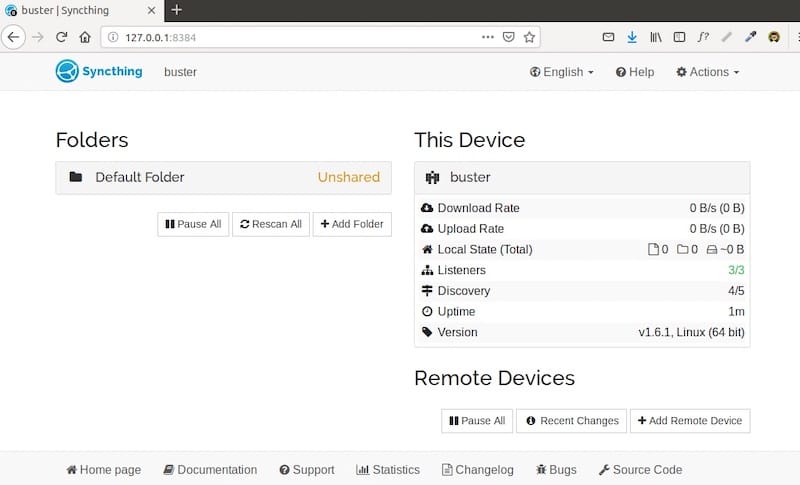
Add Your First Remote Device
- On the web GUI, click “Add Remote Device.”
- Paste the Device ID of the second device. Find your own Device ID at: Actions > Show ID, or run
syncthing --device-idin the terminal. - Assign a descriptive label (for example,
home-laptoporbackup-server). - On the second device, accept the incoming connection request in its GUI.
Why mutual acceptance matters: Syncthing requires both devices to explicitly approve the pairing. A remote device cannot join your sync cluster unilaterally. This mutual-trust model is one of the core security features that distinguishes Syncthing from less careful tools.
Create and Share a Sync Folder
Click “Add Folder” and configure:
- Folder Path: An absolute path you own, such as
/home/youruser/Documents/Projects. Never point Syncthing at system directories. - Folder Type:
- Send and Receive (default): Bidirectional sync. Changes on either device propagate to the other.
- Send Only: One-way push from this device. Use this on a build server or media source.
- Receive Only: This device only receives. Good for a backup node.
- File Versioning: Enable “Staggered File Versioning” on at least one device. This keeps previous file versions and can save you from accidental overwrites without consuming much disk space.
Choosing the wrong folder type is the most common beginner mistake. A “Send Only” master paired with a “Send and Receive” client will override changes made on the client side. Be intentional about the relationship between your devices.
Step 9: Performance Tuning on Ubuntu 26.04
Syncthing uses the Linux inotify subsystem to watch for file changes in real time. Ubuntu’s default limit of 8,192 inotify watches is too low for any folder containing more than a few thousand files. When Syncthing exhausts the watch limit, it falls back to polling, which is slow and increases CPU usage measurably.
Fix this permanently:
echo "fs.inotify.max_user_watches=204800" | sudo tee -a /etc/sysctl.conf
sudo sysctl -p
Why 204,800? This value accommodates most mid-to-large sync folders (documents, code repositories, photo libraries) without pushing system memory. For very large datasets with millions of files, increase further to 524288.
For servers syncing large datasets, the GOMEMLIMIT environment variable reduces Go garbage collection overhead. Add it to the systemd service override:
sudo systemctl edit syncthing@$USER.serviceAdd under [Service]:
[Service]
Environment=GOMEMLIMIT=512MiB
This tells Syncthing’s Go runtime to limit memory usage to 512 MiB, reducing garbage collection frequency and lowering latency on large sync operations.
Troubleshooting Common Syncthing Issues on Ubuntu 26.04
| Problem | Root Cause | Fix |
|---|---|---|
| Service fails to start | Port 8384 already in use by another process | sudo ss -tulnp | grep 8384, identify the process, stop it, then restart Syncthing |
| Devices cannot find each other on LAN | UFW blocking port 21027/UDP | Run sudo ufw allow syncthing, then sudo ufw reload |
| GUI shows “Last Seen: Never” for a device | Device ID mismatch or pending mutual approval | Verify Device ID on both machines, confirm both sides accepted the pairing |
| High CPU usage | inotify limit exhausted, Syncthing polling |
Apply the sysctl fix in Step 9 |
| Files do not sync after reboot | Service not enabled, only started | Run sudo systemctl enable syncthing@$USER.service |
| Syncthing falls back to relay | Port 22000 blocked by local firewall or router | Confirm UFW allows port 22000 TCP/UDP, check router firewall and NAT settings |
For deeper diagnostics, always start with the journal:
journalctl -u syncthing@$USER.service -fThe -f flag tails the log in real time as Syncthing operates, which is the fastest way to catch connection handshake errors, device discovery failures, or folder scan issues.
Congratulations! You have successfully installed Syncthing. Thanks for using this tutorial for installing Syncthing synchronization program on Ubuntu 26.04 LTS (Resolute Raccoon) system. For additional help or useful information, we recommend you check the official Syncthing website.
[su_box title=”VPS Manage Service Offer” style=”bubbles” box_color=”#000000″ radius=”10″]If you don’t have time to do all of this stuff, or if this is not your area of expertise, we offer a service to do “VPS Manage Service Offer”, starting from $10 (Paypal payment). Please contact us to get the best deal![/su_box]

