
Monitoring your websites and services is crucial for maintaining reliability and user trust. Downtime costs businesses revenue and damages reputation. Uptime Kuma offers a powerful, self-hosted solution for tracking the availability of your online infrastructure without recurring subscription fees or privacy concerns associated with third-party monitoring services.
This comprehensive guide walks you through installing Uptime Kuma on Debian 13 (Trixie), the latest stable release from the Debian project. You’ll learn two installation methods—using Node.js for direct deployment and Docker for containerized environments. We’ll cover everything from initial setup to advanced configurations including reverse proxy implementation, SSL certificate installation, and performance optimization. By the end, you’ll have a production-ready monitoring system protecting your critical services.
What is Uptime Kuma?
Uptime Kuma is an open-source, self-hosted monitoring tool that rivals commercial alternatives like UptimeRobot and Pingdom. Developed by Louis Lam, this application provides a sleek, modern interface for tracking the health of your web applications, servers, and network services.
The monitoring platform supports multiple protocol types including HTTP(s), TCP, Ping, DNS records, and Docker containers. Its standout feature is the extensive notification system supporting over 90 services such as Discord, Telegram, Slack, email, and webhooks. You can visualize uptime statistics with historical charts, create customizable status pages for customers, and configure sophisticated alert rules with retry logic.
Unlike cloud-based monitoring services, Uptime Kuma runs entirely on your infrastructure. This ensures complete data privacy and eliminates monthly subscription costs. The lightweight application requires minimal resources, making it suitable for budget VPS hosting or home lab environments.
Prerequisites and System Requirements
Before beginning the installation process, ensure your server meets the necessary specifications for running both Debian 13 and Uptime Kuma efficiently.
Hardware Requirements
Debian 13 operates on modest hardware, but allocating adequate resources ensures smooth performance:
Minimum specifications:
- Processor: 1 GHz single-core (i386 or amd64 architecture)
- RAM: 2 GB (4 GB recommended for desktop environments)
- Storage: 25 GB available disk space
- Network: Stable internet connection
Recommended configuration for monitoring multiple services:
- Processor: Dual-core 2 GHz or faster
- RAM: 4-8 GB for optimal performance
- Storage: 50 GB SSD for faster database operations
- Network: Reliable connectivity with low latency
Software Prerequisites
Verify you have the following access and components:
- Fresh Debian 13 (Trixie) server installation with root or sudo privileges
- SSH access to your remote server
- Domain name pointed to your server IP address (optional, required for SSL)
- Basic command line proficiency
Create a complete system backup before proceeding with any installation. This precaution allows rollback if unexpected issues occur.
Pre-Installation Preparation
Proper system preparation prevents installation failures and security vulnerabilities. Follow these essential steps before deploying Uptime Kuma.
Update System Packages
Keeping your Debian 13 system current ensures compatibility with the latest software packages and patches security vulnerabilities. Connect to your server via SSH and execute:
sudo apt update -y
sudo apt upgrade -y
The first command refreshes the package repository cache. The second command upgrades all installed packages to their newest versions. If kernel updates are applied, reboot your server:
sudo rebootWait approximately one minute, then reconnect via SSH to continue.
Install Essential Dependencies
Both installation methods require common utilities for downloading repositories and managing installations. Install the necessary tools:
sudo apt install git curl wget ca-certificates gnupg -yThese packages serve specific purposes:
- Git: Clones the Uptime Kuma repository from GitHub
- Curl: Downloads Node.js setup scripts and makes API calls
- Wget: Alternative download utility for various resources
- ca-certificates: Provides SSL certificate authority bundles
- gnupg: Enables package signature verification
Configure Firewall Settings
If you’re using UFW (Uncomplicated Firewall) or similar firewall software, open the required ports. Uptime Kuma uses port 3001 by default, while web traffic requires ports 80 and 443 for HTTP and HTTPS respectively:
sudo ufw allow 3001/tcp
sudo ufw allow 80/tcp
sudo ufw allow 443/tcp
sudo ufw reload
Verify the firewall status:
sudo ufw statusCloud providers often use external firewalls or security groups. Configure those interfaces separately to allow the same ports.
Installation Method 1: Using Node.js
The Node.js installation method provides direct control over the application environment and simplifies troubleshooting. This approach works well for administrators comfortable with process management tools.
Install Node.js and NPM
Uptime Kuma requires Node.js runtime and NPM (Node Package Manager) to function. Install the LTS (Long Term Support) version using the NodeSource repository for the latest stable release:
curl -fsSL https://deb.nodesource.com/setup_lts.x | sudo -E bash -
sudo apt install -y nodejs
Confirm successful installation by checking versions:
node -v
npm -v
You should see version numbers displayed for both commands. The LTS version receives extended support and security updates, making it ideal for production deployments.
Create Dedicated System User
Running applications as root poses significant security risks. Create a dedicated user account specifically for Uptime Kuma:
sudo useradd -m -s /bin/bash uptime-kumaThis command creates a user named “uptime-kuma” with a home directory and bash shell. Limiting privileges follows the principle of least privilege, containing potential security breaches.
Clone the Uptime Kuma Repository
Download the application source code from the official GitHub repository. The /opt directory conventionally houses third-party applications:
cd /opt
sudo git clone https://github.com/louislam/uptime-kuma.git
The clone operation downloads all project files including the application code, frontend assets, and dependencies list.
Set Proper Permissions
Assign ownership of the application directory to your dedicated user:
sudo chown -R uptime-kuma:uptime-kuma /opt/uptime-kumaThe recursive flag (-R) applies permissions to all subdirectories and files. Proper ownership prevents permission errors during operation.
Install Dependencies and Build Application
Navigate to the installation directory and run the setup process:
cd /opt/uptime-kuma
sudo -u uptime-kuma npm run setup
The setup script performs several operations automatically:
- Installs all Node.js dependencies from package.json
- Compiles the frontend Vue.js application
- Prepares the SQLite database structure
- Configures the application for first-run
This process takes 5-10 minutes depending on server performance and network speed. You’ll see various package installations and build steps scrolling in the terminal.
Install PM2 Process Manager
PM2 ensures Uptime Kuma runs continuously, restarts after crashes, and launches automatically on system boot. Install PM2 globally:
sudo npm install pm2 -gStart Uptime Kuma using PM2:
cd /opt/uptime-kuma
sudo -u uptime-kuma pm2 start server/server.js --name uptime-kuma
Save the PM2 process list to restore after reboots:
sudo -u uptime-kuma pm2 saveGenerate and execute the startup script:
sudo env PATH=$PATH:/usr/bin pm2 startup systemd -u uptime-kuma --hp /home/uptime-kumaPM2 displays a command to run. Copy and execute that command to enable automatic startup.
Installation Method 2: Using Docker
Docker containerization simplifies deployment and isolation. This method suits administrators managing multiple containerized applications or preferring standardized deployments.
Install Docker Engine on Debian 13
Add Docker’s official GPG key and repository to your system:
sudo apt install ca-certificates gnupg
sudo install -m 0755 -d /etc/apt/keyrings
curl -fsSL https://download.docker.com/linux/debian/gpg | sudo gpg --dearmor -o /etc/apt/keyrings/docker.gpg
sudo chmod a+r /etc/apt/keyrings/docker.gpg
Add the Docker repository to your sources:
echo "deb [arch=$(dpkg --print-architecture) signed-by=/etc/apt/keyrings/docker.gpg] https://download.docker.com/linux/debian $(. /etc/os-release && echo "$VERSION_CODENAME") stable" | sudo tee /etc/apt/sources.list.d/docker.list > /dev/nullUpdate the package index and install Docker:
sudo apt update
sudo apt install docker-ce docker-ce-cli containerd.io docker-compose-plugin -y
Verify Docker installation:
docker --version
sudo systemctl status docker
Create Persistent Storage Volume
Docker volumes preserve data between container updates. Create a named volume for Uptime Kuma:
docker volume create uptime-kumaThis volume stores configuration files, databases, and monitoring history, ensuring data persists when you update or recreate containers.
Deploy Uptime Kuma Container
Launch the Uptime Kuma container with proper configuration:
docker run -d \
  --restart=always \
  -p 3001:3001 \
  -v uptime-kuma:/app/data \
  -v /var/run/docker.sock:/var/run/docker.sock:ro \
  --name uptime-kuma \
  louislam/uptime-kuma:1
Let’s break down each parameter:
-d: Runs the container in detached mode (background)--restart=always: Automatically restarts on failure or system reboot-p 3001:3001: Maps container port 3001 to host port 3001-v uptime-kuma:/app/data: Mounts the data volume for persistence-v /var/run/docker.sock:/var/run/docker.sock:ro: Enables Docker container monitoring (read-only)--name uptime-kuma: Assigns a friendly container namelouislam/uptime-kuma:1: Specifies the image and version tag
Verify the container is running:
docker ps | grep uptime-kumaCheck container logs for any startup issues:
docker logs uptime-kumaInitial Setup and Configuration
With Uptime Kuma installed and running, complete the initial configuration through the web interface.
Access the Web Interface
Open your web browser and navigate to your server’s IP address on port 3001:
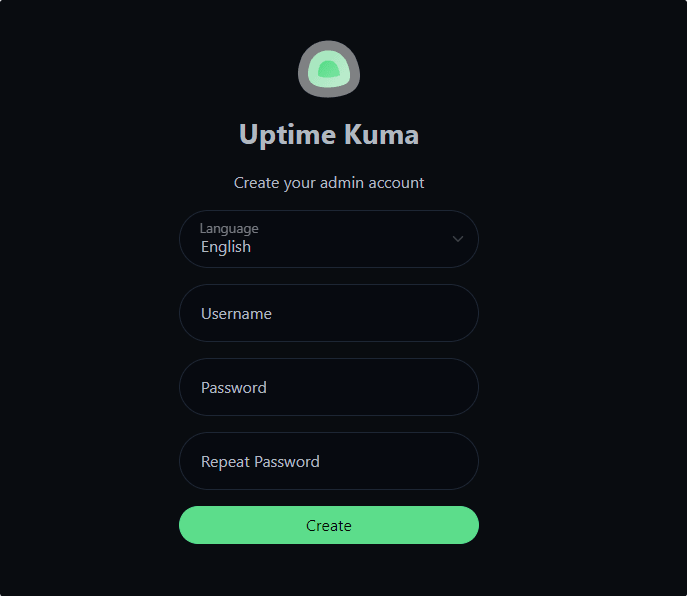
http://your-server-ip:3001Replace your-server-ip with your actual server IP address. The Uptime Kuma login page appears, prompting you to create an administrator account.
Create Administrator Account
First-time access triggers the setup wizard. Choose a strong username and password combination. Uptime Kuma doesn’t require email configuration for the admin account. Store credentials securely using a password manager.
After creating your account, you’re logged into the main dashboard. The clean interface displays your monitors list (currently empty), status overview, and settings access.
Configure Your First Monitor
Create a monitor to track a website or service:
- Click the “Add New Monitor” button
- Select monitor type (HTTP(s) for websites)
- Enter a friendly name (e.g., “Company Website”)
- Input the URL to monitor (e.g., https://example.com)
- Set heartbeat interval to 60 seconds
- Configure retries: 3 attempts recommended
- Set retry interval: 60 seconds between attempts
- Optionally add keywords to check in response content
- Click “Save”
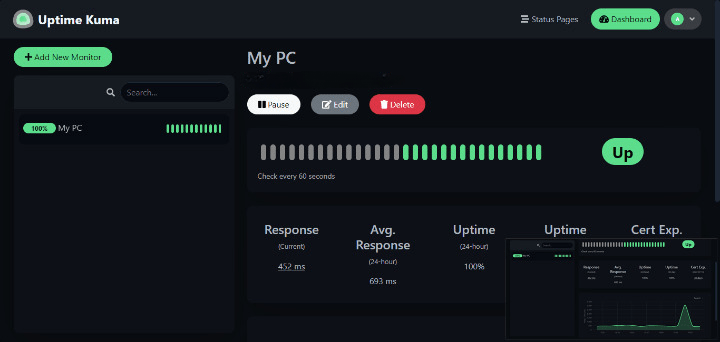
The monitor begins checking immediately. Green indicators show successful connectivity, while red alerts indicate problems. Adjust heartbeat intervals based on service criticality—mission-critical services benefit from 30-second intervals, while less important resources can use 5-minute checks.
Setting Up Nginx Reverse Proxy
A reverse proxy adds professional polish and enables SSL encryption. Nginx performs excellently for this purpose with minimal resource overhead.
Install and Configure Nginx
Install the Nginx web server:
sudo apt install nginx -yCreate a new configuration file for Uptime Kuma:
sudo nano /etc/nginx/sites-available/uptime-kumaPaste the following configuration, replacing your-domain.com with your actual domain:
upstream uptime-kuma {
    server 127.0.0.1:3001;
}

server {
    listen 80;
    server_name your-domain.com www.your-domain.com;

    location / {
        proxy_pass http://uptime-kuma;
        proxy_http_version 1.1;
        proxy_set_header Upgrade $http_upgrade;
        proxy_set_header Connection "upgrade";
        proxy_set_header Host $host;
        proxy_set_header X-Real-IP $remote_addr;
        proxy_set_header X-Forwarded-For $proxy_add_x_forwarded_for;
        proxy_set_header X-Forwarded-Proto $scheme;
        proxy_buffering off;
    }
}
The Upgrade and Connection headers enable WebSocket support, which Uptime Kuma requires for real-time updates.
Save the file (Ctrl+X, Y, Enter) and create a symbolic link to enable the site:
sudo ln -s /etc/nginx/sites-available/uptime-kuma /etc/nginx/sites-enabled/Test the configuration for syntax errors:
sudo nginx -tIf the test succeeds, restart Nginx to apply changes:
sudo systemctl restart nginxAccess Uptime Kuma using your domain name on standard HTTP port 80.
Implementing SSL/TLS with Let’s Encrypt
SSL certificates encrypt traffic between clients and your monitoring system, preventing credential interception.
Install Certbot
Certbot automates certificate acquisition and renewal from Let’s Encrypt:
sudo apt install certbot python3-certbot-nginx -yObtain SSL Certificate
Request a certificate for your domain:
sudo certbot --nginx -d your-domain.com -d www.your-domain.comCertbot prompts for:
- Email address for renewal notifications and urgent notices
- Agreement to Let’s Encrypt Terms of Service
- Whether to redirect HTTP to HTTPS (select Yes/2)
Certbot automatically modifies your Nginx configuration, adding SSL directives and security headers. The process completes in seconds if DNS is properly configured.
Verify Automatic Renewal
Let’s Encrypt certificates expire after 90 days. Certbot installs a systemd timer for automatic renewal. Test the renewal process:
sudo certbot renew --dry-runCheck the renewal timer status:
sudo systemctl status certbot.timerThe timer should show “active (waiting)”. Certificates automatically renew when they have 30 days remaining.
Access your Uptime Kuma instance securely:
https://your-domain.comThe browser displays a padlock icon indicating encrypted connection.
Advanced Configuration and Optimization
Maximize Uptime Kuma’s effectiveness with proper configuration and performance tuning.
Configure Notification Channels
Navigate to Settings > Notifications to add alert channels. Popular options include:
Email/SMTP Setup:
- Select “Email (SMTP)” as notification type
- Enter SMTP server details (smtp.gmail.com for Gmail)
- Configure port (587 for TLS, 465 for SSL)
- Provide authentication credentials
- Set sender and recipient addresses
- Test the notification
Discord Webhook:
- Create a webhook in your Discord server settings
- Copy the webhook URL
- Select “Discord” in Uptime Kuma
- Paste webhook URL
- Send test notification
Configure at least two notification methods for redundancy—if email fails, instant messaging can still alert you.
Optimize Monitoring Intervals
Balance thoroughness with resource consumption:
- Critical production services: 30-60 seconds
- Standard business applications: 60-120 seconds
- Development environments: 300-600 seconds
- Low-priority services: 900 seconds (15 minutes)
Shorter intervals detect issues faster but increase server load and network traffic. Avoid intervals below 30 seconds unless absolutely necessary, as they may trigger rate limiting or false positives.
Create Public Status Pages
Status pages communicate service health to customers and stakeholders:
- Navigate to Status Pages
- Click “Add Status Page”
- Select monitors to display publicly
- Customize appearance with logo and colors
- Set slug for URL (e.g., status.your-domain.com)
- Choose visibility (Public or Protected)
- Save and configure DNS if using custom domain
Status pages build trust by demonstrating transparency about service reliability.
Troubleshooting Common Issues
Address frequent problems quickly with these solutions.
Service Won’t Start
If Uptime Kuma fails to launch:
Check PM2 logs for Node.js installations:
pm2 logs uptime-kumaVerify Docker container status:
docker logs uptime-kumaEnsure port 3001 isn’t occupied:
sudo netstat -tulpn | grep 3001Confirm proper file permissions on /opt/uptime-kuma directory.
Connection Refused or 502 Errors
These errors indicate communication problems between Nginx and Uptime Kuma:
- Verify Uptime Kuma is running (
pm2 statusordocker ps) - Check Nginx error logs:
sudo tail -f /var/log/nginx/error.log - Test direct access to port 3001
- Review firewall rules
- Verify upstream configuration in Nginx
False Positive Alerts
Spurious downtime notifications frustrate administrators and reduce alert effectiveness.
Common causes:
- Monitoring server network issues
- Overly aggressive timeout settings
- DNS resolution failures
- Target server rate limiting
- Temporary maintenance activities
Solutions:
- Increase retry count to 3-5 attempts
- Extend timeout values to 30-60 seconds
- Use maintenance windows during planned downtime
- Implement retry intervals of 60-120 seconds
- Monitor from multiple geographic locations if possible
Database Corruption
Backup the SQLite database regularly:
# For Node.js installation
cp /opt/uptime-kuma/data/kuma.db /opt/uptime-kuma/data/kuma.db.backup

# For Docker installation
docker exec uptime-kuma cp /app/data/kuma.db /app/data/kuma.db.backup
Schedule weekly backups using cron jobs to enable recovery from corruption or accidental deletion.
Updating Uptime Kuma
Regular updates provide bug fixes, security patches, and new features.
Update Node.js Installation
Navigate to the installation directory and pull updates:
cd /opt/uptime-kuma
sudo -u uptime-kuma git fetch --all
sudo -u uptime-kuma git checkout 1.23.0  # Replace with desired version
sudo -u uptime-kuma npm install
sudo -u uptime-kuma npm run build
pm2 restart uptime-kuma
Check the GitHub releases page for version numbers and changelogs.
Update Docker Installation
Pull the latest image and recreate the container:
docker pull louislam/uptime-kuma:1
docker stop uptime-kuma
docker rm uptime-kuma
docker run -d --restart=always -p 3001:3001 -v uptime-kuma:/app/data -v /var/run/docker.sock:/var/run/docker.sock:ro --name uptime-kuma louislam/uptime-kuma:1
Data persists in the volume, preserving all monitors and configuration.
Congratulations! You have successfully installed Uptime Kuma. Thanks for using this tutorial to install the latest version of the Uptime Kuma monitoring tool on Debian 13 “Trixie” system. For additional help or useful information, we recommend you check the official Uptime Kuma website.
[su_box title=”VPS Manage Service Offer” style=”bubbles” box_color=”#000000″ radius=”10″]If you don’t have time to do all of this stuff, or if this is not your area of expertise, we offer a service to do “VPS Manage Service Offer”, starting from $10 (Paypal payment). Please contact us to get the best deal![/su_box]
