
If you just installed Fedora 44 and tried to play an MP4 or MKV file, you probably hit a silent failure or a codec error dialog within the first five minutes. That is not a bug in your system. Fedora ships with a patent-restricted multimedia stack by design, and the default GNOME Videos player lacks the codec coverage that most real-world media files require. The fastest fix is to install VLC Media Player on Fedora 44, a free and open-source player that bundles its own codec library and handles virtually every format you will ever encounter.
This guide covers three installation methods: the native DNF package (recommended for most users), the Flatpak build from Flathub, and Snap as a fallback option. Beyond the install, you will also learn how to fix codec errors for H.264 and HEVC content, enable GPU hardware decoding, and resolve the most common issues that trip up Fedora users after a fresh setup. Each command includes an explanation of what it does and why it matters, so you are not just copying and pasting blindly.
By the end of this tutorial, VLC will be running on your Fedora 44 system with full codec support, correct audio routing through PipeWire, and hardware decoding configured for your GPU. Let’s get into it.
What Is VLC and Why Does Fedora Need It?
VLC is a free, open-source multimedia player developed by the VideoLAN project. It has been downloaded over three billion times and runs on Linux, Windows, macOS, Android, and iOS. Unlike most media players, VLC ships with its own internal codec library called libvlc, which means it does not depend on the operating system’s multimedia stack to decode files.
Fedora 44 ships with GNOME Videos (also called Totem) as its default media player. Totem relies on GStreamer pipelines, and Fedora’s default GStreamer configuration intentionally excludes patent-encumbered codecs like H.264, H.265, and AAC. The result is that common video formats either play without audio, play with visual corruption, or refuse to open entirely.
VLC sidesteps this problem entirely. Its bundled decoder handles H.264, HEVC, AAC, MP3, Opus, VP9, AV1, and dozens of other formats without requiring you to configure the system-level codec stack first. For a Fedora workstation where you want reliable media playback out of the box, VLC is the most practical solution available.
Prerequisites
Before you start, confirm the following:
- Fedora 44 installed (Workstation edition or any spin with a desktop environment)
- An active internet connection for downloading packages
- A user account with sudo privileges (you are not running as root)
- At least 300 MB of free disk space for VLC and its dependencies
- Familiarity with running basic terminal commands
To confirm you are on Fedora 44, run this in your terminal:
rpm -E %fedoraExpected output:
44If you see a different number, the repo URLs in later steps will need to match your actual Fedora release. The $(rpm -E %fedora) expression used throughout this guide handles that automatically.
Step 1: Update Your Fedora 44 System Before Installing
Always update your system before installing any new package. This is not just best practice, it is a dependency management requirement.
sudo dnf upgrade --refreshWhat this does: The --refresh flag forces DNF to re-download the latest package metadata from all enabled repositories. Without it, DNF might resolve VLC’s dependencies against a cached package list that is days or weeks old, which can cause version conflicts during installation.
Why this matters: VLC depends on shared libraries like libva, libdrm, and Qt runtime components. If those packages are outdated on your system and the VLC package expects newer versions, DNF will either refuse the install or pull in conflicting library versions. Updating first eliminates that entire class of problem.
After the update completes, reboot if a kernel update was installed:
sudo rebootRebooting after a kernel update ensures your running kernel matches the installed kernel headers and driver modules, which affects hardware video decoding later in this guide.
Step 2: Install VLC Media Player on Fedora 44 Using DNF
The DNF method is the recommended approach for most Fedora users. Current Fedora releases include VLC directly in the standard repositories, so you do not need to add any third-party source just to get the player itself.
Run the Install Command
sudo dnf install vlcWhat this does: DNF fetches the VLC package along with all required runtime dependencies in a single transaction. This includes Qt5/Qt6 interface libraries, libvlc core plugins, and audio/video output modules.
Why not just download the binary manually? Manually downloaded binaries skip dependency resolution. DNF tracks every library VLC needs and installs the correct versions, so future system updates do not silently break the player.
When DNF asks for confirmation, press y and hit Enter.
Verify the Installation
After the install finishes, confirm that VLC is correctly installed and accessible from your shell:
vlc --version | head -1Expected output:
VLC version 3.0.23 Vetinari (3.0.23-2-0-g79128878dd)Why verify this way? The --version flag confirms the binary is correctly linked and the head -1 pipe keeps the output clean. If this command returns command not found, VLC’s binary was not placed in your $PATH, which indicates an incomplete install. Fix it with:
sudo dnf reinstall vlcLaunch VLC from the Terminal
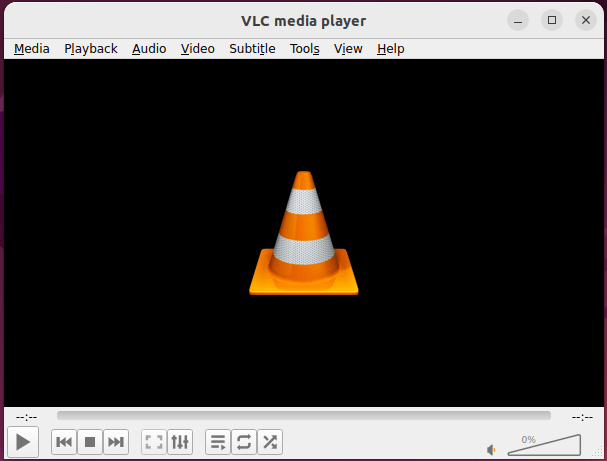
vlcFor opening a specific file directly:
vlc /path/to/your/file.mp4Pro tip: The first time you launch VLC from the terminal, it may print plugin scan messages. That is normal on first run as VLC caches its plugin registry. Subsequent launches will be faster.
Step 3: Install VLC Using Flatpak (Sandboxed Option)
The Flatpak method is useful when you want VLC isolated from the rest of your system, or when you prefer managing it through Flathub’s update cycle independently of DNF system updates.
Enable the Flathub Repository
Fedora 44 Workstation includes Flatpak by default, but Flathub may not be registered as a system remote yet. Add it with:
sudo flatpak remote-add --if-not-exists flathub https://dl.flathub.org/repo/flathub.flatpakrepoWhy use sudo here? This registers Flathub as a system-level remote, which makes it available to all user accounts on the machine. If you use --user instead, the remote is only available to your account. For a single-user workstation, either option works, but the system remote is cleaner for maintenance.
No output from this command means it completed successfully.
Install VLC from Flathub
sudo flatpak install -y flathub org.videolan.VLCWhy the full app ID? Flatpak uses reverse-DNS identifiers like org.videolan.VLC to prevent name collisions across different remotes. Specifying the full ID guarantees you install the official VideoLAN build and not a similarly named package from another source.
Verify the Flatpak Installation
flatpak list --system | grep -i '^VLC'Expected output:
VLC org.videolan.VLC 3.0.23 stable flathub systemLaunch the Flatpak Build
flatpak run org.videolan.VLCImportant: The Flatpak version of VLC does not modify your system $PATH. Typing vlc in the terminal will still launch the DNF version if both are installed. Use the full flatpak run command to specifically launch the sandboxed build.
Step 4: Fix Codec Errors for H.264 and HEVC Playback
This is the step that most guides skip, and it is the reason VLC still fails on H.264 MKV files even after a successful install. Fedora 44 ships ffmpeg-free by default, a version of FFmpeg compiled without patent-restricted codec support. VLC can be installed correctly and still fail to decode H.264 or HEVC because the underlying FFmpeg library it links against does not support those formats.
Add RPM Fusion Repositories
RPM Fusion is the primary third-party repository for Fedora that provides patent-restricted multimedia packages. Add both the free and nonfree repos with a single command:
sudo dnf install \
  https://mirrors.rpmfusion.org/free/fedora/rpmfusion-free-release-$(rpm -E %fedora).noarch.rpm \
  https://mirrors.rpmfusion.org/nonfree/fedora/rpmfusion-nonfree-release-$(rpm -E %fedora).noarch.rpm
Why $(rpm -E %fedora)? This shell expression dynamically expands to your current Fedora release number. On Fedora 44, it becomes 44 at runtime, making the URL rpmfusion-free-release-44.noarch.rpm. Hardcoding the version is a common mistake that causes a 404 error when the URL does not match your actual release.
Verify the repos are active:
dnf repo list --all | grep -E '^rpmfusion-(free|nonfree)'Expected output:
rpmfusion-free          RPM Fusion for Fedora 44 - Free               enabled
rpmfusion-free-updates  RPM Fusion for Fedora 44 - Free - Updates     enabled
rpmfusion-nonfree       RPM Fusion for Fedora 44 - Nonfree            enabled
rpmfusion-nonfree-updates RPM Fusion for Fedora 44 - Nonfree - Updates  enabled
Replace ffmpeg-free With Full FFmpeg
sudo dnf swap ffmpeg-free ffmpeg --allowerasingWhat this does: The swap subcommand replaces ffmpeg-free with the full ffmpeg package from RPM Fusion in a single atomic transaction. The --allowerasing flag allows DNF to remove dependent packages that only work with ffmpeg-free and would otherwise block the swap.
Confirm the replacement worked:
rpm -q ffmpegExpected output:
ffmpeg-7.1.2-7.fc44.x86_64If you still see ffmpeg-free in the output, run rpm -q ffmpeg ffmpeg-free to check whether both are present and re-run the swap command.
Install VLC Freeworld Plugins
sudo dnf install vlc-plugins-freeworldWhy this additional package? The vlc-plugins-freeworld package provides VLC-specific codec extensions from RPM Fusion that enable hardware-accelerated decoding for H.264 and HEVC content. Without it, VLC may still fall back to software decoding even after the FFmpeg swap.
Step 5: Enable GPU Hardware Video Decoding
Once codec support is in place, the next optimization is enabling VA-API hardware decoding. VA-API offloads video decode work to your GPU, which matters significantly for 1080p60 and 4K playback where software decoding causes high CPU usage and dropped frames.
AMD GPU Users
sudo dnf install mesa-va-drivers-freeworldWhy this package specifically? Fedora 44 ships mesa-va-drivers by default, but that package omits the freeworld codecs due to patent restrictions. The mesa-va-drivers-freeworld package from RPM Fusion adds H.264 and HEVC VA-API support for AMD GPUs. Without it, hardware-decoded H.264 video shows visual corruption or falls back to software decoding silently.
Intel GPU Users
For Intel 9th generation and older:
sudo dnf install libva-intel-driverFor Intel 10th generation and newer (Icelake+):
sudo dnf install intel-media-driverEnable VA-API in VLC
- Open VLC and go to Tools > Preferences
- Click Input / Codecs
- Under Hardware-accelerated decoding, select VA-API video decoder via DRM
- Click Save and restart VLC
Test with a high-bitrate file using terminal launch to see any VA-API error messages in stderr output:
vlc /path/to/test-4k.mkvStep 6: How To Update and Remove VLC on Fedora 44
Updating VLC
For the DNF package, VLC updates come through your normal system update cycle:
sudo dnf upgrade --refreshWhy no separate VLC update command is needed: When you install VLC via DNF, it becomes part of the standard Fedora package graph. Running system updates keeps VLC current automatically alongside your kernel and other system packages.
For the Flatpak build, Flatpak has its own update channel separate from DNF:
sudo flatpak update --system org.videolan.VLCWhy remember this? The Flatpak build will not receive updates from dnf upgrade. Forgetting to run Flatpak updates separately can leave VLC months behind on security patches and codec improvements.
Removing VLC
To remove the DNF package:
sudo dnf remove vlcConfirm it is gone:
rpm -q vlcExpected output:
package vlc is not installedTo also remove leftover user configuration files:
rm -rf ~/.config/vlc ~/.local/share/vlcWhy clean up configs? Stale configuration files from older VLC versions can cause unexpected behavior if VLC is reinstalled later. The most common issue is an outdated audio output module setting that conflicts with Fedora 44’s PipeWire configuration.
To remove the Flatpak build:
sudo flatpak remove --system org.videolan.VLCTroubleshooting VLC on Fedora 44
Problem 1: VLC Crashes or Fails to Open
Run VLC from the terminal to capture the actual error message:
vlc 2>&1 | head -30If you see Qt plugin errors, reinstall VLC:
sudo dnf reinstall vlcWhy reinstall instead of remove and install? The reinstall command forces DNF to replace all VLC package files while preserving your user configuration in ~/.config/vlc. This is faster than a fresh install and fixes broken binary files without losing your settings.
Problem 2: Video Plays but Audio Is Silent
First, identify your active sound server:
pactl info | grep "Server Name"Expected output on Fedora 44:
Server Name: PulseAudio (on PipeWire 1.4.x)Why this check matters: Fedora 44 uses PipeWire as its audio server, exposed through a PulseAudio compatibility layer. VLC’s audio output module must match. If VLC is set to ALSA output while PipeWire is active, audio will fail silently without any error message.
Fix: Open VLC > Tools > Preferences > Audio > change Output module to PipeWire audio output (or PulseAudio if PipeWire is shown) > Save > restart VLC.
Problem 3: HEVC or H.265 Files Still Fail After FFmpeg Swap
Check which FFmpeg package is currently installed:
rpm -q ffmpeg ffmpeg-freeIf ffmpeg-free still appears alongside ffmpeg, run the swap again:
sudo dnf swap ffmpeg-free ffmpeg --allowerasingWhy can both coexist? Partial DNF transaction rollbacks or dependency updates can restore ffmpeg-free after you have already swapped it. Always verify with rpm -q rather than assuming the swap is permanent.
Problem 4: Flatpak VLC Cannot Open Files on USB Drives
The Flatpak sandbox blocks access to paths outside the home directory by default. Grant /run/media access explicitly:
flatpak override --user --filesystem=/run/media org.videolan.VLCWhy /run/media specifically? Fedora 44 mounts removable storage (USB drives, SD cards, external HDDs) under /run/media/[username]/[device-name] by default. The Flatpak sandbox has no way to know this path exists unless you explicitly declare it as a filesystem permission.
Verify the override is active:
flatpak info --show-permissions org.videolan.VLC | grep filesystemProblem 5: High CPU Usage During Video Playback
If CPU spikes to 80%+ during 1080p playback, hardware decoding is not active. Confirm VA-API is available:
vainfo 2>&1 | grep -E "VA-API version|vainfo"If vainfo is not installed:
sudo dnf install libva-utilsIf vainfo returns errors, your VA-API driver is missing or mismatched. Go back to Step 5 and install the correct driver package for your GPU. Then re-enable VA-API in VLC Preferences under Input / Codecs.
[su_box title=”VPS Manage Service Offer” style=”bubbles” box_color=”#000000″ radius=”10″]If you don’t have time to do all of this stuff, or if this is not your area of expertise, we offer a service to do “VPS Manage Service Offer”, starting from $10 (Paypal payment). Please contact us to get the best deal![/su_box]
