
Zabbix stands as one of the most powerful open-source monitoring solutions available for enterprise infrastructure management. Installing Zabbix on Debian 13 “Trixie” provides you with a robust platform to monitor servers, networks, applications, and services in real-time. This comprehensive guide walks you through every step of the installation process, from initial system preparation to accessing your fully functional Zabbix dashboard. Whether you’re a system administrator managing multiple servers or an IT professional seeking to implement comprehensive monitoring, this tutorial delivers the detailed instructions you need to successfully deploy Zabbix 7.4 on your Debian 13 system.
What is Zabbix
Zabbix is an enterprise-class monitoring software designed to track the performance and availability of network servers, devices, and other IT resources. The platform offers extensive capabilities including network monitoring, server health tracking, application performance monitoring, and intelligent alerting mechanisms. Organizations worldwide rely on Zabbix for its scalability, supporting environments from small setups to massive infrastructures with thousands of monitored devices.
The software provides flexibility through multiple monitoring methods: agent-based monitoring for detailed metrics, agentless SNMP monitoring for network devices, and IPMI for hardware monitoring. Its powerful visualization features include customizable dashboards, graphs, and maps that transform raw data into actionable insights.
Prerequisites and System Requirements
Before beginning the Zabbix installation on Debian 13, ensure your system meets the necessary requirements. You need a Debian 13 “Trixie” installation with root or sudo privileges for executing administrative commands. The system should have at least 2GB of RAM for small deployments, though 4GB or more is recommended for production environments.
Your server requires adequate disk space—allocate at minimum 10GB, with additional storage based on your monitoring scope and data retention policies. A stable network connection is essential, and configuring a static IP address is highly recommended for production deployments. You’ll also need to choose between database systems (MariaDB or MySQL recommended) and web servers (Apache or Nginx). Debian 13 includes PHP 8.4, which is fully compatible with Zabbix 7.4.
Step 1: Update System Packages
Starting with a fully updated system prevents compatibility issues and ensures you have the latest security patches. Connect to your Debian 13 server via SSH and execute the following commands to refresh package repositories and upgrade installed packages:
sudo apt updateThis command synchronizes the package index with the repositories. Next, upgrade your system:
sudo apt upgrade -yThe upgrade process may take several minutes depending on how many packages require updates. If kernel updates were installed, reboot your system to ensure changes take effect:
sudo rebootWait for your server to restart before proceeding to the next step.
Step 2: Install Database Server
Zabbix requires a database backend to store configuration data, monitoring history, and collected metrics. MariaDB provides excellent performance and compatibility for Zabbix deployments on Debian systems.
Install MariaDB server with this command:
sudo apt install mariadb-server mariadb-client -yOnce installation completes, start and enable the MariaDB service to run automatically on system boot:
sudo systemctl start mariadb
sudo systemctl enable mariadb
Secure your database installation by running the security script:
sudo mysql_secure_installationThis interactive script prompts you to set a root password, remove anonymous users, disable remote root login, and delete the test database. Answer “Y” to all prompts for maximum security. Verify MariaDB is running correctly:
sudo systemctl status mariadbYou should see an active (running) status, confirming the database server is operational.
Step 3: Install Apache and PHP Dependencies
The Zabbix web interface requires a web server and PHP with specific extensions. Apache serves as a reliable choice for hosting the Zabbix frontend on Debian 13.
sudo apt install apache2 -yNext, install PHP 8.4 along with all required extensions for Zabbix:
sudo apt install php php-mysql php-gd php-bcmath php-net-socket php-xml php-mbstring php-ldap php-curl -yEach PHP module serves a specific purpose: php-mysql enables database connectivity, php-gd handles image generation for graphs, php-bcmath provides mathematical operations, and other extensions support various Zabbix features. Start and enable Apache:
sudo systemctl start apache2
sudo systemctl enable apache2
Verify your installation by checking the Apache service status:
sudo systemctl status apache2Confirm PHP installation and version:
php -vYou should see PHP 8.4 listed, confirming compatibility with Zabbix 7.4.
Step 4: Add Zabbix Official Repository
Debian 13 repositories may not include the latest Zabbix version, so adding the official Zabbix repository ensures you install Zabbix 7.4 with all updates. Download the Zabbix release package:
wget https://repo.zabbix.com/zabbix/7.4/debian/pool/main/z/zabbix-release/zabbix-release_latest_7.4+debian13_all.debInstall the repository configuration package:
sudo dpkg -i zabbix-release_latest_7.4+debian13_all.debThis adds the Zabbix repository to your system’s package sources. Update the package list to include packages from the newly added repository:
sudo apt updateUsing the official repository guarantees you receive properly packaged software optimized for Debian 13, along with easier access to future updates and security patches.
Step 5: Install Zabbix Components
With the repository configured, install the core Zabbix components. Execute this command to install Zabbix server, frontend, agent, and SQL scripts:
sudo apt install zabbix-server-mysql zabbix-frontend-php zabbix-apache-conf zabbix-sql-scripts zabbix-agent2 -yEach component fulfills a specific role: zabbix-server-mysql contains the main monitoring engine with MySQL/MariaDB support, zabbix-frontend-php provides the web interface, zabbix-apache-conf includes Apache configuration files, zabbix-sql-scripts contains database schema files, and zabbix-agent2 allows the Zabbix server to monitor itself.
The installation process downloads and configures all necessary files automatically. This may take a few minutes depending on your internet connection speed.
Step 6: Create and Configure Zabbix Database
Creating a dedicated database for Zabbix is critical for proper functionality. Log into MariaDB as root:
sudo mysql -u root -pEnter the root password you set during the security configuration. At the MariaDB prompt, create the Zabbix database with UTF8MB4 character encoding:
CREATE DATABASE zabbix CHARACTER SET utf8mb4 COLLATE utf8mb4_bin;Create a dedicated database user with a strong password (replace ‘your_password’ with your actual password):
CREATE USER 'zabbix'@'localhost' IDENTIFIED BY 'your_password';Grant necessary privileges to the Zabbix user:
GRANT ALL PRIVILEGES ON zabbix.* TO 'zabbix'@'localhost';Set the binary log parameter temporarily:
SET GLOBAL log_bin_trust_function_creators = 1;Exit MariaDB:
EXIT;Import the initial database schema and data:
sudo zcat /usr/share/zabbix-sql-scripts/mysql/server.sql.gz | mysql --default-character-set=utf8mb4 -uzabbix -p zabbixEnter the Zabbix database user password when prompted. This import process creates all necessary tables and populates initial configuration data. Once completed, log back into MariaDB to reset the security parameter:
sudo mysql -u root -pSET GLOBAL log_bin_trust_function_creators = 0;
EXIT;This completes the database setup with proper security measures in place.
Step 7: Configure Zabbix Server
The Zabbix server requires database connection information to function properly. Open the configuration file using your preferred text editor:
sudo nano /etc/zabbix/zabbix_server.confLocate and modify the following parameters. Find the DBName line and ensure it reads:
DBName=zabbixFind the DBUser line:
DBUser=zabbixLocate the DBPassword line and uncomment it (remove the # symbol if present), then add your database password:
DBPassword=your_passwordReplace ‘your_password’ with the actual password you created for the Zabbix database user. Save the file and exit the editor (in nano, press Ctrl+X, then Y, then Enter).
Start the Zabbix server service:
sudo systemctl start zabbix-serverEnable it to start automatically on boot:
sudo systemctl enable zabbix-serverCheck the service status to ensure it started successfully:
sudo systemctl status zabbix-serverIf you encounter errors, check the log file:
sudo tail -f /var/log/zabbix/zabbix_server.logCommon issues include database connection failures (verify credentials) or permission problems (check file ownership).
Step 8: Configure Zabbix Agent
Installing Zabbix Agent 2 allows your Zabbix server to monitor itself. Edit the agent configuration file:
sudo nano /etc/zabbix/zabbix_agent2.confLocate the Server parameter and set it to your Zabbix server’s IP address (use 127.0.0.1 for local monitoring):
Server=127.0.0.1Find the ServerActive parameter for active checks:
ServerActive=127.0.0.1Set the Hostname parameter to identify this agent (use your server’s hostname):
Hostname=Debian13-Zabbix-ServerSave and close the file. Start and enable the Zabbix agent:
sudo systemctl start zabbix-agent2
sudo systemctl enable zabbix-agent2
Verify the agent is running:
sudo systemctl status zabbix-agent2The agent now communicates with the Zabbix server, enabling self-monitoring capabilities.
Step 9: Configure PHP for Zabbix
Zabbix’s web interface requires specific PHP settings for optimal performance. Open the PHP configuration file for Apache:
sudo nano /etc/php/8.4/apache2/php.iniLocate and modify these parameters (use Ctrl+W to search in nano):
max_execution_time = 300
memory_limit = 128M
post_max_size = 16M
upload_max_filesize = 2M
max_input_time = 300
max_input_vars = 10000
date.timezone = Asia/Jakarta
Change the timezone to match your location. These values ensure Zabbix can process large datasets and generate reports without timing out. Save the file and reload Apache to apply changes:
sudo systemctl reload apache2Step 10: Configure Apache Web Server
Review the Zabbix Apache configuration:
sudo nano /etc/apache2/conf-enabled/zabbix.confThe default configuration typically works well, but you can add IP-based access restrictions if needed for enhanced security. Ensure Apache modules are enabled:
sudo a2enconf zabbix
sudo systemctl reload apache2
Test the Apache configuration for syntax errors:
sudo apache2ctl configtestYou should see “Syntax OK” if everything is configured correctly.
Step 11: Complete Web-Based Setup
Access the Zabbix web installer by opening your browser and navigating to:
http://your-server-ip/zabbixReplace ‘your-server-ip’ with your Debian server’s actual IP address. The setup wizard guides you through several steps:
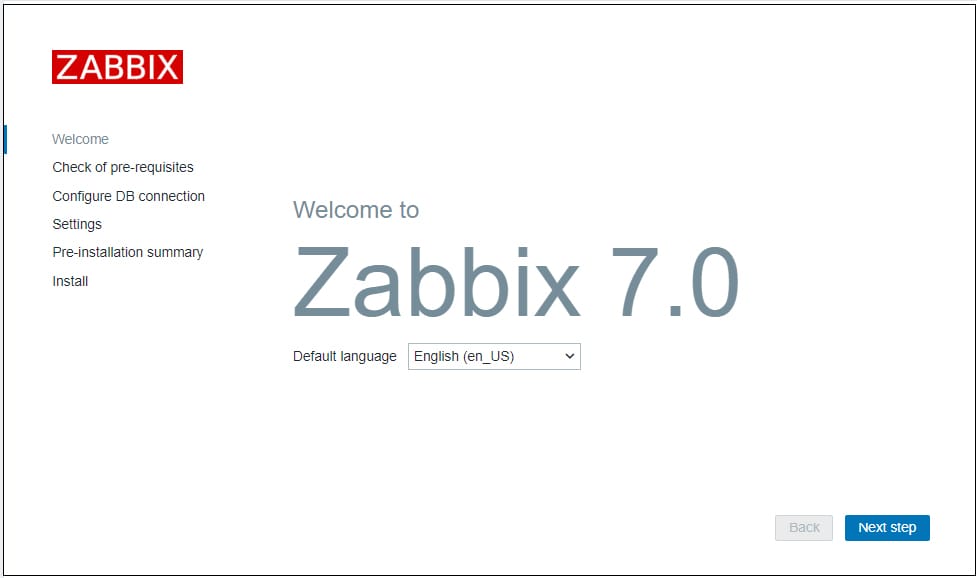
Welcome Screen: Click “Next step” to begin.
Prerequisites Check: The system verifies all PHP requirements are met. All items should show “OK” in green. If any appear in red, return to the PHP configuration step and address missing requirements.
Database Connection: Enter your database details:
- Database type: MySQL
- Database host: localhost
- Database port: 3306 (default)
- Database name: zabbix
- User: zabbix
- Password: your_password
Click “Next step” after entering credentials.
Zabbix Server Details: Configure the server name (optional but recommended for identification) and set the timezone to match your PHP configuration.
Pre-installation Summary: Review all settings before proceeding. Click “Next step” to finalize installation.
Installation Complete: The wizard creates the configuration file. You should see a success message.
Step 12: Initial Login and Post-Installation
Log into the Zabbix dashboard using the default credentials:
- Username: Admin
- Password: zabbix
Important: Change the default password immediately after first login for security. Navigate to Administration → Users, click on “Admin,” then change the password to a strong, unique value.
The Zabbix dashboard displays monitoring status, recent problems, and system information. Verify the Zabbix server appears in Monitoring → Hosts with a green “ZBX” icon indicating the agent is connected. Explore the interface to familiarize yourself with available features, templates, and monitoring options.
Security Hardening Best Practices
Implementing security measures protects your monitoring infrastructure from unauthorized access. Always use strong, unique passwords for all user accounts. Create separate user accounts with limited privileges instead of using the Admin account for daily operations.
Configure firewall rules to restrict access to necessary ports:
sudo apt install ufw -y
sudo ufw allow 22/tcp
sudo ufw allow 80/tcp
sudo ufw allow 443/tcp
sudo ufw allow 10050/tcp
sudo ufw allow 10051/tcp
sudo ufw enable
Consider implementing SSL/HTTPS for encrypted web access. Regular backups of your Zabbix database and configuration files ensure you can recover from failures or security incidents. Keep Zabbix updated by regularly checking for new releases and applying security patches promptly.
Troubleshooting Common Issues
Zabbix Server Won’t Start: Check database connectivity and credentials in /etc/zabbix/zabbix_server.conf. Review logs with sudo tail -f /var/log/zabbix/zabbix_server.log for specific error messages.
Agent Connection Failures: Verify firewall rules allow port 10050 (passive checks) and 10051 (active checks). Confirm Server and ServerActive parameters in the agent configuration match your setup.
Web Interface Errors: Ensure all PHP extensions are installed and enabled. Check Apache error logs with sudo tail -f /var/log/apache2/error.log for detailed information.
Database Import Issues: Confirm you’re using the correct character set (utf8mb4) and that the database user has appropriate privileges.
Permission Errors: Verify Zabbix processes run under the correct user and have access to necessary directories. Check file ownership with ls -la /etc/zabbix/.
Congratulations! You have successfully installed Zabbix. Thanks for using this tutorial for installing the latest version of Zabbix on Debian 13 “Trixie” system. For additional help or useful information, we recommend you check the official Zabbix website.
[su_box title=”VPS Manage Service Offer” style=”bubbles” box_color=”#000000″ radius=”10″]If you don’t have time to do all of this stuff, or if this is not your area of expertise, we offer a service to do “VPS Manage Service Offer”, starting from $10 (Paypal payment). Please contact us to get the best deal![/su_box]

