
If you want to Install Audacity on Fedora 44, this guide gives you the cleanest path from a fresh Fedora desktop to a working audio editor. I will show you the install methods that make sense on Fedora 44, explain what each command does, and tell you why each step matters so you do not copy commands blindly. This is written for beginners, developers, and sysadmins who want a practical setup, not a generic tutorial.
Fedora 44 ships Audacity 3.7.7 in its package repository, so the native install path is straightforward and well supported. Audacity’s own Linux documentation also confirms that you can install it through a distribution package, Flatpak, Snap, or AppImage, which gives you flexibility depending on your workflow. In practice, the best choice for most Fedora users is the native package route, because it fits the system better and keeps maintenance simple.
This article also fits a real-world Install Audacity on Fedora 44 setup for people who care about audio quality, stable updates, and proper codec support. Fedora is strict about software licensing, so you need to understand the difference between the base Audacity package and the codec-enabled variant if you want MP3 or other restricted formats. That small detail is the difference between a smooth install and a frustrating first test.
Prerequisites
- Fedora 44 installed and updated.
- Administrator access through
sudo. - A working internet connection.
- A user account in the
wheelgroup. - At least one audio input or output device connected if you plan to record.
- A terminal app such as GNOME Terminal or any shell you prefer.
These prerequisites matter because package installation on Fedora depends on system access and current repository data. If your metadata is old, the install can fail or pull stale packages. If you do not have sudo, you cannot install anything system-wide.
Step 1: Update Your System
Check your Fedora version
Run this command first:
cat /etc/fedora-releaseThis tells you exactly which Fedora release you are on. You want to confirm Fedora 44 because package names and repository behavior can differ across releases.
Refresh package metadata
Now update the system:
sudo dnf upgrade --refreshThis command refreshes repository metadata and installs available updates. The --refresh flag matters because it forces DNF to fetch current package lists instead of relying on older cache data. On Fedora 44, this is a smart first move before any new install.
Why this step matters
Updating first reduces dependency problems. It also lowers the chance of weird errors when DNF tries to resolve packages against outdated metadata. For a sysadmin, this is basic hygiene, not an extra step.
Expected output usually looks like this:
Fedora 44 - x86_64
Dependencies resolved.
Nothing to do.
Complete!
If updates are available, DNF will list them before finishing. That is normal and actually helpful.
Step 2: Install Audacity with DNF
Install the base package
Use the native Fedora package first:
sudo dnf install audacityThis installs Audacity from Fedora’s official repository. It is the most integrated option and usually the easiest for system maintenance. Fedora Packages shows Audacity 3.7.7 available for Fedora 44, which confirms the package exists in the release repository.
What this command does
DNF downloads the package, checks signatures, resolves dependencies, and installs the app. That signature check matters because it helps verify that the package came from a trusted repository. As a sysadmin, that is exactly what you want on a workstation.
Why this step matters
The native RPM package usually follows Fedora policies better than third-party builds. It also updates cleanly with the rest of the system. If you want a simple How To Install Audacity on Fedora 44 flow, this is the first thing to try.
Expected output can look like this:
Installing:
 audacity x86_64 3.7.7-4.fc44
Transaction Summary
Install 1 Package
Is this ok [y/N]:
Type y and press Enter to continue.
Step 3: Add Codec Support
Understand the codec limitation
A plain Fedora package may not include everything you need for MP3 or other restricted formats. That is not a bug. Fedora keeps some multimedia components out of the main repository for policy reasons, and Audacity’s own Linux docs note that repository packages can be older or different from the upstream AppImage.
Install RPM Fusion
If you want better audio import and export support, add RPM Fusion:
sudo dnf install \
https://download1.rpmfusion.org/free/fedora/rpmfusion-free-release-$(rpm -E %fedora).noarch.rpm
This adds the RPM Fusion Free repository for your current Fedora version. The $(rpm -E %fedora) part automatically matches Fedora 44, so you do not have to hardcode a release number. That makes the command safer and easier to reuse later.
Install the freeworld package
Now install the codec-enabled Audacity build:
sudo dnf install audacity-freeworldThis is the better choice if you need more complete format support. It is especially useful for people who record, edit, and export audio in common formats that the base package may not fully cover.
Why this step matters
If you only install the base package, you may later wonder why MP3 export or some import formats behave oddly. Installing audacity-freeworld avoids that surprise. For anyone creating audio content seriously, this is the setup that feels complete.
Step 4: Launch and Verify
Start Audacity
Open the app from your application menu, or run it from the terminal:
audacityThis launches the program and confirms the binary is on your PATH. If it opens normally, the installation worked.
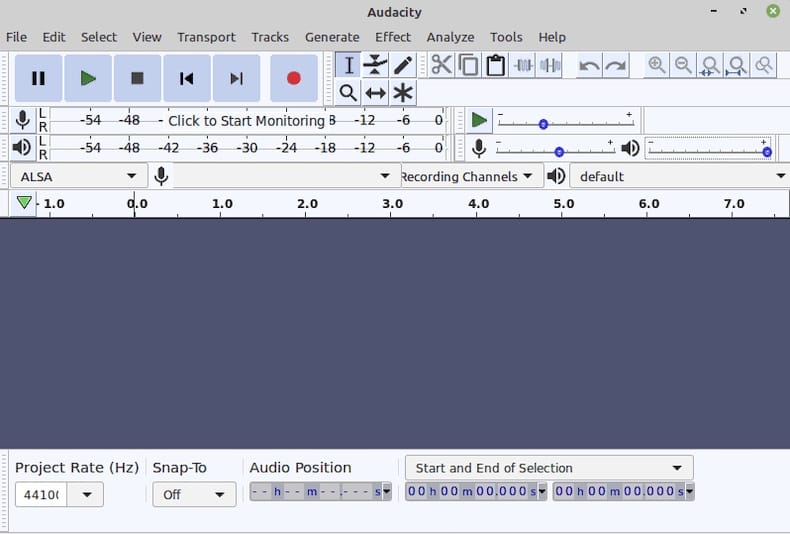
Check the installed version
You can also verify it from the terminal:
audacity --versionThis helps confirm that the package installed correctly and shows which build you are running. Version checks are useful when you want to compare Fedora’s package against upstream release notes.
Why this step matters
Verification saves time. A lot of install guides stop after the package finishes, but a real admin checks that the app actually starts. That is the difference between “installed” and “ready.”
Step 5: Configure Audacity
Set your audio device
Inside Audacity, open the audio settings and select the correct input and output device. Fedora uses PipeWire by default on modern desktop installs, so your mic and speakers should appear once the audio stack is working properly.
Set the sample rate
Use 44.1 kHz for general music or voice editing. Use 48 kHz when your work will end up in video production. This matters because mismatched sample rates can create timing or quality issues later.
Why this step matters
A successful install is not enough if Audacity points to the wrong device. Many users think the app is broken when the real problem is a bad device selection. A careful configure Audacity on Fedora 44 step prevents that confusion before you record anything important.
Step 6: Optional Flatpak Install
Use Flatpak if you want sandboxing
If you prefer an isolated app package, Flatpak is a good alternative. Audacity’s documentation lists Flatpak as a valid Linux option, along with Snap and AppImage. Flatpak can be a strong choice if you want app separation from the host system.
Install from Flathub
First make sure Flathub is available:
flatpak remote-add --if-not-exists flathub https://dl.flathub.org/repo/flathub.flatpakrepoThen install Audacity:
flatpak install flathub org.audacityteam.AudacityLaunch it with:
flatpak run org.audacityteam.AudacityWhy this step matters
Flatpak updates independently from Fedora’s RPM schedule. That can be useful if you want a newer upstream build. It also keeps the app more isolated, which some users prefer for testing or production safety.
Step 7: Optional Snap Install
Install Snap only if you need it
Snap is another valid route, but Fedora users usually choose RPM or Flatpak first. Audacity’s Linux docs mention Snap as a community-maintained option. If you already use Snap on other systems, this may fit your workflow.
Install and enable Snap
sudo dnf install snapd
sudo systemctl enable --now snapd.socket
sudo ln -s /var/lib/snapd/snap /snap
Then install Audacity:
sudo snap install audacityWhy this step matters
Snap adds a separate service layer, so it is less native on Fedora than RPM. Still, it can be useful if your environment already relies on Snap packages. For most Fedora desktops, it is the third choice, not the first.
Step 8: Test Audio Recording
Record a quick test
Open Audacity and record a short voice clip. Speak for a few seconds, then stop and play it back. This quick test confirms that both input and output paths work.
Check the input source
If nothing records, recheck the microphone selection in Audacity settings. Also make sure your desktop audio permissions and hardware mute switches are correct. Small hardware issues are common and easy to miss.
Why this step matters
Testing right away saves you from discovering problems during a real project. A lot of Linux audio issues only appear when input is actually active. A 10-second test is worth the time.
Troubleshooting
Audacity will not open
If the app starts and closes immediately, try launching it from the terminal:
audacityThis often shows the real error message. Terminal output is usually more useful than a GUI crash dialog.
MP3 export does not work
If export to MP3 fails, you probably installed the base package without extra codec support. Switch to the Fedora RPM Fusion build:
sudo dnf install audacity-freeworldThis usually solves missing format support. It is the most common Fedora Audacity issue.
Flatpak cannot see your microphone
If the Flatpak version cannot access your mic, permission is probably the issue. Reset or adjust Flatpak permissions through your desktop app manager or by using Flatpak override rules. Sandbox apps need explicit access to hardware devices.
No audio devices appear
If Audacity shows no inputs or outputs, check your desktop audio stack first. Restart the session, confirm your mic is visible in system sound settings, and verify that PipeWire services are active. The app can only use devices the system exposes.
DNF says package not found
If DNF cannot find Audacity, refresh metadata first:
sudo dnf upgrade --refreshThen try again. This error often comes from stale package lists, not from the package actually being missing.

