
Calibre is one of the most useful ebook tools on Linux because it can organize, convert, edit, and sync ebook libraries. For Fedora users, the main decision is not whether Calibre works, but which install method fits your system best.
Installing Calibre on Fedora 44 is simple once you choose the right method. This guide shows you how to install it cleanly, why each step matters, and how to avoid common mistakes so your setup works the first time.
In this tutorial, I will show you three safe ways to install Calibre on Fedora 44: the Fedora repository, Flatpak from Flathub, and the official Calibre binary installer. I will also explain how to configure Calibre on Fedora 44 after installation, because setup choices matter just as much as the install itself.
If you are a beginner, the Fedora package is usually the easiest path. If you want a newer release, Flatpak or the official installer may be the better choice. The official Calibre site specifically recommends its binary installer instead of distribution packages for the latest build. Fedora also ships Calibre in its package repositories, which makes DNF installation straightforward for users who prefer native packages.
Prerequisites
- Operating system: Fedora 44 Workstation or another Fedora 44 desktop edition.
- Permissions: A user account with
sudoaccess. - Terminal: You need a terminal app to run install commands.
- Internet connection: Required for downloading packages or the official installer.
- Optional tools: Flatpak if you want the Flathub method.
- Storage space: A few hundred MB free is enough for the app and your ebook library.
These basics matter because most install problems come from missing permissions, stale package metadata, or incomplete dependencies. A clean start saves time later.
Step 1: Update Your System
Refresh Fedora packages
sudo dnf upgrade --refreshThis command updates your package lists and installs the latest security and dependency updates available for Fedora 44. It matters because a fresh package database reduces conflicts during installation.
What to expect
You may see lines showing metadata downloads, package checks, and upgrades. If there are no updates, DNF will say that your system is already current.
Why this step matters
A current system lowers the chance of dependency errors, especially on a fast-moving distribution like Fedora. It also helps when you later configure Calibre on Fedora 44, because the app will run against up-to-date system libraries.
Step 2: Install Calibre from Fedora Repositories
Use DNF to install
sudo dnf install calibreThis installs Calibre from Fedora’s official package repository. It is the most native method because DNF handles dependencies and updates in the same way as the rest of the system.
Verify the installation
calibre --versionA successful install should return a version number. If the command works, the binary is available in your PATH and ready to launch.
Why this method is useful
This is the simplest option for most Fedora users. It fits the system well, updates through DNF, and avoids manual file management. The main tradeoff is that Fedora packages may lag behind upstream releases, which is why some users prefer the official installer or Flatpak.
Step 3: Install Calibre with Flatpak
Install Flatpak first
sudo dnf install flatpakFlatpak lets you run Calibre in a sandboxed app container. That gives you a clean install path and often a newer app version than the Fedora repo.
Add the Flathub repository
flatpak remote-add --if-not-exists flathub https://flathub.org/repo/flathub.flatpakrepoThis adds the main Flatpak app store source. It matters because Flatpak needs a repository before it can download Calibre.
Install Calibre
flatpak install flathub com.calibre_ebook.calibreThis fetches Calibre from Flathub. When prompted, confirm the installation.
Run Calibre
flatpak run com.calibre_ebook.calibreThat launches the app inside Flatpak.
Why this method matters
Flatpak is a strong choice when you want an isolated desktop app and a more recent release. It also keeps the app separate from core system libraries, which can reduce conflicts on a Fedora desktop.
Step 4: Install the Official Calibre Binary
Download and install
sudo -v && wget -nv -O- https://download.calibre-ebook.com/linux-installer.sh | sudo sh /dev/stdinThis is the official upstream installer from Calibre itself. The Calibre project recommends this method because it bundles private versions of its dependencies and avoids distro packaging issues.
Check required dependencies
The official installer expects tools like xdg-utils, wget, xz-utils, and Python to be available on your system. It also needs a recent enough system library stack, including GLIBC 2.34 or higher and a modern libstdc++.
What to expect during install
The script downloads the latest release, unpacks it, and places Calibre in the default install folder, usually /opt. When it finishes, you can launch Calibre from your applications menu or terminal.
Why this method is useful
Use this option if you want the latest upstream release and prefer the installer Calibre maintains itself. It is often the best answer for users who want a stable, vendor-controlled install path.
Step 5: Launch and Configure Calibre on Fedora 44
Start the app
If you used the Fedora package or official binary, launch it with:
calibreIf you used Flatpak, use the Flatpak run command shown earlier.
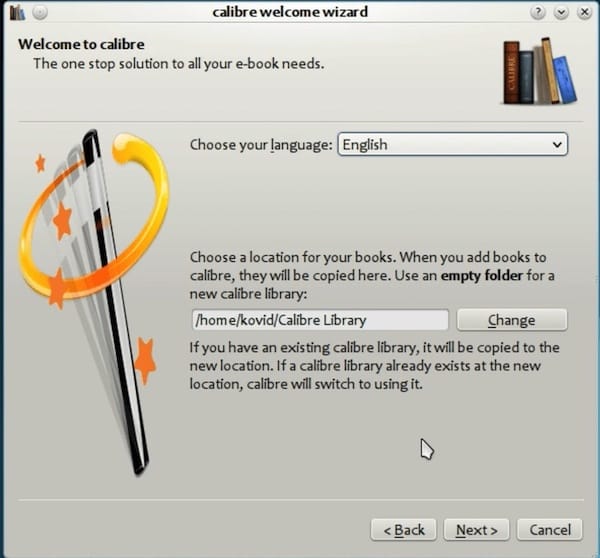
Complete the first-run wizard
Calibre will ask for your language, library location, and device profile. Pick the language you want, then confirm the library folder.
Choose your library folder
You can keep the default path or move it to a directory you already use for ebooks. I usually recommend leaving it at the default unless you have a strong reason to change it.
Select your device profile
Choose the device that best matches your reader, phone, or tablet. If you are unsure, use a generic profile.
Why this setup matters
This is the point where you truly install Calibre on Fedora 44 setup is complete, because the app now knows how to organize files and format output. The library path affects backup and portability, while the device profile affects conversion behavior and syncing quality.
Step 6: Test Calibre With a Sample Book
Add an ebook
Open Calibre and click the option to add a book, then choose an EPUB or other supported file.
Confirm metadata
Check the title, author, and cover image. Calibre will often try to improve metadata automatically.
Convert if needed
If you need a different format, convert the book to PDF, EPUB, MOBI, or another supported output format depending on your use case.
Why this step matters
A test import confirms that the install is not just present, but actually usable. It also helps you verify that fonts, permissions, and library paths are working as expected.
Step 7: Keep Calibre Updated
Fedora repository update
sudo dnf upgrade calibreThis updates the Fedora package when a new version lands in the repository.
Flatpak update
flatpak updateThis refreshes all installed Flatpak apps, including Calibre.
Official installer update
Run the same official install command again:
sudo -v && wget -nv -O- https://download.calibre-ebook.com/linux-installer.sh | sudo sh /dev/stdinThe installer will upgrade the current release if a newer one is available.
Why this matters
Ebook tools change over time because formats, device support, and metadata sources evolve. Keeping Calibre current reduces bugs and improves compatibility.
Step 8: Uninstall Calibre If Needed
Remove Fedora package
sudo dnf remove calibreRemove Flatpak package
flatpak uninstall com.calibre_ebook.calibreRemove official binary
sudo calibre-uninstallThe Calibre project also notes that deleting the installation folder removes most files, but the uninstaller is the cleaner option.
Why this matters
Good system administration includes clean removal. That keeps your Fedora install tidy and avoids stale app files.
Troubleshooting
Calibre does not start
If the app opens and then closes, try launching it from the terminal so you can see the error. A common fix on some systems is:
QT_QPA_PLATFORM=xcb calibreThis can help when the desktop session uses Wayland and the app needs X11 compatibility.
Missing dependency error
If the official installer complains about missing tools, install the required packages first. The Calibre site says you need xdg-utils, wget, xz-utils, and Python before running the installer.
Certificate warning during install
If wget reports an untrusted certificate, your system may be missing root certificates. Calibre’s own documentation says this can happen and mentions the --no-check-certificate option as a fallback. Use that only if you understand the security tradeoff.
Flatpak remote not found
If Flathub is missing, re-add it with the repository command shown earlier. Then rerun the install.
Book library not showing up
Check the library path inside Calibre settings. The app may be installed correctly, but pointing at the wrong folder.
