
Managing a growing ebook collection without the right tool is frustrating — wrong formats, missing metadata, no way to sync with your Kobo or Kindle. That is exactly the problem Calibre solves. Calibre is a free, open-source ebook management application that lets you organize, convert, and share your entire library from one clean interface. In this guide, you will learn how to install Calibre on Ubuntu 26.04 LTS using three different methods, so you can pick the one that fits your workflow and skill level.
Ubuntu 26.04 LTS (codename Resolute Ringtail) ships with a stable build of Calibre in its official repositories, but it is not the latest upstream release. Depending on your needs — stability vs. cutting-edge features — there is a right path for you.
Prerequisites
Before you begin, make sure your system meets these requirements:
- OS: Ubuntu 26.04 LTS (desktop or server) fully installed and booted
- User privileges: A non-root user with
sudoaccess - Internet connection: Required for all three installation methods
- Disk space: At least 500 MB free (Calibre + optional Flatpak runtime)
- Terminal access: Press
Ctrl + Alt + Ton GNOME desktop, or connect via SSH on a server - Python 3 installed: Required only for the official binary method (pre-installed on Ubuntu 26.04 by default)
Which Installation Method Should You Use?
Not all three methods are equal. Ubuntu 26.04 LTS ships Calibre 8.16.x via APT, while Flathub delivers 9.2.x — that version gap matters if you work with newer ebook formats or need the latest conversion plugins.
| Method | Version on Ubuntu 26.04 | Updates Via | Best For |
|---|---|---|---|
| APT (Ubuntu Repos) | 8.16.x | sudo apt upgrade |
Stability, hands-off updates |
| Flatpak (Flathub) | 9.2.x | sudo flatpak update |
Latest features, sandboxed isolation |
| Official Binary Script | 9.7.x (latest upstream) | Re-run installer | Full upstream control |
Note: The Xtradeb PPA does not provide Calibre packages for Ubuntu 26.04 LTS. Skip it and use APT or Flatpak instead.
Step 1: Update Your System Before Installing Calibre on Ubuntu 26.04 LTS
Regardless of which method you choose, always update your system first. Skipping this is the number one cause of dependency resolution failures on Ubuntu.
Why This Step Matters
Ubuntu’s package manager, APT, works from a local index of available packages. If that index is stale, APT may try to install a version of Calibre that conflicts with libraries already on your system. Upgrading pending packages before installing new software prevents those conflicts before they happen.
Run the Update Command
sudo apt update && sudo apt upgrade -yWhat this does:
apt update— refreshes your local package index from Ubuntu’s serversapt upgrade -y— installs any pending upgrades without prompting- The
&&operator runs the second command only if the first succeeds
Expected output (partial):
Hit:1 http://archive.ubuntu.com/ubuntu resolute InRelease
Reading package lists... Done
0 upgraded, 0 newly installed, 0 to remove and 0 not upgraded.
If you see packages listed under “upgraded,” let them finish before proceeding.
Step 2: Install Calibre on Ubuntu 26.04 LTS via APT (Method 1 — Stable)
This is the easiest method. Ubuntu’s universe repository includes Calibre 8.16.x, and APT handles everything — dependencies, binary placement, and desktop integration — automatically.
Install Calibre
sudo apt install calibre -yWhat this does: APT fetches the calibre package plus all required dependencies including Qt libraries, a Python runtime, and ebook conversion tools. The -y flag skips the confirmation prompt.
Why not download a .deb manually? APT tracks the package in your system’s database, which means it gets updated with every sudo apt upgrade run. Manual installs do not get that treatment.
Verify the APT Installation
calibre --versionExpected output:
calibre (calibre 8.16.x)If you see command not found, close and reopen the terminal. The PATH cache sometimes needs a refresh after a new binary is installed.
Launch Calibre (APT)
From the terminal:
calibreOr press the Super key, type Calibre, and click the launcher icon.
Pro tip: Launch from the terminal first. If something is broken — a missing Qt library, a broken OpenGL driver — the terminal shows the error directly. The GUI launcher silently fails with no indication of what went wrong.
Step 3: Install Calibre on Ubuntu 26.04 LTS via Flatpak (Method 2 — Latest Version)
If you want Calibre 9.2.x and beyond, Flatpak is the cleanest way to get it on Ubuntu 26.04. Flatpak runs Calibre in a sandboxed container with its own bundled libraries, completely separate from your system libraries.
Why Flatpak Is Worth the Extra Steps
Flatpak sandboxing means a Calibre update can never accidentally break another system package. You also get upstream releases much faster than waiting for Ubuntu’s packaging team to catch up.
Step 3a: Install Flatpak
sudo apt install flatpak -yWhy: Without the Flatpak client, you have no way to interact with Flatpak repositories or run Flatpak applications.
Step 3b: Add the Flathub Repository
sudo flatpak remote-add --system --if-not-exists flathub https://flathub.org/repo/flathub.flatpakrepoWhat each flag does:
--system— adds Flathub system-wide so all users on this machine can access it--if-not-exists— prevents a duplicate remote error if you run this command twice
Why Flathub specifically? The com.calibre_ebook.calibre app ID hosted there is signature-verified, which means you know you are downloading the real Calibre and not something tampered with.
Step 3c: Install Calibre from Flathub
sudo flatpak install --system flathub com.calibre_ebook.calibre -y--system installs Calibre for all users. Flatpak downloads a shared runtime on the first run (~500 MB) — this is a one-time cost that all future Flatpak apps share.
Expected output (partial):
Installing: com.calibre_ebook.calibre/x86_64/stable
[####################] 100%
Step 3d: Verify the Flatpak Installation
flatpak list | grep -i calibreExpected output:
calibre com.calibre_ebook.calibre 9.2.x stable systemWhy grep here? flatpak list dumps every installed Flatpak app. Piping to grep filters for Calibre so you confirm the correct app ID, version number, and install scope in one line.
Launch Calibre (Flatpak)
flatpak run com.calibre_ebook.calibreWhy not just type calibre? Flatpak apps do not add a binary to your system $PATH. The flatpak run command activates the sandboxed runtime before launching the app.
Step 4: Install Calibre via the Official Binary Script (Method 3 — Upstream Latest)
Calibre’s official website recommends this method for Linux users. At the time of writing, this script installs Calibre 9.7.0 directly to /opt/calibre. It bundles private copies of all dependencies so the app runs independently of your system libraries.
Step 4a: Verify Required Dependencies
sudo apt install xdg-utils wget xz-utils python3 -yWhy each package is needed:
wget— downloads the installer from Calibre’s serversxz-utils— decompresses the.txzarchive containing the Calibre binaryxdg-utils— creates desktop integration files (launcher icon, MIME type associations)python3— required by the installer script at runtime
Missing any of these causes a cryptic failure mid-install with no clear error message.
Step 4b: Run the Official Installer Script
sudo -v && wget -nv -O- https://download.calibre-ebook.com/linux-installer.sh | sudo sh /dev/stdinBreaking this command down:
sudo -v— refreshes your sudo timestamp before the download starts. If the download takes longer than your sudo session timeout (~5 minutes), the install script fails with a permission error halfway through. This flag prevents that.wget -nv— downloads quietly while still showing errors-O-— pipes the downloaded file to stdin instead of saving to disk| sudo sh /dev/stdin— executes the installer as root immediately
Default install path: /opt/calibre
Why /opt? The Linux Filesystem Hierarchy Standard (FHS) designates /opt for self-contained, third-party software. This keeps Calibre fully isolated from system-managed paths under /usr, so APT can never accidentally overwrite it.
Expected output (partial):
Downloading calibre 9.7.0...
Installing to /opt/calibre
Creating symlinks...
Installation complete.
Step 4c: Verify and Launch
calibre --versionThe installer adds symlinks to /usr/local/bin, so calibre is immediately available in your PATH.
Expected output:
calibre (calibre 9.7.0)Step 5: Configure Calibre on Ubuntu 26.04 LTS (First-Time Setup)
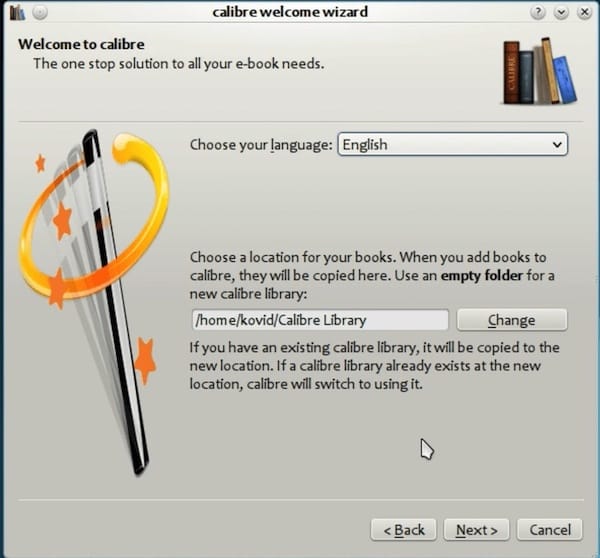
The Calibre Welcome Wizard launches automatically on first run, regardless of your installation method.
Set Your Library Location
The default is ~/Calibre Library in your home directory.
When to change this: If your system has a separate /home partition with limited space, a large ebook collection will fill it fast. Point the library to a dedicated data volume:
mkdir -p /data/ebooks/CalibreLibraryThen select that path in the wizard.
Select Your E-Reader Device
Choose your primary device — Kindle, Kobo, Nook, or others.
Why this matters: This setting controls the default output format and device-specific metadata fields when you use Calibre’s “Send to Device” feature. If you use multiple devices or want format-agnostic management, select Generic to keep all conversion options open.
Add Your First Ebook
Drag ebook files onto the Calibre window or click “Add books” in the toolbar. Calibre auto-fetches metadata — author name, cover art, and description — from external databases like Amazon and Google Books. This requires an active internet connection but saves hours of manual tagging.
Step 6: Keep Calibre Updated on Ubuntu 26.04 LTS
Staying current matters. Newer Calibre versions add support for updated ebook formats, fix conversion bugs, and patch security issues.
Update APT Installation
sudo apt update && sudo apt upgrade -yCalibre gets updated alongside all other system packages. No separate command is needed.
Update Flatpak Installation
sudo flatpak update --systemCritical: apt upgrade does NOT update Flatpak apps. You must run this separately. Many Ubuntu users miss this and find their Flatpak Calibre stuck on an old version months after a new release ships.
Update Official Binary Installation
Re-run the same installer command from Step 4b. The script detects the existing install in /opt/calibre and upgrades it in place without touching your library or configuration files.
Troubleshooting Common Calibre Issues on Ubuntu 26.04
Problem 1: “calibre: command not found” After Flatpak Install
Cause: Flatpak does not modify your system $PATH.
Fix:
flatpak run com.calibre_ebook.calibreIf the GNOME launcher icon never appears, log out and back in. The .desktop file is only read by GNOME at session start.
Problem 2: Missing libEGL or Qt Error on Server Installs
Full error:
Could not load the Qt platform plugin "xcb"Cause: Calibre’s GUI is built on Qt, which requires OpenGL libraries. Minimal Ubuntu server installs strip display-related libraries to save space.
Fix:
sudo apt install libegl1 libopengl0 libxcb-cursor0 libxcb-xinerama0 -yIf you are on Wayland and still see display errors:
QT_QPA_PLATFORM=xcb calibreProblem 3: Permission Errors on the Calibre Library
Symptom: Calibre opens but cannot add books or save metadata.
Cause: This almost always happens after someone runs calibre with sudo once, which changes ownership of the library folder to root.
Fix:
sudo chown -R "$USER":"$USER" ~/Calibre\ LibraryWhy $USER instead of typing your username directly? The variable auto-resolves to your current username, making this command safe to copy and run on any system without modification.
Problem 4: Calibre Fails to Fetch Book Metadata
Cause: Calibre queries Amazon, Google Books, and Goodreads over HTTPS. A firewall rule or DNS issue blocks that connection.
Fix steps:
- Confirm internet access:
curl -I https://www.amazon.com - Check UFW status:
sudo ufw status - Allow outbound HTTPS if blocked:
sudo ufw allow out 443 - Reinstall SSL certificates if needed:
sudo apt install ca-certificates -y
Problem 5: Flatpak Calibre Stuck on an Old Version
Cause: Flathub update propagation can lag 24-48 hours, or your Flatpak remote is using a cached repo definition.
Fix:
sudo flatpak remote-delete flathub
sudo flatpak remote-add --system flathub https://flathub.org/repo/flathub.flatpakrepo
sudo flatpak update --system
This re-registers the Flathub remote with a fresh repo definition and forces a clean update check.
How to Uninstall Calibre from Ubuntu 26.04 LTS
Remove APT Installation
sudo apt remove --purge calibre -y
sudo apt autoremove -y
Why --purge? remove uninstalls binaries but leaves config files behind. --purge deletes those too, giving you a clean slate for reinstallation. autoremove clears orphaned dependencies that were pulled in solely for Calibre.
Remove Flatpak Installation
sudo flatpak uninstall --system --delete-data com.calibre_ebook.calibre -yWhy --delete-data? Without this flag, Flatpak removes the app but leaves sandboxed app data at ~/.var/app/com.calibre_ebook.calibre/ — wasting disk space silently.
Remove Official Binary Installation
sudo calibre-uninstallThe official binary installer includes its own uninstall script. This removes all binaries and symlinks from /opt/calibre cleanly.
Remove Your Ebook Library (Optional)
Warning: This permanently deletes all imported ebooks, metadata, and cover art. Back up first with
cp -r ~/Calibre\ Library ~/calibre-backup
rm -rf ~/Calibre\ Library
rm -rf ~/.config/calibre
Congratulations! You have successfully installed Calibre. Thanks for using this tutorial for installing the Calibre open-source ebook manager and viewer on Ubuntu 26.04 LTS (Resolute Raccoon) system. For additional help or useful information, we recommend you check the official Calibre website.
[su_box title=”VPS Manage Service Offer” style=”bubbles” box_color=”#000000″ radius=”10″]If you don’t have time to do all of this stuff, or if this is not your area of expertise, we offer a service to do “VPS Manage Service Offer”, starting from $10 (Paypal payment). Please contact us to get the best deal![/su_box]
