
Install Vivaldi Browser on Ubuntu 26.04 is a simple task when you use the official repository and verify each step carefully. This guide shows the clean sysadmin way to install it, confirm the package source, and avoid the common mistakes that break APT installs. It also explains why each command matters, so you are not just copying commands without understanding them.
Vivaldi is a Chromium-based browser made for users who want more control, more built-in features, and better organization than a basic browser setup. On Linux, the best approach is to use Vivaldi’s signed APT repository on supported Ubuntu releases, because that gives you normal system updates and a trusted package path.
This article is written for beginner to intermediate Linux users, developers, and sysadmins who want a clean Vivaldi Browser on Ubuntu 26.04 setup without fluff. You will also see how to configure Vivaldi Browser on Ubuntu 26.04 after installation, plus a few troubleshooting fixes that save time when APT complains.
Prerequisites
Before you start, make sure you have the following:
- Ubuntu 26.04 LTS 64-bit desktop installed. Vivaldi’s official Linux support covers 64-bit Ubuntu 24.04 and newer.
- A sudo-enabled user account. You need admin rights to add the repository and install packages.
- Internet access. The browser package, repository metadata, and signing key all come from Vivaldi’s servers.
- Terminal access. You will use it for the install, verification, and cleanup steps.
- Basic disk space. A browser install needs room for the package plus your profile data.
Step 1: Update Your System
Refresh Package Lists
This command refreshes Ubuntu’s local package index. You want that fresh before you add a new repository, because stale package data often causes dependency errors.
sudo apt updateUpgrade Existing Packages
This applies pending updates on your system. It matters because a fully updated base system reduces the risk of conflicts when you install Vivaldi and its dependencies.
sudo apt upgrade -yInstall Required Tools
This installs the tools needed to fetch and verify the Vivaldi repository key. curl downloads the key, gpg converts it into APT’s keyring format, and ca-certificates helps HTTPS validation work correctly.
sudo apt install curl gpg ca-certificates -yExpected result:
Reading package lists... Done
Building dependency tree... Done
The following NEW packages will be installed: curl gpg ca-certificates
Step 2: Add the Vivaldi Signing Key
Download and Convert the Key
This command downloads Vivaldi’s public signing key and stores it in the modern keyring location. The reason to use /usr/share/keyrings/ is simple: it scopes trust to Vivaldi only, instead of trusting that key for every repository on the system.
The gpg --dearmor part matters because APT expects the key in binary keyring form. The old apt-key method is deprecated, so this is the safer current method.
curl -fsSL https://repo.vivaldi.com/stable/linux_signing_key.pub | sudo gpg --dearmor --yes -o /usr/share/keyrings/vivaldi.gpgVerify the Key File
This checks that the key file exists and is readable. If the file looks wrong, fix it now instead of debugging a failed apt update later.
file /usr/share/keyrings/vivaldi.gpgExpected output:
/usr/share/keyrings/vivaldi.gpg: OpenPGP Public Key Version 4, ...Step 3: Add the Repository
Create the Source File
This adds Vivaldi’s official APT repository in DEB822 format. I use this format because it is cleaner, easier to audit, and it lets you pin the signing key to this one repo only. That reduces trust risk and avoids messy repository sprawl.
The Architectures: amd64 line matters because most Ubuntu desktops are 64-bit Intel or AMD machines. It also prevents APT from wasting time looking for package metadata that does not exist for your platform.
printf '%s\n' \
'Types: deb' \
'URIs: https://repo.vivaldi.com/stable/deb/' \
'Suites: stable' \
'Components: main' \
'Architectures: amd64' \
'Signed-By: /usr/share/keyrings/vivaldi.gpg' \
| sudo tee /etc/apt/sources.list.d/vivaldi.sources > /dev/null
Prevent Duplicate Source Entries
This tells Vivaldi’s helper not to recreate old-style repository entries during install or upgrades. It matters because duplicate sources can produce warnings and make package maintenance harder later.
printf '%s\n' \
'repo_add_once="false"' \
'repo_reenable_on_distupgrade="false"' \
| sudo tee /etc/default/vivaldi > /dev/null
Check the File
You should see the repository URL, the architecture, and the Signed-By path. If those values are wrong, fix them before moving on.
cat /etc/apt/sources.list.d/vivaldi.sourcesStep 4: Install Vivaldi Browser on Ubuntu 26.04
Update APT Again
This pulls package metadata from the new Vivaldi repository. It is the moment where Ubuntu learns that Vivaldi packages are available from the signed source you just added.
sudo apt updateCheck the Package Candidate
This shows whether APT can see the stable package and where it comes from. You want to confirm the candidate is not (none) and that the source line points to repo.vivaldi.com.
apt-cache policy vivaldi-stableExpected output snippet:
Candidate: 7.x.x.x-1
  500 https://repo.vivaldi.com/stable/deb stable/main amd64 Packages
Install the Stable Build
This installs the official stable package for daily use. I recommend vivaldi-stable over snapshot builds for most users because stable is the safer choice for work, banking, and regular browsing.
sudo apt install vivaldi-stable -yExpected output snippet:
The following NEW packages will be installed:
  vivaldi-stable
Confirm the Install
This confirms that the browser binary is on your system and ready to run. It also gives you a clean version check for future troubleshooting or support cases.
vivaldi --versionExpected output:
Vivaldi 7.x.x.x stableStep 5: Launch and Configure Vivaldi
Start the Browser
Launching from the terminal is useful because it surfaces startup errors that the GUI can hide. As a sysadmin, I always test a new desktop app this way first.
vivaldiYou can also open it from the application menu after the first launch.
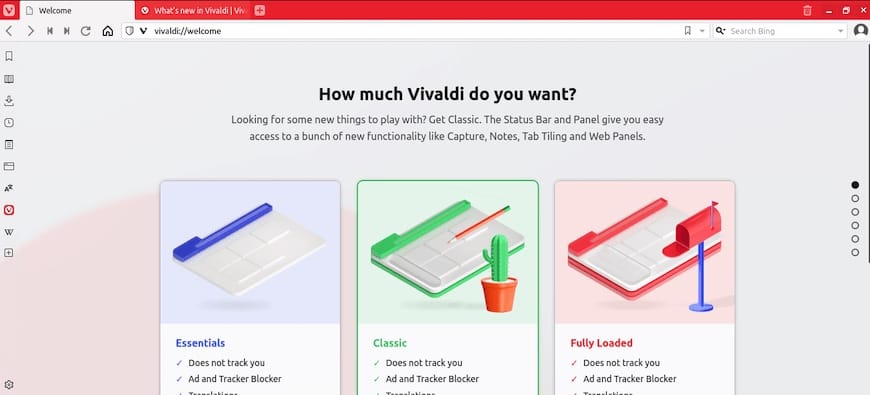
Review Initial Settings
Inside Vivaldi, go to settings and check privacy, tab behavior, and startup options. This is where the browser becomes useful for your workflow, because Vivaldi is designed for customization, tab control, and built-in privacy tools.
Good first changes:
- Enable or review the built-in tracker blocker.
- Set your preferred default search engine.
- Adjust tab stacking if you work with many tabs.
- Import bookmarks if you are moving from another browser.
These changes matter because Vivaldi is strongest when you shape it around your workflow, not when you leave everything at defaults.
Step 6: Keep Vivaldi Updated
Update Through APT
This keeps Vivaldi updated along with the rest of your system. It is the main benefit of using the official repository instead of downloading one-off installer files.
sudo apt update && sudo apt upgrade -yUpgrade Only Vivaldi
This is useful when you want to update the browser without touching the rest of the system. It is a practical admin move on systems where you want more control over change windows.
sudo apt install --only-upgrade vivaldi-stable -yTroubleshooting
1. APT Shows Duplicate Vivaldi Sources
If apt update warns about duplicate entries, check both repository files:
ls /etc/apt/sources.list.d/*vivaldi*If both .sources and .list files exist, remove the old one:
sudo rm -f /etc/apt/sources.list.d/vivaldi.list
sudo apt update
This usually happens when the helper script recreates a legacy entry. Removing the extra file keeps APT clean and predictable.
2. The GPG Key Import Fails
If the key download or import fails, retry it in two steps:
curl -fsSL https://repo.vivaldi.com/stable/linux_signing_key.pub -o /tmp/vivaldi.pub
sudo gpg --dearmor --yes -o /usr/share/keyrings/vivaldi.gpg /tmp/vivaldi.pub
rm -f /tmp/vivaldi.pub
This avoids a broken pipe in case the network drops during the direct command. It also makes it easier to verify the downloaded file before conversion.
3. apt update Reports Signature or Authentication Errors
Check that your source file points to the right keyring:
cat /etc/apt/sources.list.d/vivaldi.sourcesYou should see:
Signed-By: /usr/share/keyrings/vivaldi.gpgIf that path is wrong, APT cannot match the repo to the key, and verification fails.
4. Vivaldi Installs But Does Not Launch
Try running it from the terminal:
vivaldi 2>&1 | tee ~/vivaldi-error.logThis creates a log file you can inspect for missing libraries, graphics issues, or profile problems. Terminal output is the fastest way to see what is actually failing.
5. You Want to Remove Vivaldi
To uninstall the browser:
sudo apt remove --purge vivaldi-stable -yThen remove the repository files:
sudo rm -f /etc/apt/sources.list.d/vivaldi.sources /etc/apt/sources.list.d/vivaldi.list
sudo rm -f /usr/share/keyrings/vivaldi.gpg /etc/default/vivaldi
sudo apt update
If you also want to delete your user profile data, remove the local Vivaldi folders under ~/.config, ~/.cache, and ~/.local/share. Be careful here, because that will remove bookmarks, saved sessions, and local settings.
[su_box title=”VPS Manage Service Offer” style=”bubbles” box_color=”#000000″ radius=”10″]If you don’t have time to do all of this stuff, or if this is not your area of expertise, we offer a service to do “VPS Manage Service Offer”, starting from $10 (Paypal payment). Please contact us to get the best deal![/su_box]

