
If you want to Install Neovim on Fedora 44, this guide gives you the cleanest path from a fresh terminal to a working editor. I will show the safest Fedora-native method first, then cover alternatives for users who want sandboxing, portability, or a newer upstream build.
Neovim is a modern Vim-based editor built for speed, extensibility, and a better plugin workflow. On Fedora 44, the package is available in the official repositories, so most users do not need a third-party source at all.
This article is written for beginners, developers, and sysadmins who want a practical Neovim on Fedora 44 setup. Every step explains not only how to do it, but also why it matters in a real Linux environment.
Prerequisites
- Fedora 44 installed and updated. Fedora’s official package repository includes Neovim for Fedora 44.
- A user account with sudo access. You need elevated permissions to install system packages.
- A terminal window. Neovim is a terminal-first editor, so the install and first launch both happen there.
- Internet access. The package manager or download method needs to reach Fedora or upstream package servers.
- Optional: Flatpak or Snap support if you want to use a sandboxed install method.
Step 1: Update Your System
Run a full metadata refresh
sudo dnf upgrade --refreshThis command updates your package metadata and installs pending system updates. That matters because a fresh package view reduces dependency problems and helps DNF choose the correct versions.
Expected output
Dependencies resolved.
Nothing to do.
Complete!
If updates are available, DNF will download and install them before returning to the prompt. That is normal and useful because it gives you a cleaner base before adding Neovim.
Step 2: Install Neovim on Fedora 44
Use the Fedora package
sudo dnf install -y neovimThis is the best first choice for most Fedora users because it uses the official repository package. Fedora 44 includes neovim-0.11.6-1.fc44, so you get a maintained build that fits the distro’s packaging model.
The -y option answers the confirmation prompt automatically. That is convenient for scripted setup, but you can remove it if you prefer to approve each package manually.
Why this method is recommended
- It uses Fedora’s native package system.
- It installs the correct dependencies automatically.
- It is easier to update and remove later.
- It fits standard Linux server tutorial workflows where consistency matters.
Expected output
Installed:
  neovim.x86_64 0.11.6-1.fc44
Complete!
Your exact version may differ slightly if Fedora ships a newer rebuild later. That is fine as long as the package comes from the Fedora 44 repository.
Step 3: Verify the Installation
Check the version
nvim --versionNeovim’s own install documentation says to start the editor with nvim, not neovim. This check confirms that the binary exists, your shell can find it, and the install finished correctly.
Expected output
NVIM v0.11.6
Build type: Release
The exact version line may vary, but you should see a valid Neovim release. If the command fails, it usually means the binary is missing from PATH or the install did not complete.
Open Neovim
nvimThis launches the editor in your terminal. That matters because the actual user experience starts here, and it confirms the installed package is functional, not just present on disk.
Step 4: Configure Neovim on Fedora 44
Create the config directory
mkdir -p ~/.config/nvimNeovim looks for its main config in ~/.config/nvim for a normal Linux install. Creating the directory first gives you a proper place for your settings and avoids confusion later.
Create the init file
touch ~/.config/nvim/init.luaThis creates the main configuration file. Using init.lua is the modern Neovim approach, and it keeps your setup aligned with current upstream guidance.
Add a simple starter config
cat > ~/.config/nvim/init.lua <<'EOF'
vim.o.number = true
vim.o.relativenumber = true
vim.o.expandtab = true
vim.o.shiftwidth = 2
vim.o.tabstop = 2
EOF
This starter config turns on line numbers and sets sane indentation defaults. The why is simple: a small, clean config improves readability and gives you a stable base before adding plugins or LSP tools.
Reload Neovim and test
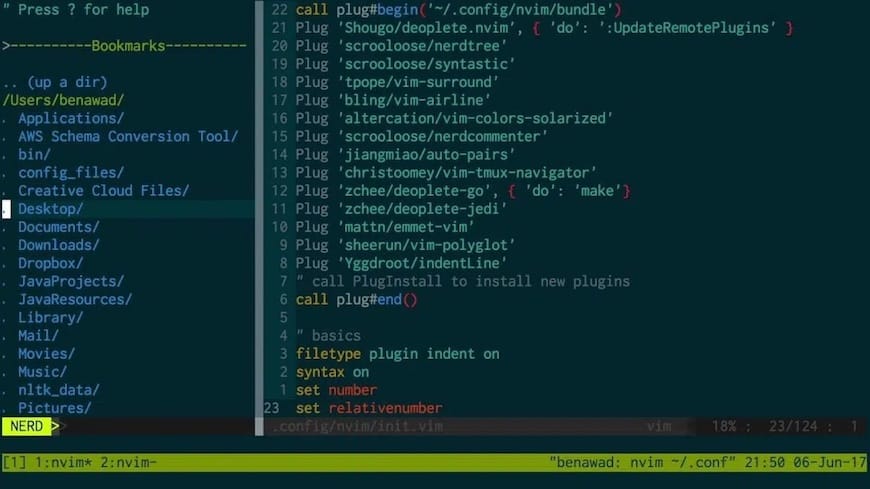
nvimOpen a file and confirm the line numbers appear. If they do, your Neovim on Fedora 44 setup is already using your configuration correctly.
Step 5: Add Useful Plugin Support
Check provider health
nvim +"checkhealth" +qNeovim includes a built-in health check that helps you spot missing providers or runtime problems. This is useful because plugin issues often look like editor bugs when the real cause is a missing dependency.
Install Python support if needed
sudo dnf install -y python3-neovimInstall this only if your workflow needs Python-based plugins or remote providers. The reason is compatibility: some plugins rely on Python integration, and adding the provider avoids confusing runtime errors later.
Why this step matters
- It prepares the editor for plugin-heavy workflows.
- It improves compatibility with advanced tooling.
- It helps developers and sysadmins build a more complete editor environment.
Step 6: Try an Alternative Install Method
Install with Flatpak
flatpak install flathub io.neovim.nvimFlatpak is a good option if you want sandboxing and app isolation. The reason is that it separates the application from some host system changes, which can reduce conflicts in mixed desktop environments.
Run the Flatpak build
flatpak run io.neovim.nvimThis launches the Flatpak version directly. Neovim’s documentation also notes that Flatpak uses its own config path, so it will not read the same config as the system package by default.
Flatpak config path
~/.var/app/io.neovim.nvim/config/nvimThis path matters because many users think their config is broken when it is actually stored in a different location. If you choose Flatpak, place your config there instead of ~/.config/nvim.
Install with AppImage
curl -LO https://github.com/neovim/neovim/releases/latest/download/nvim-linux-x86_64.appimage
chmod u+x nvim-linux-x86_64.appimage
./nvim-linux-x86_64.appimage
AppImage is useful when you want a portable build without installing system packages. The why is control: you can run it locally, keep it separate from Fedora packages, and remove it easily later.
Make AppImage global
mkdir -p /opt/nvim
mv nvim-linux-x86_64.appimage /opt/nvim/nvim
This makes the binary easier to manage and reuse. It is a simple sysadmin-friendly pattern when you want a standalone tool under /opt.
Step 7: Start from Source if Needed
Install build dependencies
sudo dnf install -y git cmake gcc make ninja-build gettextA source build gives you maximum control, but it also adds work. You need the build tools because Neovim’s source tree must compile before it becomes usable.
Clone the source tree
git clone https://github.com/neovim/neovim.git
cd neovim
This pulls the upstream source code. You use this route when you need a custom build, newer changes, or a controlled test environment.
Build and install
make CMAKE_BUILD_TYPE=Release
sudo make install
This compiles the editor and installs it to the system prefix. The why is straightforward: source builds let you tune the result, but they also require more maintenance than Fedora packages.
Step 8: Test a Real Workflow
Open a file
nvim test.txtUse this to confirm the editor starts normally and can open files from your shell. That small test tells you the binary, terminal integration, and file access all work together.
Try a quick edit
Inside Neovim, press i, type a line, press Esc, then run:
:wqThis saves the file and exits. It is a basic test, but it confirms that your install is functional in a real editing session.
Troubleshooting
1. nvim: command not found
This usually means the package is not installed or your shell cannot see the binary. Run rpm -q neovim or reinstall with sudo dnf install -y neovim, then check echo $PATH.
2. Flatpak config does not load
If Flatpak Neovim ignores your settings, you likely placed the files in the wrong directory. Move the config to ~/.var/app/io.neovim.nvim/config/nvim because Flatpak uses its own data path.
3. Plugin or Python errors
If :checkhealth reports Python issues, install the provider package with sudo dnf install -y python3-neovim. This works because some plugins need an external provider to talk to Neovim correctly.
4. Neovim opens, but features feel missing
That often means you installed the editor successfully but did not add plugin support or LSP tools yet. Start small, verify nvim --version, then build your plugin stack step by step so you can isolate problems faster.
5. AppImage will not start
Make sure the file has execute permission with chmod u+x. If it still fails, the download may be incomplete, or your system may need the archive method instead of AppImage.
[su_box title=”VPS Manage Service Offer” style=”bubbles” box_color=”#000000″ radius=”10″]If you don’t have time to do all of this stuff, or if this is not your area of expertise, we offer a service to do “VPS Manage Service Offer”, starting from $10 (Paypal payment). Please contact us to get the best deal![/su_box]


