
Container orchestration has become essential for modern application deployment. Managing Kubernetes clusters, however, can be complex and time-consuming for both beginners and experienced administrators. KubeSphere offers a powerful solution by providing an enterprise-grade container platform with an intuitive web interface that simplifies Kubernetes management while maintaining full functionality.
This comprehensive tutorial will guide you through installing KubeSphere on Debian 13, one of the most stable and reliable Linux distributions for server deployments. You’ll learn everything from system preparation to post-installation configuration, enabling you to deploy a fully functional Kubernetes management platform. Whether you’re setting up a development environment or preparing a production system, this guide provides the detailed instructions you need for a successful installation.
By the end of this tutorial, you’ll have a working KubeSphere installation with access to features like multi-tenant management, DevOps pipelines, service mesh capabilities, and comprehensive monitoring tools. Let’s begin this journey into simplified Kubernetes management.
What is KubeSphere?
KubeSphere is an open-source, distributed operating system designed for cloud-native application management. Built on top of Kubernetes, it provides a powerful container management platform that addresses the complexity challenges many organizations face when adopting Kubernetes technology.
The platform architecture consists of three core components. The KubeSphere Kernel manages backend services and API operations. The Console provides a user-friendly web interface for cluster management. The DevOps System integrates continuous integration and continuous deployment capabilities directly into the platform.
What sets KubeSphere apart from standard Kubernetes deployments is its comprehensive feature set. Multi-cluster deployment support allows you to manage multiple Kubernetes clusters from a single control plane. Network policy configuration becomes straightforward through visual interfaces rather than complex YAML files. The integrated Service Mesh, based on Istio, provides traffic management, security, and observability without requiring separate installations.
DevOps teams benefit from built-in CI/CD pipelines that integrate with popular source control systems. Multi-dimensional monitoring provides second-level precision for cluster health, node performance, and application metrics. Multi-tenancy support enables different teams to share infrastructure while maintaining isolation and resource quotas.
For enterprises with varying levels of Kubernetes expertise, KubeSphere bridges the knowledge gap. Experienced administrators retain full kubectl access and Kubernetes API functionality, while team members less familiar with container orchestration can manage applications through intuitive graphical interfaces. This makes KubeSphere particularly valuable for organizations transitioning to cloud-native architectures or those seeking to improve operational efficiency.
System Requirements and Prerequisites
Proper system preparation ensures a smooth installation process and optimal performance. Understanding both hardware and software requirements prevents common issues that might arise during or after deployment.
Hardware Requirements
Your Debian 13 system should meet minimum specifications for stable operation. A dual-core CPU represents the absolute minimum, though four cores or more are strongly recommended for production environments. This additional processing power handles multiple Kubernetes components simultaneously without performance degradation.
Memory requirements start at 4GB of RAM, but 8GB or more significantly improves performance and stability. Container workloads consume memory dynamically, and insufficient RAM leads to pod evictions and cluster instability. Storage needs begin at 40GB of free disk space, with SSD drives preferred over traditional hard drives. The etcd database, which stores all cluster state information, benefits tremendously from solid-state storage’s faster read and write operations.
Network connectivity must remain stable throughout the installation process. The installation downloads container images, Kubernetes binaries, and various dependencies totaling several gigabytes of data. Intermittent connections can cause installation failures or corrupted downloads.
Software Requirements
Debian 13 serves as your operating system foundation. A fresh installation minimizes potential conflicts with existing services or configurations. Root privileges or sudo access are mandatory, as installation requires system-level modifications including kernel parameter adjustments and service configurations.
Container runtime compatibility is built into the installation process. Modern KubeSphere installations typically use containerd as the default container runtime, offering better performance and stability compared to older Docker-based deployments. The KubeKey installation tool handles runtime installation automatically based on your Kubernetes version selection.
Kubernetes version compatibility requires attention. KubeSphere versions support specific Kubernetes release ranges. Version 3.4.1 of KubeSphere works well with Kubernetes versions from 1.19 through 1.24, providing flexibility in selecting your cluster’s Kubernetes foundation.
Network and DNS Requirements
Full network connectivity between cluster components is essential. The KubeSphere web console typically runs on port 30880 by default, requiring this port to be accessible from your browser. The Kubernetes API server communicates on port 6443, which must remain open for kubectl commands and cluster operations.
DNS resolution must function correctly for both internal cluster communication and external package downloads. Verify your /etc/resolv.conf file contains working nameserver entries before beginning installation. Firewall configurations should permit necessary traffic while maintaining security. If you use firewall management tools like UFW or firewalld, plan appropriate rule additions during the installation process.
Pre-Installation Preparation
Thorough system preparation prevents installation issues and ensures all dependencies are satisfied before deploying KubeSphere and Kubernetes components.
Step 1: Update System Packages
Begin by refreshing your Debian 13 package repositories. Open a terminal session and execute:
sudo apt updateThis command downloads the latest package information from Debian repositories. Next, upgrade existing packages to their newest versions:
sudo apt upgrade -yThe -y flag automatically confirms upgrade prompts, streamlining the process. Package updates often include security patches and bug fixes that improve system stability. If kernel updates are installed during this process, reboot your system to ensure the new kernel loads properly.
Step 2: Install Essential Dependencies
Several packages are required for Kubernetes and KubeSphere operation. Install them collectively with a single command:
sudo apt install curl socat conntrack ebtables ipset -yEach dependency serves a specific purpose in the cluster ecosystem. Curl downloads installation scripts and communicates with external APIs. Socat provides relay functionality for socket communication between cluster components. Conntrack manages connection tracking for Kubernetes networking, essential for service discovery and load balancing. Ebtables administers Ethernet bridge frame tables, supporting container network bridges. Ipset manages IP address sets efficiently, improving network policy performance.
Step 3: Disable Swap Memory
Kubernetes requires swap memory to be disabled for optimal performance and predictable resource management. The kubelet component, which runs on each node, refuses to start if swap remains active. Disable swap temporarily with:
sudo swapoff -aThis command turns off all swap devices immediately. For permanent disabling across system reboots, edit the filesystem table:
sudo nano /etc/fstabLocate any lines containing the word “swap” and comment them out by adding a hash symbol (#) at the line’s beginning. Save the file and exit the editor. Verify swap is disabled by running:
free -hThe swap line should display zeros across all columns, confirming successful disabling.
Step 4: Configure Firewall (Optional)
If your Debian 13 system runs a firewall, configure it to permit necessary cluster traffic. For UFW users, allow the KubeSphere console port:
sudo ufw allow 30880/tcpSimilarly, allow the Kubernetes API server port:
sudo ufw allow 6443/tcpProduction environments often require additional port configurations depending on enabled features and network plugins. Consult KubeSphere documentation for comprehensive port lists if you enable optional components.
Downloading and Preparing KubeKey
KubeKey is the official installation tool developed by the KubeSphere team. It simplifies deployment by automating Kubernetes and KubeSphere installation in a single operation.
Understanding KubeKey
Traditional Kubernetes installations involve multiple manual steps: installing container runtimes, configuring kubeadm, initializing the cluster, and then deploying KubeSphere separately. KubeKey eliminates this complexity by handling all these operations automatically. It supports both all-in-one single-node deployments and multi-node cluster configurations.
The tool’s intelligence includes system compatibility checking before installation begins. It verifies your system meets requirements, preventing wasted time on installations destined to fail. KubeKey also manages Kubernetes version upgrades and cluster scaling operations after initial deployment.
Downloading KubeKey
Download the latest KubeKey release using curl:
curl -sfL https://get-kk.kubesphere.io | VERSION=v3.0.13 sh -This command fetches the installer script and downloads KubeKey version 3.0.13. The version specification ensures consistency and compatibility with tested Kubernetes and KubeSphere versions. Users in China or regions with restricted access to GitHub can use an alternative download source by setting an environment variable first:
export KKZONE=cn
curl -sfL https://get-kk.kubesphere.io | VERSION=v3.0.13 sh -
The download places the KubeKey binary in your current directory with the filename kk. Check for newer versions on the KubeSphere GitHub repository to access the latest features and bug fixes.
Making KubeKey Executable
Downloaded binaries lack execution permissions by default. Grant executable permissions with:
chmod +x kkThis sets the appropriate file permissions allowing the binary to run. Verify the download succeeded by checking the version:
./kk versionKubeKey displays its version information and supported Kubernetes versions. Optionally, move the binary to your system PATH for convenient access from any directory:
sudo mv kk /usr/local/bin/With this placement, you can execute KubeKey by typing kk instead of ./kk or providing the full path.
Installing KubeSphere and Kubernetes
The actual installation process combines Kubernetes and KubeSphere deployment into a single streamlined operation. KubeKey offers multiple installation methods to accommodate different deployment scenarios.
All-in-One Installation Method
The all-in-one installation method suits development environments, testing scenarios, or single-node production deployments with moderate workloads. This approach installs both Kubernetes and KubeSphere on a single machine, creating a fully functional cluster.
Execute the installation with this command:
./kk create cluster --with-kubernetes v1.22.12 --with-kubesphere v3.4.1 --container-manager containerdLet’s examine each component of this command. The create cluster subcommand initiates new cluster creation. The --with-kubernetes v1.22.12 flag specifies your desired Kubernetes version. Version 1.22.12 provides excellent stability and broad compatibility with KubeSphere 3.4.1.
The --with-kubesphere v3.4.1 flag indicates which KubeSphere version to install. Version 3.4.1 represents a mature, stable release with comprehensive features. The --container-manager containerd parameter explicitly selects containerd as the container runtime, recommended for Kubernetes versions 1.24 and later.
Before proceeding with installation, KubeKey performs system checks. It verifies dependency availability, checks system resources, and confirms network connectivity. When prompted, type “yes” to confirm installation and begin the deployment process.
Installation Process
Installation duration typically ranges from 20 to 30 minutes, varying based on internet connection speed and system performance. The terminal displays real-time progress as installation proceeds through multiple stages.
Initial stages download container images for Kubernetes control plane components: kube-apiserver, kube-controller-manager, kube-scheduler, and etcd. Next, worker node components including kubelet and kube-proxy are deployed. The network plugin, typically Calico or Flannel, installs to provide pod networking capabilities.
After Kubernetes becomes operational, KubeKey deploys KubeSphere core services. This includes the console, API gateway, monitoring stack, and essential microservices. Progress indicators show which components are being installed and their status. Successful completion displays a message with console access information.
Custom Configuration Installation
Advanced users or multi-node deployments benefit from custom configuration files. Generate a configuration template:
./kk create config --with-kubernetes v1.22.12 --with-kubesphere v3.4.1This creates a file named config-sample.yaml in your current directory. Open this file in your preferred text editor to customize settings. The YAML structure defines hosts, roles, network plugins, storage configurations, and component enablement.
For multi-node clusters, specify each node’s IP address, role (master, worker, or etcd), and SSH credentials in the hosts section. Network plugin selection between Calico, Flannel, or Cilium accommodates different networking requirements. Storage class definitions configure persistent volume provisioning for stateful applications.
After customizing the configuration file, install using:
./kk create cluster -f config-sample.yamlThis method provides maximum flexibility for complex deployment scenarios while maintaining KubeKey’s automation benefits.
Post-Installation Verification
Confirming successful installation ensures all components function correctly before proceeding with configuration and application deployments.
Checking Installation Status
Verify all pods are running properly across all namespaces:
kubectl get pods --all-namespacesThis command lists every pod in your cluster with their current status. Successful installations show most pods in “Running” state. Some pods may display “Completed” status, which is normal for initialization jobs. Any pods showing “Pending,” “CrashLoopBackOff,” or “Error” states require investigation.
Focus on KubeSphere-specific components:
kubectl get pods -n kubesphere-systemThe kubesphere-system namespace contains core KubeSphere services. All pods here should reach “Running” status. Some services take several minutes to initialize fully, so brief “ContainerCreating” status is normal immediately after installation.
Accessing KubeSphere Console
Navigate to the KubeSphere web console using your browser. Determine your server’s IP address:
hostname -IThis displays all IP addresses assigned to your system. Use the primary network interface IP. Construct the console URL: http://<your-server-ip>:30880
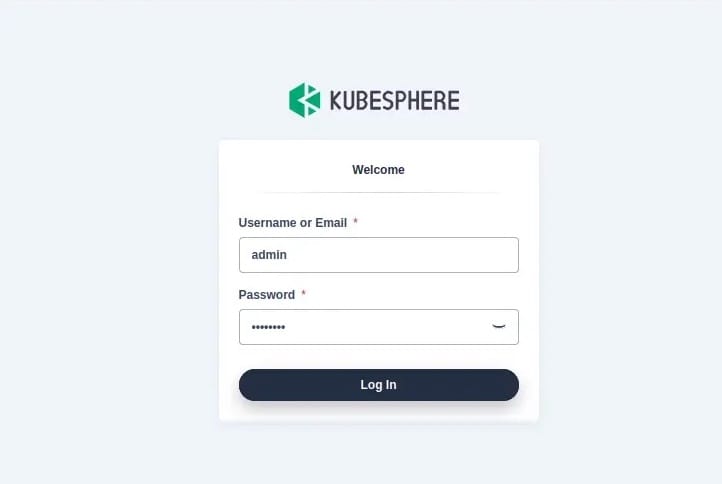
Modern browsers including Chrome, Firefox, and Edge support the KubeSphere console. Log in using default credentials:
- Username: admin
- Password: P@88w0rd
Upon first login, KubeSphere mandates password change for security. Choose a strong password following best practices: minimum 12 characters, combining uppercase, lowercase, numbers, and special characters.
Verifying Kubernetes Cluster
Confirm cluster information and health:
kubectl cluster-infoThis displays Kubernetes control plane and DNS service addresses. Check node status:
kubectl get nodesYour single node should display “Ready” status. The ROLES column shows “control-plane,master” indicating this node runs control plane components. Verify KubeSphere deployment details:
kubectl get deployment -n kubesphere-systemAll deployments should show READY columns with matching numbers (e.g., “2/2”), indicating desired and current replica counts match.
Post-Installation Configuration
Optimize your KubeSphere installation through essential configuration steps that enhance security, functionality, and operational capabilities.
Changing Default Password
Security best practices mandate immediate default password changes. After accessing the console, KubeSphere prompts for password modification. This forced change prevents unauthorized access using widely-known default credentials. Create passwords that combine complexity with memorability, avoiding dictionary words and common patterns.
Enabling Optional Components
KubeSphere’s pluggable architecture allows selective feature enabling based on your requirements. This modular approach conserves system resources by loading only necessary components. Access the installer configuration:
kubectl edit cm -n kubesphere-system ks-installerThis opens the configuration ConfigMap in your default editor. Locate the component section containing feature flags. Available optional components include DevOps for CI/CD pipelines, Service Mesh providing Istio integration, Application Store for app template deployment, Logging System for centralized log management, Events and Auditing for cluster activity tracking, and Alerting and Notification for proactive monitoring.
Enable desired components by changing their values from false to true. Save and exit the editor. KubeSphere automatically detects configuration changes and installs selected components within minutes. Monitor installation progress in the kubesphere-system namespace.
Configuring Storage Classes
Persistent storage supports stateful applications requiring data persistence across pod restarts. KubeSphere requires at least one storage class for full functionality. For single-node deployments, OpenEBS provides local storage capabilities:
kubectl apply -f https://openebs.github.io/charts/openebs-operator.yamlThis installs OpenEBS operators and creates storage classes. Verify available storage classes:
kubectl get storageclassDesignate a default storage class using annotations:
kubectl patch storageclass openebs-hostpath -p '{"metadata": {"annotations":{"storageclass.kubernetes.io/is-default-class":"true"}}}'The default storage class automatically provisions volumes when persistent volume claims omit storage class specifications.
Enabling Monitoring and Logging
Built-in monitoring provides crucial visibility into cluster health and application performance. Enable comprehensive monitoring features:
kubectl patch cc ks-installer -n kubesphere-system --type merge --patch '{"spec":{"monitoring":{"enabled":true}}}'Multi-dimensional monitoring tracks resource utilization at cluster, node, workspace, and application levels. Metrics update with second-level precision, enabling rapid identification of performance bottlenecks or resource constraints.
Troubleshooting Common Issues
Even carefully executed installations occasionally encounter issues. Understanding common problems and their solutions accelerates resolution and minimizes downtime.
Pod Failures and CrashLoopBackOff
Pods entering CrashLoopBackOff state indicate repeated startup failures. Kubernetes automatically restarts failed pods, but without addressing underlying causes, failures persist. Investigate specific pod issues:
kubectl describe pod <pod-name> -n <namespace>This detailed output reveals events, configuration, and state changes. The Events section at the bottom typically indicates failure reasons. Review pod logs for application-level errors:
kubectl logs <pod-name> -n <namespace>Common causes include insufficient resource allocations, missing configuration data, or application bugs. Solutions involve adjusting resource limits in deployments, creating required ConfigMaps or Secrets, or correcting application configurations.
ImagePullBackOff Errors
ImagePullBackOff indicates inability to download container images from registries. Verify image names and tags for typos. Confirm internet connectivity to registry endpoints like Docker Hub or Quay.io. Private registries require authentication through image pull secrets.
Create image pull secrets containing registry credentials:
kubectl create secret docker-registry regcred --docker-server=<registry-url> --docker-username=<username> --docker-password=<password>Reference the secret in pod specifications under imagePullSecrets. For air-gapped environments without internet access, configure local image registries and pre-load required images.
Installation Hangs or Fails
Installation timeouts often result from slow network connections or insufficient system resources. KubeKey logs installation activity to /tmp/kubekey/ directory. Examine these logs for specific error messages revealing failure causes.
Insufficient CPU or memory resources cause installation failures when resource-intensive operations timeout. Verify your system meets or exceeds minimum requirements. Clean previous failed installation attempts before retrying:
./kk delete clusterThis removes partially installed components, preventing conflicts with subsequent installation attempts.
Node Not Ready Status
Nodes displaying “NotReady” status prevent pod scheduling and disrupt cluster operations. Check kubelet service status:
systemctl status kubeletInactive kubelet services require restart:
systemctl restart kubeletNetwork plugin issues also cause NotReady status. Verify network plugin pods run successfully:
kubectl get pods -n kube-systemCalico or Flannel pods must all reach Running status for proper node networking functionality.
Best Practices for KubeSphere on Debian 13
Implementing operational best practices ensures long-term reliability, security, and performance of your KubeSphere installation.
Regular System Maintenance
Maintain system health through routine updates and monitoring. Keep Debian packages current with periodic update cycles. Schedule regular maintenance windows for applying security patches and bug fixes. Monitor cluster health through the KubeSphere dashboard, watching resource utilization trends and capacity planning needs.
Backup critical configurations before making changes. Export KubeSphere configurations, YAML manifests, and etcd snapshots regularly. Document customizations and architectural decisions for future reference. This documentation proves invaluable during troubleshooting or when onboarding new team members.
Security Hardening
Security represents a continuous process requiring ongoing attention. Beyond changing default passwords, implement comprehensive Role-Based Access Control (RBAC). Create specific roles with minimum necessary permissions rather than granting broad cluster-admin access. Enable network policies restricting pod-to-pod communication to only required connections.
Activate KubeSphere’s auditing features to track cluster activities. Audit logs record who performed which actions and when, essential for security investigations and compliance requirements. Keep all components updated with latest security patches. Subscribe to security mailing lists for Kubernetes and KubeSphere to receive timely vulnerability notifications.
Performance Optimization
Optimize cluster performance through intelligent resource management. Monitor resource usage patterns through KubeSphere’s monitoring dashboard. Right-size resource requests and limits based on actual application consumption rather than rough estimates. Under-allocated resources cause performance issues; over-allocation wastes capacity.
Use SSD storage for etcd data directories and persistent volumes supporting performance-sensitive applications. Configure appropriate storage classes for different workload types. Enable comprehensive monitoring for cluster-wide visibility into performance metrics. This data-driven approach identifies optimization opportunities before they impact production workloads.
Next Steps and Advanced Usage
With KubeSphere successfully installed, explore its extensive capabilities to maximize your investment in container orchestration.
Deploying Your First Application
Navigate the KubeSphere console to deploy applications through intuitive interfaces. Create projects (Kubernetes namespaces) organizing related applications logically. The Application Workloads section provides deployment creation wizards guiding you through container image selection, resource allocation, and service exposure. Deploy sample applications to familiarize yourself with the workflow before migrating production workloads.
Exploring DevOps Features
Enable the DevOps component to access built-in CI/CD capabilities. Create pipelines visually through the interface or import Jenkinsfile definitions from source control. Integrate with GitHub, GitLab, or Bitbucket repositories for automatic pipeline triggering. Configure build environments, testing stages, and deployment targets. Automated pipelines accelerate development cycles and improve software quality through consistent, repeatable processes.
Multi-cluster Management
KubeSphere excels at managing multiple Kubernetes clusters through a unified control plane. Add additional clusters as member clusters controlled by your host cluster. Centralized monitoring aggregates metrics across all managed clusters. Deploy applications to specific clusters based on geographical requirements, compliance needs, or resource availability. Multi-cluster capabilities support hybrid cloud and multi-cloud strategies, preventing vendor lock-in while optimizing infrastructure costs.
Congratulations! You have successfully installed KubeSphere. Thanks for using this tutorial for installing the KubeSphere open-source container platform on Debian 13 “Trixie” system. For additional help or useful information, we recommend you check the official KubeSphere website.
[su_box title=”VPS Manage Service Offer” style=”bubbles” box_color=”#000000″ radius=”10″]If you don’t have time to do all of this stuff, or if this is not your area of expertise, we offer a service to do “VPS Manage Service Offer”, starting from $10 (Paypal payment). Please contact us to get the best deal![/su_box]

