
If you have ever SSH’d into a server during a production incident and tried to figure out which process is eating all your CPU using the default top command, you already know the frustration. The output is dense, it does not scroll properly, and killing a process requires memorizing signals and PID numbers. Install Htop on Fedora 44 and that entire experience changes. Htop gives you a color-coded, interactive, mouse-supported process viewer that turns a stressful diagnosis into a clear, manageable task.
This guide walks you through three proven methods to get htop running on Fedora 44, from the fastest one-liner using DNF5 to building from source for advanced setups. You will also learn how to use htop effectively once it is installed, including keyboard shortcuts that senior sysadmins use daily.
Whether you are a developer running Fedora 44 on your workstation, or a sysadmin managing a fleet of servers, this Linux server tutorial gives you exactly what you need, nothing more, nothing less.
What Is Htop and Why Does It Beat the Default top Command?
Before running any install command, it helps to understand what you are actually getting. Htop is an open-source, ncurses-based interactive process viewer written in C. Hisham Muhammad originally released it in 2004 specifically to address the limitations of the traditional top command that ships with every Linux system.
Here is the practical difference between the two tools:
| Feature | top |
htop |
|---|---|---|
| Color-coded output | No | Yes |
| Mouse support | No | Yes |
| Scrollable process list | No | Yes |
| Process tree view | No | Yes (F5) |
| Kill process interactively | Requires typing PID | F9 key |
| Filter by user | Limited | Yes (u key) |
| Per-core CPU bars | No | Yes |
| Pre-installed on Fedora | Yes | No (requires install) |
The reason htop is not pre-installed on Fedora 44 is that it is an optional utility, not a core system component. Fedora keeps the base installation minimal on purpose. You bring in what you need, and that is exactly what this guide covers.
Why Htop Matters on Fedora 44 Specifically
Fedora 44 ships with DNF5 as its default package manager, replacing the legacy DNF backend used in older Fedora releases. DNF5 is faster, has better dependency resolution, and uses a different internal library (libdnf5). This means some installation commands or flags that worked on Fedora 38, 39, or 40 behave slightly differently now.
This guide is written and tested specifically against Fedora 44 with DNF5. Every command here reflects the current state of the Fedora package ecosystem as of May 2026.
Prerequisites: What You Need Before You Start
Before you run a single command, confirm your environment meets these requirements. Skipping this step is the most common reason people hit errors mid-install.
System requirements:
- Fedora 44 installed (Workstation, Server, Minimal, or Silverblue with Toolbox)
- Terminal access (local or via SSH)
- A user account with
sudoprivileges, or direct root access - Active internet connection for package download
Skill level:
- Beginner to intermediate. If you can open a terminal and run
ls, you are ready.
Tools needed:
- No additional tools required for Method 1 (DNF)
snapddaemon for Method 2 (Snap)gcc,make,ncurses-develfor Method 3 (source build)
Confirm your Fedora version before continuing. This single command saves you from following the wrong instructions:
cat /etc/fedora-releaseExpected output:
Fedora release 44 (Forty Four)If your output shows a different release number, the DNF commands in this guide still work, but the Snap and source sections may have minor differences.
Step 1: Update Your Fedora 44 System
Every reliable Linux server tutorial starts with a system update, and for good reason. On Fedora 44, htop depends on ncurses-libs and hwloc-libs. If those packages are outdated or partially installed, DNF will throw dependency errors when you try to install htop.
Run the full system refresh now:
sudo dnf upgrade --refreshThe --refresh flag tells DNF5 to pull fresh repository metadata from Fedora’s servers before resolving upgrades. Without it, DNF works from a locally cached metadata snapshot that could be hours or days old.
Expected output (example):
Last metadata expiration check: 0:00:01 ago on Sun May 10 18:30:00 2026.
Dependencies resolved.
Nothing to do.
Complete!
If updates are available, DNF downloads and installs them. Let it finish before moving to the next step. Rebooting after a kernel update is good practice before installing new system tools.
Step 2: Install Htop on Fedora 44 Using DNF5 (Recommended Method)
This is the correct method for the vast majority of Fedora 44 users. DNF pulls htop directly from the official Fedora repository, meaning the package is signed with the Fedora Project GPG key and verified automatically during install. You never have to trust a third-party source.
Step 2a: Search for the Htop Package (Optional Verification)
Before installing, confirm htop is available in your configured repos:
sudo dnf search htopExpected output:
============= Name Exactly Matched: htop =============
htop.x86_64 : Interactive process viewer
This step is optional but useful on minimal or custom Fedora installs where non-standard repo configurations might be in place. If htop does not appear in the search, jump to the troubleshooting section below.
Step 2b: Install Htop
Now run the actual install:
sudo dnf install htop -yThe -y flag auto-confirms the transaction without prompting you. This is especially useful when running the command over SSH or inside a shell script. DNF5 resolves dependencies, downloads the package, verifies the GPG signature, and installs htop in seconds.
Expected output:
Dependencies resolved.
=============================================
 Package     Arch    Version     Repository  Size
=============================================
Installing:
 htop        x86_64  3.4.1-1     fedora      307 k

Transaction Summary
=============================================
Install  1 Package

Total download size: 307 k
Installed size: 848 k
Downloading Packages:
[COMPLETE]
Installed:
  htop-3.4.1-1.fc44.x86_64

Complete!
Step 2c: Verify the Installation
Confirm htop is installed and available in your shell’s $PATH:
htop --versionExpected output:
htop 3.4.1Check the exact binary location with:
which htopExpected output:
/usr/bin/htopOn Fedora 44, DNF always installs packages to /usr/bin/. If which htop returns nothing, your $PATH may be missing that directory. See the troubleshooting section for the fix.
To review full package metadata including install date and source repo:
rpm -qi htopThis command is useful on production servers where you need to audit exactly what is installed, when, and from which source.
Step 3: Install Htop on Fedora 44 Using Snap (Alternative Method)
The Snap method gives you the latest upstream htop release independently of Fedora’s packaging cycle. If Fedora 44’s official repo carries htop 3.4.1 but the upstream project has released 3.5.0, Snap gets you there faster.
For production servers, stick with DNF. For workstations or development machines where you want cutting-edge versions, Snap is a solid option.
Step 3a: Install and Enable Snapd
Snapd does not run by default on Fedora 44. Enable it with:
sudo dnf install snapd -y
sudo systemctl enable --now snapd.socket
Then create the required symbolic link for classic confinement:
sudo ln -s /var/lib/snapd/snap /snapWhy this symlink? Snap’s classic confinement mode expects packages at /snap. Without this link pointing to the actual Snap mount directory, some Snap binaries silently fail to launch.
Log out and log back in (or restart your session) before the next step so your shell picks up the updated $PATH that Snap adds.
Step 3b: Install Htop via Snap
sudo snap install htopExpected output:
htop 3.x.x from Htop Dev installedVerify it works:
htop --versionStep 4: Build and Install Htop from Source (Advanced Method)
Building from source is for advanced Fedora 44 users who need full control, whether for security auditing, custom compile flags, or minimal environments without full repo access.
Step 4a: Install Build Dependencies
sudo dnf groupinstall "Development Tools" -y
sudo dnf install ncurses ncurses-devel autoconf automake -y
Why these packages? Htop is written in C and uses the ncurses library for its terminal UI. Without ncurses-devel, the ./configure script fails during the dependency check. The “Development Tools” group installs gcc, make, and other required compile-time tools in a single command.
Step 4b: Download the Source Tarball
wget https://github.com/htop-dev/htop/releases/download/3.4.1/htop-3.4.1.tar.xz
tar xvf htop-3.4.1.tar.xz
cd htop-3.4.1/
Always download directly from the official htop GitHub repository at https://github.com/htop-dev/htop or from htop.dev. Never use unverified third-party mirrors on a production system.
Step 4c: Configure, Compile, and Install
./autogen.sh
./configure
make
sudo make install
What each command does:
./autogen.sh: Generates the build scripts fromconfigure.ac./configure: Checks your system for required libraries and generates a platform-specific Makefilemake: Compiles the C source code into a binarysudo make install: Copies the compiled binary to/usr/local/bin/htop
Source builds land in /usr/local/bin/ rather than /usr/bin/. This keeps the source-compiled binary separate from DNF-managed packages, which prevents conflicts if you ever decide to install htop via DNF later.
Step 5: How To Configure Htop on Fedora 44 and Use It Effectively
Running htop for the first time is straightforward. But knowing what you are looking at and how to configure Htop on Fedora 44 to match your workflow is what separates a useful tool from a great one.
Step 5a: Launch Htop
htopFor full process visibility including system-owned processes:
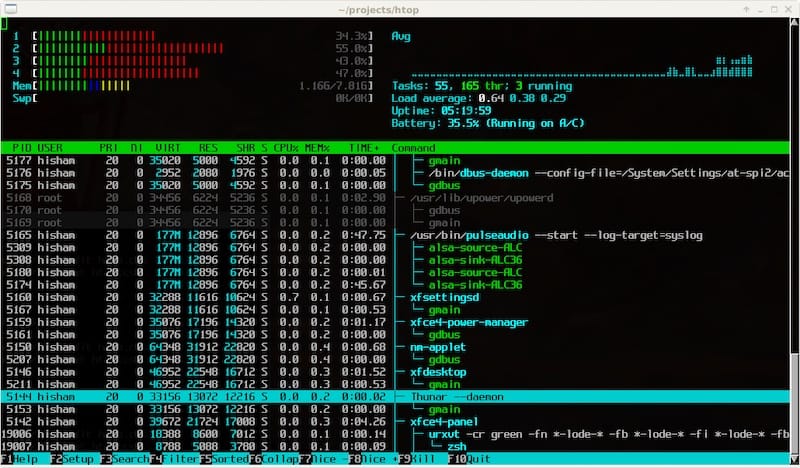
sudo htopStep 5b: Understanding the Interface
When htop opens, you see three main areas:
Top panel (header):
- Individual CPU core bars, color-coded: green = user processes, blue = low-priority tasks, red = kernel threads
- Memory and Swap bars showing actual RAM usage
- Load average (three numbers = 1-minute, 5-minute, 15-minute averages)
- Task count, thread count, and uptime
An important note on memory: Linux uses available RAM for file caching aggressively. A near-full memory bar in htop does not always mean your system is under memory pressure. Watch the Swap bar instead. If Swap usage is climbing, then you have a real memory problem.
Process list (main area):
| Column | What It Shows |
|---|---|
| PID | Process ID |
| USER | Owner of the process |
| PRI / NI | Priority and Nice value |
| VIRT | Virtual memory allocated |
| RES | Resident (physical) RAM in use |
| CPU% | CPU usage percentage |
| MEM% | Memory usage percentage |
| TIME+ | Total CPU time consumed |
| Command | The actual command or binary |
Step 5c: Essential Keyboard Shortcuts for Daily Sysadmin Use
| Key | Action | When to Use |
|---|---|---|
F2 |
Open Setup menu | Customize columns and display |
F3 / / |
Search by process name | Find nginx, mysql, java, etc. |
F4 |
Filter process list | Reduce noise on busy servers |
F5 / t |
Toggle process tree | See parent-child relationships |
F6 |
Sort by column | Switch from CPU to MEM sort |
F7 |
Decrease Nice (raise priority) | Boost a critical process |
F8 |
Increase Nice (lower priority) | Throttle a non-critical process |
F9 / k |
Kill a process | Terminate unresponsive apps |
F10 / q |
Quit htop | Exit cleanly |
P |
Sort by CPU% | Spot CPU hogs instantly |
M |
Sort by MEM% | Find memory leaks |
u |
Filter by user | Isolate one user’s processes |
I |
Show I/O stats | Diagnose disk-bound processes |
Step 5d: Useful Command-Line Launch Flags
# Show only processes for a specific user
htop -u nginx

# Monitor specific PIDs only
htop -p 1234,5678

# Set refresh interval to 2 seconds (20 = 2.0s)
htop -d 20

# Launch directly in process tree view
htop --tree

# Sort by CPU at launch
htop --sort-key PERCENT_CPU
Why use launch flags? During an incident on a busy web server, running htop -u www-data immediately filters out hundreds of irrelevant processes and shows only the web server workers. This alone can cut your diagnosis time by several minutes.
Step 5e: Customizing the Display via F2 Setup
Press F2 inside htop to open the Setup menu. Key customizations worth making on any server:
- Columns section: Add
IO_RATEto see per-process disk I/O. This is not shown by default and is critical for diagnosing I/O-bound slowdowns. - Display Options: Enable “Detailed CPU time” to break CPU bars into user, kernel, and I/O wait components.
- Colors: Switch to a color scheme that works with your terminal theme.
Htop saves your configuration automatically to ~/.config/htop/htoprc. Copy this file to your dotfiles repository if you manage multiple servers, so every machine you work on has a consistent monitoring view.
Troubleshooting Common Htop Issues on Fedora 44
Even on a clean Fedora 44 install, a few issues come up repeatedly. Here are the most common ones along with their fixes.
Error 1: “command not found: htop” After Installation
This means the shell cannot locate the htop binary. Check your $PATH first:
echo $PATHConfirm /usr/bin appears in the output. If it does not, add it temporarily:
export PATH=$PATH:/usr/binFor source-compiled installs, check /usr/local/bin:
export PATH=$PATH:/usr/local/binClear the shell’s command hash table to force a fresh $PATH scan:
hash -r
htop --version
Error 2: DNF Dependency Resolution Failures
If dnf install htop throws errors about unresolvable dependencies, the local DNF5 metadata is likely stale or corrupted. Fix it with:
sudo dnf clean all
sudo dnf makecache
sudo dnf install htop -y
dnf clean all wipes every cached package, metadata file, and header. dnf makecache rebuilds the cache from scratch using fresh data from Fedora’s mirrors.
Error 3: Cannot Kill or Renice Processes
If pressing F9 to kill a process does nothing, htop lacks permission to signal that process. This happens when running htop as a regular user and targeting a root-owned process. Fix it by running with elevated privileges:
sudo htopThis grants htop the ability to send signals to any process on the system, not just those owned by your user account.
Error 4: Htop Shows Incorrect CPU Count in Containers
If you run Fedora 44 inside a Podman or Docker container and htop shows fewer CPUs than expected, this is not a bug. Htop reads CPU count from /proc/cpuinfo. Container runtimes expose only the CPUs assigned to the container’s cgroup, not the full host CPU count.
Verify the available CPU count with:
nprocIf nproc and htop agree, your container’s cgroup CPU limit is working as intended.
Error 5: Htop Screen Renders Incorrectly or Shows Garbage Characters
This is almost always a terminal encoding issue. Htop uses Unicode box-drawing characters for its interface. If your terminal does not support UTF-8, the display breaks.
Fix it by setting the correct locale before launching:
export LANG=en_US.UTF-8
htop
On minimal Fedora 44 server installs, the locale may not be configured. Set it permanently with:
sudo localectl set-locale LANG=en_US.UTF-8How To Remove Htop from Fedora 44
If you no longer need htop or want to switch to a different monitoring tool like glances or btop, removing it is clean and straightforward.
For DNF installs:
sudo dnf remove htop -yDNF automatically removes htop along with any orphaned dependencies that were pulled in with it, like hwloc-libs, if nothing else on the system needs them.
For Snap installs:
sudo snap remove htopFor source-compiled installs, navigate back to your build directory and run:
sudo make uninstallCongratulations! You have successfully installed Htop. Thanks for using this tutorial for installing the Htop interactive process viewer on your Fedora 44 Linux system. For additional or useful information, we recommend you check the official Htop website.
[su_box title=”VPS Manage Service Offer” style=”bubbles” box_color=”#000000″ radius=”10″]If you don’t have time to do all of this stuff, or if this is not your area of expertise, we offer a service to do “VPS Manage Service Offer”, starting from $10 (Paypal payment). Please contact us to get the best deal![/su_box]
