
If you want to Install KiCad on Ubuntu 26.04 without guessing which package source is safest, this guide gives you a clean path from start to finish. I will show the official PPA method first, then cover Flatpak and Snap so you can pick the setup that fits your workflow.
KiCad is a full electronic design automation suite, so it needs the right system setup, graphics support, and package source to work well. The steps below explain not just how to install it, but why each command matters, which is the best way to avoid broken dependencies and future maintenance issues.
Prerequisites
Before you start the Install KiCad on Ubuntu 26.04 setup, make sure you have the basics ready.
- Ubuntu 26.04 installed and updated.
- A user account with
sudoprivileges. - Internet access for downloading packages.
- At least 1 GB RAM, though more than 2 GB is recommended.
- Up to 10 GB free disk space.
- A working graphics driver with OpenGL 2.1 or higher.
- A desktop environment that can run normal Linux GUI apps.
These requirements matter because KiCad depends on graphics acceleration and enough memory to handle schematic and PCB work smoothly.
Step 1: Update Your System
Refresh package lists
Open your terminal and run:
sudo apt updateThis command refreshes Ubuntu’s package index. It matters because the system must know about the latest package versions before it can install KiCad cleanly.
Upgrade installed packages
Run:
sudo apt upgrade -yThis updates existing packages on your system. It matters because older libraries can create conflicts later, especially on a desktop app with graphics and dependency requirements.
Why this step comes first
A clean base reduces install errors. As a sysadmin, I always treat this as the first checkpoint before adding any new repository or application.
Step 2: Add the Official KiCad Repository
Add the PPA
Run:
sudo add-apt-repository --yes ppa:kicad/kicad-10.0-releasesThis adds the official KiCad package source to your system. It matters because the Ubuntu default repositories may not provide the exact KiCad release you want, while the KiCad PPA is built for current Ubuntu users.
Update package metadata again
Run:
sudo apt updateThis refreshes the package list after adding the new source. It matters because apt cannot install packages from a repository it has not indexed yet.
Why the PPA is the best default
For most users, the PPA gives the best balance of stability, integration, and package management. KiCad’s own Linux package page recommends Ubuntu PPAs for installation.
Step 3: Install KiCad
Install the full package
Run:
sudo apt install --install-recommends kicadThis installs KiCad and the recommended dependencies. It matters because PCB design software often relies on extra libraries, helper tools, and support files that you do not want to miss.
What to expect during install
You may see a list of packages being downloaded and configured. That is normal, and it means apt is pulling the full application stack into place.
Example output may look like this:
Reading package lists... Done
Building dependency tree... Done
The following NEW packages will be installed:
  kicad
Why --install-recommends helps
This flag gives you a more complete setup. It lowers the chance that KiCad opens with missing components, poor library support, or partial functionality.
Step 4: Launch KiCad
Open the app from the menu
After installation, search for KiCad in your application launcher. You can also start it from the terminal with:
kicadThis confirms that the desktop entry was created correctly. It matters because a package can install successfully but still fail to launch if the GUI integration is broken.
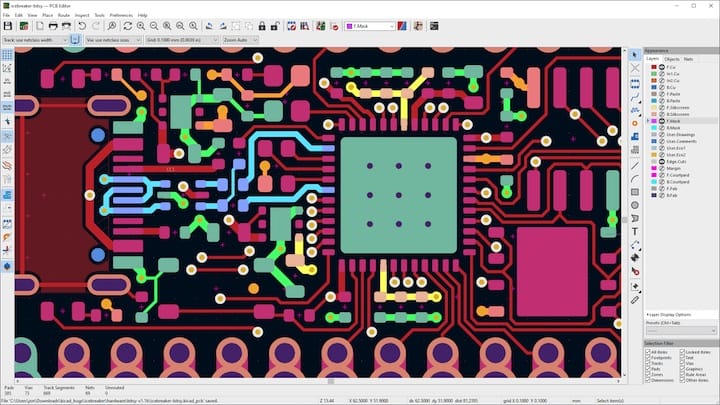
What a successful launch looks like
You should see the KiCad start center or main project screen. If it opens without errors, your configure KiCad on Ubuntu 26.04 process is already on the right track.
Why launch testing matters
First launch checks the app, the window manager, and the graphics stack together. That helps you catch OpenGL or display problems before you start a real project.
Step 5: Check System Compatibility
Confirm graphics support
KiCad needs OpenGL 2.1 or higher and hardware shader support. If your graphics driver is old or misconfigured, the interface may open slowly or fail to render correctly.
Check your desktop environment
KiCad has tested support on common Linux window managers such as Mutter, Metacity, and Xfwm. If you use a more unusual desktop setup, testing becomes even more important.
Why this check matters
KiCad is a technical tool, not a lightweight text editor. It performs better when the GPU, driver, and desktop environment all work together properly.
Step 6: Use Flatpak as an Alternative
Install from Flathub
If you prefer sandboxed apps, run:
flatpak install --from https://flathub.org/repo/appstream/org.kicad.KiCad.flatpakrefThis installs KiCad through Flatpak. It matters because Flatpak keeps the app more isolated from the rest of the system, which can reduce dependency conflicts.
Why choose Flatpak
Flatpak is useful when you want cleaner app isolation. It can be a good choice if your system has custom libraries or if you want a more self-contained install.
When Flatpak is not ideal
If you want deeper integration with Ubuntu’s package manager, the PPA is usually the better choice. For many sysadmins, that is the easier path for long-term maintenance.
Step 7: Use Snap as a Third Option
Install with Snap
Run:
sudo snap install kicadThis installs KiCad as a Snap package. It matters because Snap gives you a fast, simple install path with minimal manual setup.
Why Snap can help
Snap is useful when you want a quick install and automatic packaging management. It can be a practical fallback if you do not want to add a PPA.
Why some users skip Snap
Some advanced Linux users prefer apt or Flatpak because those methods feel more predictable for desktop administration. That does not make Snap wrong, but it is worth knowing the tradeoff.
Step 8: Verify the Installation
Check the version
Run:
kicad --versionThis confirms that the command is available and the package installed correctly. It matters because version checks catch path issues and incomplete installs early.
Confirm the app opens
Launch KiCad from the menu again and create a new project. That confirms the GUI, file access, and project startup all work.
Why verification is important
A successful install is not the same as a usable install. Verification tells you whether the application is truly ready for real work.
Step 9: Configure KiCad After Install
Set your libraries
Open KiCad and review the library settings. This helps you point the app to the symbols, footprints, and 3D models you use most often.
Review paths and defaults
Check your project path, template settings, and autosave behavior. This matters because a stable default setup saves time on every future PCB project.
Why this step matters
A fresh install is only the first half of the job. Good configuration turns a working app into a reliable workflow.
Troubleshooting
1. apt update fails after adding the PPA
This usually means the system cannot reach the repository or the mirror is temporarily unavailable. Check your network, then rerun:
sudo apt updateIf the issue continues, remove and re-add the PPA to make sure the source line is correct.
2. KiCad will not start
This often points to graphics driver problems or a display issue. Update your GPU driver and confirm your desktop supports OpenGL 2.1 or higher.
3. Missing package or dependency errors
If apt complains about broken dependencies, run:
sudo apt --fix-broken installThis repairs partially installed packages. It matters because a broken package state can block KiCad from completing setup.
4. Blank window or rendering glitches
This usually means the graphics stack is not stable enough for KiCad. Check your driver, switch to a supported desktop session, or test another installation method such as Flatpak.
5. App does not appear in the launcher
Run the app from terminal with:
kicadIf that works, the desktop entry may just need a refresh. Log out and back in, or restart the desktop shell.
Uninstall KiCad
Remove the package
If you installed KiCad with apt, run:
sudo apt remove --autoremove kicadThis removes KiCad and unused dependencies. It matters because a clean uninstall keeps your system tidy.
Remove the PPA if needed
If you no longer want the repository, remove it from Software Sources or use the matching add-apt-repository --remove command for your release line.
Why removal matters
Good Linux administration includes cleanup. Removing unused repositories and packages lowers maintenance noise later.

