
In this tutorial, we will show you how to install Stacer on Ubuntu 24.04 LTS. Stacer is an open-source system optimizer and monitoring tool designed specifically for Linux users. It provides a user-friendly interface to manage various system resources, clean up unnecessary files, and enhance overall performance. This article aims to guide you through the process of installing Stacer on Ubuntu 24.04 using different methods, along with troubleshooting tips and usage instructions.
What is Stacer?
Stacer is a powerful system optimization tool that allows users to monitor CPU, memory, and disk usage in real-time. Its features include:
- System Monitoring: Provides real-time insights into system performance.
- Startup Applications Management: Allows users to control which applications run at startup.
- System Cleaner: Helps remove unnecessary files and caches to free up space.
- Process Management: Enables users to view and manage running processes.
- Repository Management: Easily manage software sources and PPAs.
The tool is particularly beneficial for new users who may find it challenging to optimize their systems through command-line tools alone.
Prerequisites for Installing Stacer
Before you begin the installation process, ensure that your system meets the following requirements:
- A computer running Ubuntu 24.04 LTS.
- A non-root user account with
sudoprivileges. - An updated system to avoid compatibility issues.
You can update your system by running the following commands in the terminal:
sudo apt update
sudo apt upgrade
Methods to Install Stacer
This section outlines three methods to install Stacer on Ubuntu 24.04: via the Ubuntu Software Center, command line, and .deb package download.
Method 1: Installing via the Ubuntu Software Center
The easiest way to install Stacer is through the graphical interface provided by the Ubuntu Software Center. Follow these steps:
- Open the Software Center: Click on the “Activities” icon in the top-left corner of your screen and search for “Software.”
- Search for Stacer: In the search bar of the Software Center, type “Stacer” and press Enter.
- Select and Install: Locate Stacer in the search results, click on it, then click the “Install” button. You may be prompted to enter your password.
- Launch Stacer: Once installed, you can find Stacer in your applications menu or by searching “Stacer” in the Activities overview.
Method 2: Installing via Command Line
If you prefer using the terminal, you can install Stacer using command-line instructions. Here’s how:
- Open Terminal: You can open a terminal window by pressing
Ctrl + Alt + T. - Update Your System Packages:
sudo apt update
sudo apt upgrade- Install Stacer:
sudo apt install stacer- Launch Stacer:
stacer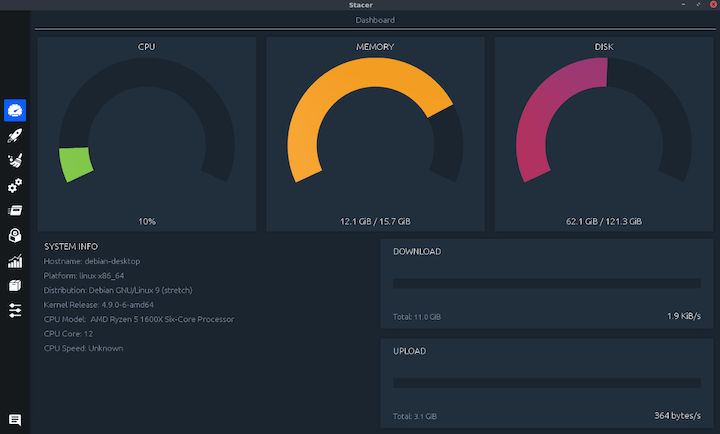
Method 3: Installing via .deb Package
If you want to install a specific version of Stacer or if it’s not available in your repositories, you can download the .deb package directly from GitHub. Here’s how:
- Download the .deb Package:
wget https://github.com/oguzhaninan/Stacer/releases/download/v1.1.0/stacer_1.1.0_amd64.deb- Install the Downloaded Package:
sudo dpkg -i stacer_1.1.0_amd64.deb- If Necessary, Fix Dependencies:
sudo apt install -fUsing Stacer
After successfully installing Stacer, you can start using it to optimize your system. Here’s a brief overview of its features:
- Main Dashboard: Displays real-time CPU load, memory usage, and disk space availability.
- Cleansing Tools: Navigate to the “System Cleaner” tab to remove package caches, logs, and application caches with a single click.
- Startup Apps Management: Under “Startup Apps,” manage applications that run at startup for faster boot times.
- Status of Services: Monitor and control services running on your system under the “Services” tab.
- Process Management: View all running processes in real time and terminate any that are unnecessary.
Troubleshooting Common Issues
If you encounter issues during installation or while using Stacer, consider these troubleshooting tips:
- Error During Installation: If you receive an error message during installation, ensure that your system is up-to-date and that you have entered commands correctly.
- No Launch After Installation: If Stacer does not launch after installation, check for missing dependencies by running:
sudo apt install -f - Crashed Application: If Stacer crashes unexpectedly while in use, try reinstalling it or checking for updates:
sudo apt update
sudo apt upgrade stacer
Uninstalling Stacer
If you decide that you no longer need Stacer on your system, uninstalling it is straightforward. Use one of the following commands based on how you installed it:
- If installed via APT:
sudo apt remove stacer - If installed via .deb package:
sudo dpkg -r stacer
Congratulations! You have successfully installed Stacer. Thanks for using this tutorial for installing the Stacer Linux optimizer and monitoring tool on Ubuntu 24.04 LTS system. For additional help or useful information, we recommend you check the official Stacer website.

