
Fedora 44 landed with GNOME 49, a refreshed kernel, and the usual round of security tightening that Red Hat’s upstream community is known for. If you’re the type who reads changelogs before dinner, you probably already noticed that Fedora still doesn’t ship Tor Browser in its default repositories—and honestly, that’s by design, not an oversight. The Tor Project prefers to control distribution directly so users get signed, verifiable builds rather than whatever a third-party packager decided to bundle.
That decision, sensible as it is, leaves a lot of Fedora users confused about the “correct” way to get Tor Browser running. Search around and you’ll find outdated blog posts referencing torbrowser-launcher from Fedora’s repos, old Copr projects that haven’t been touched in years, or forum threads recommending fedy—a tool that’s been dead for the better part of a decade. None of that reflects how things actually work on a fresh Fedora 44 install in 2026.
This guide walks through the three legitimate installation paths that still hold up: the official tarball method straight from torproject.org, the Flatpak route via torbrowser-launcher, and a Copr-based installer for people who want dnf integration. It also covers the parts most tutorials skip—permission issues after extraction, sandboxing quirks under Wayland, firewall considerations if you’re running this on a hardened workstation, and how to actually verify you’re not running a tampered build. If you manage servers for a living, you already know that “it installed” and “it’s installed correctly” are two very different sentences.
Whether you’re setting this up for anonymous research, journalism-adjacent work, bypassing regional restrictions on a VPS you jump-box through, or just want an isolated browsing environment separate from your daily Firefox profile, this covers the ground you actually need.
Why Fedora 44 Doesn’t Package Tor Browser Directly
Fedora’s packaging guidelines are notoriously strict about bundled dependencies, and Tor Browser is essentially a modified Firefox ESR build shipped with its own patched libraries, a custom profile, and NoScript/HTTPS-Everywhere baked in. Packaging that cleanly inside Fedora’s build system (Koji) would mean either forking Firefox packaging entirely or accepting a bundled binary blob—both violate Fedora’s open-source packaging philosophy.
There’s also a trust angle. The Tor Project signs every release with a GPG key, and distributing through their own infrastructure lets users verify signatures directly against that chain of trust. Once a third party repackages it, that verification chain gets murkier. That’s precisely why the official Tor support documentation still points everyone back to torproject.org rather than distro repos.
Method 1: Installing via Official Tarball (Recommended)
This is the method the Tor Project itself documents and the one that guarantees you’re running an unmodified, cryptographically verifiable build.
Step 1: Download the Linux Package
Open a terminal and grab the latest release directly:
cd ~/Downloads
curl -LO https://www.torproject.org/dist/torbrowser/13.5.6/tor-browser-linux-x86_64-13.5.6.tar.xz
Swap the version number for whatever’s current—Tor Browser updates roughly every six to eight weeks, sometimes faster if there’s a critical Firefox CVE upstream. Check the actual download page rather than hardcoding a URL long-term.
Step 2: Verify the Signature (Don’t Skip This)
This is the step almost every quick-tutorial video skips, and it’s the one that actually matters if you’re serious about the anonymity guarantees Tor claims to offer. A tampered binary defeats the entire point.
curl -LO https://www.torproject.org/dist/torbrowser/13.5.6/tor-browser-linux-x86_64-13.5.6.tar.xz.asc
gpg --auto-key-locate nodefault,wkd --locate-keys torbrowser@torproject.org
gpg --verify tor-browser-linux-x86_64-13.5.6.tar.xz.asc tor-browser-linux-x86_64-13.5.6.tar.xz
You’re looking for “Good signature from Tor Browser Developers.” If GPG complains about an unknown key, import it from the Tor Project’s key server first. Skipping this on a personal laptop is a calculated risk; skipping it on anything touching production infrastructure is negligence.
Step 3: Extract the Archive
tar -xf tor-browser-linux-x86_64-13.5.6.tar.xz
cd tor-browser
No sudo needed anywhere in this process, and that’s intentional. Tor Browser is designed to run entirely from user space—it never touches system directories, which also means it’s trivially portable across machines or even removable drives.
Step 4: Launch and Register the Application
chmod +x start-tor-browser.desktop
./start-tor-browser.desktop --register-app
The --register-app flag is the detail most guides forget. Without it, you get a working browser but no entry in your GNOME application launcher—annoying if you’re switching between Tor and your regular browser several times a day.
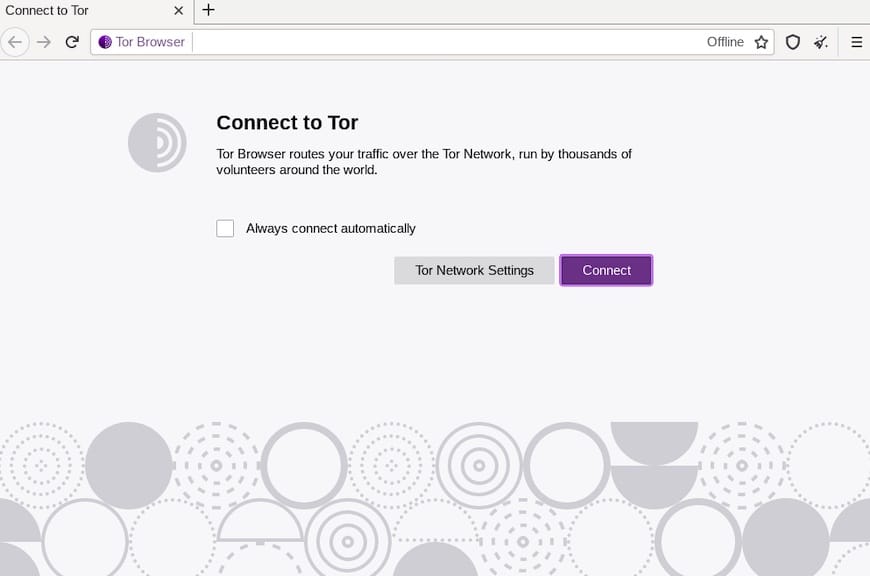
On first launch, you’ll hit the connection screen. If you’re on an open network with no censorship concerns, “Connect” works fine. If you’re behind a restrictive firewall—common in corporate environments or certain regions—you’ll want the bridge configuration instead, which is covered further down.
Method 2: Flatpak Installation (Best for Sandbox Isolation)
If sandboxing matters to you—and it should, especially on a shared workstation—Flatpak is arguably the cleaner long-term choice. Fedora ships Flatpak support out of the box, so there’s no extra plumbing required.
flatpak install flathub org.torproject.torbrowser-launcher -y
flatpak run org.torproject.torbrowser-launcher
The launcher downloads, verifies, and installs Tor Browser automatically inside a Flatpak sandbox, which adds an extra isolation layer beyond what Tor Browser’s own hardening provides. This matters more than people assume: a compromised browser extension or exploited rendering bug inside a Flatpak sandbox has far less lateral movement potential than one running with full user permissions.
The tradeoff is update lag. Flatpak-distributed Tor Browser updates sometimes trail the official tarball release by a day or two while the Flathub build catches up. For most people that’s a non-issue; for high-threat-model use cases, it’s worth knowing.
Method 3: Copr Repository (dnf-Native Installation)
Fedora’s Copr build system hosts community-maintained repos, and there’s an actively maintained one that wraps the installation into a proper dnf-managed package:
sudo dnf copr enable youssefmsourani/linux-tor-browser-installer -y
sudo dnf install linux-tor-browser-installer -y
This approach gives you dnf-managed updates and removal (sudo dnf remove linux-tor-browser-installer), which appeals to anyone who dislikes managing software outside the package manager’s visibility. The caveat: Copr repos are community-maintained, not officially blessed by the Tor Project. Vet the maintainer’s history before trusting it on anything sensitive—check commit frequency, package age, and whether the repo has been abandoned mid-cycle before relying on it in production or high-privacy contexts.
Comparing the Three Methods
| Method | Update Speed | Sandbox Isolation | dnf Integration | Trust Chain |
|---|---|---|---|---|
| Official Tarball | Immediate on release | Tor Browser’s built-in only | None (manual) | Direct from Tor Project |
| Flatpak | 1-3 days lag typically | Strong (Flatpak sandbox) | Via Flatpak, not dnf | Flathub + Tor Project |
| Copr | Depends on maintainer | Tor Browser’s built-in only | Full dnf support | Third-party maintainer |
For daily driver use on a personal Fedora 44 machine, Flatpak strikes the best balance. For anything security-critical—incident response boxes, air-gapped research environments, journalism work—stick with the manually verified tarball every time.
Post-Install Configuration and Hardening
Bridges and Pluggable Transports
If Tor traffic is being blocked or throttled on your network—something increasingly common on corporate and ISP-level firewalls that fingerprint Tor handshakes—configure a bridge during the initial connection screen. Select “Connect” then choose “Configure Connection” and pick obfs4 as your transport. This obfuscates the traffic pattern enough to slip past most DPI (deep packet inspection) systems.
Disabling JavaScript for Higher Anonymity
The default Tor Browser security level (“Standard”) leaves JavaScript enabled for compatibility. Bumping to “Safer” or “Safest” via the shield icon in the toolbar disables JavaScript on non-HTTPS sites or globally, respectively. This is the single biggest anonymity improvement available in the UI—JavaScript-based fingerprinting is one of the most effective de-anonymization vectors in modern browsers, Tor or otherwise.
HTTPS-Only Enforcement
Tor encrypts traffic within its own network, but it can’t force encryption on the final hop to a website that doesn’t support HTTPS. Verify HTTPS-Only Mode is active under Settings > Privacy & Security. It’s on by default in modern Tor Browser builds, but it’s worth confirming after any manual profile migration.
Troubleshooting Common Fedora 44 Issues
“Permission denied” when running start-tor-browser.desktop
The extracted tarball sometimes loses its executable bit depending on the archive tool used. Fix it directly:
chmod +x start-tor-browser.desktopBrowser launches but shows a blank white screen under Wayland
This is a known interaction between GNOME 49’s Wayland compositor and Tor Browser’s bundled Firefox ESR renderer. Force XWayland compatibility as a workaround:
GDK_BACKEND=x11 ./start-tor-browser.desktopIf that resolves it, edit the .desktop file’s Exec line to bake the environment variable in permanently, so you’re not typing this every session.
“Could not connect to Tor network” on a corporate/university network
Nine times out of ten this is DPI-based blocking, not a firewall rule against port 443 specifically. Switch to an obfs4 bridge as described above. If bridges are also blocked, meek-azure or snowflake transports have a better chance of blending in with regular HTTPS traffic.
High CPU usage on older hardware
Tor’s onion routing adds real computational overhead—every packet gets encrypted in layers across three relay hops. On machines with weaker single-thread performance, this shows up as noticeable lag during page loads. Disabling WebGL and hardware-accelerated rendering in about:config trims some of that overhead without touching the actual Tor circuit performance.
Copr package fails with GPG key errors
sudo dnf copr enable youssefmsourani/linux-tor-browser-installer -y --nogpgcheckOnly use --nogpgcheck as a last resort after manually confirming the maintainer’s key fingerprint against their published documentation—bypassing GPG checks blindly defeats the entire point of package signing.
Performance and Security Considerations for Production Use
If you’re deploying Tor Browser on a jump box, research VM, or any shared infrastructure rather than a personal laptop, a few operational details matter more than they would on a single-user desktop:
- Isolate Tor Browser’s process with a dedicated non-privileged user account rather than running it under your primary admin login, limiting blast radius if the browser is ever exploited.
- Run it inside a firewalled network namespace (via
firejailor a dedicated VLAN) if it’s on infrastructure that also handles sensitive internal traffic—Tor exit traffic and internal admin traffic should never share the same egress path. - Monitor disk I/O if you’re running multiple Tor Browser instances concurrently on a shared VM; each instance maintains its own profile cache, and profile bloat over time (especially with persistent bridge configs) can add up on spinning disks or thin-provisioned storage.
- Keep SELinux enforcing. Fedora ships SELinux in enforcing mode by default, and Tor Browser runs fine under it without custom policy changes—don’t disable SELinux “to make things easier,” a mistake seen far too often on hardened boxes that then get repurposed casually.
- Schedule updates deliberately. Tor Browser’s auto-update mechanism works, but on production or shared systems, staged rollouts (test on one box first) catch regressions before they hit everyone.

