
Ubuntu 26.04 LTS “Resolute Raccoon” ships with GNOME Videos (Totem) as the default media player, but it struggles to play common formats like MKV, H.264, and AAC out of the box without extra codec packages. If you need a media player that handles everything from local video files to network streams without additional configuration, VLC is the right tool for the job. This guide covers how to install VLC Media Player on Ubuntu 26.04 using four proven methods: APT, Snap, Flatpak, and the VideoLAN PPA. You will understand not just the commands to run, but exactly why each step is necessary.
Why VLC is the Right Choice on Ubuntu 26.04 LTS
Ubuntu 26.04 LTS is the first LTS release to fully commit to Wayland, dropping legacy X.org support and shipping with GNOME 50 and Linux Kernel 7.0. This is a major architectural shift, and GNOME Videos does not handle hardware-accelerated decoding well under the new Wayland compositor stack when dealing with proprietary video codecs.
VLC is a free, open-source media player maintained by the VideoLAN project. It bundles its own codec libraries, including H.264, H.265/HEVC, AAC, and FLAC, directly inside the application. This means you get full media playback without hunting down extra gstreamer plugin packages after every system upgrade.
Beyond codec support, VLC adds practical value that matters in real sysadmin workflows:
- Hardware-accelerated decoding via VA-API (Intel/AMD) and VDPAU/NVDEC (NVIDIA)
- Network stream playback over RTSP, HTTP, and RTMP protocols
- Built-in subtitle rendering with support for SRT, ASS, and VobSub formats
- DVD and Blu-ray playback with optional CSS decryption library
- Audio normalization and equalizer for consistent playback volume
- 360-degree video and 3D audio support introduced in VLC 3.0
VLC is already available in Ubuntu’s universe repository, audited and packaged by Canonical’s team. That alone tells you this is not some random third-party binary.
Prerequisites
Before you run a single command, confirm these baseline requirements are in place. Skipping this check is the number one reason tutorials fail halfway through.
- Operating system: Ubuntu 26.04 LTS (Resolute Raccoon) — desktop or server
- User permissions: A non-root account with
sudoprivileges - Internet connection: Active connection to download packages from remote repositories
- Available disk space: At least 200 MB free (VLC plus its dependency libraries)
- Terminal access: GNOME Terminal, Tilix, or any shell emulator
- Architecture: amd64, arm64, or armhf (all supported)
If you are unsure whether your account has sudo access, run:
sudo whoamiThe output should return root. If you get a permission error, contact your system administrator before proceeding.
Step 1: Update Your Package Index
Every installation tutorial should start here, and this one is no exception. Before installing any package on Ubuntu 26.04 LTS setup, you need to sync your local package metadata cache with the remote repositories.
sudo apt update && sudo apt upgrade -yWhat this does: apt update fetches the latest package lists from all enabled sources in /etc/apt/sources.list.d/. The apt upgrade command applies any pending security patches to your existing packages.
Why this matters: If you skip this step, APT may attempt to install an outdated version of VLC that references dependency versions no longer available in the repository. On Ubuntu 26.04, this is especially relevant because several core libraries were updated during the Resolute Raccoon development cycle.
Expected output snippet:
Hit:1 http://archive.ubuntu.com/ubuntu resolute InRelease
Get:2 http://archive.ubuntu.com/ubuntu resolute-updates InRelease
...
Fetched 4,532 kB in 3s (1,510 kB/s)
Reading package lists... Done
Once the update completes without errors, you are ready to install VLC.
Step 2: Install VLC Media Player via APT (Recommended Method)
For the vast majority of Ubuntu 26.04 users, APT is the cleanest installation path. It integrates with normal system updates, uses the least disk space, and does not introduce sandbox overhead.
Step 2.1: Enable the Universe Repository
Ubuntu splits its package archive into components. VLC lives in the universe component, which is community-maintained but reviewed by Canonical. On full desktop installs, universe is already enabled. On minimal or server installs, it may not be.
sudo add-apt-repository universe
sudo apt update
Why this step exists: If universe is disabled, apt install vlc returns E: Unable to locate package vlc. Adding the repository injects a new source line into /etc/apt/sources.list.d/ubuntu.sources and refreshes the package cache so APT can resolve the VLC package.
You can confirm universe is active by checking:
grep "universe" /etc/apt/sources.list.d/ubuntu.sources | head -n 3Step 2.2: Install VLC
sudo apt install vlc -yWhat this does: APT resolves and installs the vlc meta-package along with its full dependency tree: vlc-bin, libvlc5, vlc-plugin-base, vlc-plugin-video-output, and roughly 30 supporting libraries.
Why APT handles this better than manual installs: If you downloaded a .deb file directly and installed it with dpkg, you would need to manually identify and install every dependency. APT automates the entire dependency chain in a single transaction.
Expected output:
The following NEW packages will be installed:
  vlc vlc-bin vlc-data vlc-plugin-base vlc-plugin-video-output libvlc5 ...
0 upgraded, 34 newly installed, 0 to remove and 0 not upgraded.
Step 2.3: Verify the Installation
vlc --version | head -n 1Why verify: On systems with multiple package managers (APT + Snap active simultaneously), the terminal command vlc may resolve to a different binary than expected. Checking the version output confirms the correct binary is in $PATH and matches what APT just installed.
Expected output:
VLC media player 3.0.21 Vetinari (revision 3.0.21-0-gXXXXXXX)Step 3: Install VLC via Snap
Snap is Canonical’s sandboxed packaging format, and it comes pre-installed on Ubuntu 26.04 desktop. The VLC Snap package is published directly by VideoLAN, which means it often ships newer point releases faster than Ubuntu’s archive.
Step 3.1: Install VLC from Snapcraft
sudo snap install vlcWhat this does: The snap install command pulls the VLC package from Snapcraft’s stable channel, published by VideoLAN. The package is a self-contained bundle with its own runtime libraries, completely isolated from system libraries in /snap/vlc/.
Why choose Snap over APT: Snap packages update automatically in the background without any intervention from you. If you want the latest VLC version without running apt upgrade manually, Snap handles that silently.
Trade-off to know: Snap VLC has a larger disk footprint (around 250 MB vs. 180 MB for APT) and a slightly slower first launch because the snap mount point initializes on startup.
Step 3.2: Verify and Launch
snap list vlc
snap run vlc
Why use snap run instead of just vlc: When both APT and Snap versions are installed simultaneously, typing vlc in the terminal will invoke whichever binary appears first in $PATH. Using snap run vlc forces the Snap version to launch regardless of PATH order.
Step 4: Install VLC via Flatpak (Flathub)
Flatpak is a distribution-agnostic packaging format that runs applications in fully sandboxed containers. If you are running a customized Ubuntu 26.04 environment where system library conflicts are a concern, Flatpak is the cleanest isolation option.
Step 4.1: Install Flatpak and Add Flathub
Ubuntu 26.04 does not ship Flatpak by default. You need to install it first, then register Flathub as a trusted source.
sudo apt install flatpak -y
sudo flatpak remote-add --if-not-exists --system flathub https://flathub.org/repo/flathub.flatpakrepo
Why --if-not-exists matters: This flag is a safety guard. If you re-run the command on a system where Flathub is already registered, it will not throw a “remote already exists” error and abort. It is a small but important safeguard in any scripted or automated setup.
Why --system scope: Installing with --system makes VLC available to all users on the machine. Using --user scope instead limits access to your current account only. On shared servers or developer workstations with multiple accounts, --system is the correct choice.
Step 4.2: Install VLC via Flatpak
sudo flatpak install --system flathub org.videolan.VLC -yStep 4.3: Verify the Flatpak Install
flatpak info --system org.videolan.VLCWhat to check: Confirm the Origin field shows flathub and the Installation field shows system. If either field is wrong, the install did not complete as expected.
Step 5: Install VLC 4.0 via VideoLAN PPA (Advanced)
The Ubuntu 26.04 archive ships VLC 3.0.x. If you specifically need VLC 4.0 development builds for testing plugin compatibility, HDR support, or the new media engine, VideoLAN maintains a daily PPA on Launchpad.
Important: This is a development channel. VLC 4.0 builds are not production-stable. Only use this path if you know you need it.
Step 5.1: Add the VideoLAN PPA
sudo add-apt-repository ppa:videolan/master-daily -y
sudo apt update
Why you must run apt update after adding the PPA: Adding a PPA only writes a new source file into /etc/apt/sources.list.d/. APT does not automatically refresh its package cache after that action. Without the apt update, the new PPA packages remain invisible to APT’s resolver.
Step 5.2: Confirm the Candidate Version
apt-cache policy vlc | grep -E 'Installed:|Candidate:'Why this check is mandatory: On a system with both the Ubuntu archive and the VideoLAN PPA active, APT resolves to the higher-versioned package. This command confirms that Candidate: now shows a 4.0.x build. If it still shows 3.0.x, the PPA was not added correctly or has a lower priority than the system archive.
Step 5.3: Install and Verify
sudo apt install vlc -y
vlc --version | head -n 1
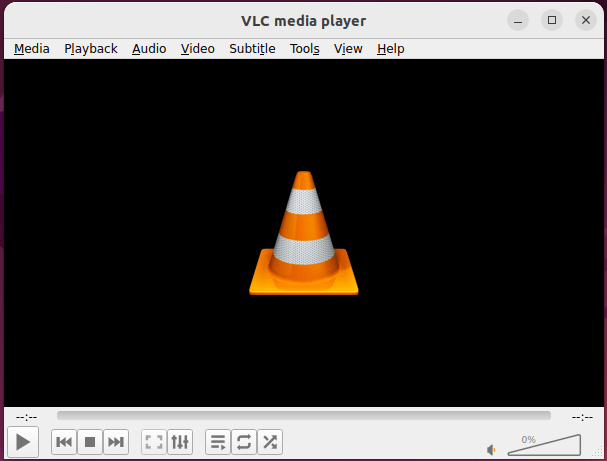
Step 6: Launch VLC on Ubuntu 26.04
Once installed, you have two ways to open VLC.
Via GNOME Desktop
Go to Activities > Show Applications > VLC media player.
On Ubuntu 26.04 with GNOME 50 and full Wayland, the application launcher is the standard entry point. VLC 3.0 and later run cleanly under Wayland without requiring GDK_BACKEND=x11 workarounds that older versions needed.
Via Terminal
The correct launch command depends on your installation method:
# APT installation
vlc

# Snap installation
snap run vlc

# Flatpak installation
flatpak run org.videolan.VLC
Using the wrong command when multiple versions are installed is the most common source of confusion. Run command -v vlc to confirm which binary your shell resolves to by default.
Step 7: Configure VLC on Ubuntu 26.04 LTS
Installing VLC is half the job. These three post-install configurations make a real difference in daily use.
Set VLC as the Default Media Player
Go to Settings > Default Applications > Video and select VLC media player.
Why this matters: Ubuntu 26.04 defaults to GNOME Videos for video files. Even after installing VLC, double-clicking an MKV file will still open Totem unless you explicitly change the default. The same applies to music files under the Audio default setting.
Enable DVD Playback
Ubuntu cannot ship libdvdcss by default due to regional licensing restrictions. Install it manually:
sudo apt install libdvd-pkg -y
sudo dpkg-reconfigure libdvd-pkg
Why dpkg-reconfigure is needed: The libdvd-pkg package is a wrapper that downloads and compiles libdvdcss2 on your local machine rather than distributing the binary. The dpkg-reconfigure command triggers this build process. Without it, the library is not compiled, and commercial DVDs will fail to decrypt.
Enable Hardware-Accelerated Decoding
Open VLC, then go to Tools > Preferences > Input/Codecs > Hardware-accelerated decoding.
- Select VA-API for Intel and AMD graphics
- Select NVDEC or VDPAU for NVIDIA graphics
Why this matters: Software decoding offloads all video rendering to your CPU. On 4K content or high-bitrate streams, this causes frame drops and increased power draw. Enabling GPU decode hands that workload off to dedicated hardware, cutting CPU usage by 40-70% in typical playback scenarios.
Troubleshooting Common VLC Issues on Ubuntu 26.04
Error 1: “Unable to locate package vlc”
Cause: The universe repository is not enabled on your system.
Fix:
sudo add-apt-repository universe
sudo apt update
sudo apt install vlc -y
Error 2: VLC Opens But No Audio Plays
Cause: Ubuntu 26.04 uses PipeWire as the default audio server. VLC may not auto-detect the correct audio output sink, especially on first launch after a fresh install.
Fix: Go to VLC > Audio > Audio Device and select your active PipeWire or PulseAudio sink manually. Alternatively, run VLC from the terminal and read the audio output warnings to identify the exact misconfigured module:
vlc 2>&1 | grep -i "audio"Error 3: VLC Won’t Launch After Install (Multiple Versions Conflict)
Cause: APT and Snap versions are both installed. The desktop launcher points to a broken symlink or the wrong binary.
Fix: Identify which installations are active, then remove the one you do not want:
command -v vlc
snap list vlc
flatpak list --app --columns=application,version,installation | grep vlc
Remove the conflicting version, then reinstall your preferred method cleanly.
Error 4: Black Screen on Video Playback
Cause: A mismatch between VLC’s video output module and Ubuntu 26.04’s full Wayland compositor. VLC may default to an incompatible output backend.
Fix: Go to Tools > Preferences > Video > Output and change to Wayland video output or OpenGL video output (GLX). Restart VLC after applying the change.
Error 5: How to Reinstall VLC Without Losing Settings
User configuration files are stored in ~/.config/vlc/. A clean reinstall does not touch that directory.
# APT
sudo apt install --reinstall vlc vlc-bin

# Snap
sudo snap refresh vlc

# Flatpak
sudo flatpak update --system org.videolan.VLC
The --reinstall flag for APT replaces all installed binaries and libraries while preserving your personal VLC preferences.
How to Update VLC on Ubuntu 26.04
Keeping VLC updated is not optional if you care about security. VLC processes untrusted media files from the internet, and its underlying codec libraries (libavcodec, libmkv) have had exploitable vulnerabilities disclosed in the past. Running an outdated version on a production system is a real risk.
| Method | Update Command |
|---|---|
| APT | sudo apt update && sudo apt install --only-upgrade vlc |
| Snap | sudo snap refresh vlc (or fully automatic) |
| Flatpak | sudo flatpak update --system org.videolan.VLC |
| PPA | sudo apt update && sudo apt upgrade vlc |
For APT users, VLC updates are included automatically whenever you run sudo apt upgrade as part of your normal system maintenance routine.
How to Remove VLC from Ubuntu 26.04
Uninstalling cleanly is as important as installing correctly. A partial removal leaves orphaned libraries wasting disk space.
APT removal:
sudo apt remove vlc vlc-bin -y
sudo apt autoremove -y
Why autoremove is required: Removing the vlc package alone leaves behind libvlc5, vlc-plugin-base, and roughly 30 dependency packages that were installed only to support VLC. These consume around 150 MB and serve no purpose after VLC is gone. autoremove identifies and purges all of them in one pass.
Snap removal:
sudo snap remove --purge vlcThe --purge flag deletes any saved snap data snapshots. Without it, Snap retains a backup that consumes disk space silently.
Flatpak removal:
sudo flatpak uninstall --system --delete-data -y org.videolan.VLCThe --delete-data flag removes application data stored outside the Flatpak sandbox, ensuring a clean uninstall.
Congratulations! You have successfully installed VLC. Thanks for using this tutorial for installing the VLC Media Player on the Ubuntu 26.04 LTS (Resolute Raccoon) system. For additional help or useful information, we recommend you check the official VLC website.
[su_box title=”VPS Manage Service Offer” style=”bubbles” box_color=”#000000″ radius=”10″]If you don’t have time to do all of this stuff, or if this is not your area of expertise, we offer a service to do “VPS Manage Service Offer”, starting from $10 (Paypal payment). Please contact us to get the best deal![/su_box]

