Installing BleachBit on Fedora 44 is simple, but doing it the right way matters. If you want a cleaner system, more free disk space, and a safer way to remove private data, Install BleachBit on Fedora 44 the smart way with this guide.
Many Linux users run out of space slowly and do not notice it until their system feels heavy. Cache files, logs, browser data, and temp files build up over time, and that is where BleachBit helps.
This article shows the best installation methods, how to verify the app, how to configure it, and how to avoid common mistakes. It is written for beginner to intermediate Fedora users, but it also fits developers and sysadmins who want a practical workflow.
Prerequisites
Before you begin, make sure your system and access level are ready. That avoids install failures and keeps the process clean.
- OS version: Fedora 44 desktop or workstation. Fedora’s package repository lists BleachBit builds for Fedora 44.
- Permissions: A user account with
sudoaccess. You need this for package installation and for system-wide cleaning. - Tools needed: Terminal access, internet connection, and a browser or file manager if you choose the RPM method.
- Optional but useful: Basic familiarity with terminal commands and package installation on Fedora.
Step 1: Update Your System
Why this matters
Start by refreshing your package metadata and updating installed packages. That reduces the chance of dependency conflicts during the install.
Run the update
sudo dnf upgrade --refreshThis command updates repository metadata and brings your system current. It matters because older package data can point to stale dependencies or outdated mirrors.
Expected output
Dependencies resolved.
Nothing to do.
Complete!
If updates are available, Fedora will list them before installing. That is normal and often worth doing before you add a new system tool.
Step 2: Install BleachBit with DNF
Why DNF is the best default
For most Fedora 44 users, the cleanest method is installing from the Fedora repository with dnf. Fedora’s package repository lists BleachBit for Fedora 44, which means the package is maintained in the distro ecosystem and fits standard update workflows.
Install the package
sudo dnf install bleachbitThis command tells Fedora to fetch BleachBit, resolve dependencies, and install it from trusted repositories. That is the easiest path for long-term maintenance.
Expected output
Installing:
 bleachbit x86_64 4.6.0-6.fc44
Complete!
The exact version can vary as Fedora updates the package set. The important part is that the install finishes without dependency errors.
Why this method is preferred
- It works with Fedora’s normal update system.
- It keeps the package easier to maintain.
- It avoids manual file handling.
- It reduces the chance of version mismatch later.
Step 3: Install From the Official RPM
Why use the RPM method
Use the official BleachBit RPM if you want the package straight from BleachBit’s download page. BleachBit provides a Fedora 44 RPM, which makes it a valid option when you want to install from the upstream release source.
Download the RPM
Go to the official BleachBit Linux download page and choose the Fedora 44 package.
Install the local file
sudo dnf install ./bleachbit-*.rpmThis method uses DNF to install the local RPM file, so you still get dependency handling. That is better than forcing a low-level package install because DNF can stop and explain missing requirements.
Why this method helps
- You get the upstream package directly.
- You can install a specific release.
- You still benefit from DNF dependency resolution.
Tradeoff to know
Manual RPM installs may not be as convenient as repo installs during future updates. If you want the simplest maintenance path, the Fedora repo method is still better.
Step 4: Try Flatpak on Immutable Fedora
Why this option exists
Some Fedora users run immutable variants or prefer sandboxed apps. In that case, Flatpak may be useful, but it can limit what BleachBit can access.
What to keep in mind
BleachBit works best when it can clean the data you actually want to remove. A sandbox can restrict access to system paths, so not every cleaner will behave the same way.
When Flatpak makes sense
- You prefer sandboxed apps.
- You use an immutable Fedora edition.
- You only need basic user-space cleaning.
If you need full system cleaning, the native Fedora package is usually the better choice.
Step 5: Verify the Installation
Why verification matters
Never jump straight into cleaning without confirming the install. Verification saves time and helps you catch broken packages before you trust the tool with your data.
Check the version
bleachbit --versionAlternative check
rpm -q bleachbitThe first command confirms the app launches. The second confirms the package is installed in RPM format.
Expected output
BleachBit 4.6.0or
bleachbit-4.6.0-6.fc44.x86_64The version number may differ depending on repository updates, but the command should return something valid.
Step 6: Launch BleachBit
Why first launch matters
The first launch is where you confirm the GUI opens correctly and review its default behavior. That is the best time to decide how aggressive you want your cleanup to be.
Open the app
bleachbitYou can also start it from the desktop menu if your Fedora desktop environment indexes it correctly.
Run as root only when needed
sudo bleachbitBleachBit’s documentation notes that root access is needed for system-wide cleaning tasks. Use that only when you really need system cache, package data, or other protected areas.
Why this distinction matters
- Normal user mode is safer for personal files.
- Root mode can clean more, but it can also remove things you did not intend.
- A sysadmin should always start with the least risky option.
Step 7: Configure BleachBit
Why configuration comes first
Before you clean anything, open preferences and check the defaults. That helps you avoid surprises later.
Review the preference settings
Look for options related to:
- Startup behavior.
- Overwrite settings.
- Update behavior.
- Language or cleanup preferences.
BleachBit’s documentation recommends reviewing preferences early, especially on Linux systems.
What to do here
Pick settings that match how you work. If you do not want the app to start automatically, disable it now. If you care about stronger file removal behavior, review overwrite-related settings carefully.
Why this helps
A careful setup reduces the chance of accidental data loss. It also makes future cleanups more predictable.
Step 8: Preview Before You Clean
Why preview is essential
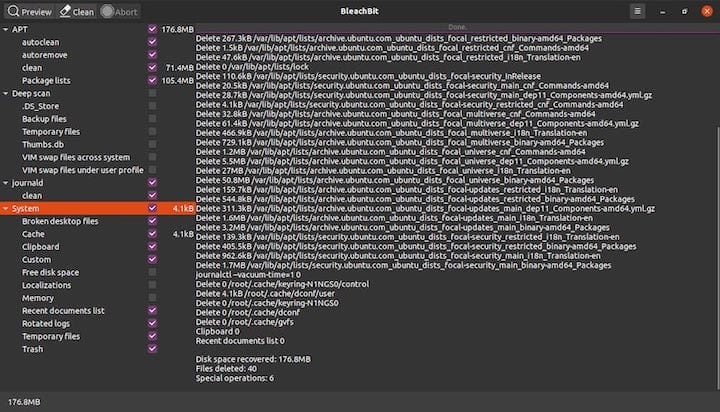
BleachBit is powerful, so you should always preview first. The preview step shows what will be removed before the delete action runs.
How to do it
- Open BleachBit.
- Select the items you want to clean.
- Click Preview.
- Review the results carefully.
- Click Clean only after you are sure.
Why this workflow is safer
Preview lets you inspect the impact before the action becomes permanent. That matters even more on a working Fedora system where caches and logs can be mixed with files you still need.
Practical advice
Start with low-risk items such as browser cache or temp files. Move slowly when you reach system logs or application settings.
Step 9: Use Shred and Free Space Wipe
Why secure deletion matters
Normal deletion often removes file references, not the underlying data immediately. If you are cleaning sensitive files, that can matter a lot.
Useful BleachBit features
BleachBit supports options such as:
- Shred files.
- Shred folders.
- Wipe free space.
Example commands
You usually access these from the GUI, but the logic is the same. Shredding is for files you want to make harder to recover, while wiping free space helps reduce traces of deleted content.
Why a sysadmin should care
If you keep credentials, tokens, config backups, or wallet-related files on a machine, secure deletion is not just nice to have. It is part of basic operational hygiene.
Step 10: Clean as User or Root
Why the role matters
BleachBit behaves differently depending on how you launch it. A normal user can clean personal data, but root can touch system-level items too.
Best practice
Use your normal account for browser data, cache, and app junk. Use root only for verified system cleaning tasks.
Why this is the safer pattern
- It limits accidental damage.
- It matches least-privilege security practice.
- It helps you keep personal and system cleanup separate.
For most desktops, this is the same approach a careful Linux server tutorial would recommend for any maintenance tool.
Troubleshooting
1. Package not found
If DNF says it cannot find BleachBit, refresh metadata first.
sudo dnf upgrade --refresh
sudo dnf install bleachbit
Why this works: repository metadata can be stale, especially after mirrors sync or Fedora updates.
2. Dependency errors
If the RPM install fails with missing packages, use DNF instead of forcing a manual install.
sudo dnf install ./bleachbit-*.rpmWhy this works: DNF can resolve dependencies automatically, which lowers the chance of broken installs.
3. App will not open
If the GUI does not launch, test it from the terminal and watch for error messages.
bleachbitWhy this helps: terminal output often shows missing libraries or permission issues that the desktop menu hides.
4. Root mode is blocked
If sudo bleachbit fails, confirm your user has sudo rights and that the package installed correctly.
sudo -v
rpm -q bleachbit
Why this matters: root mode depends on both permissions and a valid package install.
5. Flatpak limitations
If you use Flatpak and some cleaners do not work, that is probably sandboxing.
Why this happens: sandboxed apps cannot always see every directory or system path, so some cleanup targets stay out of reach.

