
Managing a Linux server without a control panel means configuring Nginx, PHP, mail, DNS, and databases by hand, in separate config files, with no central dashboard. That works fine until you are managing five domains and three clients at once. HestiaCP fixes that problem by giving you a clean, lightweight web interface to handle all of it from one place. This Linux server tutorial walks you through a complete install Hestia Control Panel on Debian 13 setup, including the one fix that most guides miss for Debian 13 specifically.
HestiaCP is an open-source control panel forked from the now-abandoned VestaCP project. It bundles Nginx, Apache, PHP-FPM, MariaDB, Exim, Dovecot, BIND DNS, Let’s Encrypt automation, Fail2ban, and iptables into a single installer. Unlike cPanel or Plesk, HestiaCP has no licensing fees, runs on modest hardware, and gets regular security updates from an active development team.
Debian 13 (codenamed Trixie) ships with Python 3.13 by default, and that breaks one part of the HestiaCP login process. This guide covers that fix directly, so you end up with a fully working panel, not a half-installed one.
Prerequisites: What You Need Before You Start
Do not skip this section. A failed HestiaCP install almost always traces back to one missing prerequisite.
Server requirements:
- A fresh Debian 13 installation with no pre-existing web server, mail server, or control panel
- 64-bit AMD64 or ARM64 processor — HestiaCP does not support 32-bit
- Minimum 1 GB RAM, but 2 GB or more is strongly recommended for production use, especially if you run mail services
- At least 20 GB of SSD disk space
Access and networking:
- Root SSH access to the server
- A Fully Qualified Domain Name (FQDN) pointing to your server’s public IP address, for example
panel.example.com - The following ports open in your cloud provider’s external firewall: 22, 80, 443, 8083, 25, 465, 587, 993, 995, and 53 (TCP/UDP)
Why the FQDN matters: HestiaCP uses your server hostname to configure the Exim mail origin, generate its initial SSL certificate, and set up DNS records. If you set the wrong hostname at install time, you will deal with broken mail headers and SSL mismatches that are far more painful to fix after the fact than before.
Why a clean OS matters: The HestiaCP installer assumes it controls the full web server, mail server, and DNS configuration. If Apache, Nginx, Postfix, or any other conflicting service is already running, the installer will hit dependency conflicts and fail in the middle of the process.
Step 1: Update the System and Set the Hostname
Connect to your server as root over SSH. Then bring all packages up to date:
apt update && apt upgrade -yWhy: Running this before any installation ensures the package cache is current and all security patches are already applied. Installing HestiaCP on an outdated system can trigger dependency version mismatches in the middle of the install.
Next, set your server’s hostname to the FQDN you intend to use for the panel:
hostnamectl set-hostname panel.example.comVerify the result:
hostname -fExpected output:
panel.example.comWhy this step is non-negotiable: If hostname -f returns only panel instead of the full domain, the hostname is not fully qualified. Running the installer with a short hostname means Exim will send mail from the wrong origin and Let’s Encrypt will fail to issue a certificate for the panel. Fix it now, before you run anything else.
Step 2: Download the HestiaCP Installer Script
Pull the installer directly from the official HestiaCP GitHub repository:
wget https://raw.githubusercontent.com/hestiacp/hestiacp/release/install/hst-install.shVerify the file downloaded correctly:
ls -lh hst-install.shExpected output:
-rw-r--r-- 1 root root 72K Apr 21 12:00 hst-install.shWhy check the file size: If wget hits a TLS error on a minimal Debian 13 install, the file will download as 0 bytes. Running a 0-byte script as root produces confusing errors that have nothing to do with HestiaCP. If wget fails due to SSL certificate issues, install the CA certificates package first:
apt install ca-certificates -ySecurity note: Before running any script as root, take 30 seconds to review it:
less hst-install.shScroll through and confirm it originates from the HestiaCP project. Never run a script you have not at least glanced at, regardless of the source.
Step 3: Run the HestiaCP Installer on Debian 13
This is the most important step in the entire process. The installer accepts flags that let you control exactly which components get installed. Here is the recommended command for a full configure Hestia Control Panel on Debian 13 setup:
bash hst-install.sh \
  --nginx yes \
  --apache yes \
  --phpfpm yes \
  --multiphp no \
  --mysql yes \
  --exim yes \
  --dovecot yes \
  --clamav yes \
  --spamassassin yes \
  --iptables yes \
  --fail2ban yes \
  --named yes \
  --hostname panel.example.com \
  --email admin@example.com \
  --password YourStrongPassword123 \
  --lang en
What each flag controls:
| Flag | Value | Why it matters |
|---|---|---|
--nginx yes |
yes | Front-end web server and reverse proxy — required |
--apache yes |
yes | Backend for .htaccess support; set no for lower RAM usage |
--phpfpm yes |
yes | Required for all PHP web applications |
--multiphp no |
no | Enable only if you need PHP 8.1, 8.2, and 8.3 per domain |
--mysql yes |
yes | MariaDB for WordPress, Joomla, and similar apps |
--exim yes |
yes | Mail transfer agent for sending and receiving email |
--clamav yes |
yes | Email virus scanning — disable on servers with under 2 GB RAM |
--fail2ban yes |
yes | Brute-force protection — never disable on a public server |
--iptables yes |
yes | Server-level firewall managed from the panel |
The installer displays a summary of what it plans to install and asks for your confirmation. Read that summary. If anything looks wrong, press n and adjust your flags. Mistakes at this stage require a full OS reinstall to correct cleanly.
Installation takes between 5 and 15 minutes depending on server speed and connection.
When the process finishes, the terminal shows output like this:
Congratulations!

You have successfully installed Hestia Control Panel on your server.

https://panel.example.com:8083
Username: admin
Password: YourStrongPassword123
Save these credentials before closing the terminal.
Debian 13 Specific Fix: Resolve the Python3 Crypt Login Issue
Most HestiaCP guides skip this section entirely because they were written for Debian 12. If you are running Debian 13, this fix is not optional.
Debian 13 ships Python 3.13 by default. Python 3.13 removes the crypt module, which was officially deprecated under PEP 594. HestiaCP uses the crypt module in the /usr/local/hestia/bin/v-check-user-password script to verify login passwords. Without this fix, you can install the panel successfully but you cannot log in.
Open the affected script:
nano /usr/local/hestia/bin/v-check-user-passwordFind the line that imports Python’s crypt module and replace the password hashing logic with a call to passlib or the newer hashlib-based approach. The exact patch is maintained in the official HestiaCP community forum thread for Debian 13 support.
Check the forum at forum.hestiacp.com for the current version of this fix, since the HestiaCP team is actively working on an upstream patch. The workaround posted there takes under two minutes to apply.
Why this matters more than it seems: This is not a minor cosmetic issue. Without this fix, your panel installs cleanly, shows no errors, starts all services correctly, and then silently rejects every login attempt. Knowing this ahead of time saves you an hour of debugging systemd logs for a problem that has nothing to do with the services themselves.
Step 4: Verify the Installation
Before opening a browser, confirm the services are actually running:
systemctl status hestia
systemctl status nginx
Both should show active (running). Then confirm the panel port is listening:
ss -tlnp | grep 8083Expected output:
LISTEN 0 128 0.0.0.0:8083 0.0.0.0:* users:(("hestia",pid=XXXX,addr=0))Why check before opening the browser: A browser timeout on port 8083 looks identical whether the service is down, the port is blocked in an external firewall, or the port is simply not listening. Running these two commands narrows the problem to the correct layer in under 30 seconds.
If you are on a cloud provider (AWS, Hetzner, DigitalOcean, Vultr), open port 8083 in the provider’s external security group as well. Cloud security groups are separate from iptables and will silently drop traffic even when iptables shows the port as open.
Step 5: Access the Panel and Log In
Open your browser and navigate to:
https://panel.example.com:8083Your browser will show a security warning about an untrusted SSL certificate. This is expected behavior on a fresh install — the installer generates a self-signed certificate by default. Click “Advanced” and proceed to the site.
Log in using:
- Username:
admin - Password: the password you set during installation
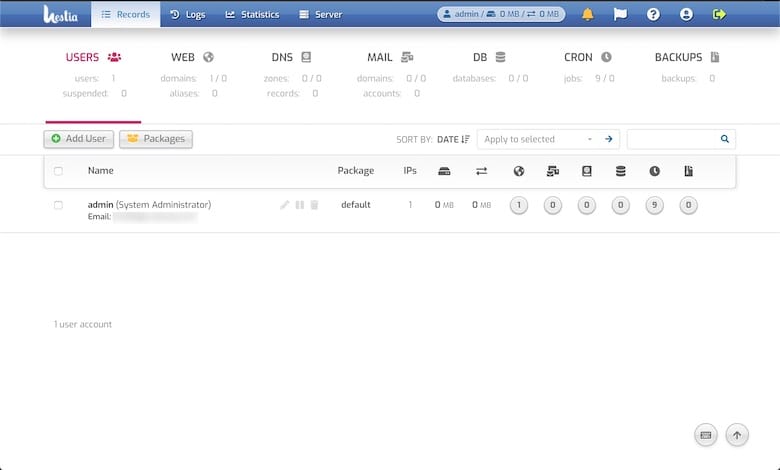
After logging in, you will see the dashboard with server resource stats and quick-add buttons for domains, email, DNS zones, and databases.
Step 6: Issue a Trusted SSL Certificate for the Panel
Get rid of the browser security warning immediately by replacing the self-signed certificate with a Let’s Encrypt certificate. Run this single command from SSH:
v-add-letsencrypt-hostWhy do this before anything else: This command confirms two things at once. First, that your FQDN resolves correctly to your server IP. Second, that ports 80 and 443 are open and reachable. Both of these conditions are also required when you later add client domains and request SSL certificates for them. Running this command first surfaces any DNS or firewall problems before you have 10 domains configured.
Let’s Encrypt certificate renewal runs automatically via a built-in HestiaCP cron job. You do not need to manage renewals manually.
Post-Install Configuration: Adding Your First Domain
With SSL working on the panel itself, add your first website:
- Click the Web tab in the top navigation
- Click Add Web Domain
- Enter your domain name, for example
example.com - Check DNS Support to let HestiaCP manage DNS for this domain
- Check Mail Support to enable email for this domain
- Click Save
Why enable DNS support: When you check this box, HestiaCP creates a full BIND zone file for the domain automatically, including A records, MX records, SPF, and DKIM. These records are required for mail deliverability. Setting them up by hand in a text editor is tedious and error-prone. Let the panel handle it.
Verify the domain was added:
v-list-web-domain admin example.comThe document root for your website files defaults to /home/admin/web/example.com/public_html/. Upload files there via SFTP or use the built-in file manager under the Files tab.
To enable SSL for the domain: go to Web, click Edit on the domain, check Enable SSL, check Use Let’s Encrypt, and save.
Security Hardening: Lock Down Your Server After Install
A working panel is not a secure panel. These steps close the most common attack vectors on a production server.
Change the Default Panel Port
Port 8083 is the well-known default for HestiaCP. Automated scanners probe it constantly. Move the panel to a non-standard port:
v-change-sys-port 2083Why: Changing the port does not make the panel invisible, but it eliminates all automated brute-force attempts targeting 8083 specifically. After running this command, the panel is accessible at https://panel.example.com:2083.
Switch SSH to Key-Only Authentication
Edit the SSH daemon configuration:
nano /etc/ssh/sshd_configSet these three values:
PermitRootLogin prohibit-password
PasswordAuthentication no
PubkeyAuthentication yes
Restart SSH to apply:
systemctl restart sshdWhy this matters: Password-based SSH login is the most common attack vector on any public-facing Linux server. Key-only authentication makes brute-force attacks computationally impractical. Make absolutely sure your SSH key is already added to ~/.ssh/authorized_keys before restarting sshd, or you will lock yourself out.
Confirm Fail2ban Is Protecting All Services
systemctl status fail2ban
fail2ban-client status
The output should list active jails for sshd, hestia, exim, and dovecot. If any jail is missing, that service is not protected against brute-force login attempts. Review /etc/fail2ban/jail.local and re-enable the missing jails.
Review Open Firewall Ports
v-list-firewallIf you are not running a mail server, close ports 25, 465, 587, 993, and 995. Fewer open ports mean a smaller attack surface.
Troubleshooting Common Issues
HestiaCP stores its own logs in /var/log/hestia/. When an error is not obvious from a service status check, start with tail -100 /var/log/hestia/auth.log and tail -100 /var/log/hestia/nginx-error.log. These files cover most panel-level issues.
| Problem | Diagnostic Command | Root Cause and Fix |
|---|---|---|
| Cannot reach panel on port 8083 | systemctl status hestia |
Service stopped. Run systemctl start hestia. Also check the cloud security group. |
| SSL warning persists after install | v-list-web-domain-ssl admin domain.com |
Run v-add-letsencrypt-host. Verify DNS resolves first with dig +short panel.example.com. |
| Cannot log in after Debian 13 install | Check /usr/local/hestia/bin/v-check-user-password |
Python 3.13 crypt module removed. Apply the fix from the official HestiaCP forum. |
| Mail not sending | tail -50 /var/log/exim4/mainlog |
Port 25 blocked by provider. Use a relay or contact your hosting provider to unblock it. |
| Nginx fails to start | nginx -t |
Config syntax error. Output shows the exact file and line number. Fix and restart. |
| Forgot admin password | N/A | Run v-change-user-password admin NewPassword from SSH. |
Keeping HestiaCP Updated
HestiaCP updates through the standard APT package manager. Run this to apply all available updates, including HestiaCP itself:
apt update && apt upgrade -yCheck your currently installed version at any time:
v-list-sys-infoWhy update regularly: The HestiaCP team releases patches for security vulnerabilities in the panel and its bundled services. Running an outdated version exposes every hosted website and database to known CVEs. For production servers, test updates on a staging environment first, then apply them during a low-traffic maintenance window.
Congratulations! You have successfully installed HestiaCP. Thanks for using this tutorial for installing the latest version of the HestiaCP open-source control panel on Debian 13 “Trixie” system. For additional help or useful information, we recommend you check the official HestiaCP website.
[su_box title=”VPS Manage Service Offer” style=”bubbles” box_color=”#000000″ radius=”10″]If you don’t have time to do all of this stuff, or if this is not your area of expertise, we offer a service to do “VPS Manage Service Offer”, starting from $10 (Paypal payment). Please contact us to get the best deal![/su_box]

