
Streaming live television on Linux has never been easier, thanks to Hypnotix—a powerful IPTV player developed by the Linux Mint team. This free, open-source application brings the world of Internet Protocol Television directly to your Debian 13 desktop, offering a clean interface and robust streaming capabilities. Whether you’re looking to watch international channels, access VOD libraries, or organize your favorite streaming content, Hypnotix delivers a seamless viewing experience without the bloat of commercial alternatives.
Installing Hypnotix on Debian 13 requires some technical knowledge, as it’s primarily designed for Linux Mint. However, with the right approach and careful attention to dependencies, you can successfully run this excellent IPTV player on your Debian system. This comprehensive guide walks you through three proven installation methods, from beginner-friendly repository installations to advanced source compilation, ensuring you find the approach that matches your skill level and requirements.
What is Hypnotix?
Purpose and Functionality
Hypnotix is an M3U-based IPTV streaming application that transforms your Linux machine into a fully functional television receiver. Built on libmpv for reliable video playback, it supports multiple input formats including local M3U playlists, remote playlist URLs, and Xtream API connections. The application excels at organizing thousands of channels into manageable categories, making it simple to navigate extensive IPTV libraries without feeling overwhelmed.
Unlike bloated commercial alternatives, Hypnotix focuses on core functionality. It handles channel switching smoothly, maintains stable connections to streaming servers, and provides essential viewing features without unnecessary complexity.
Key Features
The application ships with several standout features that make it a preferred choice among Linux users. Its integrated Electronic Program Guide (EPG) displays scheduling information for supported channels, helping you discover what’s currently playing and what’s coming up next. The favorites system lets you bookmark frequently watched channels for instant access, eliminating tedious browsing through long channel lists.
Hypnotix offers flexible viewing modes including full-screen playback and split-screen arrangements. It runs efficiently on modest hardware, making it suitable for older computers or lightweight systems. As a GPLv3-licensed project, it remains completely free and respects user privacy with no tracking, advertising, or data collection. The interface stays clean and uncluttered, letting content take center stage.
System Requirements and Prerequisites
Hardware Requirements
Before proceeding with installation, ensure your Debian 13 system meets the minimum specifications. You’ll need at least 2GB of RAM for smooth playback, though 4GB or more provides a better experience, especially when streaming high-definition content. Any modern processor from the last decade should suffice, but dual-core CPUs or better deliver optimal performance. Reserve approximately 100MB of disk space for the application and its dependencies.
A stable internet connection is essential. Streaming quality depends heavily on bandwidth, with standard definition channels requiring around 2-3 Mbps and HD streams needing 5-8 Mbps or more.
Software Prerequisites
Debian 13 must be your operating system, preferably with recent updates installed. You’ll need root or sudo privileges to install system packages. The application depends on several crucial libraries: libxapp version 2.6 or higher, libmpv for video rendering, python3-imdbpy for metadata handling, and python3-requests for network communication. Additional Python dependencies include python3-setproctitle, python3-unidecode, and python3-xapp.
Most dependencies install automatically when using repository-based installation methods, but manual installations require careful attention to these requirements.
Pre-Installation Checklist
Update your system package lists and upgrade existing packages before beginning installation. Open a terminal and run sudo apt update && sudo apt upgrade to ensure your system is current. Verify internet connectivity by pinging a known server. Prepare terminal access—you’ll need it throughout the installation process.
Understanding Installation Methods for Hypnotix
Hypnotix can be installed on Debian 13 through three distinct approaches, each with specific advantages. Understanding these methods helps you choose the most appropriate path for your situation and technical comfort level.
The repository method offers the simplest installation experience. By adding a third-party repository to your system, you enable automatic dependency resolution and streamlined updates. This approach suits users who prefer convenience and automated package management.
Manual DEB package installation provides a middle ground. You download a pre-built package from GitHub and install it using dpkg. This method gives you control over which version you install while avoiding complex compilation processes.
Building from source offers maximum flexibility and access to cutting-edge features. Advanced users appreciate this method for its transparency and customization potential, though it requires more time and technical knowledge.
Method 1: Installing Hypnotix via Third-Party Repository
Step 1: Adding the Repository
The OpenSUSE Build Service maintains packages for various Linux distributions, including Debian-based systems. Open your terminal and add the repository to your system sources. Execute the following command, adjusting for the current Debian 13 compatibility:
echo 'deb http://download.opensuse.org/repositories/home:/RandLin:/LM-backports/Debian_Testing/ /' | sudo tee /etc/apt/sources.list.d/hypnotix.listThis command creates a new source list file specifically for Hypnotix-related packages. The repository URL points to a maintained collection of Linux Mint applications backported for Debian systems.
Step 2: Importing the GPG Key
Package verification requires the repository’s GPG key. Download and install it with:
curl -fsSL https://download.opensuse.org/repositories/home:/RandLin:/LM-backports/Debian_Testing/Release.key | gpg --dearmor | sudo tee /etc/apt/trusted.gpg.d/hypnotix.gpg > /dev/nullThis security measure ensures packages haven’t been tampered with during transmission. The gpg –dearmor command converts the key to a format Debian’s package manager recognizes.
Step 3: Updating Package Lists
Refresh your system’s package database to include the newly added repository:
sudo apt updateWatch for any errors related to the new repository. Successful output should show the repository being processed without warnings.
Step 4: Installing Hypnotix
With the repository configured, install Hypnotix using a single command:
sudo apt install hypnotixThe package manager automatically resolves dependencies, downloading and installing all required libraries. Confirm the installation when prompted, and watch as the system completes the setup process. Installation typically takes just a few minutes depending on your connection speed.
Method 2: Installing Hypnotix from DEB Package
Step 1: Downloading the Package
Navigate to the official Hypnotix GitHub repository releases page. Look for the latest stable release compatible with Debian systems. Download the .deb package directly using wget:
wget https://github.com/linuxmint/hypnotix/releases/download/3.0/hypnotix_3.0_all.debReplace the version number with the current release. The download completes quickly as the package remains relatively small. Verify the file exists in your current directory with ls -lh hypnotix*.deb.
Step 2: Installing with dpkg
Use Debian’s package installer to process the downloaded file:
sudo dpkg -i hypnotix_3.0_all.debThe dpkg utility attempts installation but may report missing dependencies. Don’t panic—this is expected behavior. Note which packages are missing; you’ll resolve these in the next step.
Step 3: Resolving Dependencies
Fix dependency issues automatically with apt:
sudo apt install -fAlternatively, use:
sudo apt --fix-broken installThis command instructs the package manager to download and install any missing dependencies, completing the Hypnotix installation. The system may prompt you to confirm additional package installations—approve these to proceed. Once finished, verify the installation with dpkg -l | grep hypnotix.
Method 3: Building and Installing from Source
Step 1: Installing Build Dependencies
Source compilation requires development tools and libraries. Install the complete build environment:
sudo apt install git devscripts debhelper dh-python python3-all python3-setuptoolsAdd Hypnotix-specific dependencies:
sudo apt install libxapp-dev libmpv-dev python3-imdbpy python3-requests python3-setproctitle python3-unidecode python3-xappThese packages provide headers and tools necessary for compilation. Ensure all installations complete successfully before proceeding.
Step 2: Cloning the GitHub Repository
Download the source code from the official repository:
git clone https://github.com/linuxmint/hypnotix.git
cd hypnotix
This creates a local copy of the entire project. The cd command moves you into the new directory where compilation will occur.
Step 3: Building the Package
Generate a Debian package from source using debuild:
debuild -us -uc -bThe flags skip package signing (us = unsigned source, uc = unsigned changes, b = binary-only). Compilation takes several minutes. Watch for errors—missing dependencies or configuration issues appear here. Successful builds produce .deb files in the parent directory.
Step 4: Installing the Built Package
Move up one directory level and install your freshly compiled package:
cd ..
sudo dpkg -i hypnotix_*.deb
The asterisk wildcard matches the version-specific filename. Complete any dependency resolution with sudo apt install -f if needed.
Post-Installation Configuration
Launching Hypnotix
Find Hypnotix in your application menu under the “Multimedia” or “Video” category. Launch it by clicking the icon, or start it from terminal:
hypnotixThe first launch initializes the application database and loads default settings. You’ll see the main interface with a default provider already configured.
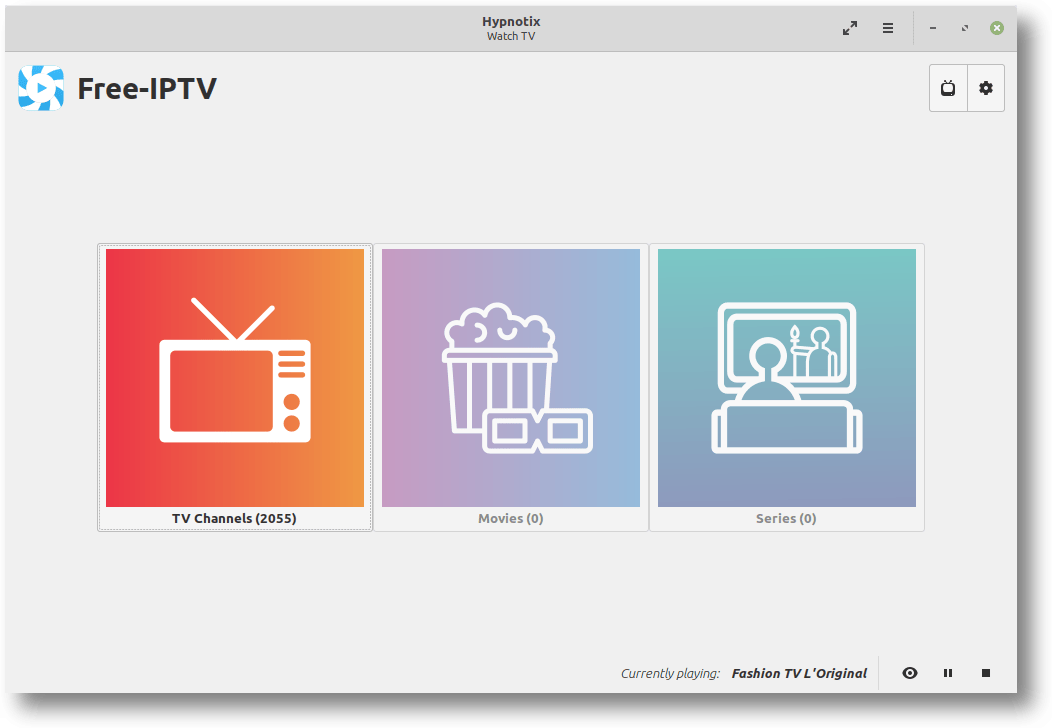
Initial Setup
Hypnotix ships with Free-IPTV, a public provider, pre-configured. Decide whether to keep this provider or remove it in favor of your own sources. Access the provider manager through the application menu or settings panel. The interface clearly displays configured providers and allows easy addition or removal.
Setting Up Your IPTV Sources
Click the provider management button (usually resembling a list or gear icon). Choose “Add new provider” to configure your IPTV source. You’ll select between M3U URL, local M3U file, or Xtream API connection.
For M3U URLs, paste the complete playlist address and provide a descriptive name. For Xtream API, enter the server URL, username, and password supplied by your provider. Save the configuration and allow Hypnotix to fetch the channel list. This process may take a minute or two for large playlists.
Configure EPG sources if your provider supports them. EPG URLs typically use XML format and contain programming schedules that enhance the viewing experience.
Verifying the Installation
Testing Basic Functionality
Select any channel from the list and click to start playback. Video should begin within a few seconds, depending on your connection speed and stream quality. Check that audio plays correctly through your system speakers or headphones. Test the interface responsiveness by switching between channels, adjusting volume, and toggling fullscreen mode.
Try various channels to ensure consistent playback. Some streams may load faster than others due to server location and bandwidth variations.
Checking Version and Dependencies
Verify your installation version from the terminal:
hypnotix --versionThis confirms the application is properly installed and accessible. Launch from terminal to observe any error messages or warnings that might indicate library issues. A clean launch produces minimal terminal output—excessive warnings suggest dependency problems requiring attention.
Troubleshooting Common Installation Issues
Dependency Conflicts
Missing or incompatible versions of python3-imdbpy cause import errors during launch. Debian 13 repositories may contain different versions than Hypnotix expects. Manually install the correct version or add additional repositories that provide compatible packages.
Libmpv version mismatches produce playback failures. Ensure you have libmpv2 or later installed. Check your version with apt show libmpv2. Upgrade if necessary using sudo apt install --only-upgrade libmpv2.
Repository Key Errors
GPG verification failures prevent package installation. Keys expire or change when repositories update. Manually download and import the current key using the curl command provided earlier. Remove old keys from /etc/apt/trusted.gpg.d/ if conflicts persist.
Package Not Found Errors
If apt cannot locate the Hypnotix package, verify your repository configuration. Check /etc/apt/sources.list.d/hypnotix.list for typos or incorrect URLs. Debian 13, being relatively new, might lack dedicated repositories—try using Debian Testing or Debian 12 repositories as alternatives, though exercise caution with compatibility.
Playback Issues After Installation
Video playback failures often stem from codec problems. Install comprehensive multimedia support:
sudo apt install libavcodec-extra ffmpegAudio issues may relate to PulseAudio or ALSA configuration. Verify your system audio works in other applications first. Try different audio output drivers in Hypnotix settings if available.
Symbol errors mentioning libmpv indicate ABI incompatibility. Rebuilding from source against your system libraries typically resolves this advanced issue.
Using Hypnotix on Debian 13
Basic Navigation
The Hypnotix interface divides into several panels. The left sidebar displays categories provided by your IPTV source—these might include Sports, News, Entertainment, and regional groupings. Click categories to filter the channel list. The center panel shows available channels, typically with logos and names. Click any channel to begin streaming.
The search function helps locate specific channels quickly. Type channel names or keywords to filter results instantly. This feature proves invaluable when managing playlists with hundreds or thousands of channels.
Adding Custom Providers
Access the provider menu through the hamburger icon or preferences. Click “Add Provider” and choose your source type. For M3U playlists, select “URL” and paste your provider’s playlist address. Give it a recognizable name like “My IPTV Service.”
Xtream API connections require more information: server URL (typically including port 80 or 25461), username, and password. Your IPTV provider supplies these credentials. Hypnotix connects to the API and automatically organizes channels by categories defined on the server.
Local M3U files work well for offline playlists or providers offering downloadable lists. Browse to the file location and select it—Hypnotix imports the channels immediately.
Managing Favorites
Right-click channels (or use the context menu button) to add them to favorites. The favorites list appears as a special category, providing quick access to frequently watched content. Reorder favorites by dragging them into your preferred sequence. This organization dramatically improves navigation efficiency for large channel collections.
Remove channels from favorites using the same context menu. Changes take effect immediately without requiring application restarts.
Advanced Configuration and Optimization
Customizing Playback Settings
Access advanced settings through the application preferences. Adjust video quality parameters if streams buffer frequently or play in lower quality than expected. Some IPTV providers offer multiple quality streams—selecting appropriate quality levels based on your connection prevents buffering.
Buffer size adjustments help with inconsistent connections. Increase buffer size for slower networks, accepting slightly longer channel switching delays in exchange for smoother playback. Decrease buffer size on fast connections for near-instant channel changes.
Enable hardware acceleration if available and supported by your graphics card. This offloads video decoding to GPU hardware, reducing CPU usage and improving performance on resource-constrained systems.
External Player Integration
While Hypnotix uses libmpv internally, you can configure external players for specific scenarios. Some users prefer VLC’s advanced features or MPV’s customization options. Configure external player paths in settings, allowing Hypnotix to launch streams in your preferred application.
External players prove useful when troubleshooting playback issues or when you need features Hypnotix doesn’t provide natively, such as advanced subtitle handling or specific audio processing.
Performance Tuning
Optimize Hypnotix for low-end systems by disabling channel logos or limiting EPG data retrieval. These visual enhancements consume memory and processing power. Reduce quality settings for channels you watch on smaller windows or secondary monitors.
Network optimization includes using wired connections instead of WiFi when possible. Close bandwidth-intensive applications during streaming. Consider router QoS settings to prioritize streaming traffic on busy networks.
Updating and Maintaining Hypnotix
Keeping Hypnotix Up to Date
Repository installations update automatically with your regular system updates. Run periodic system upgrades:
sudo apt update
sudo apt upgrade
Hypnotix updates appear alongside other package updates. Review changelog information to learn about new features and bug fixes.
Manual installations require monitoring the GitHub repository for new releases. Subscribe to release notifications or check periodically. Download new versions and install following the same DEB package procedure used initially.
Uninstalling Hypnotix
Remove Hypnotix if you no longer need it:
sudo apt remove hypnotixThis removes the application but preserves configuration files in your home directory. For complete removal including configurations:
sudo apt purge hypnotixClean up any added repositories by removing /etc/apt/sources.list.d/hypnotix.list and running sudo apt update. Remove GPG keys from /etc/apt/trusted.gpg.d/ if desired, though they pose no security risk if left in place.
Congratulations! You have successfully installed Hypnotix. Thanks for using this tutorial to install the latest version of the Hypnotix IPTV app on Debian 13 “Trixie” system. For additional help or useful information, we recommend you check the official Hypnotix website.
[su_box title=”VPS Manage Service Offer” style=”bubbles” box_color=”#000000″ radius=”10″]If you don’t have time to do all of this stuff, or if this is not your area of expertise, we offer a service to do “VPS Manage Service Offer”, starting from $10 (Paypal payment). Please contact us to get the best deal![/su_box]
