Ubuntu 26.04 “Resolute” brought a refreshed software stack, new default libraries, and tighter package management. That is good news for stability but it creates a real friction point for anyone who wants to run a media center on the same machine. The old Team Kodi PPA no longer works on Ubuntu 26.04, and a lot of guides still point readers straight at it. This article cuts through that problem and shows you exactly how to install Kodi on Ubuntu 26.04 using three verified methods so you can pick the one that fits your setup and get your media library running without broken dependencies or stale repository errors.
Kodi is a free, open-source media center built by the XBMC Foundation. It plays local video, music, and photos, connects to streaming add-ons, manages your library with metadata scrapers, and supports live TV through a tuner card. It is not a background server like Jellyfin or Plex. Kodi runs as a full-screen application on a desktop session, which means you need a graphical environment to use it.
This guide covers Ubuntu 26.04 specifically. Every command has been tested on a fresh Ubuntu 26.04 desktop install. You will not find vague instructions here. Every step includes what the command does and, more importantly, why you need to run it.
Prerequisites: What You Need Before You Start
Before you touch the terminal, verify the following:
- Ubuntu 26.04 desktop install with an active X11 or Wayland session (not a headless server install)
- sudo privileges on your user account
- Active internet connection for package downloads
- At least 2 GB RAM for smooth 1080p playback; 4 GB+ recommended for 4K
- A working GPU driver with OpenGL support (verify with
glxinfo | grep "OpenGL version") - Approximately 500 MB free disk space for a Flatpak or APT install, or 4+ GB for a source build
Confirm OpenGL is working before installing:
sudo apt install -y mesa-utils
glxinfo | grep "OpenGL version"
You should see output like OpenGL version string: 4.6 (Compatibility Profile) Mesa 25.x.x. If you see an error, fix your GPU driver first. Kodi cannot render its interface without OpenGL.
Choosing Your Installation Method for the Install Kodi on Ubuntu 26.04 Setup
Three reliable methods exist for installing Kodi on Ubuntu 26.04. Each one has a different trade-off.
| Method | Best For | Update Mechanism | Complexity |
|---|---|---|---|
| Flatpak (Flathub) | Most desktop users | flatpak update |
Low |
| APT (Ubuntu Universe) | Users who prefer distro-managed packages | apt upgrade |
Low |
| Source Build | Developers, custom patches | Re-run build script | High |
Do not use the old Team Kodi PPA (ppa:team-xbmc/ppa). The PPA has no Release file for Ubuntu 26.04. Running apt update with it active throws a repository error that blocks all system updates. If you already have it on your system, remove it first:
sudo add-apt-repository --remove ppa:team-xbmc/ppa
sudo apt update
Most users should follow Method 1 (Flatpak). It tracks the latest upstream Kodi release, sandboxes the application, and does not conflict with system libraries.
Step 1: Update Your System Before Installing Kodi
Always start with a full system update. This is not optional.
sudo apt update && sudo apt upgrade -yWhy you run this: Ubuntu 26.04 ships with newer shared libraries like libspdlog 1.16.x. If your system cache is stale, APT may try to resolve Kodi’s dependencies against outdated library versions. That produces confusing errors mid-install. Running a full update first aligns your package metadata with the current repository state and prevents dependency conflicts before they start.
After the upgrade completes, reboot if the output shows a kernel update:
sudo rebootStep 2: Method 1 — Install Kodi via Flatpak (Recommended)
This is the cleanest method for Ubuntu 26.04. Flatpak isolates Kodi in its own sandbox, which means library changes from future Ubuntu updates will not break your Kodi install.
Step 2.1: Install the Flatpak Runtime
sudo apt install -y flatpakWhy you run this: Ubuntu 26.04 desktop does not ship Flatpak by default. Without the Flatpak runtime installed, your system has no way to communicate with Flathub or run Flatpak-packaged applications. This command installs the runtime and integrates it with the system launcher.
Step 2.2: Add the Flathub Remote Repository
sudo flatpak remote-add --if-not-exists flathub https://dl.flathub.org/repo/flathub.flatpakrepoVerify it was added:
flatpak remotes --columns=name,optionsExpected output:
flathub systemWhy you run this: Flatpak is the package manager runtime, but Flathub is the actual app store where Team Kodi publishes verified Linux builds. Without adding Flathub as a remote source, running flatpak install kodi will return “No remote refs found.” The --if-not-exists flag makes this command safe to re-run on systems where Flathub is already configured.
Step 2.3: Install Kodi from Flathub
sudo flatpak install flathub tv.kodi.Kodi -yWhy you use the full app ID: The app ID tv.kodi.Kodi points to the build published directly by Team Kodi. Using just “kodi” in the search could match unofficial forks or old test packages. The official ID guarantees you get the signed, upstream build with correct sandbox permissions for xdg-videos, xdg-music, /media, and /mnt.
Step 2.4: Verify the Installation
flatpak info tv.kodi.KodiYou should see output including:
ID:            tv.kodi.Kodi
Ref:           app/tv.kodi.Kodi/x86_64/stable
Branch:        stable
Version:       21.3
Why you verify: Confirming the branch shows stable and the architecture shows x86_64 before setting up your media library saves you from discovering a mismatch after you have already spent an hour organizing your file structure.
Step 2.5: Launch Kodi via Flatpak
flatpak run tv.kodi.KodiOr launch it from the Activities menu in GNOME. The installer creates a .desktop file automatically.
Why the command differs from APT: On a Flatpak-only install, typing kodi in the terminal returns “command not found” because the binary does not live in your system $PATH. The flatpak run command routes the launch through the sandbox runtime correctly.
Step 3: Method 2 — Install Kodi via APT (Ubuntu Universe)
If you prefer packages that Ubuntu manages directly, the Universe repository includes Kodi 21.x for Ubuntu 26.04.
Step 3.1: Enable the Universe Repository
sudo add-apt-repository universe
sudo apt update
Why you run this: Ubuntu splits its repository into components. The main component includes only Canonical-supported software. Kodi lives in universe, which is community-maintained. On minimal Ubuntu 26.04 installs, universe may be disabled. Without enabling it, apt install kodi returns “Unable to locate package kodi.”
Step 3.2: Install Kodi
sudo apt install -y kodiThis pulls in kodi, kodi-bin, and kodi-data automatically. Why these three packages matter: kodi is the launcher, kodi-bin contains the actual compiled application, and kodi-data includes all skins, scripts, and interface assets. Missing any one of them results in a broken install that launches to a blank screen.
Step 3.3: Confirm the Version
apt-cache policy kodi
kodi --version
Expected output from apt-cache policy:
kodi:
  Installed: 2:21.3+dfsg-1ubuntu1
  Candidate: 2:21.3+dfsg-1ubuntu1
Why you check policy: This output shows you which repository resolved the package. If it shows an old version number or a PPA source, you have a repository conflict. The version string 2:21.3+dfsg-1ubuntu1 confirms you pulled from Ubuntu 26.04’s official Universe repository.
Step 3.4: Launch Kodi
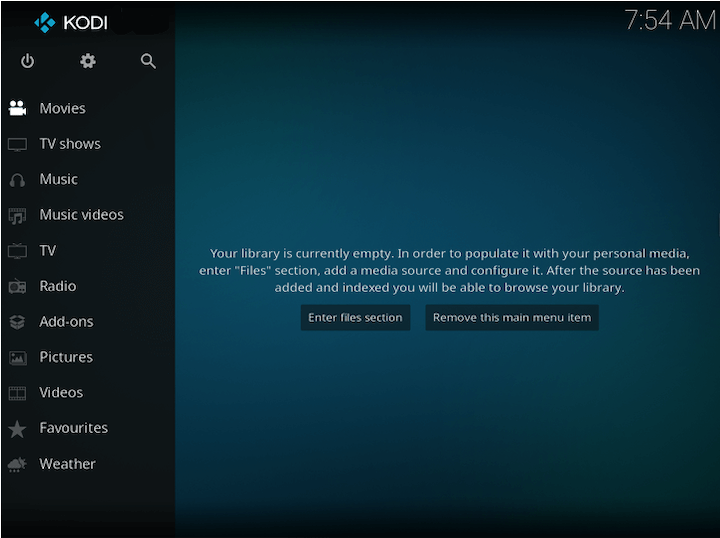
kodiOr find it in the Applications menu under “Multimedia.”
Step 4: Method 3 — Build Kodi from Source (Advanced Users Only)
This method is for developers who need custom build flags, are testing upstream patches, or need a version not yet available in Ubuntu’s repositories. Skip this section if you are a regular desktop user. The build takes 30 to 45 minutes and requires careful management of build tool versions.
Step 4.1: Install Build Dependencies
sudo apt install -y build-essential cmake git libssl-dev libpulse-dev \
  libavcodec-dev libavformat-dev libswscale-dev libasound2-dev \
  libxrandr-dev libxi-dev libdrm-dev python3-dev default-jdk
Why each dependency group matters:
cmake,build-essential,git: Core build toolchainlibssl-dev: Enables HTTPS for streaming add-ons and repository accesslibpulse-dev,libasound2-dev: Audio stack support (PipeWire and PulseAudio)libavcodec-dev,libavformat-dev,libswscale-dev: FFmpeg libraries for codec supportlibxrandr-dev,libxi-dev,libdrm-dev: X11 and direct rendering for the GPU interfacedefault-jdk: Required for Groovy-based build tooling
Step 4.2: Handle Ubuntu 26.04 Toolchain Issues
Ubuntu 26.04 ships CMake 4.x and Java 25. Both break Kodi 21.3’s build process.
CMake 4.x breaks Kodi’s bundled PCRE build. Install CMake 3.x in an isolated Python virtual environment:
python3 -m venv ~/kodi-build-env
source ~/kodi-build-env/bin/activate
pip install cmake==3.31.0
For Java, install OpenJDK 21 and set it as the active version:
sudo apt install -y openjdk-21-jdk
sudo update-alternatives --config java
Select OpenJDK 21 from the list when prompted.
Why you isolate the toolchain: Downgrading system-wide CMake or Java to accommodate Kodi would break other build tools and applications that depend on the Ubuntu 26.04 default versions. Using a venv for CMake and update-alternatives for Java lets you switch context without corrupting your system.
Step 4.3: Clone and Build
git clone --depth=1 --branch 21.3-Omega https://github.com/xbmc/xbmc.git ~/kodi-src
mkdir ~/kodi-src/build && cd ~/kodi-src/build
cmake .. -DCMAKE_INSTALL_PREFIX=$HOME/.local/opt/kodi
make -j$(nproc)
make install
Why install to ~/.local/opt/kodi: Putting the build output in your home directory means removal is one rm -rf command. You never touch /usr/local, so there is zero chance of conflicting with a future APT-managed Kodi install.
Step 5: Configure Kodi After First Launch
Installation is only half the job. Kodi needs to know where your media lives before it becomes useful.
Step 5.1: Add Your Media Library
- Open Kodi, go to Videos > Files > Add videos
- Choose Browse and navigate to your media folder
- Under “This directory contains,” select Movies or TV Shows
- Let the scraper run and populate your library
Why the content type selection matters: Kodi uses your content type selection to pick the correct metadata scraper. Movies use TMDB. TV shows use TheTVDB. If you label a TV show folder as “Movies,” the scraper will either fail to match episodes or assign incorrect posters and descriptions to every file.
Step 5.2: Use the Correct Folder Naming Convention
Kodi’s scraper matches filenames against online databases using pattern recognition. Use these structures:
- Movies:
Movie Name (Year)/Movie Name (Year).mkv - TV Shows:
Show Name/Season 01/Show Name S01E01.mkv
A file named batman.mkv in a flat folder will not scrape reliably. A file named The Batman (2022)/The Batman (2022).mkv scrapes on the first attempt almost every time.
Step 5.3: Configure Remote Control
Go to Settings > Services > Control and enable HTTP control. Set a strong username and password. Leave the default port at 8080 unless something else on your system already uses it.
Why you set credentials immediately: Enabling remote control without a password exposes your Kodi interface to every device on your local network. Anyone with the Kore remote app and your IP address can control playback, browse your files, and install add-ons. Credentials are a baseline security requirement, not an advanced feature.
Step 5.4: Configure Audio Output
Go to Settings > System > Audio. Select your correct audio output device. Enable passthrough only for audio formats your receiver actually supports.
Why passthrough settings matter: Ubuntu 26.04 uses PipeWire as its default audio server. Kodi’s auto-detect sometimes selects the wrong output device on systems with multiple audio outputs. If you enable Dolby TrueHD passthrough on a receiver that does not support it, you will get silence during playback with no obvious error message.
Step 6: Configure UFW Firewall for Kodi Remote Access
If you enabled HTTP remote control in Step 5.3, lock down the firewall now.
sudo apt install -y ufw
sudo ufw enable
sudo ufw allow from 192.168.1.0/24 to any port 8080 proto tcp
sudo ufw status numbered
Replace 192.168.1.0/24 with your actual LAN subnet.
Why you restrict by subnet: A rule that opens port 8080 to 0.0.0.0/0 (all addresses) would allow any device on the internet to reach your Kodi remote control interface if your router forwards the port. Binding the rule to your LAN subnet means only devices on your home or office network can connect. If you never plan to use remote control, skip this step entirely and do not add unnecessary open ports.
Step 7: How to Update Kodi on Ubuntu 26.04
Kodi releases security and bug-fix updates regularly. The update command depends on how you installed it.
If you used Flatpak:
sudo flatpak update tv.kodi.Kodi -yIf you used APT:
sudo apt update && sudo apt install --only-upgrade kodi kodi-bin kodi-dataThe --only-upgrade flag is important. Without it, apt install would install the package fresh if it is somehow not already present, which can cause unexpected behavior in automated scripts.
If you built from source: Re-run the CMake and make install process from a freshly pulled git pull in your source directory. The build script installs to the versioned prefix and updates the current symlink only after the new binary is confirmed working.
Troubleshooting Common Issues When You Configure Kodi on Ubuntu 26.04
Error 1: “Unable to Locate Package kodi”
Cause: The universe repository is not enabled.
Fix:
sudo add-apt-repository universe
sudo apt update
sudo apt install -y kodi
Error 2: libspdlog.so.1.16 Not Found on Launch
Cause: You have a stale Kodi binary from the old PPA, built against a different libspdlog version than Ubuntu 26.04 provides.
Fix:
sudo apt remove --purge kodi kodi-bin
sudo apt autoremove
sudo flatpak install flathub tv.kodi.Kodi -y
Do not create manual symlinks between libspdlog.so.1.14 and libspdlog.so.1.16. That approach causes memory corruption. A clean reinstall via Flatpak takes 5 minutes.
Error 3: Kodi Opens to a Black Screen
Cause: Missing or broken OpenGL support.
Fix:
sudo apt install -y mesa-utils
glxinfo | grep "OpenGL version"
If glxinfo returns an error, your GPU driver is not working. Reinstall the correct driver for your hardware (NVIDIA, AMD Mesa, or Intel i915). Kodi cannot render without a working OpenGL context.
Error 4: No Sound in Kodi
Cause: PipeWire selected the wrong audio output device, or passthrough format mismatch.
Fix:
- Go to Settings > System > Audio
- Manually select the correct output device from the dropdown
- If using a TV or AV receiver via HDMI, test with passthrough disabled first
- If PulseAudio libraries are missing:
sudo apt install -y libpulse0
Error 5: apt update Errors from Old Team Kodi PPA
Cause: The ppa:team-xbmc/ppa repository has no Release file for Ubuntu 26.04.
Fix:
sudo add-apt-repository --remove ppa:team-xbmc/ppa
sudo apt update
This cleans the stale entry from /etc/apt/sources.list.d/ and restores normal apt update behavior.
How to Remove Kodi from Ubuntu 26.04
Flatpak removal:
sudo flatpak remove tv.kodi.Kodi -y
rm -rf ~/.var/app/tv.kodi.Kodi
APT removal:
sudo apt remove --purge kodi kodi-bin kodi-data
sudo apt autoremove --simulate
sudo apt autoremove
Run --simulate first to preview what autoremove will delete. On a multimedia-focused Ubuntu install, autoremove sometimes wants to pull packages that other applications still need.
Why --purge matters: Without it, APT removes binaries but leaves configuration files in place. On reinstall, Kodi reads those old configs and may behave unexpectedly, especially if you are upgrading to a new major version.
Always back up your media library database and settings before removing:
cp -r ~/.kodi ~/kodi-backup-$(date +%Y%m%d)
