
If you work with 2D drafting on Linux and you want a free, reliable CAD tool, LibreCAD is one of the best options available. Getting it running on openSUSE is straightforward, but most guides online only cover one method and leave out the others. This guide shows you exactly how to install LibreCAD on openSUSE using five different approaches, from a simple one-liner with zypper all the way to building from source, so you can pick the method that fits your system and workflow.
Whether you are a sysadmin setting up a workstation, a developer prototyping mechanical drawings, or a beginner exploring open-source CAD for the first time, this tutorial gives you the exact commands, expected outputs, and reasoning behind each step. By the end, you will have a fully working LibreCAD installation on openSUSE Leap 15.x, Tumbleweed, or Slowroll.
What Is LibreCAD and Why Use It on openSUSE
LibreCAD is a free, open-source 2D computer-aided design application released under the GPLv2 license. It is built on the Qt framework, which makes it fast, lightweight, and well-suited for Linux desktop environments. Unlike full-featured suites such as FreeCAD, LibreCAD focuses exclusively on 2D drafting, which keeps the interface clean and the performance sharp even on older hardware.
Common use cases include architectural floor plans, mechanical parts schematics, electrical diagrams, and technical documentation drawings. The .dxf file format it uses is widely compatible with other CAD software, including AutoCAD, which makes it a practical choice for teams working across different platforms.
openSUSE is an excellent host for LibreCAD because of its robust zypper package manager, access to the openSUSE Open Build Service (OBS), and strong community support. The combination gives you multiple install paths and makes dependency management straightforward. The latest LibreCAD version available on openSUSE Tumbleweed as of early 2026 is 2.2.1.3, built on February 17, 2026.
Prerequisites
Before you run any install command, confirm that your system meets these requirements:
Operating System:
- openSUSE Leap 15.x (15.5, 15.6 recommended)
- openSUSE Tumbleweed
- openSUSE Slowroll
System Requirements:
- Minimum: 1 GHz CPU, 512 MB RAM, 200 MB free disk space
- Recommended: 2+ GB RAM for working with complex drawings
Permissions:
- Root or
sudoaccess is required for allzypper-based methods - AppImage method does not need root privileges
Tools Needed:
- A working internet connection
- A terminal emulator (Konsole, GNOME Terminal, xterm, etc.)
Confirm your openSUSE version before starting:
cat /etc/os-releaseYou will see output like NAME="openSUSE Leap" and VERSION="15.6". Note this version, because some repository URLs below are version-specific.
Always update your system before installing new packages:
sudo zypper refresh && sudo zypper updateThis command refreshes all repository metadata and applies pending updates. It prevents dependency conflicts that can break fresh installations. Type y and press Enter when prompted to confirm.
Step 1: Install LibreCAD via Zypper (Default Repository)
The fastest and most beginner-friendly method is to install LibreCAD directly from the official openSUSE repository using zypper. This requires no extra configuration and works out of the box on most openSUSE systems.
Check if LibreCAD Is Available in Your Repo
zypper search librecadThis command queries all active repositories on your system for any package with “librecad” in the name. You should see output similar to:
S | Name      | Summary                  | Type
--+-----------+--------------------------+--------
  | librecad  | A 2D CAD drawing tool    | package
If the package appears in the list, proceed to install it.
Install LibreCAD
sudo zypper install librecadzypper resolves all dependencies automatically, including Qt5 libraries and any required support files. It will list what it plans to install and ask for confirmation. Type y and press Enter.
Verify the Installation
librecad --versionExpected output:
LibreCAD 2.2.1.xYou can also launch LibreCAD from your application menu under Graphics or Engineering, or simply type librecad in the terminal.
When to use this method: Choose it when you are on openSUSE Leap 15.x and want a stable, system-managed package. The trade-off is that the repo version may not always match the latest upstream release.
Step 2: Install LibreCAD via the OBS Graphics Repository
The openSUSE Open Build Service (OBS) hosts a dedicated graphics repository that often carries a newer build of LibreCAD than the default channel. This is the recommended method when you need a more recent version on Tumbleweed, Slowroll, or Leap.
Add the Graphics Repository
Choose the command that matches your openSUSE version:
For openSUSE Tumbleweed:
sudo zypper addrepo https://download.opensuse.org/repositories/graphics/openSUSE_Tumbleweed/graphics.repoFor openSUSE Slowroll:
sudo zypper addrepo https://download.opensuse.org/repositories/graphics/openSUSE_Slowroll/graphics.repoFor openSUSE Leap 15.6:
sudo zypper addrepo https://download.opensuse.org/repositories/graphics/15.6/graphics.repoEach command registers the OBS graphics repository on your system and assigns it the label graphics.
Refresh Repositories and Install
sudo zypper refresh
sudo zypper install librecad
zypper refresh downloads the latest package metadata from all active repositories, including the one you just added. If zypper asks you to trust a new GPG key for the graphics repo, type a to trust it permanently.
Set Repository Priority (Optional but Recommended)
sudo zypper modifyrepo --priority 90 graphicsIn openSUSE, lower priority numbers mean higher precedence. Setting the graphics repo to 90 (versus the default of 99) tells zypper to prefer packages from it over the default channel when version conflicts arise. This prevents unintended downgrades during future system updates.
Remove the OBS Repo Later
If you no longer want updates from this repository but want to keep LibreCAD installed, run:
sudo zypper removerepo graphicsThis removes the repo entry without uninstalling LibreCAD.
Step 3: Install LibreCAD on openSUSE via Snap
Snap packages are self-contained bundles that ship with their own dependencies, which means the version on the Snap Store is typically the most current stable release. This method works across all openSUSE flavors, but it requires a few more setup steps because snapd is not pre-installed on openSUSE.
Add the Snappy Repository
For openSUSE Tumbleweed:
sudo zypper addrepo --refresh https://download.opensuse.org/repositories/system:/snappy/openSUSE_Tumbleweed snappyFor openSUSE Leap 15.6:
sudo zypper addrepo --refresh https://download.opensuse.org/repositories/system:/snappy/openSUSE_Leap_15.6 snappyIf you are on Leap 15.5 or another minor version, swap 15.6 for your version number.
Import the GPG Key and Refresh
sudo zypper --gpg-auto-import-keys refreshThis command tells zypper to automatically trust and import the GPG signing key for the snappy repo, which verifies the integrity of packages it downloads.
Upgrade the Package Cache
sudo zypper dup --from snappyzypper dup (distribution upgrade) applies any updates from the snappy repository to synchronize your cache with it. This step is required before snapd can be installed cleanly.
Install Snapd
sudo zypper install snapdEnable and Start Snapd Services
sudo systemctl enable --now snapd
sudo systemctl enable --now snapd.apparmor
The first command starts the snapd daemon and configures it to launch at boot. The second enables AppArmor integration, which provides sandboxing and security confinement for snap packages.
Update Your PATH
source /etc/profileAlternatively, log out and log back in. This step ensures that /snap/bin is added to your shell’s PATH, so you can run snap-installed applications directly from the terminal.
Install LibreCAD via Snap
sudo snap install librecadConfirm the Installation
snap list | grep librecadExpected output:
librecad 2.2.x xxx latest/stable librecad-team -Pros of the Snap method: Auto-updates, sandboxed environment, latest version always available.
Cons: Larger disk footprint than native packages, and a slightly longer first-launch time due to snap mount overhead.
Step 4: How to Install LibreCAD on openSUSE via AppImage
An AppImage is a portable Linux executable that runs without installation. It bundles LibreCAD and all its dependencies into a single file, so you do not need root access, no repositories, and no system changes.
Download the AppImage
Go to the official LibreCAD GitHub releases page:
https://github.com/LibreCAD/LibreCAD/releasesDownload the latest .AppImage file for Linux. Save it to a convenient directory:
mkdir -p ~/Applications
mv ~/Downloads/LibreCAD-*.AppImage ~/Applications/
Make the AppImage Executable
chmod +x ~/Applications/LibreCAD-*.AppImageThe chmod +x command sets the execute bit on the file. Without this step, Linux treats the file as data rather than a program and will refuse to run it.
Launch LibreCAD
~/Applications/LibreCAD-*.AppImageThat is all. LibreCAD launches without touching your system directories.
Create a Desktop Launcher (Optional)
To add LibreCAD to your application menu, create a .desktop file:
nano ~/.local/share/applications/librecad.desktopPaste the following content, replacing the path with your actual AppImage location:
[Desktop Entry]
Name=LibreCAD
Exec=/home/yourusername/Applications/LibreCAD-2.2.1.3.AppImage
Icon=librecad
Type=Application
Categories=Graphics;Engineering;
Save and exit, then run:
update-desktop-database ~/.local/share/applications/LibreCAD now appears in your application menu.
When to use AppImage: Use it when you want to test a new version without committing to a system install, or when you are on a machine where you do not have sudo rights.
Step 5: Build LibreCAD from Source Code
Building from source gives you the absolute latest code, including patches and features that have not yet reached stable release channels. This method is best for developers and advanced users.
Install Build Dependencies
sudo zypper install git cmake gcc-c++ qt5-qtbase-devel qt5-qtsvg-devel libboost_devel freetype2-develThis installs the compiler toolchain, CMake build system, Qt5 development headers, and additional libraries that LibreCAD requires to compile.
Clone the Source Repository
git clone https://github.com/LibreCAD/LibreCAD.git
cd LibreCAD
Configure and Compile
mkdir build && cd build
cmake ..
make -j$(nproc)
cmake .. reads the project’s build configuration. make -j$(nproc) compiles the source code using all available CPU cores in parallel, which significantly speeds up build time. A typical build takes 5 to 15 minutes depending on your hardware.
Run the Compiled Binary
./unix/librecadThe compiled binary lives at build/unix/librecad. You can run it directly from there or copy it to /usr/local/bin/ for system-wide access.
Step 6: Post-Installation Configuration
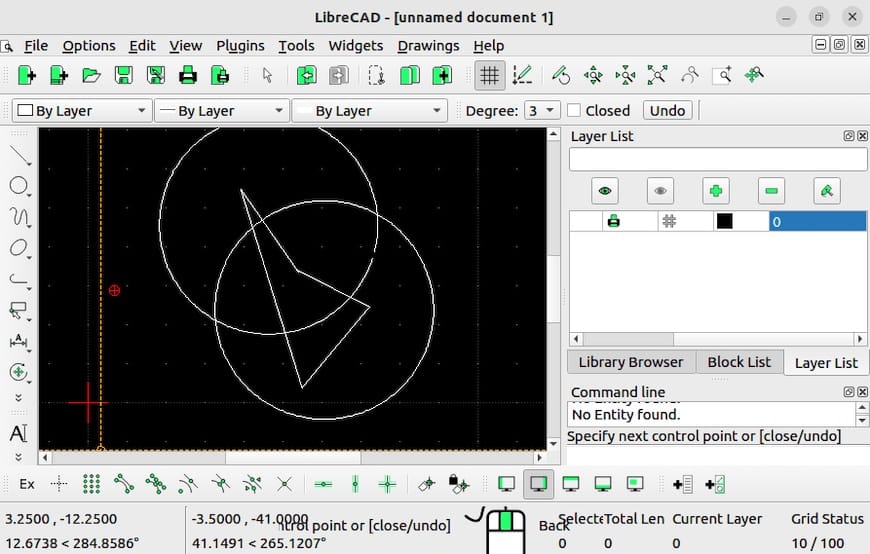
After you install LibreCAD on openSUSE using any method above, take a few minutes to configure it for your workflow.
Set Language and Measurement Units
On first launch, LibreCAD asks you to select your language and unit preference (metric or imperial). You can change these later at any time:
Options > Application Preferences > Appearance > Language
If your language does not appear, you may need to install additional language packs. On openSUSE, check the forums at forum.librecad.org for your specific locale.
Set a Default Drawing Template
Go to Options > Application Preferences > Paths and point the template path to a .dxf file that includes your preferred layer setup, title block, and unit settings. This saves time at the start of every new project.
Install Custom Fonts
LibreCAD supports .lff format fonts. Copy custom font files to:
~/.local/share/librecad/fonts/Restart LibreCAD after adding fonts for them to appear in the font selector.
Verify Everything Works
Create a new drawing, draw a rectangle using the Line tool, and save it as a .dxf file. Then verify the file was written correctly:
file yourtest.dxfExpected output:
yourtest.dxf: ASCII textIf you see that output, LibreCAD is writing valid .dxf files on your system.
Troubleshooting Common Issues
Even with a clean install, you may hit a few speed bumps. Here are the most common issues and exactly how to fix them.
Error: “Package ‘librecad’ not found”
Cause: The active repositories do not include LibreCAD, or the repo cache is stale.
Fix:
sudo zypper refresh
zypper search librecad
If the package still does not appear, add the OBS graphics repository as described in Step 2 above. Verify which repos are active with:
zypper repos -uError: “snap: command not found” After Installing Snapd
Cause: /snap/bin is not in your PATH yet.
Fix:
source /etc/profileIf that does not work, log out and log back in. Confirm snapd is running:
systemctl status snapdIf the service is not active, run sudo systemctl start snapd.
LibreCAD Crashes Immediately on Launch
Cause: Missing or broken Qt5 library dependencies.
Fix:
ldd $(which librecad) | grep "not found"This command lists any shared libraries that LibreCAD needs but cannot find. Reinstall the package to restore broken dependencies:
sudo zypper install --force librecadAppImage Fails to Execute
Cause: Missing execute permission or FUSE is not installed.
Fix:
ls -lh ~/Applications/LibreCAD-*.AppImageCheck that the file has an x in the permissions column. If not:
chmod +x ~/Applications/LibreCAD-*.AppImageIf you see a FUSE-related error on launch, install FUSE:
sudo zypper install fuseWrong Version Installed (Older Than Expected)
Cause: The default Leap repository contains an older stable build.
Fix: Check the installed version first:
librecad --versionIf it is older than you need, switch to the OBS graphics repository (Step 2) or use the Snap method (Step 3) to get the latest release.
Congratulations! You have successfully installed LibreCAD. Thanks for using this tutorial to install the latest version of LibreCAD open-source 2D Computer-Aided Design (CAD) on openSUSE system. For additional help or useful information, we recommend you check the official LibreCAD website.
[su_box title=”VPS Manage Service Offer” style=”bubbles” box_color=”#000000″ radius=”10″]If you don’t have time to do all of this stuff, or if this is not your area of expertise, we offer a service to do “VPS Manage Service Offer”, starting from $10 (Paypal payment). Please contact us to get the best deal![/su_box]