
If your team handles sensitive communications, customer data, or internal development discussions, handing all of that over to a third-party SaaS platform is a real risk. Slack, Teams, and similar tools store your messages on servers you do not control, subject to their own data retention and access policies. That is exactly why more sysadmins and developers are choosing to install Mattermost on Debian 13 — a fully self-hosted, open-source team messaging platform that keeps your data exactly where you put it: on your own server.
This guide walks you through the complete Mattermost on Debian 13 setup from a clean server to a fully working, SSL-secured installation. We will use PostgreSQL 17 as the database backend (the only officially supported option for Mattermost v11 and above), Nginx as a reverse proxy, and Let’s Encrypt for a free TLS certificate. Every command in this Linux server tutorial includes a clear explanation of what it does and why it matters, not just a block of code to blindly copy and paste.
By the end of this guide, you will have a production-ready Mattermost instance running as a systemd service on Debian 13 (Trixie), accessible via HTTPS on your own domain name. This tutorial targets beginners to intermediate Linux users, developers, and sysadmins who want a reliable self-hosted messaging platform without surprises.
Prerequisites
Before you start, confirm you have the following in place:
- OS: Debian 13 (Trixie), fully updated, on a dedicated server or KVM VPS
- RAM: Minimum 2 GB (4 GB recommended for teams of 10 or more)
- CPU: At least 2 cores
- Disk: 10 GB free minimum (more if you plan to store file uploads)
- User access: Root or a user with full
sudoprivileges - Domain name: A registered domain with an A record pointing to your server’s public IP address
- Open ports: 22 (SSH), 80 (HTTP), and 443 (HTTPS) must be reachable from the internet
- Basic familiarity: Comfortable running commands in a Linux terminal
A note on the domain requirement: Let’s Encrypt cannot issue TLS certificates to bare IP addresses. Without a valid domain and SSL, Mattermost’s login credentials and WebSocket connections travel over the network in plaintext, which defeats the entire purpose of a self-hosted secure messenger.
Step 1: Update Your Debian 13 System
Before installing any software on a fresh server, you need to bring the package index and all installed packages up to date. This prevents dependency conflicts that occur when new packages expect newer versions of system libraries than what is currently installed.
sudo apt update && sudo apt -y upgradeAfter the upgrade completes, reboot the server. Kernel updates do not take effect until the system restarts, and running a newly installed PostgreSQL against an outdated kernel can cause subtle memory management issues.
sudo rebootOnce the server comes back up, install a few essential utilities you will need throughout this Linux server tutorial:
sudo apt install -y wget tar nano curl ufwWhat each tool does:
wgetandcurl— download files and query APIstar— extract the Mattermost binary archivenano— text editor for modifying configuration filesufw— the Uncomplicated Firewall for managing open ports
Step 2: Configure the UFW Firewall
A server exposed to the internet without a firewall is open to brute-force attacks, unauthorized port scans, and service exploitation. Setting up UFW is a non-negotiable step before anything else goes live.
sudo ufw allow OpenSSH
sudo ufw allow 80/tcp
sudo ufw allow 443/tcp
sudo ufw --force enable
sudo ufw status
Critical order: You must allow OpenSSH before enabling UFW. If you enable the firewall first without that rule, your SSH session drops immediately and you lose access to the server entirely.
You will notice that port 8065, Mattermost’s default listening port, is not opened here. That is intentional. Nginx will proxy all external traffic through port 443 and pass it internally to localhost:8065. Exposing 8065 directly would allow unencrypted connections to bypass SSL entirely.
Expected output of ufw status:
Status: active
To                         Action      From
--                         ------      ----
OpenSSH                    ALLOW       Anywhere
80/tcp                     ALLOW       Anywhere
443/tcp                    ALLOW       Anywhere
Step 3: Install and Configure PostgreSQL 17
Why PostgreSQL and Not MySQL?
Mattermost dropped MySQL support starting from version 11. PostgreSQL 14.0 or higher is now the only officially supported database for Mattermost installations. Debian 13 ships PostgreSQL 17 natively in its default repositories, which makes this step straightforward.
sudo apt install -y postgresql postgresql-contrib
sudo systemctl enable --now postgresql
psql --version
The postgresql-contrib package adds useful extensions like pg_stat_statements for query performance monitoring. You do not need them immediately, but having them available avoids a reinstall later.
Expected version output:
psql (PostgreSQL) 17.xIf systemctl status postgresql shows active (exited) rather than active (running), that is normal on Debian. PostgreSQL on Debian is managed through pg_ctlcluster, and the systemd unit reports exited once the cluster is handed off. The database is fully operational.
Create the Mattermost Database and User
Now create a dedicated database and user for Mattermost. Using a separate user follows the principle of least privilege: if the application is ever compromised, the attacker can only access the mattermost database, not the entire PostgreSQL cluster.
sudo -u postgres psqlInside the PostgreSQL shell, run:
CREATE DATABASE mattermost WITH ENCODING 'UTF8' LC_COLLATE='en_US.UTF-8' LC_CTYPE='en_US.UTF-8' TEMPLATE=template0;
CREATE USER mmuser WITH PASSWORD 'ReplaceWithAStrongPassword';
ALTER DATABASE mattermost OWNER TO mmuser;
GRANT ALL PRIVILEGES ON DATABASE mattermost TO mmuser;
\q
Then run one more grant that is required on PostgreSQL 15 and higher (which Debian 13 ships):
sudo -u postgres psql -d mattermost -c "GRANT ALL ON SCHEMA public TO mmuser;"Why this extra grant? PostgreSQL 15 tightened default schema privileges. Without this command, Mattermost cannot create its own tables during the first run. You will get a permission denied for schema public error that has caught many people off guard on newer PostgreSQL versions.
Verify the database was created correctly:
sudo -u postgres psql -c "\l" | grep mattermostThe output should show mattermost with mmuser as the owner.
Step 4: Download and Install Mattermost on Debian 13
Fetch the Latest Mattermost Release
Rather than hard-coding a version number that goes stale the moment a new release drops, use the GitHub API to dynamically fetch the current latest version:
VER=$(curl -sL https://api.github.com/repos/mattermost/mattermost/releases/latest \
  | grep tag_name | head -1 | sed 's/.*"v\([^"]*\)".*/\1/')
echo $VER
This stores the current version (for example, 10.9.1) in the variable $VER. Now download and extract:
wget https://releases.mattermost.com/$VER/mattermost-$VER-linux-amd64.tar.gz -O /tmp/mattermost.tar.gz
sudo tar -xzf /tmp/mattermost.tar.gz -C /opt/
sudo mkdir -p /opt/mattermost/data
Why /opt/? This is the FHS-standard location for optional, self-contained third-party software on Linux. Placing Mattermost here keeps it isolated from system package manager directories and makes future upgrades clean and predictable.
Why create /data separately? This directory stores all uploaded files, plugin binaries, and custom emojis. Mattermost requires this directory to exist with the correct permissions before it can initialize. If it is missing, the service fails silently at first launch.
Create a Dedicated System User
sudo useradd --system --user-group mattermost
sudo chown -R mattermost:mattermost /opt/mattermost
sudo chmod -R g+w /opt/mattermost
Running Mattermost as root is a serious security risk. A system user has no login shell and no home directory, which limits the blast radius significantly if the application process is ever exploited. The g+w permission allows the mattermost group to write to the directory, which some plugins require.
Step 5: Configure Mattermost on Debian 13
Edit the Main Configuration File
Open the Mattermost configuration file:
sudo nano /opt/mattermost/config/config.jsonLocate and update two critical sections:
ServiceSettings:
"ServiceSettings": {
    "SiteURL": "https://mattermost.yourdomain.com",
    "ListenAddress": "127.0.0.1:8065"
}
SqlSettings:
"SqlSettings": {
    "DriverName": "postgres",
    "DataSource": "postgres://mmuser:ReplaceWithAStrongPassword@localhost:5432/mattermost?sslmode=disable&connect_timeout=10"
}
Why SiteURL matters: Mattermost uses this value to build email notification links, OAuth redirect URLs, and WebSocket connection strings. An incorrect or missing SiteURL causes broken password reset emails, failed OAuth logins, and WebSocket connection errors that are difficult to diagnose.
Why bind to 127.0.0.1:8065: Binding to loopback instead of 0.0.0.0 means the Mattermost application port is invisible to the internet. Only Nginx, running on the same host, can reach it through the proxy pass configuration.
Why sslmode=disable in the connection string: The PostgreSQL connection happens entirely on the loopback interface within the same server. Enabling TLS for a localhost connection adds CPU overhead with zero security benefit.
Why connect_timeout=10: This prevents Mattermost from hanging indefinitely if PostgreSQL is briefly unavailable during a restart or maintenance window.
Step 6: Create the Systemd Service and Install Nginx with SSL
Create the Mattermost Systemd Unit File
Create a new service file so Mattermost starts automatically on boot and restarts itself after any crash:
sudo nano /etc/systemd/system/mattermost.servicePaste the following:
[Unit]
Description=Mattermost
After=syslog.target network.target postgresql.service

[Service]
Type=notify
WorkingDirectory=/opt/mattermost
User=mattermost
ExecStart=/opt/mattermost/bin/mattermost
TimeoutStartSec=3600
KillMode=mixed
Restart=always
RestartSec=10
LimitNOFILE=49152

[Install]
WantedBy=multi-user.target
Enable and start the service:
sudo systemctl daemon-reload
sudo systemctl enable --now mattermost
sudo systemctl status mattermost
sudo ss -tlnp | grep 8065
Why After=postgresql.service? This ordering directive tells systemd to start PostgreSQL fully before attempting to start Mattermost. Without it, Mattermost can attempt a database connection while PostgreSQL is still initializing, producing a failed startup that looks like a configuration error.
Why LimitNOFILE=49152? Mattermost keeps one persistent WebSocket connection open per active browser tab. Each connection consumes a file descriptor. The Linux default limit of 1,024 file descriptors per process is far too low for any real team and will cause connection failures under even light use.
Why Restart=always with RestartSec=10? In a production environment, services must recover from crashes without manual intervention. The 10-second delay prevents a fast crash-restart loop from hammering the database repeatedly.
Install Nginx and Certbot
sudo apt install -y nginx certbot python3-certbot-nginxGet your SSL certificate. Stop Nginx temporarily so Certbot can use port 80 for the challenge:
sudo certbot certonly --standalone \
  --pre-hook 'systemctl stop nginx' \
  --post-hook 'systemctl start nginx' \
  -d mattermost.yourdomain.com \
  --non-interactive --agree-tos -m you@yourdomain.com
Configure the Nginx Virtual Host
Create a new Nginx site configuration:
sudo nano /etc/nginx/sites-available/mattermostPaste this configuration:
upstream backend {
    server 127.0.0.1:8065;
    keepalive 32;
}

server {
    listen 80;
    server_name mattermost.yourdomain.com;
    return 301 https://$host$request_uri;
}

server {
    listen 443 ssl;
    http2 on;
    server_name mattermost.yourdomain.com;

    ssl_certificate /etc/letsencrypt/live/mattermost.yourdomain.com/fullchain.pem;
    ssl_certificate_key /etc/letsencrypt/live/mattermost.yourdomain.com/privkey.pem;
    ssl_protocols TLSv1.2 TLSv1.3;
    ssl_prefer_server_ciphers on;

    client_max_body_size 50M;

    location ~ /api/v[0-9]+/(users/)?websocket$ {
        proxy_set_header Upgrade $http_upgrade;
        proxy_set_header Connection "upgrade";
        proxy_set_header Host $host;
        proxy_set_header X-Real-IP $remote_addr;
        proxy_set_header X-Forwarded-For $proxy_add_x_forwarded_for;
        proxy_set_header X-Forwarded-Proto $scheme;
        proxy_pass http://backend;
        proxy_read_timeout 600s;
    }

    location / {
        proxy_set_header Host $host;
        proxy_set_header X-Real-IP $remote_addr;
        proxy_set_header X-Forwarded-For $proxy_add_x_forwarded_for;
        proxy_set_header X-Forwarded-Proto $scheme;
        proxy_pass http://backend;
        proxy_read_timeout 600s;
    }
}
Enable the site and reload Nginx:
sudo ln -s /etc/nginx/sites-available/mattermost /etc/nginx/sites-enabled/
sudo nginx -t
sudo systemctl restart nginx
Why a separate WebSocket location block? Mattermost’s real-time features — typing indicators, instant message delivery, and online presence status — all depend on WebSocket connections. If Nginx does not pass the Upgrade and Connection headers through, the browser silently falls back to HTTP polling. The result is noticeable lag that is hard to trace back to its actual cause.
Why http2 on; on its own line? Nginx 1.26, which ships with Debian 13, deprecated the old listen 443 ssl http2; syntax. Using the old style produces a configuration warning and may cause issues in future Nginx versions. The standalone http2 on; directive is the correct approach on Debian 13.
Why restrict to TLS 1.2 and 1.3? TLS 1.0 and 1.1 are cryptographically broken and deprecated by all major browsers. Allowing them would make your server fail modern security audits and expose older clients to downgrade attacks.
Step 7: First Login, Admin Setup, and Post-Install Hardening
Complete the Web Setup Wizard
Open your browser and navigate to https://mattermost.yourdomain.com. You should land on the Mattermost welcome screen served over HTTPS with a valid certificate.
The first account registered on a fresh Mattermost instance automatically becomes the System Administrator. Do this immediately after deployment, before sharing the URL with your team, to prevent someone else from claiming admin rights by registering first.
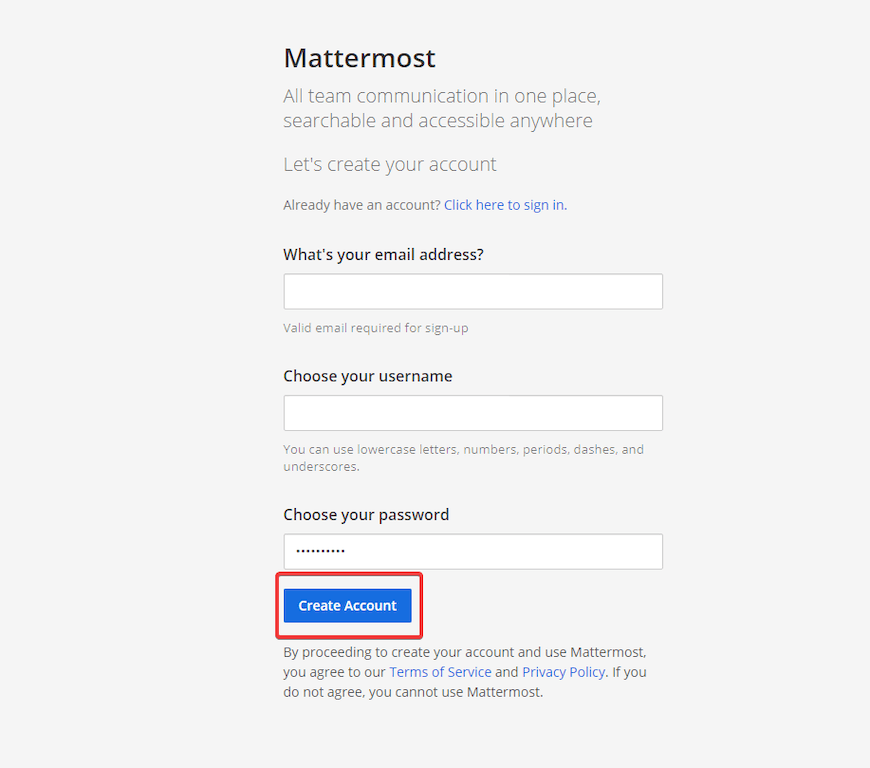
For headless or automated server setups, you can create the admin account via the command line instead:
sudo /opt/mattermost/bin/mmctl user create \
  --email admin@yourdomain.com \
  --username admin \
  --password 'YourStrongPassword' \
  --system-admin --local
Why the --local flag? This flag tells mmctl to communicate over a Unix socket rather than the HTTP API. When SMTP email verification is not yet configured, the normal API-based registration flow requires email confirmation, which is impossible if you have not set up a mail server yet. The --local method bypasses that entirely.
Post-Installation Security Checklist
These steps are not optional for a production deployment:
- Automatic SSL renewal: Run
sudo certbot renew --dry-runto confirm the renewal timer works. Let’s Encrypt certificates expire every 90 days. A lapsed cert blocks every user from accessing Mattermost. - SMTP setup: Go to System Console → Environment → SMTP. Without a working mail server, users cannot reset forgotten passwords or receive team invitations.
- Daily database backups: Schedule a cron job running
pg_dump mattermostevery night. Messages are stored in PostgreSQL; uploaded files are in/opt/mattermost/data. Losing either without a backup means permanent data loss. - Rate limiting: Enable under System Console → Environment → Rate Limiting to prevent bots or scripts from overwhelming the API.
- Prometheus metrics: Enable the metrics endpoint on port 8067 for proactive monitoring of memory, query latency, and active WebSocket connections.
Troubleshooting Common Issues
Even a careful installation can hit unexpected problems. Here are the five most common failures and how to fix them.
| Problem | Likely Cause | Fix |
|---|---|---|
| Mattermost service fails to start | Wrong password in config.json DataSource |
Run journalctl -u mattermost -n 50 and check for pq: password authentication failed |
| 502 Bad Gateway from Nginx | Mattermost is not listening on port 8065 | Run ss -tlnp | grep 8065; if empty, restart the mattermost service |
| WebSocket errors or slow message delivery | Missing Upgrade header in Nginx config |
Verify the websocket location block exists with Upgrade and Connection headers |
Permission denied on /opt/mattermost/data |
Incorrect file ownership | Run sudo chown -R mattermost:mattermost /opt/mattermost |
| SSL certificate error in browser | Certbot challenge failed during issuance | Confirm port 80 is open in UFW and the domain A record resolves to your server’s IP |
Checking logs: The single most useful diagnostic command after any Mattermost issue is:
sudo journalctl -u mattermost -n 100 --no-pagerIn 80% of cases, the root cause is visible in the last 20 lines of this output.
Congratulations! You have successfully installed Mattermost. Thanks for using this tutorial for installing Mattermost on your Debian 13 “Trixie” system. For additional help or useful information, we recommend you check the official Mattermost website.
[su_box title=”VPS Manage Service Offer” style=”bubbles” box_color=”#000000″ radius=”10″]If you don’t have time to do all of this stuff, or if this is not your area of expertise, we offer a service to do “VPS Manage Service Offer”, starting from $10 (Paypal payment). Please contact us to get the best deal![/su_box]
