
If your server crashes at 3 a.m. and you find out from an angry client instead of an alert, you have a monitoring problem. Most sysadmins learn this lesson the hard way, usually right before a deadline. That is exactly why Prometheus exists, and why so many Linux teams are moving toward it for real time visibility into CPU, memory, disk, and network health.
This guide walks you through how to install Prometheus on Ubuntu 26.04 using the official binaries, a dedicated system user, and a proper systemd service. You will also learn how to set up Prometheus on Ubuntu 26.04 for host monitoring by adding Node Exporter, opening the right firewall ports, and confirming that everything is actually working, not just running.
By the end, you will have a working Prometheus instance that starts on boot, scrapes metrics correctly, and survives a reboot without falling over. We will also cover common mistakes people make when they try to configure Prometheus on Ubuntu 26.04, so you can skip the frustrating trial and error phase entirely.
This is written as a practical Linux server tutorial, not a theory lecture. Every command has a reason behind it, because copying commands without understanding them is how servers break in production.
Prerequisites
Before you start, make sure you have the basics covered. Skipping these steps is the number one reason installations fail halfway through.
- A server or VM running Ubuntu 26.04 LTS, with at least 2 CPU cores and 4 GB of RAM for light monitoring workloads.
- Root or sudo access to the machine, since Prometheus needs system level directories and a dedicated service user.
- A stable internet connection to download the Prometheus binary release.
- Basic familiarity with the terminal, including navigating directories and editing files.
- curl or wget installed for downloading files.
- tar installed for extracting archives, which ships with Ubuntu by default.
- An open port plan, since Prometheus listens on port 9090 and Node Exporter listens on port 9100.
If you are working on a fresh Ubuntu 26.04 install, you likely already meet these requirements. If not, we will fix any gaps in Step 1.
Step 1: Update Your System
Before installing anything new, you need a clean base to work from. An outdated package list is one of the most common causes of weird dependency errors later.
Refresh package information
Run the following command to update your local package index:
sudo apt updateThis command does not install anything yet. It just tells your system where to find the latest versions of available packages.
Apply available upgrades
Next, apply any pending updates:
sudo apt upgrade -yWhy this matters: Prometheus interacts closely with the kernel and system libraries through exporters. Running on an outdated system increases the risk of compatibility issues, especially with newer monitoring tools that expect current library versions.
If the kernel gets updated during this step, a reboot is a good idea before continuing:
sudo rebootWait a minute, then reconnect using SSH if you are working remotely.
Step 2: Create a Dedicated Prometheus User
This step gets skipped a lot, and it should not be. Running monitoring software as root is a bad habit that creates unnecessary security risk.
Create the system user
Run this command to create a user with no login shell:
sudo useradd --no-create-home --shell /usr/sbin/nologin prometheusWhy this matters: Prometheus does not need to log in interactively. Giving it a restricted, no-shell account limits what an attacker could do if the service were ever compromised. This is a basic security practice that senior sysadmins apply to almost every background service.
Create required directories
Prometheus needs two main locations, one for configuration and one for stored metrics data:
sudo mkdir /etc/prometheus
sudo mkdir /var/lib/prometheus/etc/prometheuswill hold configuration files, alert rules, and console templates./var/lib/prometheuswill store the actual time series database files.
Separating these two locations makes backups and troubleshooting much easier down the road. If your data directory grows too large, you can manage it without touching your configuration files.
Step 3: Download and Install Prometheus Binaries
Now for the main event. Instead of using outdated third party repositories, we will pull the official release directly from the source.
Check the latest version
Visit the official Prometheus GitHub releases page in your browser to confirm the current stable version number. As of mid 2026, the actively supported release lines are Prometheus 3.5 and newer 3.x versions, so always check before downloading.
Download the archive
Once you know the version number, download it with curl. Replace the version number below with the current one you found:
curl -LO https://github.com/prometheus/prometheus/releases/download/v3.5.0/prometheus-3.5.0.linux-amd64.tar.gzWhy this matters: Downloading directly from the official GitHub releases page avoids third party mirrors that may be outdated or, in rare cases, tampered with. This keeps your monitoring stack trustworthy from the start.
Extract the files
Unpack the archive using tar:
tar xvf prometheus-3.5.0.linux-amd64.tar.gzYou should see output listing each extracted file, including the prometheus binary, the promtool binary, and default configuration folders.
Move the binaries into place
Copy the two main executables into a standard system path:
sudo mv prometheus-3.5.0.linux-amd64/prometheus /usr/local/bin/
sudo mv prometheus-3.5.0.linux-amd64/promtool /usr/local/bin/
Why this matters: Placing binaries in /usr/local/bin keeps them separate from software managed by the Ubuntu package manager. This avoids conflicts if you later install a different Prometheus version through apt.
Move configuration files
Move the sample config and support directories into /etc/prometheus:
sudo mv prometheus-3.5.0.linux-amd64/consoles /etc/prometheus
sudo mv prometheus-3.5.0.linux-amd64/console_libraries /etc/prometheus
sudo mv prometheus-3.5.0.linux-amd64/prometheus.yml /etc/prometheus
Set correct ownership
Now assign ownership of these directories to the Prometheus user you created earlier:
sudo chown -R prometheus:prometheus /etc/prometheus
sudo chown -R prometheus:prometheus /var/lib/prometheus
Skipping this step is a common reason the service fails to start. If Prometheus cannot read or write to its own directories, it will exit immediately.
Step 4: Configure Prometheus
This is where most tutorials get lazy. A good configuration file is the difference between a monitoring system that actually helps you and one that just sits there collecting dust.
Open the configuration file
Edit the file with your preferred text editor:
sudo nano /etc/prometheus/prometheus.ymlReview the default structure
The file should contain a basic structure like this:
global:
  scrape_interval: 15s
  evaluation_interval: 15s

scrape_configs:
  - job_name: "prometheus"
    static_configs:
      - targets: ["localhost:9090"]
Understand each setting
scrape_intervalcontrols how often Prometheus collects metrics from each target.evaluation_intervalcontrols how often alert rules are checked against the collected data.job_nameis a label used to identify a group of monitored targets.static_configsandtargetsdefine which addresses Prometheus should scrape.
Why this matters: A shorter scrape interval gives more detailed data but uses more disk space and CPU. A longer interval saves resources but may miss short lived spikes. Fifteen seconds is a solid starting point for most small to medium servers.
Save the file and exit the editor.
Step 5: Create a systemd Service for Prometheus
Running Prometheus manually from the terminal works for testing, but it will not survive a reboot or an SSH disconnect. A systemd service fixes that.
Create the service file
sudo nano /etc/systemd/system/prometheus.serviceAdd the service definition
Paste the following configuration:
[Unit]
Description=Prometheus Monitoring System
Wants=network-online.target
After=network-online.target

[Service]
User=prometheus
Group=prometheus
Type=simple
ExecStart=/usr/local/bin/prometheus \
  --config.file=/etc/prometheus/prometheus.yml \
  --storage.tsdb.path=/var/lib/prometheus/ \
  --web.console.templates=/etc/prometheus/consoles \
  --web.console.libraries=/etc/prometheus/console_libraries

[Install]
WantedBy=multi-user.target
Why this matters: The ExecStart line tells systemd exactly how to launch Prometheus, including where to find its config file and where to store its data. Without this, systemd would not know how to run the program correctly, and it would fail on boot.
Save the file and exit.
Reload systemd
Tell systemd to recognize the new service file:
sudo systemctl daemon-reloadEnable and start the service
sudo systemctl enable prometheus
sudo systemctl start prometheus
Verify the service status
sudo systemctl status prometheusYou should see output showing active (running) in green text, along with the process ID and recent log lines. If you see failed instead, check the troubleshooting section below.
Step 6: Open Firewall Access and Verify in the Browser
Your service is running, but you still need to confirm it is reachable and actually collecting data.
Allow the Prometheus port
If you are using UFW, allow port 9090:
sudo ufw allow 9090/tcpWhy this matters: Prometheus will not be reachable from outside the server if the firewall blocks its port. Only open this port to trusted networks in production, since the default setup has no built in authentication.
Access the web interface
Open a browser and go to:
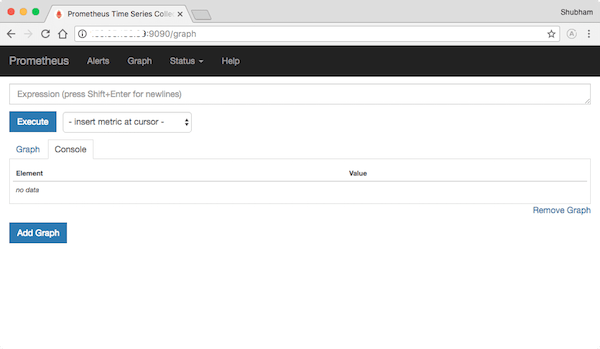
http://your-server-ip:9090You should see the Prometheus web interface load successfully.
Check the Targets page
Click on Status, then Targets. You should see the prometheus job listed with a state of UP in green.
Why this matters: A green UP status confirms that Prometheus is successfully scraping metrics from itself. If it says DOWN, something is wrong with your config file or the service is not fully started.
Step 7: Install Node Exporter for Host Metrics
Prometheus alone only monitors itself. To track real server health like CPU load, memory usage, and disk space, you need Node Exporter.
Download Node Exporter
curl -LO https://github.com/prometheus/node_exporter/releases/download/v1.8.2/node_exporter-1.8.2.linux-amd64.tar.gzExtract and install
tar xvf node_exporter-1.8.2.linux-amd64.tar.gz
sudo mv node_exporter-1.8.2.linux-amd64/node_exporter /usr/local/bin/
Create a dedicated user
sudo useradd --no-create-home --shell /usr/sbin/nologin node_exporterCreate a systemd service
sudo nano /etc/systemd/system/node_exporter.servicePaste this configuration:
[Unit]
Description=Node Exporter
Wants=network-online.target
After=network-online.target

[Service]
User=node_exporter
Group=node_exporter
Type=simple
ExecStart=/usr/local/bin/node_exporter

[Install]
WantedBy=multi-user.target
Then enable and start it:
sudo systemctl daemon-reload
sudo systemctl enable node_exporter
sudo systemctl start node_exporter
Add Node Exporter as a scrape target
Go back into your Prometheus config file:
sudo nano /etc/prometheus/prometheus.ymlAdd a new job under scrape_configs:
  - job_name: "node_exporter"
    static_configs:
      - targets: ["localhost:9100"]
Why this matters: Without this addition, Prometheus has no idea Node Exporter exists. Adding the job tells Prometheus where to pull server level metrics from, which is the whole point of setting this up.
Save the file, then restart Prometheus so it picks up the change:
sudo systemctl restart prometheusRefresh the Targets page in your browser. You should now see both prometheus and node_exporter listed as UP.
Troubleshooting Common Issues
Even careful setups run into snags. Here are the most common problems and how to fix them.
- Service fails to start with a permission error
This usually means the Prometheus user does not own its own data or config directories. Re-run thechowncommands from Step 3 and try starting the service again. - Config file errors on startup
Runpromtool check config /etc/prometheus/prometheus.ymlbefore restarting the service. This catches YAML formatting mistakes before they cause a silent failure. - Web interface will not load in the browser
Check that the firewall port is open and that the service is actually running withsudo systemctl status prometheus. Also confirm you are using the correct server IP address, notlocalhost, if accessing remotely. - Target shows DOWN on the Targets page
This usually means the exporter service is not running, or the port number in your config does not match the exporter’s actual listening port. Double check withsudo systemctl status node_exporter. - Disk space fills up quickly
Prometheus stores all scraped data locally by default. If storage grows too fast, consider adding a retention flag like--storage.tsdb.retention.time=15dto the systemd service file to automatically delete old data.

