
You spend hours configuring your Debian 13 system just the way you want it. Then one bad package update, one misconfigured service, or one accidental file deletion sends everything sideways. Without a system snapshot in place, your only option is rebuilding from scratch.
That is exactly where Timeshift comes in. This guide walks you through how to install Timeshift on Debian 13, configure it correctly for your filesystem, create your first snapshot, set up automated scheduling, and restore your system when things go wrong. Whether you are running a desktop or a headless server, every step here applies to you.
Debian 13 “Trixie,” released on August 9, 2025, ships Timeshift directly in its official repositories, which means no PPAs, no manual compilation, and no dependency hunting. This is a clean, straightforward install that you can complete in under ten minutes.
What Is Timeshift and Why Does It Matter on Debian 13?
Timeshift is an open-source system restore tool maintained by Linux Mint under the LGPL-3.0 license. It creates point-in-time snapshots of your Linux system files and configurations, so you can roll back to a known-good state whenever something breaks.
Think of it as Windows System Restore or macOS Time Machine, but built for Linux and actually reliable.
One critical thing to understand before you dive in: Timeshift is a system restore tool, not a personal file backup solution. It excludes the /home directory by default. For backing up your documents, photos, and personal data, use a separate tool like rsync, Déjà Dup, or Borg.
On Debian 13 specifically, Timeshift fills a real gap. Trixie users who pull packages from backports or experiment with mixed repositories can break things quickly. Having a snapshot from five minutes before that update is the difference between a two-minute restore and a two-hour rebuild.
Rsync Mode vs. BTRFS Mode: Choose Before You Install
Timeshift supports two snapshot methods. Choosing the right one before you run a single command saves you significant reconfiguration headache later.
Rsync Mode
Rsync mode works by copying your system files using rsync with hard links between snapshots to save space. It runs on any filesystem, including the ext4 default that most Debian installations use.
Use rsync mode if:
- Your root partition is formatted as ext4, xfs, or any non-BTRFS filesystem
- You want to store snapshots on an external drive or a separate partition
- You are running a server without a BTRFS setup
The downside: rsync snapshots take longer to create and use more disk space per snapshot because they involve actual file copying.
BTRFS Mode
BTRFS mode uses native subvolume snapshots built into the BTRFS filesystem. Snapshots are near-instant and space-efficient because BTRFS only tracks what changed, not what stayed the same (this is copy-on-write behavior).
Use BTRFS mode if:
- You installed Debian 13 with BTRFS and set up the standard subvolume layout (
@for root,@homefor home) - You want the fastest possible snapshot creation and restore times
The downside: BTRFS snapshots live on the same disk as your root system. A hardware failure takes out both your system and your snapshots.
| Feature | Rsync Mode | BTRFS Mode |
|---|---|---|
| Filesystem Required | Any (ext4, xfs, etc.) | BTRFS only |
| Snapshot Speed | Slower | Near-instant |
| Disk Space Efficiency | Lower (file copies) | Higher (copy-on-write) |
| Off-disk Storage | Yes | No (same disk only) |
| Best For | Most users, servers | Advanced BTRFS setups |
Prerequisites
Before you run any commands, confirm you have the following in place:
- Debian 13 “Trixie” installed (amd64, ARM64, armhf, POWER, or RISC-V 64-bit architectures supported; i386 is not supported in Debian 13)
- Sudo privileges on your user account
- At least 10 to 20 GB of free disk space on the target partition for storing multiple snapshots
- Internet access to reach the Debian repositories
- Knowledge of your filesystem type (run
df -T /to check before you start)
To check your filesystem type right now:
df -T /Expected output:
Filesystem     Type  1K-blocks    Used Available Use% Mounted on
/dev/sda1      ext4   20511312 8245120  11202308  43% /
If Type shows btrfs, you can use BTRFS mode. If it shows ext4 or anything else, stick with rsync mode.
Step 1: Update Your Package Repository Index
Before installing anything on Debian 13, refresh your local APT package cache. This step ensures APT has the latest metadata from the official Debian repositories.
sudo apt updateWhy this matters: APT keeps a local snapshot of available packages. If that cache is stale, APT may try to install an outdated version of Timeshift or report a “package not found” error even though the package exists upstream. Running apt update first takes ten seconds and prevents a confusing failure.
Expected output (condensed):
Get:1 http://deb.debian.org/debian trixie InRelease [172 kB]
Get:2 http://deb.debian.org/debian trixie/main amd64 Packages [9,241 kB]
Fetched 9,413 kB in 4s (2,353 kB/s)
Reading package lists... Done
Step 2: Install Timeshift on Debian 13
Now install Timeshift directly from the official Debian 13 main repository:
sudo apt install timeshiftWhy this matters: Timeshift is packaged in the Debian 13 main repository, meaning no third-party PPAs or manual builds are needed. Using apt also handles all dependencies automatically and verifies the package against Debian’s cryptographic signing keys. You get a clean, trusted install.
APT will show you the packages it plans to install and ask for confirmation. Press Y and hit Enter.
Expected output (condensed):
The following NEW packages will be installed:
  timeshift libgee-0.8-2 ...
0 upgraded, 8 newly installed, 0 to remove and 0 not upgraded.
Do you want to continue? [Y/n] Y
Verify the Installation
After the install finishes, confirm it completed successfully:
timeshift --versionExpected output:
Timeshift v24.01.1Why this matters: Checking the version confirms the binary is installed and accessible in your PATH. It also tells you which version you are running, useful if you ever need to search for version-specific bugs or changelog notes on the Timeshift GitHub page.
Step 3: Launch Timeshift and Configure It
You have two paths here depending on your environment: the GUI for desktop users and the CLI for server or headless setups.
Option A: Launch the Timeshift GUI (Desktop Users)
sudo timeshift-gtkWhy use sudo here: Timeshift reads and writes to protected system directories during both configuration and snapshot creation. Without root privileges, the GUI opens and then immediately crashes with a permission error.
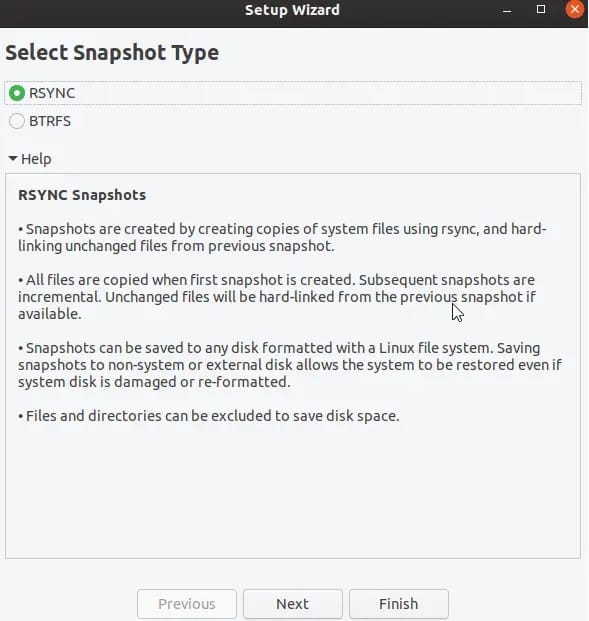
The first-run wizard walks you through four screens:
- Snapshot type (Rsync or BTRFS): Choose based on the filesystem check you did in the prerequisites.
- Snapshot location: Select a target partition or external drive. For rsync mode, choose a partition separate from your root drive. Storing snapshots on the same partition they are protecting defeats the purpose.
- Snapshot levels: Configure how many hourly, daily, weekly, monthly, and boot snapshots to keep.
- User home directories: Leave
/homeexcluded unless you have a strong reason to include it. Including home data in system snapshots risks overwriting newer personal files during a restore.
Option B: Configure Timeshift from the Command Line (Server and Headless Users)
This is the approach most guides skip, and it is exactly what a sysadmin running a headless Debian 13 server needs.
Step 3a: Find Your Target Partition UUID
sudo blkidExpected output (example):
/dev/sda1: UUID="a1b2c3d4-e5f6-7890-abcd-ef1234567890" TYPE="ext4" PARTUUID="..."
/dev/sdb1: UUID="f9e8d7c6-b5a4-3210-fedc-ba9876543210" TYPE="ext4" PARTUUID="..."
Why use UUID instead of device name: Device names like /dev/sdb1 can change between reboots, especially with USB drives or when you add new storage. UUIDs are permanent identifiers tied to the partition itself. Using the wrong device name means Timeshift tries to write snapshots somewhere they should not go, or fails silently.
Step 3b: Edit the Timeshift Configuration File
Before your first snapshot, Timeshift reads from default.json. After the first snapshot, it switches to timeshift.json. Edit default.json now to set the correct target before anything gets written:
sudo nano /etc/timeshift/default.jsonKey fields to configure:
{
  "backup_device_uuid" : "f9e8d7c6-b5a4-3210-fedc-ba9876543210",
  "snapshot_type" : "rsync",
  "schedule_monthly" : "false",
  "schedule_weekly" : "true",
  "schedule_daily" : "true",
  "schedule_hourly" : "false",
  "schedule_boot" : "true",
  "count_monthly" : "2",
  "count_weekly" : "3",
  "count_daily" : "5",
  "count_hourly" : "6",
  "count_boot" : "3"
}
What each field does and why it matters:
backup_device_uuid: Points Timeshift to the correct storage partition. Get this wrong and snapshots land in the wrong place.snapshot_type: Set torsyncfor ext4 systems orbtrfsfor BTRFS systems.schedule_dailyandcount_daily: Automates protection. Keeping 5 daily snapshots gives you a week of rollback points without filling up the disk.count_boot: Boot snapshots are created 10 minutes after startup. Keeping 3 means you always have protection around recent reboots.
Save the file with Ctrl + O, then Ctrl + X to exit.
Step 4: Create Your First Snapshot
Now create a baseline snapshot manually to test the configuration before relying on automation.
sudo timeshift --create --comments "Post-install baseline Debian 13"Why add a comment: When you have 10 snapshots listed and something just broke, a human-readable comment tells you immediately which snapshot predates a specific change. The timestamp alone is not enough context during a stressful recovery.
Verify the snapshot was created successfully:
sudo timeshift --listExpected output:
Num     Name                 Tags  Description
------------------------------------------------------------------------------
0    >  2026-04-26_22-10-01  O     Post-install baseline Debian 13
If the snapshot appears in this list, your entire setup is working correctly.
Step 5: Configure Automatic Snapshot Scheduling
Timeshift uses cron internally to trigger scheduled snapshots. Once you configured the schedule fields in timeshift.json (or through the GUI), no additional cron editing is needed.
Why automate: Manual snapshots work only when you remember to create them. You will not remember before every apt upgrade. Automated scheduling means there is always a recent restore point available, whether you thought about it or not.
Recommended schedule for a desktop:
- Daily: keep 5 snapshots
- Weekly: keep 3 snapshots
- Boot: keep 3 snapshots
Recommended schedule for a production server:
- Boot: keep 3 snapshots
- Daily: keep 7 snapshots
- Weekly: keep 2 snapshots
A critical warning on retention counts: Without retention limits, Timeshift never deletes old snapshots. If you schedule daily snapshots with no count limit, your disk will eventually fill completely. A full disk on Linux causes processes to crash, log files to stop writing, and databases to corrupt. Always set count limits.
Step 6: How To Restore a Snapshot on Debian 13
Knowing how to restore is just as important as knowing how to create a snapshot. Here are both scenarios you will realistically encounter.
Restore from a Running System (System Still Boots)
If your system boots but something is broken, for example a package broke a shared library, restore directly from the terminal:
sudo timeshift --restoreTimeshift displays a numbered list of available snapshots. Select the one you want, confirm the prompt, and it restores your system files in place.
Why this works: For non-critical breakage where the kernel and init system still function, an in-place restore is fast and does not require external media. Timeshift will exclude /home from the restore by default, so your personal files stay untouched.
Restore from a Live USB (System Will Not Boot)
If your Debian 13 system will not boot at all:
- Boot from a Debian 13 Live USB or any live Linux environment
- Install Timeshift on the live session:
sudo apt update && sudo apt install timeshift- Run the restore and point it to your snapshot drive:
sudo timeshift --restoreWhy this works: A live USB runs a completely independent Linux environment. It mounts your broken system’s drives without loading any of the broken system’s files, letting Timeshift overwrite damaged files cleanly. This approach handles even kernel-level failures that prevent normal booting.
Troubleshooting Common Timeshift Issues on Debian 13
Error: “No BTRFS partition found” (on an ext4 system)
Cause: You selected BTRFS mode during setup but your root partition is ext4.
Fix: Open the Timeshift settings, switch snapshot type to “Rsync,” and recreate your configuration.
sudo timeshift-gtkOr edit timeshift.json directly and change "snapshot_type" : "btrfs" to "snapshot_type" : "rsync".
Error: Disk Fills Up Completely After Snapshots
Cause: No retention count set. Timeshift kept every snapshot without limit.
Fix: Set count_daily, count_weekly, and count_boot values in your config file, then manually delete older snapshots:
sudo timeshift --delete --snapshot '2026-04-01_12-00-01'Error: “Target device not found” or Snapshots Writing to Wrong Location
Cause: The backup_device_uuid in timeshift.json points to a device that changed its name or is not mounted.
Fix: Run sudo blkid, find the correct UUID for your target partition, and update the config file:
sudo blkid
sudo nano /etc/timeshift/timeshift.json
Error: Restore Fails with “mount: structure needs cleaning”
Cause: Filesystem corruption on the partition where snapshots are stored.
Fix: Unmount the affected partition and run fsck:
sudo fsck -y /dev/sda1Replace /dev/sda1 with your actual partition. After fsck completes, retry the restore.
Error: Timeshift GUI Crashes Immediately After Launch
Cause: Launched without sudo.
Fix: Always use sudo timeshift-gtk for the GUI, never just timeshift-gtk.
Congratulations! You have successfully installed Timeshift. Thanks for using this tutorial for installing the latest version of Timeshift on Debian 13 “Trixie” system. For additional help or useful information, we recommend you check the official Timeshift website.
[su_box title=”VPS Manage Service Offer” style=”bubbles” box_color=”#000000″ radius=”10″]If you don’t have time to do all of this stuff, or if this is not your area of expertise, we offer a service to do “VPS Manage Service Offer”, starting from $10 (Paypal payment). Please contact us to get the best deal![/su_box]

