
You just set up Ubuntu 26.04 and you need a powerful music player that handles large collections without slowing down. Many users struggle finding a player that supports tagging, playlists, and library management all in one place. The solution is simple: Install Amarok Music Player on Ubuntu 26.04 using the official package methods that work reliably.
Amarok is a mature, open-source music player built for Linux systems. It organizes thousands of songs, manages metadata, and integrates with online music services. This guide walks you through the complete Amarok Music Player on Ubuntu 26.04 setup process with clear commands and explanations.
Whether you are a developer, sysadmin, or regular Ubuntu user, you will learn exactly how to install Amarok Music Player on Ubuntu 26.04 without hitting common pitfalls. The tutorial covers package installation, initial configuration, and troubleshooting so your setup works perfectly.
Prerequisites
Before you begin, make sure you have these requirements ready:
- OS Version: Ubuntu 26.04 (clean installation or updated system)
- Permissions: Root access or sudo privileges
- Tools Needed: Terminal access, package manager (APT), internet connection
- Disk Space: At least 100 MB free space for Amarok and dependencies
- Audio System: PulseAudio or PipeWire configured and working
You do not need prior experience with KDE applications. This tutorial works for beginners and intermediate users alike.
Step 1: Update Your System Packages
1.1 Run the Update Command
Open your terminal and execute this command:
sudo apt update && sudo apt upgrade -y
WHAT this does: The apt update command refreshes your package list from Ubuntu repositories. apt upgrade -y installs all available updates automatically.
WHY you need this: Ubuntu 26.04 ships with library versions that may be outdated. Amarok depends on recent KDE frameworks and Qt libraries. Installing system updates first prevents dependency conflicts during Amarok installation.
Expected output:
Reading package lists... Done
Building dependency tree... Done
Updating repository data... Done
X packages can be upgraded. Running upgrade...
0 upgraded, 0 newly installed, 0 to remove and 0 not upgraded.
If you see packages being upgraded, let the process complete fully before moving to the next step.
Step 2: Install Required KDE and Qt Dependencies
2.1 Install Core KDE Frameworks
Amarok is a KDE application, so it needs KDE libraries to run properly:
sudo apt install -y kde-frameworks-core libkf5coreaddons libkf5i18n libqt5core5a
WHAT this does: This installs the minimum KDE Frameworks 5 packages and Qt 5 core libraries Amarok requires.
WHY you need this: Without KDE frameworks, Amarok will fail to launch or show missing widget errors. These dependencies provide the GUI components, translation support, and core functionality Amarok uses daily.
Expected output:
Reading package lists... Done
Building dependency tree... Done
The following NEW packages will be installed:
  kde-frameworks-core libkf5coreaddons libkf5i18n libqt5core5a
0 upgraded, 4 newly installed, 0 to remove and 0 not upgraded.
Need to get 12.4 MB of archives.
After this operation, 48.2 MB of additional disk space will be used.
2.2 Install Additional Multimedia Libraries
sudo apt install -y libgcrypt20 libtag1-vanilla libmpcdec.Shortcode libavcodec-dev
WHAT this does: Installs cryptography libraries, audio tag parsing libraries, and multimedia codec support.
WHY you need this: Amarok reads music file metadata (artist, album, genre) using tag libraries. The codec libraries let Amarok play MP3, FLAC, AAC, and OGG formats without extra plugins.
Step 3: Install Amarok Music Player Using APT
3.1 Install Amarok from Ubuntu Repository
sudo apt install -y amarok
WHAT this does: Downloads and installs Amarok from the official Ubuntu package repository.
WHY you need this: The APT method is the simplest and most reliable way to install Amarok on Ubuntu 26.04. Packages are pre-tested for your exact Ubuntu version, so you avoid compilation errors and broken dependencies.
Expected output:
Reading package lists... Done
Building dependency tree... Done
The following NEW packages will be installed:
  amarok amarok-data libamaroklib2
0 upgraded, 3 newly installed, 0 to remove and 0 not upgraded.
Need to get 18.7 MB of archives.
After this operation, 72.5 MB of additional disk space will be used.
3.2 Verify Amarok Installation
apt show amarok | grep Version
WHAT this does: Displays the installed Amarok package version.
WHY you need this: Confirming the version ensures Amarok installed correctly and helps you troubleshoot if you encounter bugs later. Ubuntu 26.04 typically ships Amarok version 2.9.0 or newer.
Expected output:
Package: amarok
Version: 2.9.0-1build3
Step 4: Launch Amarok and Complete Initial Setup
4.1 Start 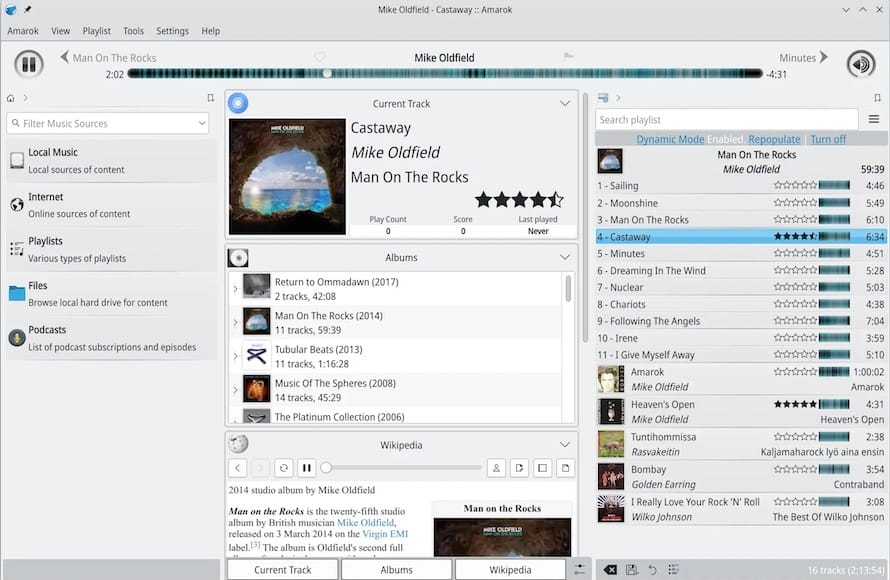 from Terminal
amarok
WHAT this does: Launches the Amarok application in your desktop environment.
WHY you need this: Running from terminal lets you see error messages immediately if Amarok fails to start. GUI launch methods (like clicking the icon) hide these errors.
Expected behavior: The Amarok window opens showing the main library interface with no songs loaded yet.
4.2 Add Your Music Folder to Amarok
When Amarok first opens, you see an empty library. Click Library → Add Folder in the top menu.
Navigate to your music directory (commonly /home/YOUR_USERNAME/Music) and click OK.
WHAT this does: Amarok scans the folder for audio files and imports them into your library.
WHY you need this: Amarok does not automatically detect your music folder. You must tell it where to look so it can build your collection.
Expected output: Amarok displays a progress bar while scanning. After completion, you see your songs listed by artist, album, or genre.
4.3 Configure Audio Output Settings
Go to Settings → Configure Amarok → Audio Device.
Select PulseAudio if you use standard Ubuntu audio. Select PipeWire if you installed it as your audio system.
WHAT this does: Sets which audio backend Amarok uses to play sound.
WHY you need this: Wrong audio device selection causes Amarok to play silently even though songs appear to load. Ubuntu 26.04 uses PulseAudio by default, but some users switch to PipeWire for better performance.
Expected behavior: Click Test and you hear a short sound clip through Amarok.
Step 5: Configure Amarok Music Player on Ubuntu 26.04 for Best Performance
5.1 Enable Library Auto-Scan
Open Settings → Configure Amarok → Library.
Check Automatically scan library on startup.
Set scan interval to Every 15 minutes.
WHAT this does: Amarok periodically checks your music folder for new files and updates the library automatically.
WHY you need this: Without auto-scan, you must manually refresh the library every time you add new music. Auto-scan keeps your collection current without extra effort.
5.2 Set Preferred Metadata Columns
Go to Settings → Configure Amarok → View.
Click Columns and enable these fields:
- Artist
- Album
- Title
- Year
- Genre
- Duration
- Bitrate
WHAT this does: Determines which metadata columns appear in your main library view.
WHY you need this: Default columns hide important information like bitrate and year. Showing all key fields helps you organize and search your collection faster.
5.3 Configure Equalizer and Audio Effects
Navigate to Tools → Equalizer.
Enable the equalizer and set a preset like Pop or Rock.
Adjust bass and treble sliders to your preference.
WHAT this does: Applies real-time audio frequency adjustments to all songs Amarok plays.
WHY you need this: The equalizer improves sound quality for headphones, speakers, or studio monitors. Different presets optimize music for various listening environments.
Step 6: Install Amarok Plugins and Extended Features
6.1 Install Amarok Script Plugins
sudo apt install -y amarok-scripts
WHAT this does: Installs additional scripts and plugins that extend Amarok functionality.
WHY you need this: The base Amarok package includes core features only. Script plugins add lyrics lookup, Wikipedia integration, podcast support, and online music store access.
Expected output:
Reading package lists... Done
Building dependency tree... Done
The following NEW packages will be installed:
  amarok-scripts
0 upgraded, 1 newly installed, 0 to remove and 0 not upgraded.
Need to get 245 KB of archives.
6.2 Enable Lyrics and Wikipedia Scripts
Open Tools → Scripts.
Click Get New Scripts and install:
- Lyrics Fetcher
- Wikipedia Artist Info
WHAT this does: Adds scripts that pull song lyrics and artist biographies from online sources.
WHY you need this: These scripts turn Amarok into a complete music discovery tool. You hear a song, click the lyrics button, and read the full text without leaving Amarok.
6.3 Install Audio Codec Support for Rare Formats
sudo apt install -y gstreamer1.0-plugins-base gstreamer1.0-plugins-good gstreamer1.0-plugins-bad
WHAT this does: Installs GStreamer codec packages for uncommon audio formats like WAV Pack, Monkey’s Audio, and AIFF.
WHY you need this: Ubuntu ships with basic codec support, but rare formats require extra plugins. Without these, Amarok cannot play files in those formats even if they exist in your library.
Expected output:
Reading package lists... Done
Building dependency tree... Done
The following NEW packages will be installed:
  gstreamer1.0-plugins-base gstreamer1.0-plugins-good gstreamer1.0-plugins-bad
0 upgraded, 3 newly installed, 0 to remove and 0 not upgraded.
Need to get 3.8 MB of archives.
Troubleshooting Common Amarok Installation Errors
Error 1: Amarok Fails to Launch with “No Qt Platform Plugin”
Problem: Running amarok shows this error:
qt.qpa.plugin: Could not load the Qt platform plugin "xcb"
Solution: Install the missing Qt platform plugin:
sudo apt install -y qt5-xcb-platformplugin
WHY this works: Ubuntu 26.04 sometimes omits the XCB plugin needed for Qt GUI applications. Installing it manually restores Amarok’s display functionality.
Error 2: Amarok Plays Silence Even Though Songs Load
Problem: Amarok appears to play songs but you hear no audio.
Solution: Check your audio device configuration:
pactl list | grep "Active Port"
If PulseAudio is not active, switch to PipeWire:
sudo systemctl --user enable --now pipewire
Then restart Amarok and set Audio Device to PipeWire in settings.
WHY this works: Amarok defaults to PulseAudio, but your system may use PipeWire. Matching Amarok’s audio backend to your system’s actual audio server fixes silence issues.
Error 3: Library Scan Finds Zero Songs
Problem: After adding a folder, Amarok shows “0 tracks found”.
Solution: Verify the folder contains audio files and has correct permissions:
ls -la /home/YOUR_USERNAME/Music
If files exist but show no read permission, fix permissions:
chmod -R u+r /home/YOUR_USERNAME/Music
Then restart Amarok and re-add the folder.
WHY this works: Amarok cannot read files without read permissions on the folder or files themselves. Incorrect permissions are the most common cause of empty library scans.
Error 4: Amarok Crashes When Opening Equalizer
Problem: Clicking Tools → Equalizer causes Amarok to close immediately.
Solution: Install the PulseAudio equalizer module:
sudo apt install -y pulseaudio-module-equalizer
Restart PulseAudio:
pulseaudio -k
pulseaudio --start
WHY this works: The equalizer interface requires the PulseAudio equalizer module to function. Without it, Amarok crashes when trying to load the effects panel.
Error 5: Tags Not Displaying for MP3 Files
Problem: MP3 songs appear in the library but show blank Artist, Album, and Title fields.
Solution: Install the libtag library update:
sudo apt install --reinstall -y libtag1-vanilla
Then right-click any MP3 file in Amarok and select Refresh Metadata.
WHY this works: The libtag library parses MP3 metadata. An outdated or corrupted version fails to read tag data. Reinstalling it restores proper metadata extraction.
[su_box title=”VPS Manage Service Offer” style=”bubbles” box_color=”#000000″ radius=”10″]If you don’t have time to do all of this stuff, or if this is not your area of expertise, we offer a service to do “VPS Manage Service Offer”, starting from $10 (Paypal payment). Please contact us to get the best deal![/su_box]
