
If you manage a Linux server, you already know the frustration of jumping between top, df -h, netstat, and free -m just to understand what is happening on your system right now. That scattered workflow wastes time during incidents when every second counts. Glances solves this by pulling CPU usage, memory consumption, disk I/O, network throughput, running processes, Docker containers, and hardware sensors into one terminal screen.
This guide shows you exactly how to install Glances on Debian 13, configure it for your specific use case, and keep it running as a background service that survives reboots. Whether you are setting up a personal VPS, a production web server, or a homelab node, you will have a working Glances installation by the end of this tutorial.
What Is Glances and Why Should You Care?
Before you install anything, it helps to know what you are working with. Glances is a free, open-source, cross-platform monitoring tool written in Python, first released by Nicolas Hennion in 2011 and actively maintained on GitHub to this day. It runs in your terminal like htop, but it surfaces far more data in a single view.
Here is a quick comparison against the tools you probably already use:
| Feature | top | htop | Glances |
|---|---|---|---|
| CPU and Memory | Yes | Yes | Yes |
| Network I/O | No | No | Yes |
| Disk Throughput | No | Limited | Yes |
| Docker Monitoring | No | No | Yes |
| Web Browser UI | No | No | Yes |
| Remote Fleet Monitoring | No | No | Yes |
| Color-coded Alert Thresholds | No | Partial | Yes |
Glances runs in three modes:
- Standalone mode monitors the local machine in a terminal session
- Web server mode exposes a browser-based dashboard on port 61208
- Client-server mode lets you pull stats from multiple remote machines into one screen
On Debian 13 specifically, the Python 3.12 runtime that ships with the OS is fully compatible with the latest Glances release, giving you a clean install path without version gymnastics.
Prerequisites
Check these items before you run a single command. Skipping this step is the number one reason tutorials fail halfway through.
- A running Debian 13 (Trixie) installation, either bare metal, a VPS, or a virtual machine
- A non-root user account with sudo privileges (avoid running these commands as root directly; it is a security risk on production systems)
- An active internet connection to reach the Debian package mirrors and PyPI
- Basic SSH or terminal access to your server
- Python 3 already installed (Debian 13 ships with it by default; confirm with
python3 --version) - Optional: UFW firewall installed if you plan to use web mode or client-server mode (you will need to open specific ports)
Step 1: Update Your System Package Index
Every Debian installation tutorial starts here, and there is a concrete reason for that. Running apt update refreshes your local package index against Debian’s upstream mirrors. Without it, apt may try to install an outdated version that conflicts with Debian 13’s Python 3.12 environment.
sudo apt update && sudo apt upgrade -yThe upgrade -y flag applies any pending security patches at the same time. This prevents a situation where a half-updated system creates dependency conflicts during the Glances install. Get this done first and everything downstream runs cleaner.
Expected output (abbreviated):
Hit:1 http://deb.debian.org/debian trixie InRelease
Reading package lists... Done
Calculating upgrade... Done
0 upgraded, 0 newly installed, 0 to remove and 0 not upgraded.
If you see packages listed for upgrade, let them install before moving forward.
Step 2: Install Required Python Dependencies
Glances relies on several Python libraries to gather system statistics from the kernel. Installing these now via apt ensures they compile against Debian 13’s exact glibc version, which eliminates a whole class of binary compatibility errors you might otherwise hit during a pip install.
sudo apt install python3 python3-dev python3-pip python3-psutil python3-jinja2 python3-setuptools lm-sensors -yHere is what each package actually does and why it matters:
python3-dev: Provides Python C header files. Without it, pip cannot compilepsutilfrom source, and you will see a cryptic gcc error that looks unrelated to Glancespython3-psutil: The core library Glances uses to read CPU, memory, disk, and network stats directly from the Linux kernelpython3-jinja2: Powers the HTML template rendering for Glances’ web UI. Miss this and the web mode crashes silently at startuplm-sensors: Enables hardware temperature and fan speed readings. Without it, the sensors section of the Glances display shows “N/A” instead of actual valuespython3-setuptools: Required for legacysetup.py-based packages that Glances optional extras may pull in
Step 3: Choose Your Installation Method to Install Glances on Debian 13
Debian 13 supports three solid ways to get Glances installed. Each has a distinct use case. Pick the one that matches your situation.
Method 1: Install via APT (Recommended for Stability)
Use this method on production servers where you want automatic security patches through unattended-upgrades and zero risk of breaking system Python libraries.
sudo apt install glances -yVerify the install:
glances --versionExpected output:
Glances v3.x.x with Python 3.12.xThe trade-off with APT is version lag. Debian maintainers test packages against the full system before releasing them, which means the repository version may trail the latest PyPI release by one or two minor versions. For most server use cases, this does not matter. For bleeding-edge plugin support, use Method 2.
Method 2: Install via pipx (Recommended for Latest Version)
pipx is the cleanest way to install Python CLI applications on modern Debian. It creates an isolated virtual environment automatically for each application, so Glances never touches your system Python packages. This is the method the Python Packaging Authority now recommends for CLI tools.
sudo apt install pipx -y
pipx install glances
pipx inject glances "glances[all]"
The glances[all] extras install support for the web UI (Bottle), Docker monitoring, GPU stats, and cloud instance metadata. Without [all], you only get the bare terminal mode.
Make the pipx-installed binaries available in your PATH:
pipx ensurepath
source ~/.bashrc
Verify:
glances --versionMethod 3: Install via pip in a Virtual Environment (Best Practice for Developers)
A Python virtual environment keeps Glances and all its dependencies in a completely isolated directory. You can upgrade, downgrade, or wipe Glances without touching anything else on the system. This is the right approach for developer machines or servers where multiple Python apps live side by side.
sudo apt install python3-venv -y
python3 -m venv ~/glances-env
source ~/glances-env/bin/activate
pip install "glances[all]"
Verify inside the activated environment:
glances --versionTo exit the virtual environment later:
deactivateImportant note for Debian 13 users: If you try to run a bare pip3 install glances outside a virtual environment, Debian 13 will block it with a PEP 668 externally-managed-environment error. This is a deliberate protection to prevent pip from overwriting system Python packages. The fix is to either use pipx (Method 2), use a virtual environment (Method 3), or append --break-system-packages to your pip command. Never run sudo pip3 install glances without that flag; it can corrupt your OS-level Python libraries.
Step 4: Run Glances in Standalone Mode
Once installed, the simplest way to verify everything works is to fire up Glances in your terminal:
glancesGlances will take over your terminal with a real-time dashboard that refreshes every second. You will see CPU cores, memory, swap, disk partitions, network interfaces, and running processes all in one view.
Key keyboard shortcuts to know:
qorCtrl+C: Quit Glances1: Toggle per-CPU view (critical for multi-core servers where a single thread may be pinned at 100%)m: Sort processes by memory usagec: Sort processes by CPU usaged: Show or hide disk I/O statsn: Show or hide network interface stats
Adjust the refresh interval if the default one-second refresh is too aggressive on a high-load server. A five-second interval reduces Glances’ own CPU overhead during monitoring:
glances -t 5Step 5: Configure Glances Web Server Mode
Web server mode is built for situations where terminal access is not convenient. It starts a lightweight HTTP dashboard on port 61208 that you can reach from any browser on your network.
Start Glances in web server mode:
glances -wExpected output:
Glances Web User Interface started on http://0.0.0.0:61208/Open your browser and navigate to:
http://YOUR_SERVER_IP:61208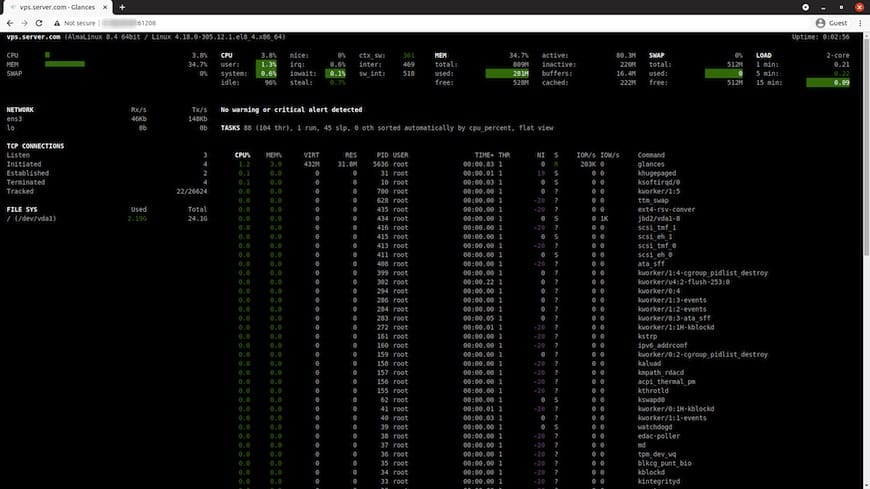
If your server runs a firewall, open the port before you try to connect:
sudo ufw allow 61208/tcpWithout this step, the browser will time out with no error message, which is a common stumbling point for first-time Glances users.
Add password protection (do not skip this):
The Glances web dashboard exposes full process lists, file paths, network interfaces, and hardware details. Never leave it open on a public IP without authentication.
glances -w --passwordGlances will prompt you to set a username and password on the first run and store the credentials in ~/.config/glances/.
For production servers, place Glances behind an NGINX reverse proxy with HTTPS. The built-in Bottle-based web server is single-threaded and not hardened for direct public internet exposure.
Step 6: Configure Glances Client-Server Mode
Client-server mode lets you monitor a fleet of remote servers from a single terminal. Run a Glances server process on each node you want to monitor, then connect to all of them from your admin machine.
On each monitored server (the remote node):
glances -sThis starts the Glances XML-RPC server on TCP port 61209. Open the port if you use a firewall:
sudo ufw allow 61209/tcpSet a password on every server node to prevent unauthorized metric access:
glances -s --passwordFrom your admin terminal, connect to a remote node:
glances -c REMOTE_SERVER_IPReplace REMOTE_SERVER_IP with the actual IP address of the server you want to monitor. Glances will display that server’s stats in your local terminal exactly as if you were logged into it directly.
Step 7: Set Up Glances as a Systemd Service
Running glances -w in a terminal means the process dies the moment you close your SSH session. A systemd service keeps Glances running in the background, starts it automatically on boot, and restarts it if it crashes.
Create the service file:
sudo nano /etc/systemd/system/glances.servicePaste in this configuration:
[Unit]
Description=Glances System Monitor
After=network.target

[Service]
ExecStart=/usr/bin/glances -w --quiet
Restart=on-failure
RestartSec=30s

[Install]
WantedBy=multi-user.target
Why each directive is set this way:
After=network.target: Glances must not start until the network stack is ready. Starting early in web mode causes it to fail binding to the network interfaceRestart=on-failure: Automatically restarts Glances if it exits with a non-zero status code due to a Python exceptionRestartSec=30s: Adds a 30-second delay between restart attempts to prevent a crash loop from consuming all available CPU cycles
If you installed Glances via pipx or a virtual environment, update the ExecStart path to point to the correct binary. Find it with:
which glancesThen substitute that path in the ExecStart line. Save the file, then enable and start the service:
sudo systemctl daemon-reload
sudo systemctl enable glances
sudo systemctl start glances
sudo systemctl status glances
Expected output from status:
glances.service - Glances System Monitor
   Loaded: loaded (/etc/systemd/system/glances.service; enabled)
   Active: active (running) since Mon 2026-04-27 ...
Understanding Glances Color Codes
Glances uses a four-color system to give you instant visual triage without requiring you to read a single number carefully.
| Color | Status | Default Threshold |
|---|---|---|
| Green | OK | Below 50% |
| Blue | Careful | 50% to 69% |
| Violet | Warning | 70% to 89% |
| Red | Critical | 90% and above |
Default thresholds are too aggressive for memory-intensive workloads like Java applications or MySQL. Customize them in the Glances configuration file:
sudo nano /etc/glances/glances.confFind the [cpu], [mem], or [disk] sections and adjust the careful, warning, and critical values to match your application’s actual behavior profile.
Troubleshooting Common Glances Installation Issues
Error 1: error: externally-managed-environment
Why it happens: Debian 13 enforces PEP 668, which blocks pip from writing to the system Python path.
Fix: Use pipx (recommended) or append --break-system-packages to your pip command. Never use sudo pip without this flag.
pip3 install glances --break-system-packagesError 2: ModuleNotFoundError: No module named 'psutil'
Why it happens: Glances was installed in a different Python environment than the one currently active, so it cannot find its dependencies.
Fix: Check where both Python and Glances are resolved:
which python3
which glances
If they point to different paths, activate the correct virtual environment or reinstall Glances in the same Python environment you are running.
Error 3: Browser Shows “Connection Refused” on Port 61208
Why it happens: Either UFW is blocking port 61208, or Glances was not started with the -w web server flag.
Fix:
sudo ufw allow 61208/tcp
glances -w
Confirm the service is running:
sudo systemctl status glancesError 4: Sensor Data Shows “N/A”
Why it happens: The lm-sensors package is missing or the kernel has not detected your hardware sensors yet.
Fix:
sudo apt install lm-sensors -y
sudo sensors-detect
Run sensors-detect and accept the defaults. Then restart Glances.
Error 5: glances: command not found After pipx Install
Why it happens: pipx installs binaries to ~/.local/bin, which may not be in your PATH yet.
Fix:
pipx ensurepath
source ~/.bashrc
Congratulations! You have successfully installed Glances. Thanks for using this tutorial for installing the latest version of Glances System Monitoring on Debian 13 “Trixie” system. For additional help or useful information, we recommend you check the official Glances website.
[su_box title=”VPS Manage Service Offer” style=”bubbles” box_color=”#000000″ radius=”10″]If you don’t have time to do all of this stuff, or if this is not your area of expertise, we offer a service to do “VPS Manage Service Offer”, starting from $10 (Paypal payment). Please contact us to get the best deal![/su_box]
