
Install Jellyfin on Ubuntu 26.04 is a practical choice if you want a private media server that you control from end to end. Jellyfin gives you a clean way to stream movies, TV shows, music, and photos without relying on a paid platform or giving your library to a third party. This guide shows you how to set it up in a way that fits a real Linux server workflow, not a rushed copy and paste routine.
The main problem is that many guides skip the parts that matter most to a sysadmin: verifying the installer, checking service health, setting permissions correctly, and confirming that the web app can actually reach your media folders. That creates avoidable failure points later, especially on a newer release like Ubuntu 26.04 where package support can lag behind the OS release cycle. Jellyfin’s official Linux docs provide the supported install flow, but community reports show that Ubuntu 26.04 may trigger support checks or installer warnings on some systems, so a careful approach matters.
In this article, you will get a Jellyfin on Ubuntu 26.04 setup that explains both the commands and the reasons behind them. You will update the system, install the required tools, verify the official script, run the installer, open the right port, complete the setup wizard, and configure libraries so Jellyfin can actually read your files. If the native install path hits a version support issue, you will also know what it means and how to respond like an experienced Linux admin.
Prerequisites
- Ubuntu 26.04 LTS installed and updated.
- A user with sudo privileges.
- A stable internet connection for downloading packages and metadata.
- Enough disk space for Jellyfin, your media files, and artwork metadata.
- Basic command-line access through Terminal or SSH.
- Optional but useful: a firewall tool such as UFW, if you plan to access Jellyfin from another device.
Step 1: Update Your System
Refresh package lists
Run a full package index refresh first.
sudo apt updateThis command tells Ubuntu to fetch the latest package lists from configured repositories. It matters because Jellyfin depends on a healthy package manager state, and outdated indexes can cause install failures or mismatched dependencies.
Upgrade installed packages
Then apply any pending updates.
sudo apt upgrade -yThis updates installed packages to their latest available versions. It helps avoid conflicts during the Jellyfin install and reduces the chance of running into security issues or broken dependencies.
Expected output
You should see lines that end with something like:
Reading package lists... Done
Building dependency tree... Done
That tells you Ubuntu can reach its repositories and process package data correctly.
Step 2: Install Required Tools
Install curl and checksum support
Jellyfin’s official Linux install flow uses a script that must be downloaded and verified. Install the tools you need first.
sudo apt install -y curl coreutilscurl downloads the installer and checksum file. coreutils provides sha256sum, which you need to verify the file integrity before running anything with sudo. Jellyfin’s docs specifically call out curl and sha256sum for this process.
Why this step matters
As a sysadmin, you should never run a remote script blindly. Verifying the checksum gives you a basic trust check, so you know the script matches the official file and has not changed in transit. That is a small step with a big security payoff.
Step 3: Download and Verify Jellyfin
Fetch the installer and checksum
Download the official Debian and Ubuntu install script.
curl -s https://repo.jellyfin.org/install-debuntu.sh -O
curl -s https://repo.jellyfin.org/install-debuntu.sh.sha256sum -O
This pulls the script and its checksum file from Jellyfin’s repository. The official docs recommend this exact flow for Debian, Ubuntu, and derivatives.
Verify the file integrity
Now check the checksum.
sha256sum -c install-debuntu.sh.sha256sumIf everything matches, you should see:
install-debuntu.sh: OKThat means the file you downloaded matches the published checksum. This is important because the installer will later run with elevated privileges, so integrity checking is part of a safe install process.
Optional inspection
You can also review the script before running it.
less install-debuntu.shThis step lets you see what the installer does before it touches your system. It is a good habit when you want a more transparent, maintainable install path.
Step 4: Run the Installer
Execute the official script
Once the file is verified, run it with sudo.
sudo bash install-debuntu.shThe installer configures the repository and installs Jellyfin in one pass. This saves time and reduces the chance of human error compared with building the repository config by hand. Jellyfin’s official docs present this as the recommended way to install on Debian and Ubuntu systems.
Why this step matters
A media server should be easy to maintain after the first install. Using the scripted path gives you a clean baseline, and it keeps the repository setup consistent with upstream packaging.
Support note for Ubuntu 26.04
If the script stops and says the version is not supported, that is not unusual on a newer Ubuntu release. A GitHub issue shows this behavior on Ubuntu 26.04 LTS, which means the installer may not recognize the release yet. In that case, you may need to wait for official support or switch to a manual or container-based install path.
Step 5: Check the Service
Confirm Jellyfin started
Check whether the service is running.
systemctl status jellyfinThis command shows whether Jellyfin started correctly and whether systemd is managing it as expected. A healthy service should show active (running).
Enable auto-start on boot
Make sure Jellyfin starts after reboots.
sudo systemctl enable jellyfinThis tells systemd to launch Jellyfin automatically at boot. That matters because a media server should survive restarts without manual intervention.
Start it manually if needed
If the service is not running, start it.
sudo systemctl start jellyfinThen check status again. If it still fails, the issue is usually visible in the journal or in permissions, not in the web interface itself.
Step 6: Open the Firewall
Allow the web port
If UFW is active, allow Jellyfin’s default web port.
sudo ufw allow 8096/tcpJellyfin uses port 8096 for the web interface by default. You need this rule if you plan to reach the server from another machine on your network. Jellyfin’s documentation and common install guides use this port as the standard HTTP entry point.
Check firewall status
You can verify the rule with:
sudo ufw statusThis confirms that the port is open and the firewall is not blocking the connection.
Why this step matters
If the service is running but the port is blocked, the browser will time out and it can look like the app is broken. In reality, the network path is the problem.
Step 7: Open the Web Setup
Access Jellyfin in the browser
On the server itself, open:
http://localhost:8096From another device on the same network, use the server IP address:
http://SERVER_IP:8096This launches the setup wizard. Jellyfin’s quick start flow is built around the initial web setup, where you create the admin account and define how the server should organize your media.
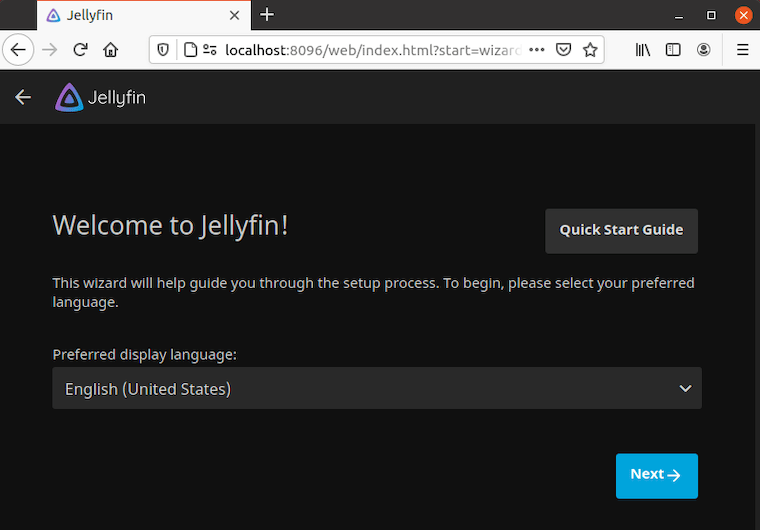
Complete the wizard
Follow the prompts to create your admin user, choose language, and confirm basic settings. Do not rush this part, because the initial account becomes the main control point for the server.
Why this step matters
The web wizard is where the server becomes usable. Without it, Jellyfin is installed but not configured, which means your media library is still invisible to clients.
Step 8: Add Media Libraries
Create your first library
In the dashboard, add a library for movies, TV shows, music, or photos. Pick the correct type for each folder, because Jellyfin uses that choice to fetch metadata and present the content properly.
Point Jellyfin to the folder
Choose the directory where your media files live.
/mnt/media/movies
/mnt/media/tv
/mnt/media/music
The exact path depends on your setup. The important part is that Jellyfin can reach the folder and read the files inside it.
Why this step matters
Library type affects scraping, sorting, and presentation. If you tag a TV folder as movies, Jellyfin will do a worse job with season and episode metadata.
Step 9: Fix Folder Permissions
Give Jellyfin read access
Make sure the Jellyfin service can read the media directory. A safe approach is to use group permissions or set read access on the library folder rather than opening the whole system.
sudo chown -R youruser:yourgroup /mnt/media
sudo chmod -R 755 /mnt/media
This example gives the owner full access and lets others read and traverse the folders. It is a common starting point for a home server, but you should adapt it to your own security model.
Why this step matters
If Jellyfin cannot read the files, scans fail and libraries may appear empty. That is one of the most common causes of “installed but not working” reports in real deployments.
Test access
You can also confirm the path exists and is readable.
ls -ld /mnt/mediaThat helps you catch path mistakes before you start debugging the web interface.
Step 10: Configure Jellyfin for Better Use
Scan libraries
After the folders are added, run the library scan from the dashboard. This forces Jellyfin to index your files and fetch metadata faster.
Set playback options
Review transcoding and playback defaults if your hardware is limited. Hardware selection matters because a weak CPU can struggle with multiple streams, especially when transcoding is required. Jellyfin’s hardware guidance exists for a reason: the server should match the workload you expect.
Why this step matters
A media server is only useful when it can stream smoothly. Good configuration reduces buffering, improves file matching, and keeps the server usable as your library grows.
Troubleshooting
1. Installer says the version is not supported
This can happen on Ubuntu 26.04 because upstream support may not yet cover the release in the installer logic. The fix is usually to wait for support, use a manual repository method, or deploy Jellyfin through Docker as a fallback.
2. Jellyfin service is not running
Check the journal for errors.
journalctl -u jellyfin -xeThis usually points to a missing file, bad permission, or package problem. If the service cannot start, the logs are the fastest path to the real cause.
3. Browser cannot connect to port 8096
This usually means the firewall is blocking the port or the service is not listening. Confirm the service status first, then verify UFW or your network rules.
4. Library scans find no media
Check the folder path and permissions. Jellyfin can only index files that the service account can read, so path mistakes and ownership problems are common.
5. The web wizard loads but media playback fails
This usually points to codec, permission, or transcode issues rather than a bad install. Start by checking server logs and then review your media folder access and hardware capability.
[su_box title=”VPS Manage Service Offer” style=”bubbles” box_color=”#000000″ radius=”10″]If you don’t have time to do all of this stuff, or if this is not your area of expertise, we offer a service to do “VPS Manage Service Offer”, starting from $10 (Paypal payment). Please contact us to get the best deal![/su_box]

